
How to embed your Instagram feed on any website (HTML)
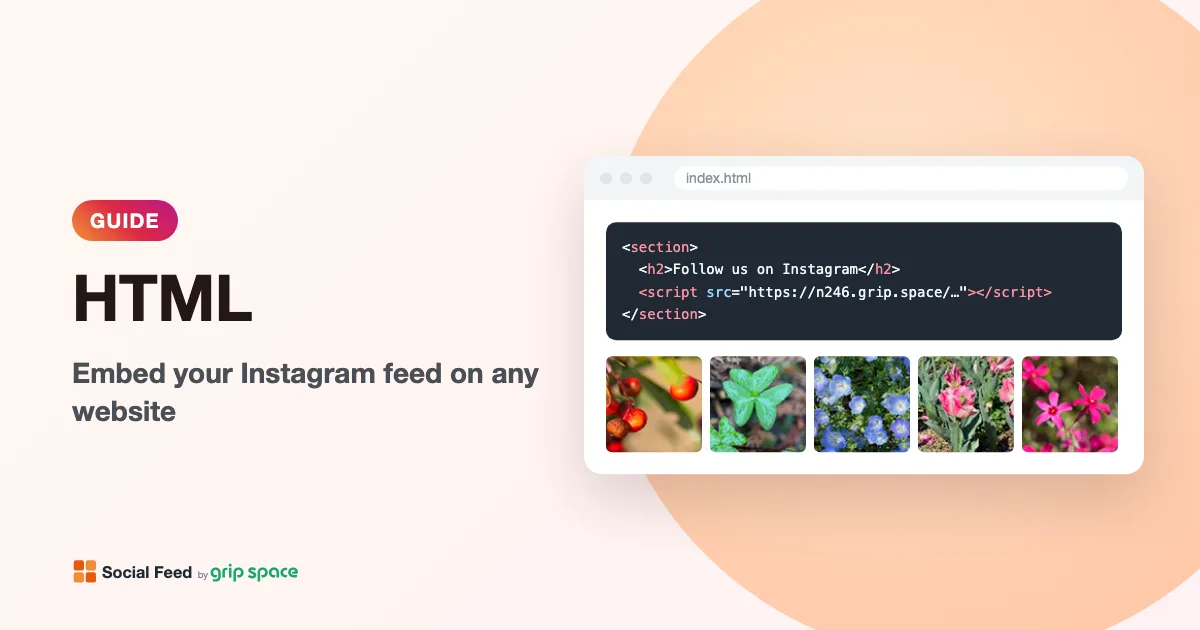
If you can edit the HTML of your page, paste one embed code where you want the feed. Your Instagram posts appear there and stay up to date.
Updated October 12, 2026
Before you start: get your embed code
- Sign up for Social Feed by grip space with your email address. The Free plan lets you create one widget.
- In the dashboard, click “+ Connect Instagram account” and connect an Instagram professional account (Business or Creator). A personal account can be switched to a professional account for free in the Instagram app.
- Open “Settings & preview”, choose a grid or a slider, set the number of posts and columns while checking the preview, and save.
- Under “Add the embed code to your website”, click “Copy”. The code looks like this:
<script type="text/javascript" src="https://n246.grip.space/api/v1/instagram/widget/xxxxxxxx"></script>The posts appear exactly where you paste this code. Keep it handy for the next steps.
Paste the code into your page
- Open the HTML file (or template) of the page where you want the feed.
- Paste the embed code inside the
<body>, at the place where you want the feed to appear. Do not put it in the<head>. - Save the file and upload it to your server (or deploy your site).
- Open the page in your browser to check the feed.
The feed takes the full width of the element that contains the code. To make it narrower, put the code inside a container, or set the maximum width of the widget in “Settings & preview”.
<section class="instagram">
  <h2>Follow us on Instagram</h2>
  <script type="text/javascript" src="https://n246.grip.space/api/v1/instagram/widget/xxxxxxxx"></script>
</section>
Show the feed on every page
If your site uses a shared footer or layout file (for example a template, an include or a layout component), paste the code there once, and the feed appears on every page that uses it.
Site builders and other tools
Most site builders have an element for custom HTML or code. Paste the embed code into that element. See the guides for WordPress, Shopify, Wix, Squarespace and Webflow.
If your posts do not appear
- Check that the widget is set to Published in the dashboard. An unpublished widget shows nothing.
- Make sure the whole code was pasted, from
<scriptto</script>. - Look at the published page, not the editor. Many editors do not run scripts while you are editing.
- If your site uses a Content Security Policy, allow scripts and images from
https://n246.grip.space, and images and videos from Instagram’s servers. The browser console shows what was blocked.
Get your embed code in a few minutes. The Free plan needs no credit card.
Sign up freeOther guides
 WWordPress
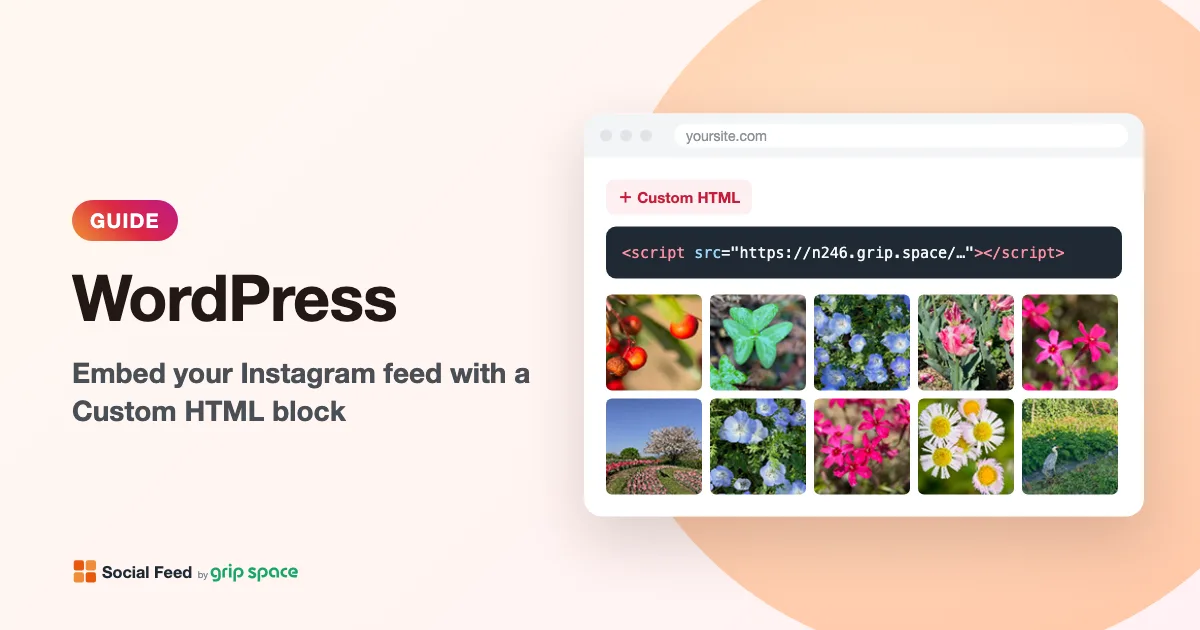
How to embed your Instagram feed in WordPress
Show your Instagram posts on a WordPress site: paste one embed code into a Custom HTML block in a page, a post, a widget area or a block theme template. No plugin needed.
Read the guide → SShopify
How to embed your Instagram feed in Shopify
Show your Instagram posts in your Shopify store: add a Custom Liquid section in the theme editor and paste one embed code. No app needed.
Read the guide →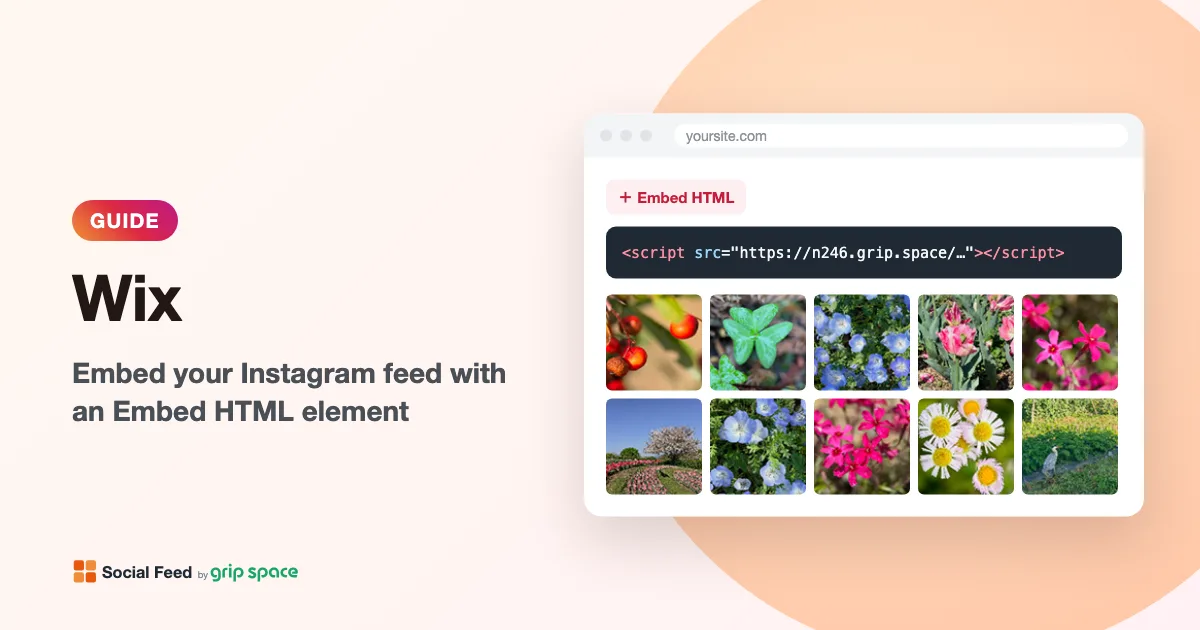 WWix
WWixHow to embed your Instagram feed in Wix
Show your Instagram posts on a Wix site: add an Embed HTML element in the Wix Editor and paste one embed code. No app needed.
Read the guide →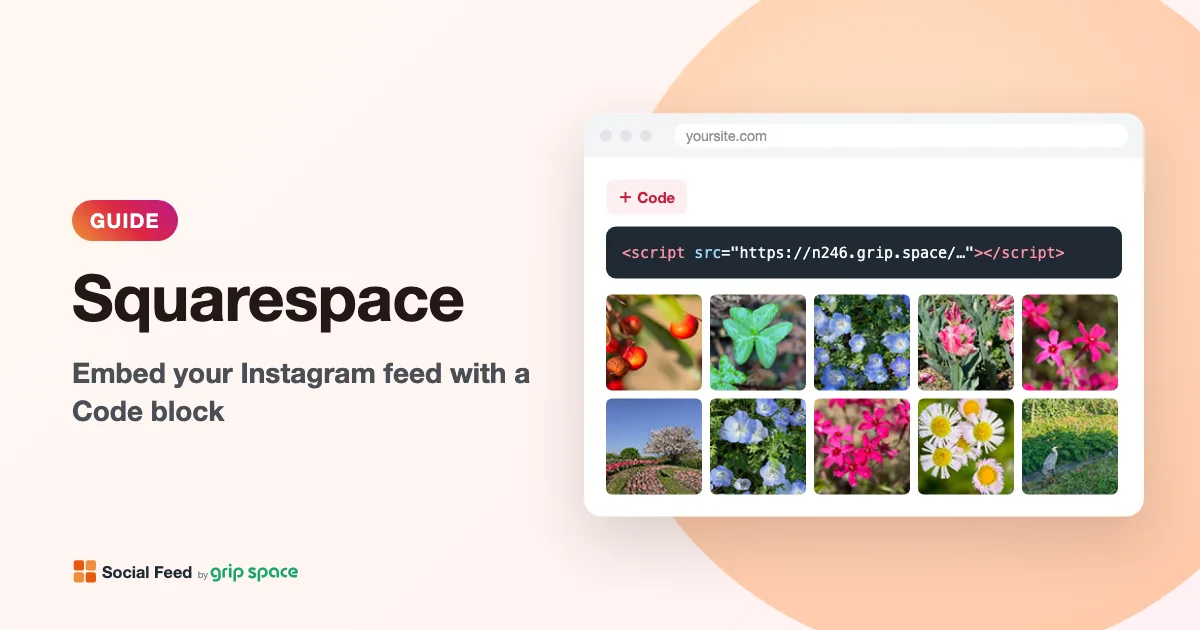 SSquarespace
How to embed your Instagram feed in Squarespace
Show your Instagram posts on a Squarespace site: add a Code block and paste one embed code. Needs a plan that allows JavaScript in Code blocks (Core or higher).
Read the guide →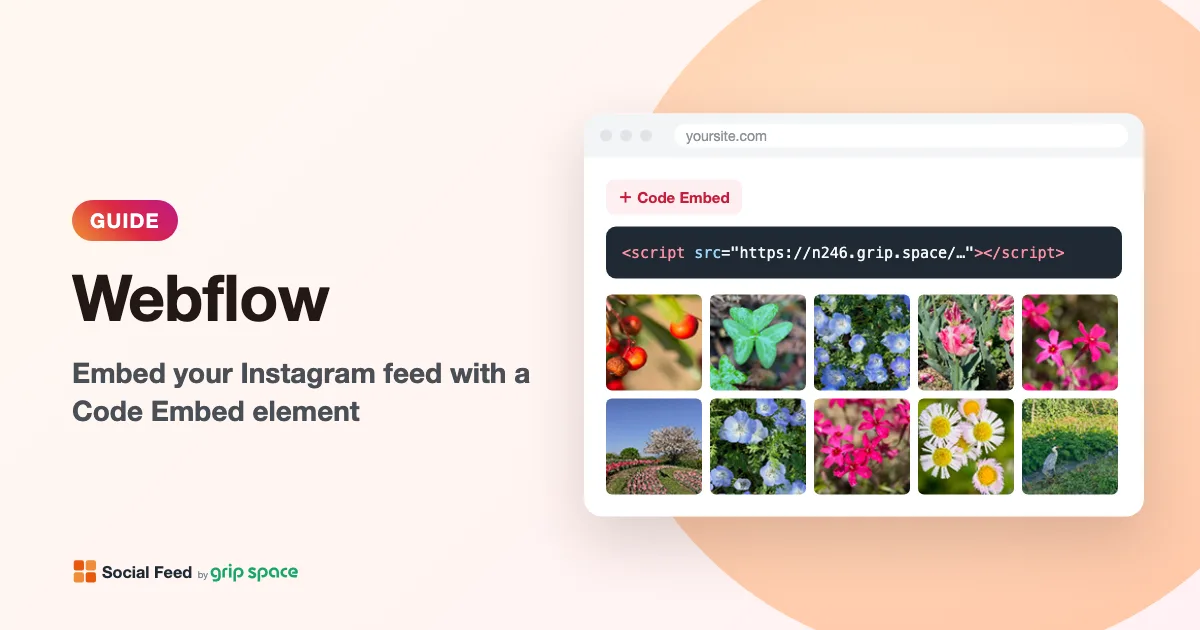 WWebflow
How to embed your Instagram feed in Webflow
Show your Instagram posts on a Webflow site: add a Code Embed element in the Designer and paste one embed code. Needs a paid Site plan or Workspace plan.
Read the guide →