
Why your Instagram feed isn’t updating on your website
You posted on Instagram, but the feed on your website still shows the old posts. Usually nothing is broken: either the feed has not refreshed yet, or one of your settings is hiding the new post. This guide explains exactly when Social Feed by grip space picks up new posts, and walks through every other reason a new post can be missing.
Updated October 12, 2026
The short answer
How quickly a new post appears on your website depends on your plan:
| Plan | When new posts appear on your website | When display settings appear |
|---|---|---|
| Free | Within 24 hours. The widget keeps a copy of your posts for up to 24 hours, then reads them from Instagram again. | On the next page load |
| Light | On the next page load. Posts are read from Instagram every time the feed is shown. | On the next page load |
| Standard | On the next page load. Posts are read from Instagram every time the feed is shown. | On the next page load |
So if you are on the Free plan and posted less than a day ago, the most likely answer is simply “not yet”. If you are on a paid plan, or a full day has passed, work through the causes below. If the feed is not showing at all, rather than showing old posts, read the companion article instead:
Instagram feed not showing on your website? Causes and fixes.
How updates work on the Free plan
On the Free plan, the widget saves a copy of your posts the first time it reads them, and shows that copy for up to 24 hours. After 24 hours, the next time someone opens a page with the feed, the widget reads your latest posts from Instagram and starts a new 24-hour copy.
A few details follow from this, and they explain most “why isn’t it there yet?” questions:
- The 24 hours are not tied to a time of day. They start when the current copy was made, which depends on when your page was last visited after the previous copy ran out. There is no fixed daily refresh time.
- Right after you install the feed, it is up to date. The first time the widget runs there is no copy yet, so it reads your latest posts immediately.
- Everything from Instagram follows the same timing. New posts, deleted posts, edited captions, like counts, your profile picture and the post count in the header all refresh together, once a day.
- Display settings do not wait. Layout, columns, spacing, width, font size, click and hover actions, the lightbox content and the Follow button are applied on every page load, so changes you save appear on your site the next time the page is opened.
- Changing which posts are selected starts a fresh copy. The copy is kept separately for each combination of number of posts, the video setting and the filters. When you save a change to any of these, the widget reads your posts from Instagram again for the new combination.
A simple example: the copy on your site was made at 9:00 on Monday. You post at 10:00 on Monday. Your site keeps showing the 9:00 copy until the first visit after 9:00 on Tuesday, and from that visit on, the new post is there.
The dashboard preview does not use this copy. It always reads your latest posts, so a new post can be in the preview while your website still shows the older copy. That is expected on the Free plan.
What changes when: a reference table
Here is when each kind of change reaches your website, on each plan:
| Change | Free plan | Light and Standard |
|---|---|---|
| You publish a new post or Reel | Within 24 hours | Next page load |
| You delete a post | Within 24 hours | Next page load |
| You edit a caption | Within 24 hours | Next page load |
| Likes on your posts change | Within 24 hours | Next page load |
| You change your profile picture | Within 24 hours | Next page load |
| You save layout, columns, spacing, width, font size, click, hover, lightbox or Follow button settings | Next page load | Next page load |
| You save a new number of posts, the video setting or a filter | Next page load, with your posts read fresh from Instagram | Next page load |
| You turn the Published switch on or off | Next page load | Next page load |
| You create a new widget and add its code | Shows your latest posts from the start | Shows your latest posts from the start |
Planning around the daily refresh
If you stay on the Free plan, a few habits make the 24-hour delay a non-issue:
- Do not rely on the feed for urgent news. A same-day announcement such as a closure, a sold-out notice or a last-minute event change belongs in the text of your page, where you control it directly. The feed is better at showing what you have been up to than what is happening this hour.
- Post time-sensitive content a day early. If a promotion starts on Friday and you want it on your site that day, post about it on Thursday.
- Use the date range filter to let old content go. With “Last 90 days”, for example, last season’s posts drop off on their own, without you editing anything.
- Use caption keywords for campaigns. Add the same word or hashtag to every post of a campaign, and a widget set to “Only matching posts” collects them automatically.
If the feed is an important part of a busy page, such as a shop’s homepage during a launch, the paid plans remove the delay entirely.
How updates work on paid plans
On the Light and Standard plans, there is no saved copy. Every time a visitor opens a page with your feed, the widget asks Instagram for your most recent posts and draws the feed from that answer. A post you just published appears on the next page load, as soon as Instagram makes it available through its API.
If you are on a paid plan and a new post is still missing after you reload the page, the delay is not the cause. One of the reasons below is.
Your filters may be hiding the new post
This is the most common reason on paid plans. The filters in “Settings & preview” apply to every new post, and a post must pass all of them to appear. A filter you set months ago for a good reason can quietly hide today’s post. Check each one:
| Setting | New posts it hides |
|---|---|
| Include video posts: off | All videos, including Reels. |
| Reels: Exclude Reels | New Reels. Photos, carousels and other videos still appear. |
| Reels: Reels only | Everything that is not a Reel: photos, carousels and other videos. |
| Include carousel posts: off | New posts with more than one image or video. |
| Caption keywords: Only matching posts | New posts whose caption does not contain any of your keywords. |
| Caption keywords: Exclude matching posts | New posts whose caption contains one of your keywords. |
| Date range (Last 30 days, Last 90 days, Last year) | None. This filter only removes older posts, so it never holds back a new one. |
Keyword filters deserve a closer look, because they depend on what you write in each caption. Matching ignores upper and lower case, and a post matches if its caption contains any one of the words you listed. If you filter for “#newarrivals” and forget the hashtag in today’s caption, the post will not appear. Editing the caption on Instagram to add the keyword fixes it; on the Free plan, the edit reaches your site at the next daily refresh.
Keywords match anywhere in the caption, including inside longer words. A short keyword like “art” also matches “start” and “party”. That rarely hides a post when you use “Only matching posts”, but with “Exclude matching posts” a short keyword can hide more than you expect. Use specific words or your own hashtags.
How to check: open the widget in the dashboard. The preview applies the same filters as your website. If the new post is missing from the preview too, a filter is hiding it. Loosen one setting at a time until it appears, then press “Save settings”.
Reels and videos: what to expect
Reels are videos as far as the filters are concerned, so two settings affect them. “Include video posts” controls all videos, Reels included. The “Reels” setting then decides between showing everything, excluding Reels, or showing Reels only. If a new Reel is missing, check both.
Instagram labels each video as a Reel or a regular video. When it does not label one, which can happen with older posts, the widget treats that video as a regular video. As a result, “Reels only” may not include some older videos that you think of as Reels, while “Exclude Reels” keeps them.
In the feed, videos appear as their cover image with a play button and play in the lightbox, muted, with controls. If a new video shows without a play button, Instagram provided only its cover image, as described further down.
The number of posts is already full
The feed shows a fixed number of posts: the number you set, up to your plan’s maximum (16 on Free, 30 on Light, 50 on Standard). When a new post comes in, the oldest one in the feed drops off. That is how it should work, but it can look like nothing changed if the new post resembles the ones around it.
Look closely at the start of the feed, and in a slider, scroll through it. If you find the new post, the feed is up to date.
The connection to Instagram has stopped working
A broken connection usually does not freeze the feed on old posts. When Social Feed cannot read your posts, there is nothing new to show and the posts disappear, leaving the account header with an empty space under it. On the Free plan, the saved copy may keep showing for the rest of its 24 hours first, so for a short time a broken connection can look like a feed that has stopped updating.
Social Feed renews Instagram’s access permission automatically before it expires; Meta’s documentation describes these permissions as valid for 60 days from each renewal. A connection can still stop working if you change your Instagram password or remove Social Feed from the apps and websites connected to your Instagram account. Instagram explains that a removed service no longer has access to new data on the account.
How to check: open the widget in the dashboard. If the preview shows “Your Instagram connection has expired”, follow the message: click “Reconnect Instagram account” below it and sign in with the same Instagram account. There is no need to disconnect; your widgets and embed codes keep working, so nothing on your website has to change.
Your website shows a different widget
Each embed code belongs to one widget, with its own settings. If you have several widgets, it is easy to change the settings of one while your page shows another. The same thing happens when an old embed code is still on the page after you created a new widget.
How to check: view the source of your page and find the embed code. The end of the address in its src is the widget’s ID. Compare it with the code shown under “Add the embed code to your website” for the widget you are editing. If they differ, either edit the other widget or replace the code on your page.
Is it a browser or page cache?
People often suspect the browser cache first. For the feed itself, that is not the cause. Social Feed sends the embed script with a header that tells browsers and caches not to store it, so every page load gets a freshly built feed. The images come directly from Instagram.
Your page is different. Caching plugins, CDNs and hosting caches may serve a saved copy of your page. This does not affect which posts the feed shows, because the feed is built when the script runs in the visitor’s browser. It only matters when you changed the embed code itself, for example after replacing it with a new widget’s code. Then visitors may get the old page, with the old code, until the cache is cleared.
How to check: open the page in a private window. If the feed is current there but not in your normal window, reload the page in your normal window. If you changed the embed code and the old one is still in the page source, clear your site’s cache.
Instagram did not provide the post
Social Feed shows what Instagram’s API returns for your account. A few things are outside its control:
- Stories are not posts. Stories are not part of the feed, so they never appear on your website.
- Videos without a video file. Sometimes Instagram provides a cover image for a video but not the video itself. The post then appears as its cover image, without a play button.
- Posts without an image. If Instagram provides no image at all for a post, the widget skips it rather than showing an empty tile.
- A different account. The feed shows the account you connected. If you posted from another account, it will not appear. The dashboard shows the connected account’s name at the top of “Settings & preview”.
- A personal account. Instagram’s API works with professional accounts only. If the account was switched back to personal, Social Feed can no longer read it. See Instagram professional accounts.
Using another tool that stopped updating?
If your feed was made with a different tool and stopped updating at some point and never recovered, it may rely on an API that Instagram has retired. Our article on the Instagram Basic Display API shutdown explains what changed, and the widget comparison covers the current options.
Step-by-step checklist
Work through this list in order. Most people find the answer in the first four steps.
- Check your plan. On the Free plan, allow up to 24 hours after posting.
- Open the widget in the dashboard. Is the new post in the preview?
- If it is not in the preview, look for the expired-connection message. If there is none, check the filters in the table above.
- If it is in the preview but not on your site, and you are on a paid plan, make sure your page shows this widget’s embed code.
- Look closely at the start of the feed on your site, in a private window.
- If you recently replaced the embed code, clear your site’s page cache.
- Confirm the post was published from the connected account and is a regular post or Reel, not a Story.
Frequently asked questions
Is there a “refresh now” button? No. On paid plans it is not needed, because the feed is read from Instagram on every page load. On the Free plan, posts refresh once a day.
What time does the Free plan refresh? There is no fixed time. The copy lasts 24 hours from when it was made, and a new one is made the next time a page with the feed is opened after that.
I upgraded. How fast do new posts appear? Once your account is on the Light or Standard plan, the widget reads your posts from Instagram on every page load, so the next page load shows your latest posts.
I deleted a post on Instagram, but it is still on my site. On the Free plan, it disappears at the next daily refresh. On paid plans, it disappears on the next page load. If you need a feed off your site immediately, turn the widget’s Published switch off in the dashboard; that applies right away on every plan.
Do views still count while the Free plan shows its saved copy? Yes. A view is counted each time the feed is drawn on a page, whether the posts come from the saved copy or straight from Instagram.
The post count in the header is lower than on my profile. The header shows the post count Instagram reports for your account. On the Free plan it refreshes with the posts, once a day, so it can be behind for up to 24 hours after you post.
Do like counts update? Yes, with the same timing as posts: on every page load on paid plans, once a day on the Free plan.
Will a new widget show my latest posts? Yes. A new widget has no saved copy yet, so it reads your posts from Instagram the first time it is shown, on every plan.
Does the feed update if nobody visits my site? The feed is built when someone opens the page, so there is nothing to update in between. The first visitor after a change sees the current posts, subject to the Free plan’s 24-hour copy.
My settings change is not showing. Make sure you pressed “Save settings” in the dashboard. Moving controls only changes the preview until you save. Saved settings appear on the next page load on every plan.
Still stuck? Email us at info@grip-space.co.jp with the address of your page and the post that is missing.
Related reading
If the feed does not appear at all, see Instagram feed not showing on your website? Causes and fixes. To choose a layout and the number of posts, read grid or slider. New here? Learn what Social Feed by grip space is or sign up for free.
Sources
- Meta for Developers, “Refresh Access Token”: https://developers.facebook.com/docs/instagram-platform/reference/refresh_access_token/
- Meta for Developers, “Instagram API with Instagram Login”: https://developers.facebook.com/docs/instagram-platform/instagram-api-with-instagram-login/
- Instagram, “Increasing Personal User Data Control”: https://about.instagram.com/blog/announcements/increasing-personal-user-data-control
- MDN Web Docs, “Cache-Control”: https://developer.mozilla.org/en-US/docs/Web/HTTP/Reference/Headers/Cache-Control
Get your embed code in a few minutes. The Free plan needs no credit card.
Sign up freeMore articles
Instagram feed not showing on your website? Causes and fixes
Your Instagram feed shows in the preview but not on your site, or not at all? Work through these causes, from an unpublished widget to stripped scripts.
Read the article →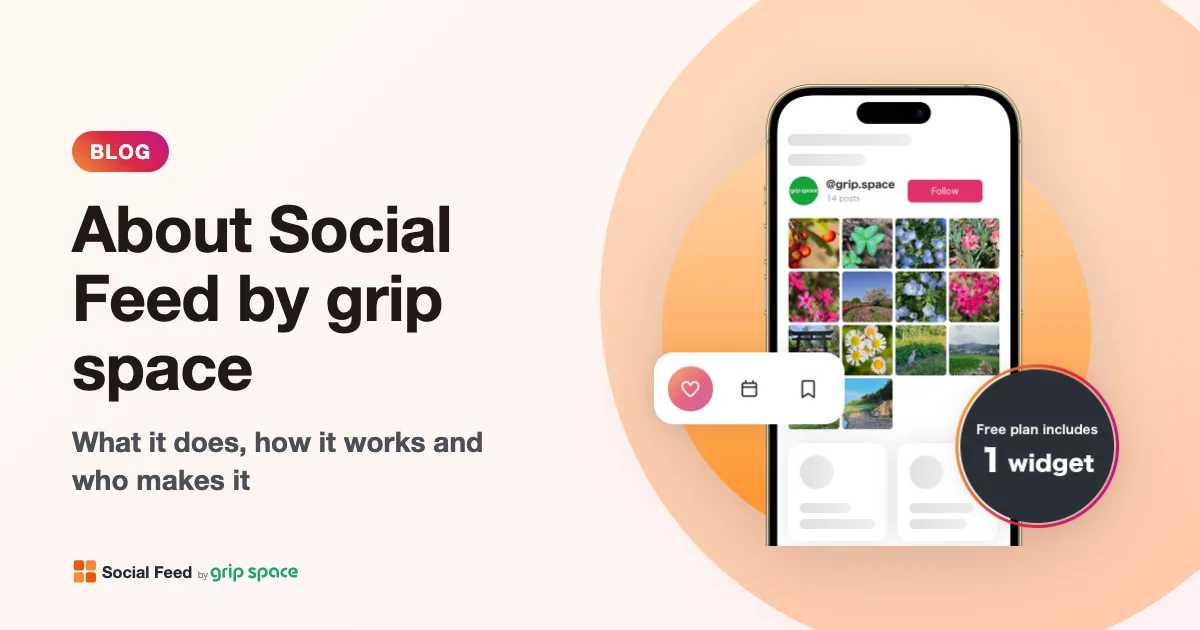
About Social Feed by grip space: what it does, how it works and who makes it
Social Feed by grip space shows your Instagram posts on your website with one embed code. What it does, how it connects to Instagram, its plans, and the company behind it.
Read the article →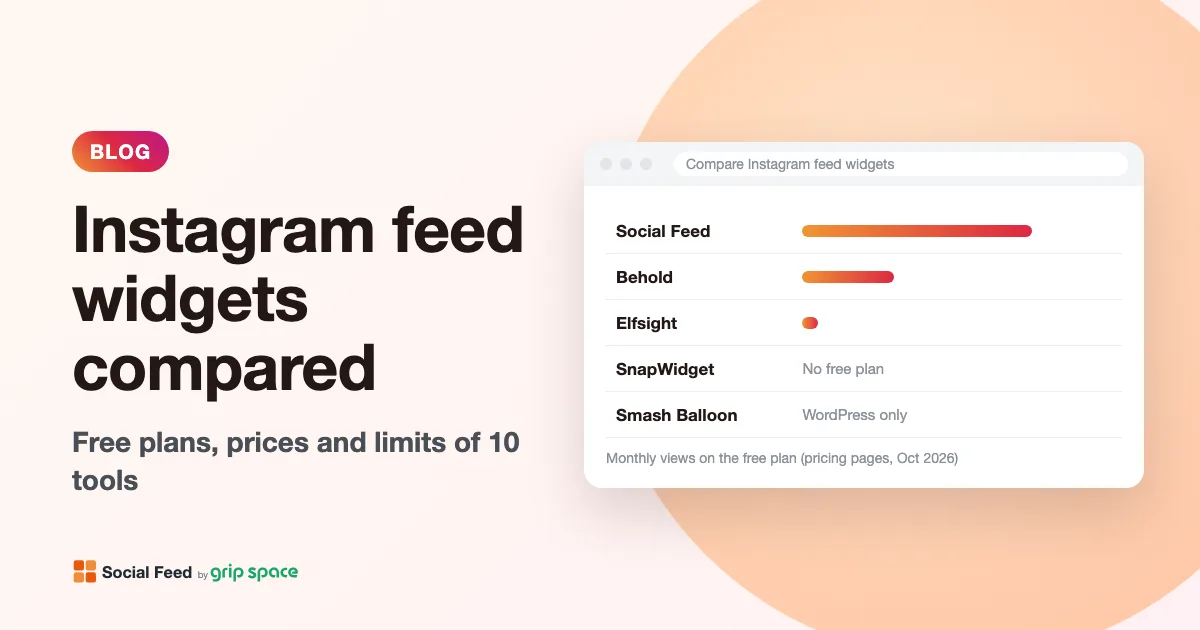
Instagram feed widgets compared: 10 tools, their free plans, prices and limits
Free plans, prices, view limits and update speed of 10 ways to embed your Instagram feed on a website, from simple widgets to WordPress plugins and social walls, checked on each pricing page in October 2026.
Read the article →
The Instagram Basic Display API is gone: how to keep your Instagram feed on your website
Meta shut down the Instagram Basic Display API on December 4, 2024, and many website feeds stopped working. What changed, how to tell if your feed is affected, and how to fix it.
Read the article →
Why you need an Instagram professional account to show your feed on your website (and how to switch)
Since December 2024, website feeds can only show posts from Instagram professional accounts. What a professional account is, Business vs Creator, how to switch in the app, and what changes when you do.
Read the article →
Grid or slider? Choosing a layout for the Instagram feed on your website
When to use a grid and when to use a slider for your Instagram feed, how many posts and columns to show, and how the layout behaves on phones.
Read the article →