
Why you need an Instagram professional account to show your feed on your website (and how to switch)
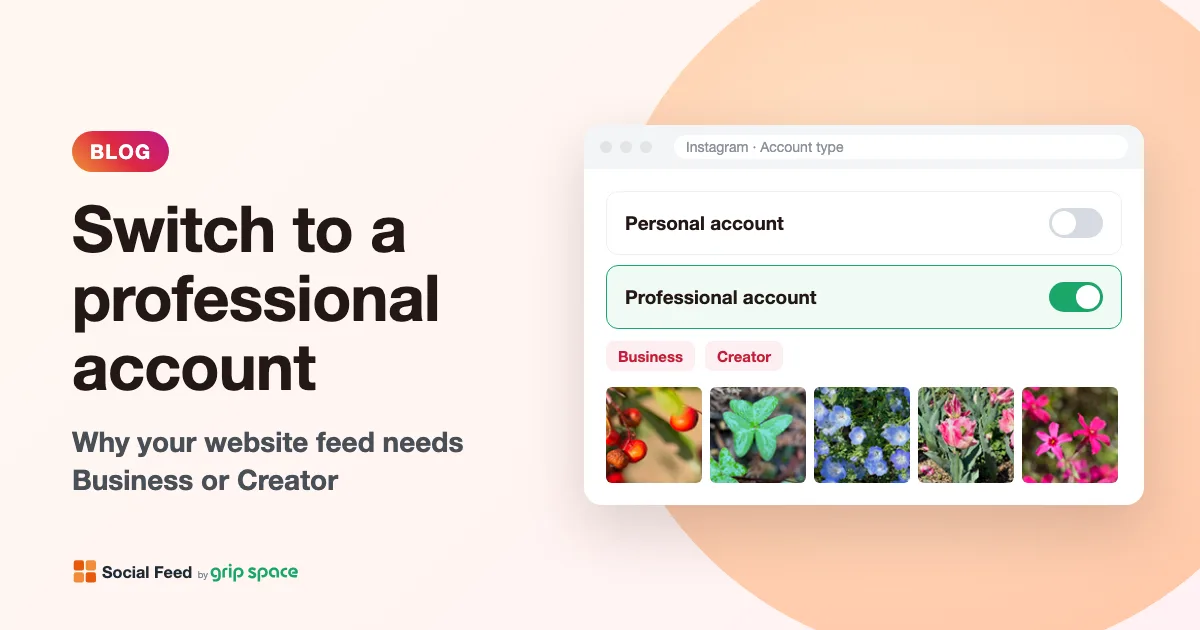
To show your Instagram posts on your website, your account needs to be a professional account (Business or Creator). Switching is free, and your posts and followers stay as they are.
Updated October 12, 2026
Why a personal account no longer works
Website feeds read your posts through Meta’s Instagram API. The older API that worked with personal accounts, the Basic Display API, was shut down on December 4, 2024 (what changed). The Instagram API that replaced it works only with professional accounts, so a personal account cannot be connected to a website feed any more.
Business or Creator: which one?
Instagram has two kinds of professional accounts. Both work with Social Feed by grip space, so choose the one that fits you best:
- Business: for stores, brands, restaurants, companies and organizations.
- Creator: for artists, influencers, public figures and other individuals who create content.
You can switch between Business and Creator later in the Instagram app.
How to switch to a professional account
In the Instagram app (the steps follow the Instagram Help Center):
- Go to your profile and tap the menu in the upper right corner.
- Tap Account type and tools, then Switch to professional account.
- Choose a category that describes you or your business.
- Choose Business or Creator.
- Add contact details if you like (you can skip this), and finish.
Things to know before you switch
- Your posts, followers and username stay the same.
- A professional account is always public. If your account is private now, it becomes public when you switch.
- You get Instagram Insights (statistics about your posts and followers) and can add contact buttons to your profile.
Do I need a Facebook Page?
Not for Social Feed by grip space. Instagram may offer to link a Facebook Page while you switch, but it is optional. Social Feed connects with Instagram sign-in only.
Can I switch back to a personal account?
Yes, but your website feed stops updating, because a personal account cannot be connected. Instagram also removes your account insights when you switch back, so think twice before doing it.
Next: connect your account
Once your account is a professional account, sign up for Social Feed by grip space, click “+ Connect Instagram account” in the dashboard and sign in with Instagram. Then copy the embed code and paste it on your site (guides for WordPress and Shopify).
Get your embed code in a few minutes. The Free plan needs no credit card.
Sign up freeMore articles
About Social Feed by grip space: what it does, how it works and who makes it
Social Feed by grip space shows your Instagram posts on your website with one embed code. What it does, how it connects to Instagram, its plans, and the company behind it.
Read the article →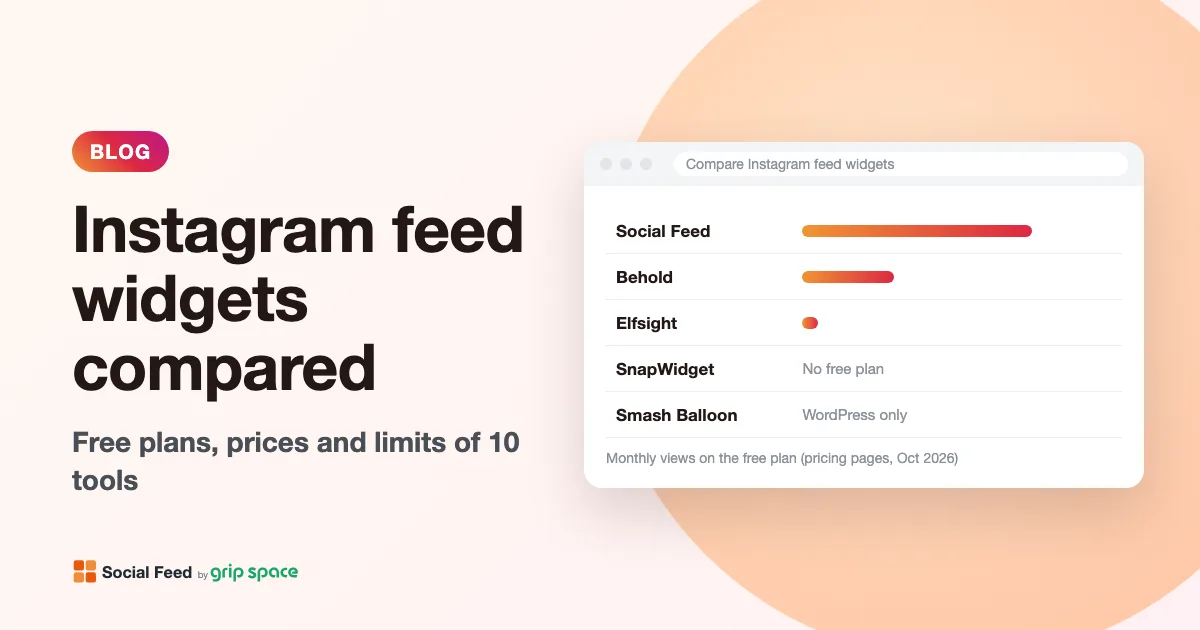
Instagram feed widgets compared: Social Feed, Behold, Elfsight, SnapWidget and Smash Balloon
Free plans, prices, view limits and update speed of five ways to embed your Instagram feed on a website, checked on each pricing page in October 2026.
Read the article →
The Instagram Basic Display API is gone: how to keep your Instagram feed on your website
Meta shut down the Instagram Basic Display API on December 4, 2024, and many website feeds stopped working. What changed, how to tell if your feed is affected, and how to fix it.
Read the article →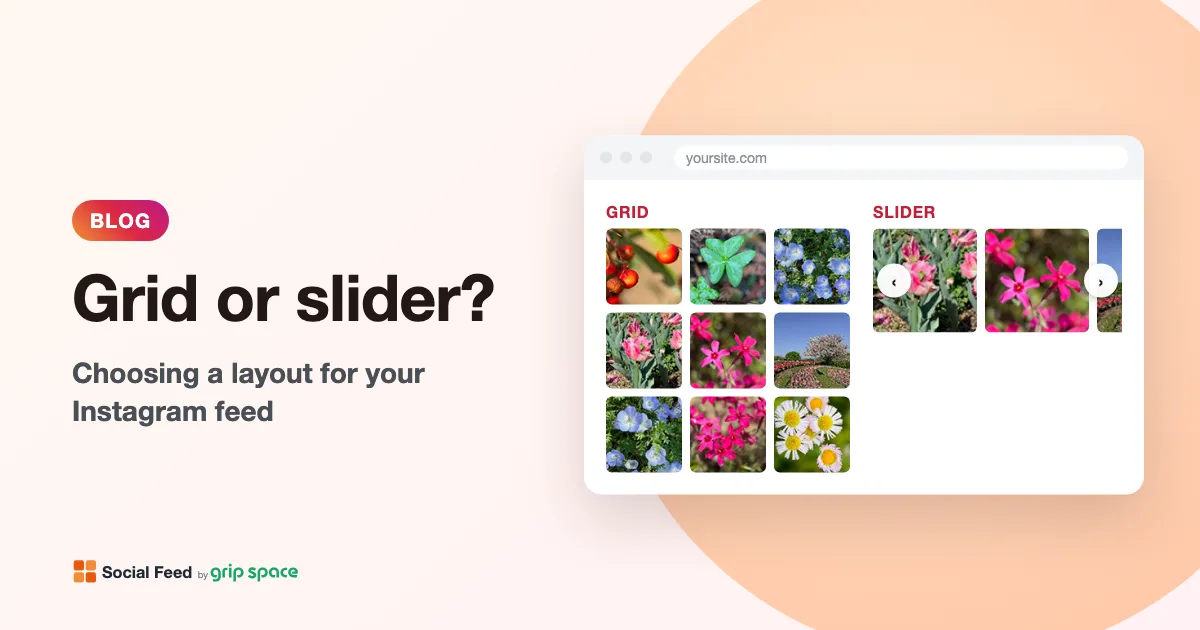
Grid or slider? Choosing a layout for the Instagram feed on your website
When to use a grid and when to use a slider for your Instagram feed, how many posts and columns to show, and how the layout behaves on phones.
Read the article →