
Instagram feed not showing on your website? Causes and fixes
You pasted the embed code, but the Instagram feed is not on your page, or it shows your account name with no posts under it. This checklist walks through every common cause, in the order that finds the problem fastest, and explains exactly what Social Feed by grip space does in each case so you can fix it instead of guessing.
Updated October 12, 2026
Start here: what exactly do you see?
Different problems look different on the page. Before changing anything, open the live page (not the editor of your website builder) and note which of these matches:
| What you see | Most likely causes | Jump to |
|---|---|---|
| Nothing at all, not even a blank box | Widget is unpublished, view limit reached, widget was deleted, code was removed or never ran | Causes 1–4 and 6–8 |
| Your account name and Follow button, but no posts | Instagram connection no longer valid, or your filters leave no posts | Causes 5 and 9 |
| The feed shows in the dashboard preview but not on the site | Unpublished, view limit, the site editor does not run scripts, page caching | Causes 1, 2, 6 and 10 |
| The feed shows on some pages or browsers but not others | Code placed in only one template, a content blocker, a security policy on some pages | Causes 7, 8 and 11 |
| The feed shows, but it is old or missing new posts | This is an update problem, not a display problem | Why your feed isn’t updating |
A quick way to narrow it down: if the account header (your avatar or initial, @name and the Follow button) appears, the embed code is running. The problem is then with the posts themselves, not with your website. If nothing appears at all, the code either did not run or decided to draw nothing.
A 2-minute check with your browser’s developer tools
Your browser’s built-in tools show whether the embed code loaded and what it said. In Chrome, open them with F12 or Ctrl + Shift + I on Windows and Linux, or Cmd + Option + I on a Mac. Ctrl + Shift + J (Cmd + Option + J on a Mac) opens the Console directly.
- Open the live page that should show the feed.
- Open the developer tools and click the Network tab, then reload the page.
- Type instagram/widget in the filter box. You should see one request for the embed code’s script.
- Click it and open the Response tab. Look at the first line.
The first line tells you a lot. When Social Feed decides not to draw anything, it says why in a short comment at the top of the response:
| First line of the response | What it means | Fix |
|---|---|---|
/* instagram widget: unpublished */ | The widget is switched off in the dashboard. | Turn the Published switch on (cause 1). |
/* instagram widget: monthly view limit exceeded */ | Your plan’s monthly view limit was exceeded two months in a row. | Change your plan (cause 2). |
/* instagram widget: not found */ | The widget in this code no longer exists. | Copy the current embed code from the dashboard (cause 3). |
(function(){ | The feed code loaded normally. | The problem is on the page or with the posts. See causes 5–11. |
If there is no request at all, the script never ran. That points to the code being missing from the page, removed by your website platform, or blocked before it loaded (causes 4, 6, 7 and 8). Then switch to the Console tab: a security policy or blocked request usually leaves a red error message there.
1. The widget is unpublished
Every widget has a Published switch at the top of “Settings & preview”, next to the connected account. When it is off, the embed code stays on your site but shows nothing. The widget card in the dashboard shows a Published or Unpublished label, so you can check this at a glance.
This is easy to miss because the dashboard preview keeps working while the widget is unpublished.
Fix: turn the switch on. It takes effect right away, without pressing “Save settings”. Reload your page and the feed should appear. If you switched it off on purpose, for example during a rebrand, this is also the way to bring the feed back later without touching your site.
2. You went over the monthly view limit two months in a row
Each plan includes a number of widget views per month, counted across all the widgets of your account: 3,000 on the Free plan, 30,000 on the Light plan, and no limit on the Standard plan. A view is counted each time the feed is drawn on a page. Visits from known bots and crawlers are not counted.
Going over the limit does not switch the feed off immediately. Here is exactly how it works:
- First month over the limit: the feed keeps showing until the end of the month. The dashboard tells you that you went over.
- Second month in a row over the limit: the feed still shows for the rest of that month, and the dashboard warns that it will stop on the 1st of next month.
- The month after that: the feed is not shown on your site. The embed code returns the “monthly view limit exceeded” line shown above. Views are still counted during this month.
One month over the limit, followed by a month under it, never stops the feed. We also email you when you reach 80% and 100% of the monthly limit, and when the feed is stopped, so check your inbox (and spam folder) for those messages.
Fix: change to a plan with a higher limit. The feed comes back right away; allow a few minutes for the change to reach your site. You can see this month’s views and the limit at the top of the widget list and on the plan screen. For prices and limits, see the pricing section.
3. The embed code belongs to a widget that no longer exists
Each embed code points to one widget. If that widget was deleted, or if the Instagram account was disconnected, the old code has nothing to show. Disconnecting an account also deletes its widgets, their display settings and their embed codes, and the dashboard warns you about this before you confirm.
This often happens after an expired connection (cause 5) was fixed by disconnecting instead of reconnecting: you disconnect, connect again, set up the widget again, and everything looks fine in the dashboard, but your website still has the old code.
Fix: open the widget in the dashboard, copy the code under “Add the embed code to your website”, and replace the old code on every page where you pasted it. Codes are not interchangeable between widgets, so check that the code on your site matches the widget you are editing.
4. The code is not on the page you are looking at
The code might be in an unpublished draft, on a different page, or in a template that only applies to some pages.
The feed appears directly after the embed code, exactly where you paste it. That means the code must go in the body of the page where the feed should appear. A few places do not work as you might expect:
- Header or “head” code fields. Many platforms have a site-wide field for code that goes into the page head. Anything the widget adds there is not visible on the page.
- Tag managers. A tag manager inserts code at a place it chooses, usually not where you want the feed. Paste the code directly into the page instead.
- Content loaded later. If your page loads a section after the page has opened (for example inside a pop-up that fetches its content), the code may never run there. Put the feed in regular page content.
Fix: open the live page, use your browser’s “View page source”, and search for instagram/widget. If it is not there, the code is not on that page. Our platform guides show the right place for WordPress, Shopify, Wix, Squarespace, Webflow and plain HTML.
5. The Instagram connection is no longer valid
Social Feed reads your posts through Instagram’s official API with a permission you gave when you connected your account. Instagram’s access permissions last 60 days at a time and must be renewed before they run out. Social Feed renews them automatically, well before they expire, so you normally never need to do anything.
A connection can still stop working for reasons outside Social Feed, for example after you change your Instagram password, or if you remove Social Feed from the apps and websites connected to your Instagram account. Instagram’s own announcement on third-party apps explains that once you remove a service there, it no longer has access to new data on your account.
On your website, a broken connection usually looks like the account header with no posts under it. In the dashboard, the preview shows a red message: “Your Instagram connection has expired”.
Fix: follow the steps in that message. Click “Reconnect Instagram account” below it and sign in with the same Instagram account. This works on every plan, including Free, and keeps your widget, its settings and its embed code, so nothing on your website has to change.
6. Your website platform removes or does not run the code
The embed code is a script tag. Some website platforms remove script tags from page content, or keep them but do not run them, depending on your plan or the type of block you use. When that happens, the page looks fine in the editor, but nothing appears on the live site, and the Network tab shows no request for the widget.
Two examples from the platforms’ own help pages:
- WordPress.com: the Custom HTML block can only keep script tags on a paid plan with hosting features activated. On the free plan, script tags are not allowed. A paid plan alone is not enough; hosting features must also be active.
- Squarespace: JavaScript in Code blocks needs the Core, Plus or Advanced plan.
Other platforms have similar rules for their embed or custom-code elements, and these change over time. If you paste the code and nothing happens, check what your plan allows in your platform’s help center. If your plan does not run scripts, no setting in Social Feed can change that. The options are to upgrade the website plan or to place the feed on a site that allows scripts.
Fix: paste the code into the element meant for custom code (for example a Custom HTML block or a Code block), not into a normal text block, which usually turns the code into visible text. If you see the code itself printed on your page, it went into a text block. Our WordPress and Squarespace guides cover these details.
7. A Content Security Policy blocks the script or the images
Some websites send a Content Security Policy (CSP), a security setting that tells the browser which other sites may load scripts, images and videos on the page. The script-src part of a CSP controls where scripts may come from. If the host in your embed code is not on that list, the browser refuses to load the feed and writes an error in the Console.
Social Feed needs three things allowed:
| What | Where it comes from | CSP directive |
|---|---|---|
| The embed script | The host in the src of your embed code | script-src |
| Post images and the profile picture | Instagram’s own servers (the widget loads them directly from Instagram) | img-src |
| Videos played in the lightbox | Instagram’s own servers | media-src |
| The view counter (a tiny image request) | The same host as the embed script | img-src |
A typical symptom of a partial block is a feed with gray squares instead of photos: the script ran, but the images were refused. The Console names the exact address that was blocked, so you can add that host to the right directive.
Fix: Ask whoever set the CSP (a developer, a security plugin or your host) to allow the hosts named in the Console error. If you are not sure whether your site has a CSP, the Console error will say “Content Security Policy” when it is the cause.
8. A browser extension or privacy setting blocks it
Content blockers and some privacy features block scripts from other sites. If the feed shows for you in one browser but not another, or for your visitors but not for you, try the page in a private window with extensions turned off. If it appears there, an extension is the cause. Social Feed does not set cookies or use browser storage, but blockers can still block third-party scripts based on their own lists.
9. Your filters leave no posts to show
If the account header appears with nothing under it, and the connection is fine, check the filters in “Settings & preview”. All filters apply together, so a post must pass every one of them to appear. These combinations often leave nothing:
| Settings | Why nothing shows |
|---|---|
| Reels: “Reels only” with “Include video posts” off | Reels are videos, so turning videos off removes every Reel. |
| Reels: “Reels only” on an account that posts few Reels | Photos and carousels are removed, and there may be no Reels in the period you chose. |
| Date range: “Last 30 days” on an account that has not posted recently | Older posts are hidden, so the feed is empty until you post again. |
| Caption keywords with “Only matching posts” | Only posts whose caption contains one of the words appear. A typo or a word you no longer use leaves nothing. |
| “Include carousel posts” off on an account that mainly posts carousels | Most posts are hidden. |
The dashboard preview applies the same filters, and shows “No posts to show.” when nothing passes. Keyword matching ignores upper and lower case, and you can list several words separated by commas; a post matches if it contains any of them.
Fix: loosen one filter at a time and watch the preview. Then press “Save settings”. Saved settings reach your website on the next page load. For filters hiding only new posts, see why your Instagram feed isn’t updating.
10. You are checking the editor preview, not the live page
Many website builders show pages inside their editor in a special preview mode, and some of them do not run custom scripts there, or show them only after you publish. Squarespace’s help page, for example, notes that code sometimes doesn’t appear while you are logged in, and suggests previewing in Safe Mode. Theme editors in other platforms behave in similar ways.
Social Feed’s own dashboard preview is different from your live site too. Here is what can make them disagree:
| Difference | Dashboard preview | Live site |
|---|---|---|
| Published switch off | Still shows your posts | Shows nothing |
| View limit stop | Still shows your posts | Shows nothing |
| Free plan update timing | Always reads your latest posts | Posts are refreshed once a day |
| Width | The width of the preview area | The width of the space on your page; the number of columns adjusts to fit |
| Header language | The dashboard’s language | The language of your page (English or Japanese) |
Fix: always judge by the published page, opened in a new tab, ideally in a private window so you are not logged in to your site. If the feed is there, the editor preview simply does not run scripts, and visitors see the feed.
11. Your account is a personal Instagram account
Instagram’s current API, which Social Feed uses, is made for professional accounts: Business and Creator. You cannot connect a personal account, and if you switch a connected account back to personal, Social Feed can no longer read its posts. Switching to a professional account is free and keeps your posts and followers.
Fix: switch the account to Business or Creator, then connect it again if the feed does not recover. Our guide to Instagram professional accounts has the steps. If your feed stopped long ago and was made with an older tool, also read what happened to the Instagram Basic Display API.
Page caching can hide a fix you already made
Social Feed sends its embed script with a header that tells browsers and caches not to store it, so your browser always gets the current version of the widget. Your page itself is a different matter. Caching plugins, CDNs and some hosting companies keep a saved copy of your pages. After you add or replace the embed code, visitors may see the saved copy, without the new code, until the cache is cleared.
Fix: clear your site’s cache (in the caching plugin, your CDN or your hosting panel), then check the page in a private window. If the code appears in the page source now, the feed will follow.
The full checklist
If you prefer to go down a list, this order catches the most common causes first:
- Open the live page in a private window, not the site editor.
- In the dashboard, check that the widget shows Published.
- Check this month’s views against your plan’s limit at the top of the widget list.
- Make sure the embed code on your site is the one shown for this widget now.
- View the page source and search for instagram/widget.
- If the code is missing, check that your platform and plan run scripts, and that you used a custom-code element.
- If the code is there, look at the first line of its response in the Network tab.
- If the header shows without posts, look for the expired-connection message in the dashboard preview, then check your filters.
- Look for red errors in the Console, especially ones mentioning Content Security Policy.
- Clear your site’s page cache and try again.
Frequently asked questions
Can I put the same embed code on several pages? Yes. Each page that shows the feed counts toward your monthly views. If you want different settings on different pages, create more widgets (plan limits apply: 1 widget on Free, 3 on Light, unlimited on Standard).
The feed appears, but some videos have no play button. The widget only shows a play button when Instagram provides the video file. When it does not, the post shows its cover image. A post for which Instagram provides no image at all is skipped.
I tried everything and it still does not show. Email us at info@grip-space.co.jp with the address of the page and, if you can, a screenshot of the Console. We will look at it with you.
Related reading
Feed showing but stuck on old posts? Read why your Instagram feed isn’t updating on your website. Choosing how the feed looks? See grid or slider. New to the tool? Start with what Social Feed by grip space is, or sign up for free.
Sources
- Meta for Developers, “Instagram API with Instagram Login”: https://developers.facebook.com/docs/instagram-platform/instagram-api-with-instagram-login/
- Meta for Developers, “Refresh Access Token”: https://developers.facebook.com/docs/instagram-platform/reference/refresh_access_token/
- Instagram, “Increasing Personal User Data Control”: https://about.instagram.com/blog/announcements/increasing-personal-user-data-control
- WordPress.com Support, “Custom HTML Block”: https://wordpress.com/support/wordpress-editor/blocks/custom-html-block/
- Squarespace Help Center, “Code blocks”: https://support.squarespace.com/hc/en-us/articles/206543167-Code-blocks
- MDN Web Docs, “CSP: script-src”: https://developer.mozilla.org/en-US/docs/Web/HTTP/Headers/Content-Security-Policy/script-src
- MDN Web Docs, “Cache-Control”: https://developer.mozilla.org/en-US/docs/Web/HTTP/Reference/Headers/Cache-Control
- Chrome for Developers, “Open Chrome DevTools”: https://developer.chrome.com/docs/devtools/open
Get your embed code in a few minutes. The Free plan needs no credit card.
Sign up freeMore articles
About Social Feed by grip space: what it does, how it works and who makes it
Social Feed by grip space shows your Instagram posts on your website with one embed code. What it does, how it connects to Instagram, its plans, and the company behind it.
Read the article →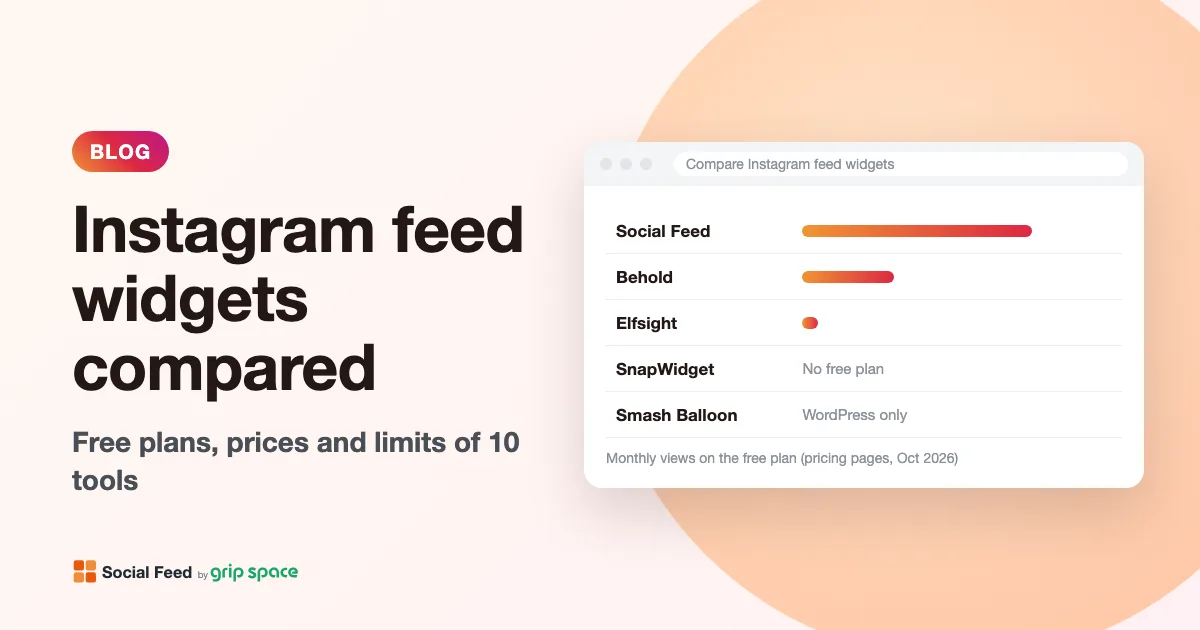
Instagram feed widgets compared: 10 tools, their free plans, prices and limits
Free plans, prices, view limits and update speed of 10 ways to embed your Instagram feed on a website, from simple widgets to WordPress plugins and social walls, checked on each pricing page in October 2026.
Read the article →
The Instagram Basic Display API is gone: how to keep your Instagram feed on your website
Meta shut down the Instagram Basic Display API on December 4, 2024, and many website feeds stopped working. What changed, how to tell if your feed is affected, and how to fix it.
Read the article →
Why you need an Instagram professional account to show your feed on your website (and how to switch)
Since December 2024, website feeds can only show posts from Instagram professional accounts. What a professional account is, Business vs Creator, how to switch in the app, and what changes when you do.
Read the article →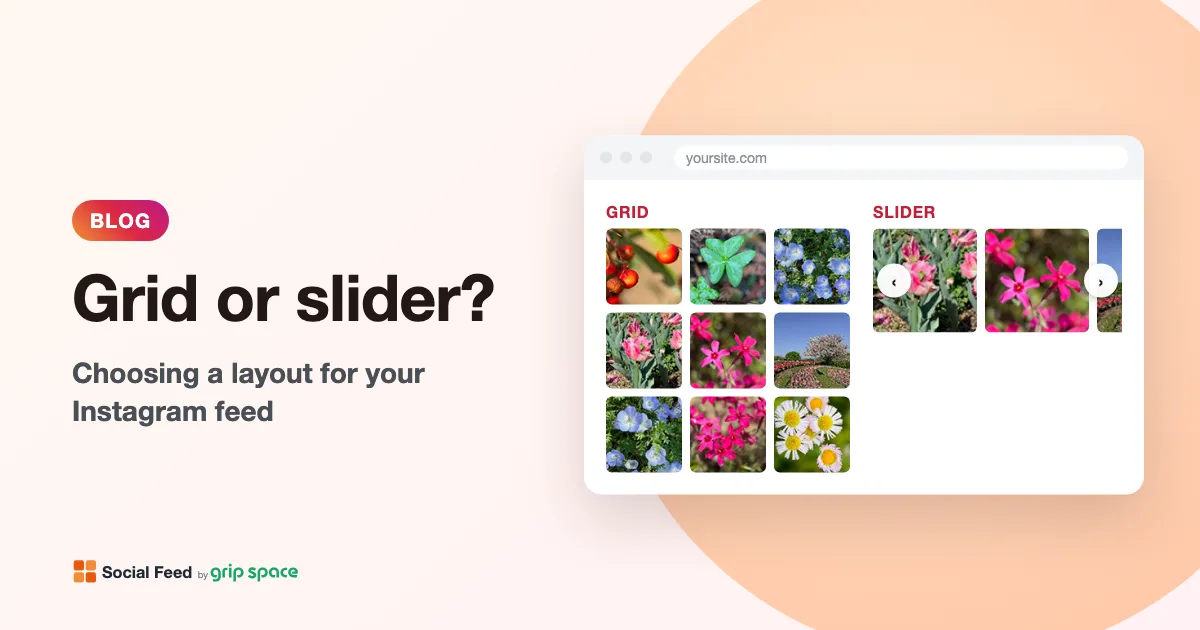
Grid or slider? Choosing a layout for the Instagram feed on your website
When to use a grid and when to use a slider for your Instagram feed, how many posts and columns to show, and how the layout behaves on phones.
Read the article →
Instagram API rate limits: why feed tools cache your posts
What Meta’s Instagram API rate limits say, what happens when an app hits them, and exactly when Social Feed by grip space reads your posts from Instagram.
Read the article →