
Instagram API rate limits: why feed tools cache your posts
Every Instagram feed on a website depends on an app asking Instagram for your posts. Instagram does not answer an unlimited number of those requests. Meta sets rate limits, and every feed tool has to decide how often to ask. This guide explains Meta’s published limits in plain English, what happens when an app goes over them, why many feed tools keep a stored copy of your posts, and exactly how Social Feed by grip space handles this on the Free plan and on paid plans.
Updated October 12, 2026
What a rate limit is
A rate limit is a cap on how many requests an app may send to an API within a period of time. Meta uses them across its platforms so that one busy app cannot slow things down for everyone else, and so that data is not pulled out faster than normal use would need.
For a website feed, the “app” is the feed tool you use, and each request is something like “give me this account’s latest posts” or “give me this account’s profile picture and post count.” How often the tool sends those requests is a design choice. Some tools ask Instagram every time a visitor opens your page. Others ask once and reuse the answer for a while. Rate limits are one of the main reasons the second approach is common.
Meta’s published limits, in plain English
Meta documents its limits on the “Rate Limits” page of the Graph API documentation and repeats the Instagram part in the overview of the Instagram Platform. For apps that read Instagram posts, three rules are worth knowing.
| Which calls | Meta’s formula or limit | What it is counted against |
|---|---|---|
| Instagram Platform endpoints, excluding messaging (this includes reading your profile and posts) | “Calls within 24 hours = 4800 * Number of Impressions” | The calling app, separately for each app and app user pair. Meta: “An app’s call count is unique for each app and app user pair.” |
| Business Discovery and Hashtag Search | Platform Rate Limits: “Calls within one hour = 200 * Number of Users” | The app, over “a rolling one hour window” |
| Instagram messaging (Conversations API, Send API, Private Replies) | Fixed per-second or per-hour limits per Instagram professional account | Not relevant to a website feed |
The first row is the one that matters for a feed. In everyday terms, an “app user pair” is one feed tool plus one connected Instagram account. So the budget is not one big pool shared by every customer of a feed tool. Each connected account has its own allowance with that tool, and that allowance grows with how much the account’s content is seen.
What “impressions” means here
Meta defines the number of impressions as the number of times any content from the app user’s Instagram professional account “has entered a person’s screen within the last 24 hours.” Put simply, the more often your posts are seen, the more calls an app may make for your account in a day.
A few things follow from that definition, and one important thing does not.
- The budget moves. It is based on a rolling 24 hours, so it changes from day to day with your account’s activity.
- Small or quiet accounts get smaller budgets. An account whose posts are rarely seen has fewer impressions, so the formula gives it fewer calls.
- Meta does not publish your current number. The documentation describes the formula but does not give you a dashboard showing your impressions for rate-limit purposes. App developers can see how close they are through response headers, described below.
- Meta does not say whether views on your website count. The documentation does not state whether posts shown through an outside website feed are included in impressions. We do not assume either way, and you should not either.
What happens when an app goes over the limit
Meta is clear about this: “Once a rate limit is reached, any subsequent requests made by your app will fail and the API will return an error code until enough time has passed for the call count to drop below the limit.”
Meta also warns that retrying makes things worse: “Continuing to make calls will continue to increase your call count, which will increase the time before calls will be successful again.”
These are the error codes the documentation lists for rate limiting:
| Code | Meta’s description |
|---|---|
| 4 | “Indicates that the app whose token is being used in the request has reached its rate limit.” |
| 17 | “Indicates that the User whose token is being used in the request has reached their rate limit.” |
| 613 | “Indicates that a custom rate limit has been reached.” Meta points to the documentation of the specific API for help. |
| 80002 | Listed as the error code for the Instagram type of Business Use Case rate limit. The page gives no further description. |
For you as a site owner, a rate-limit error looks no different from other connection problems: the feed is empty, or fewer posts appear than expected. That is why it is worth ruling out the more common causes first. Our checklist for an Instagram feed not showing on your website covers them.
Why feed tools keep a copy of your posts
Imagine a feed tool that asks Instagram for your posts every time anyone opens a page with your feed. Each visit would trigger new requests for posts that may change only a few times a week. Keeping a stored copy, often called caching, and reusing it for a while has clear advantages and one clear cost.
| Reading from Instagram on every page view | Reusing a stored copy | |
|---|---|---|
| Calls to Instagram | One set per page view | One set per refresh period, whatever the traffic |
| Freshness | New posts, deletions and edited captions appear on the next page view | Changes appear after the next refresh |
| Exposure to rate limits | Grows with your website traffic | Small and predictable |
| If Instagram refuses a request | That page view gets no posts | Visitors keep seeing the last good copy |
Neither approach is wrong. A café that posts once a week does not need a feed that checks Instagram every few seconds. A shop that posts a sale and wants it on the homepage within minutes does. Feed tools often tie the choice to their plans, and so do we.
How a website feed gets your posts
It helps to know where the Instagram requests actually happen. With Social Feed by grip space, the path from a page view to your posts looks like this:
- A visitor opens your page. Their browser finds the single script tag you pasted and requests the widget from our server.
- Our server prepares the feed. It looks up the widget’s settings and, depending on your plan, either reads your posts and profile from Instagram or uses a stored copy.
- The server sends the finished feed data back as part of the script, and the script draws the feed right where you placed the tag.
- The images and videos load from Instagram’s own servers, directly in the visitor’s browser.
Two consequences are worth noting. First, the requests to the Instagram API are made by our server, never by your visitors’ browsers, so your access token is never placed in your page’s code. Second, loading the image files in step 4 is not an API call. It is the browser fetching pictures from Instagram’s content servers, the same way the Instagram website does.
How Social Feed by grip space handles it, plan by plan
Here is the behavior, as it works today. Plan prices and the other limits are on the pricing section.
| Free plan | Light and Standard plans | |
|---|---|---|
| When posts are read from Instagram | Once, then a stored copy is reused for 24 hours | Every time the feed is shown |
| What the stored copy contains | Your posts (with captions, like and comment counts) and your profile details for the header | No stored copy is kept |
| How fast a new post appears | At the next refresh, up to 24 hours later | On the next page view |
| Design settings (layout, columns, spacing, colors, click action) | Apply on the next page view | Apply on the next page view |
| Calls to Instagram per page view | None while the copy is valid | At least two: one for your profile, one or more for your posts |
A few details explain the table.
The Free plan’s copy is per widget and per post settings. The stored copy belongs to one widget and is tied to the settings that decide which posts are shown: the number of posts, whether videos are included, and the filters for Reels, carousel posts, time period and caption keywords. If you change one of those, the old copy no longer matches, so the next page view reads fresh posts from Instagram right away. That is also why a newly set-up feed shows your latest posts immediately: there is no copy yet.
An empty answer is not stored. On the Free plan, the copy is only saved when Instagram actually returned posts. If a request fails, nothing is saved, and the next page view simply tries again instead of showing an empty feed for a whole day.
Paid plans read on every load, and that has a cost. One page view sends a request for your profile and a request for your posts. Each request for posts asks for a batch of up to 50. If your filters remove most posts, for example “Reels only” on an account that rarely posts Reels, the server asks for further batches until it has enough posts, up to a fixed maximum. A strict filter can therefore mean a few more calls per page view.
Some widgets never contact Instagram. A widget switched to Unpublished returns nothing and makes no Instagram requests. The same applies to a widget that has stopped showing because the account went over its monthly view limit. See how to hide your feed temporarily.
Token renewal happens along the way. Meta lets an app refresh a long-lived token once it is at least 24 hours old and has not expired, and a refreshed token is valid for 60 days. Our server checks the expiry date when your feed loads and renews the token when fewer than ten days are left. That is one extra call, only when needed. More in Instagram access token expired.
Being honest about the paid plans
Reading from Instagram on every page view is what makes paid feeds update immediately, but it also means calls grow with your traffic. Meta’s budget grows with your account’s impressions, so for most accounts the two rise together. We cannot promise that Instagram will never refuse a request, though, and we do not publish a number of page views that is “safe,” because Meta does not publish your impressions and the formula changes with them.
Here is what happens if Instagram does refuse a request on a paid plan: there is no stored copy to fall back on, so that page view gets no posts and the feed area may be empty. Nothing is broken permanently. The next page view asks again, and once Instagram accepts requests, the feed comes back on its own. You do not need to reconnect your account for a rate limit.
If the feed stays empty on every load, a rate limit is the less likely explanation. A cancelled connection, for example after an Instagram password change, is far more common, and it does need you to reconnect.
Why your browser doesn’t keep an old copy either
Caching can also happen in the browser. Our widget script is sent with headers that tell browsers and intermediate caches not to store it. That is deliberate: when you change a setting in the dashboard, the next page view should show it, without visitors seeing an outdated version from their own browser cache.
That means the only stored copy of your posts is the one on our side on the Free plan. If a change does not appear when you expect it, our article on why an Instagram feed is not updating walks through the timing and the settings that can hold posts back. A website caching plugin or CDN in front of your own pages is a separate layer; it can keep an old version of your page, but it does not change how often the widget itself asks Instagram.
Ways to keep Instagram requests low
Most sites never need to think about this, but these habits help on busy sites.
- Place each feed once per page. Every script tag on a page loads its widget separately, so the same widget pasted twice on one page doubles the requests for that page view. If you want two different feeds, see multiple Instagram feeds on one website.
- Don’t paste the feed site-wide unless you mean it. A feed in a footer template loads on every page of your site. That can be exactly what you want, but it multiplies requests compared with a feed on a few chosen pages. Our guide to the Instagram feed in your website footer discusses the trade-off.
- Keep filters realistic. A filter that matches almost nothing, such as a caption keyword you rarely use, makes the server read several batches to fill the feed. If you filter, choose rules that match enough recent posts. See filtering by caption keyword and showing recent posts only.
- Unpublish feeds you are not using. An unpublished widget makes no Instagram requests, even if its code is still on a page.
- Consider whether you need instant updates. If your account posts a few times a week, a daily refresh may be all you need. If you need new posts on your site right away, that is what the paid plans are for.
If you are building your own integration
Some site owners have a developer call the Instagram API directly. If that is you, Meta’s own best practices for Platform Rate Limits are a good starting point:
- “When the limit has been reached, stop making API calls.”
- “Spread out queries evenly to avoid traffic spikes.”
- “Use filters to limit the data response size and avoid calls that request overlapping data.” For Instagram, this means requesting only the fields you need in the
fieldsparameter. - “Check the
X-App-UsageHTTP header to see how close your app is to its limit and when you can resume making calls when the limit has been reached.” Meta describes itscall_countvalue as “a whole number expressing the percentage of calls made by your app over a rolling one hour period.” TheX-Business-Use-Case-Usageheader listsinstagramamong its limit types.
From our own experience building a feed service, we would add three practical points:
- Cache on your server, not in the page. Store the posts on the server and serve your pages from that copy. Never put the access token in front-end code where visitors can read it.
- Don’t store failures as if they were results. If Instagram returns an error, keep the last good copy, or try again later, rather than saving an empty list that hides your feed until the next refresh.
- Tell rate limits apart from cancelled tokens. A cancelled or expired token will not fix itself by waiting, while a rate limit will. Treat them differently in your error handling and your alerts.
You will also have to handle token renewal every 60 days and Meta’s app requirements. Our explainer on the Instagram API with Instagram Login covers the permission side.
Troubleshooting: is it a rate limit?
- The feed is empty on every page view, for hours. Probably not a rate limit. Check that the widget is Published, that the code is on the page, and that the Instagram connection is still valid in your dashboard. A password change on Instagram is a common cause of a cancelled connection.
- The feed is empty now and then, then fine again. On a paid plan this can be a refused request from Instagram, including a rate limit, or a short outage. It recovers on its own on the next page view.
- A new post is missing on the Free plan. That is the 24-hour copy working as designed, not a limit. It appears at the next refresh. Changing the number of posts or a filter also triggers an immediate fresh read.
- Fewer posts than the number you set. Usually your filters, not a limit: the server stops after a fixed number of batches, and very strict filters may not find enough matching posts among them.
- The feed works on one page but not another. That points to the page, not Instagram: the script may have been removed or blocked there. See where to place the widget script and Content Security Policy and the widget.
Frequently asked questions
How many requests can a feed make per day?
For non-messaging Instagram endpoints, Meta’s formula is 4,800 calls per 24 hours multiplied by the number of impressions of the account’s content in that period, counted separately for each app and connected account. Meta does not publish your current impressions, so there is no fixed number we can quote for your account.
Do my website visitors count against my limit?
Visitors do not call the Instagram API; our server does. On paid plans, each feed load leads to server requests, so traffic matters indirectly. On the Free plan, the stored copy means traffic does not increase requests during the 24 hours.
Does loading images count as API calls?
The images and videos load from Instagram’s content servers. Meta’s rate-limit documentation counts calls to the API endpoints; loading those files is a separate step in the browser.
Can I force a refresh on the Free plan?
There is no refresh button. Changing a setting that affects which posts are shown, such as the number of posts or a filter, makes the next page view read fresh posts. Design-only changes do not need a refresh; they appear on the next page view anyway.
Will I lose my connection if a rate limit is hit?
No. A rate limit only blocks requests for a while. Your connection and widgets stay as they are, and the feed returns once Instagram accepts requests again.
Do other feed tools work the same way?
Every tool is subject to the same Meta limits but makes its own choices about refreshing. Check each tool’s documentation for how often it updates. Our widget comparison covers several of them.
Ready to try it? Create a free account, connect your Instagram professional account, and follow the guide for your platform: WordPress, Shopify, Wix, Squarespace, Webflow or plain HTML.
Sources
- Meta for Developers, Graph API “Rate Limits”: https://developers.facebook.com/docs/graph-api/overview/rate-limiting/
- Meta for Developers, “Overview of the Instagram API” (rate limiting section): https://developers.facebook.com/docs/instagram-platform/overview/
- Meta for Developers, “Refresh Access Token”: https://developers.facebook.com/docs/instagram-platform/reference/refresh_access_token/
- Meta for Developers, “Get started” (Instagram API with Instagram Login): https://developers.facebook.com/docs/instagram-platform/instagram-api-with-instagram-login/get-started
Get your embed code in a few minutes. The Free plan needs no credit card.
Sign up freeMore articles
What an Instagram feed can (and can’t) show via the API
Which Instagram data a website feed can get through Meta’s API, field by field: posts, captions, like and comment counts, and why Stories and tags are out.
Read the article →
Can you embed Instagram Stories or Highlights on your website?
An honest answer from Meta’s docs: Instagram’s embed tool doesn’t support Stories, the API limits them to 24 hours, and Highlights have no endpoint.
Read the article →
Can you show someone else’s Instagram feed on your website?
Why an auto-updating feed needs the account owner to connect, what Instagram’s terms say, and how agencies set up a client’s feed with the owner signing in.
Read the article →
Instagram’s embeds setting explained: what “allow people to embed your posts” controls
What Instagram’s Embeds setting turns off, what happens to existing embeds, and what Meta does and doesn’t say about API-based website feeds.
Read the article →
How to see and remove apps connected to your Instagram account
Find the apps and websites connected to your Instagram account, remove the ones you no longer use, and learn what removal means for a website feed.
Read the article →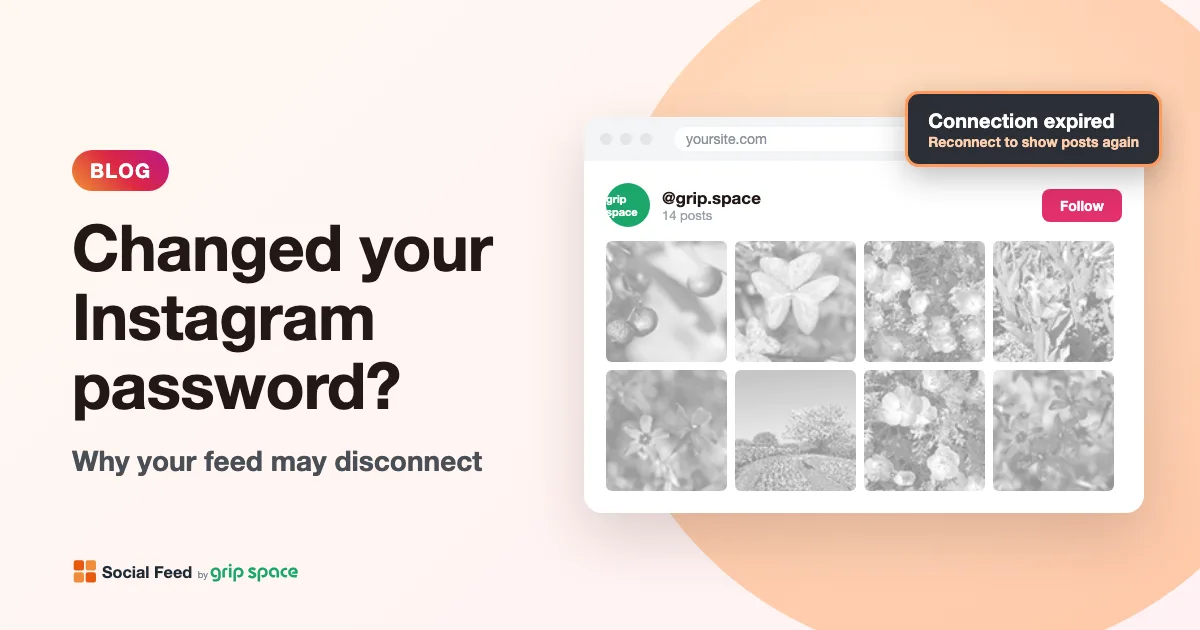
Changed your Instagram password? Why your website feed may disconnect
Why an Instagram password change can disconnect the feed on your website, how to check it, and how to reconnect while keeping your widgets.
Read the article →