
Instagram access token expired: what it means for your website feed
If you have seen the words “access token expired” in a dashboard or an error message, your website’s Instagram feed has probably stopped showing posts, or you are worried that it will. This article explains what an Instagram access token is, how long one lasts according to Meta’s documentation, how Social Feed by grip space keeps yours renewed, and the exact steps to take when a connection can no longer be renewed.
Updated October 12, 2026
The short answer
An access token is the permission Instagram gives a service such as Social Feed to read your posts. Instagram’s long-lived tokens last 60 days, and they can be renewed for another 60 days as long as they have not expired yet. Social Feed renews them for you before they run out, so in normal use you never have to think about it.
A token can still stop working before its date. The most common reasons are a changed Instagram password or removing Social Feed from the apps connected to your Instagram account. When that happens, no service can renew the old token. You sign in with Instagram again, and the dashboard tells you how.
What an Instagram access token is
When you connect your Instagram account to Social Feed, Instagram asks you to sign in and approve the connection. After you approve, Instagram hands Social Feed a long string of letters and numbers: the access token. Every time your feed needs your latest posts, Social Feed sends that token to Instagram’s API, and Instagram answers with your posts, your profile picture and your post count.
The token is not your password. Social Feed never sees your Instagram password, and the token only allows what you approved when you connected: reading your account’s basic profile and posts. It cannot post, comment or change anything on your account.
Tokens have an expiry date on purpose. A permission that lasts forever would keep working long after you have forgotten about it. Expiring tokens make sure that only services that are still in use, and still allowed, keep access.
The token stays on Social Feed’s side. The embed code on your website contains only the widget’s ID, and the script your visitors’ browsers load contains your posts and settings, not the token. Visitors to your site cannot see or copy it.
How long Instagram tokens last
Meta’s documentation for the Instagram API with Instagram Login describes several steps, each with its own lifetime:
| Item | Lifetime | What happens to it |
|---|---|---|
| Authorization code | 1 hour, usable once | Returned right after you approve the connection. It is immediately exchanged for a token. |
| Short-lived access token | 1 hour | Exchanged right away for a long-lived token, on the server. |
| Long-lived access token | 60 days | This is the token used to read your posts. It can be refreshed before it expires. |
| Refreshed long-lived token | 60 days from the refresh | Replaces the old one. It can be refreshed again later, in the same way. |
Meta lists three conditions for refreshing a long-lived token:
- The token is at least 24 hours old.
- The token is still valid, meaning it has not expired.
- The account owner has still granted the permission the app needs to read the account (instagram_business_basic).
The second condition is the important one. According to Meta, a token that is not refreshed within its 60 days expires and can no longer be refreshed. There is no grace period and no way for a service to bring it back. Once a token is gone, the only way forward is a new sign-in by the account owner.
The third condition explains why removing access on the Instagram side ends a connection for good: without the permission, there is nothing to refresh.
“Expired” does not always mean the date passed
Instagram uses the same error for a token that reached its expiry date and for a token that was cancelled early. In Meta’s Graph API error reference, error code 190 means the access token has expired, and its subcodes give more detail. Among them:
| Subcode | Meta’s description | In plain words |
|---|---|---|
| 460 | Password changed | The account password was changed, and the person must log in to the app again. |
| 463 | Expired | The login status or access token has expired, been revoked, or is invalid. |
| 467 | Invalid access token | The access token has expired, been revoked, or is invalid. |
So when you see “expired”, the cause may be any of these:
- The 60 days ran out without a refresh. With Social Feed this should not happen in normal use, because renewal is automatic (see below).
- The Instagram password was changed. Meta lists a changed password as a reason the person must log in again.
- Access was removed on the Instagram side. Instagram lets you remove third-party services from your account. In its announcement of this control, Instagram placed it under Settings, then Security, then Apps and Websites, and said that a removed service no longer has access to new data on the account. Instagram’s menus change over time, so the exact location in your app may differ.
- Meta ended the session for another reason, for example a security check on the account. The error reference lists cases where the person must log in to Facebook or Instagram to resolve an issue first.
Whatever the cause, the fix is the same: the account owner signs in with Instagram again, which creates a fresh token.
How Social Feed renews your token automatically
You do not need to do anything to keep a working connection alive. Here is what happens behind the scenes:
- When you connect, Social Feed exchanges the short-lived token for a long-lived one straight away and saves its expiry date.
- A scheduled check looks at every connected account and renews any token with fewer than 20 days left. Starting that early leaves room to try again on later days if Instagram does not answer once.
- When your widget loads on a website and the token has fewer than 10 days left, Social Feed also renews it at that moment, before reading your posts.
- Each renewal makes the token valid for 60 days from that day, and the saved expiry date moves forward.
Because of the scheduled check, renewal does not depend on visitors. A feed on a page that nobody opens for weeks is renewed just like a feed on a busy homepage.
If a renewal attempt fails, for example because Instagram is briefly unavailable, Social Feed keeps using the current token, which is still valid, and tries again later. Your feed is not affected by a single failed attempt.
What automatic renewal cannot do is bring back a token that has already expired or been cancelled. Meta does not allow it, so no feed service can. In that case Social Feed stops trying and waits for you to sign in again.
Where to see your token’s expiry date
In the Social Feed dashboard, each widget card shows “Token expires” with a date, next to the view count and the number of posts. This is the expiry date of the connected account’s current token. Every widget of the same account shows the same date, because they share one connection.
It is normal for this date to be some weeks away and to jump forward by several weeks from time to time. Each jump is a renewal. A date that keeps getting closer is not a problem in itself either, because renewal only starts when fewer than 20 days are left.
The date alone does not tell you whether Instagram still accepts the token. A token cancelled by a password change keeps its old date in the dashboard, because nothing about the date changed; only Instagram knows the token is no longer valid. To check the connection itself, open “Settings & preview” for the widget. The preview reads your posts from Instagram with the same token that your website uses.
What the dashboard shows when the connection has stopped working
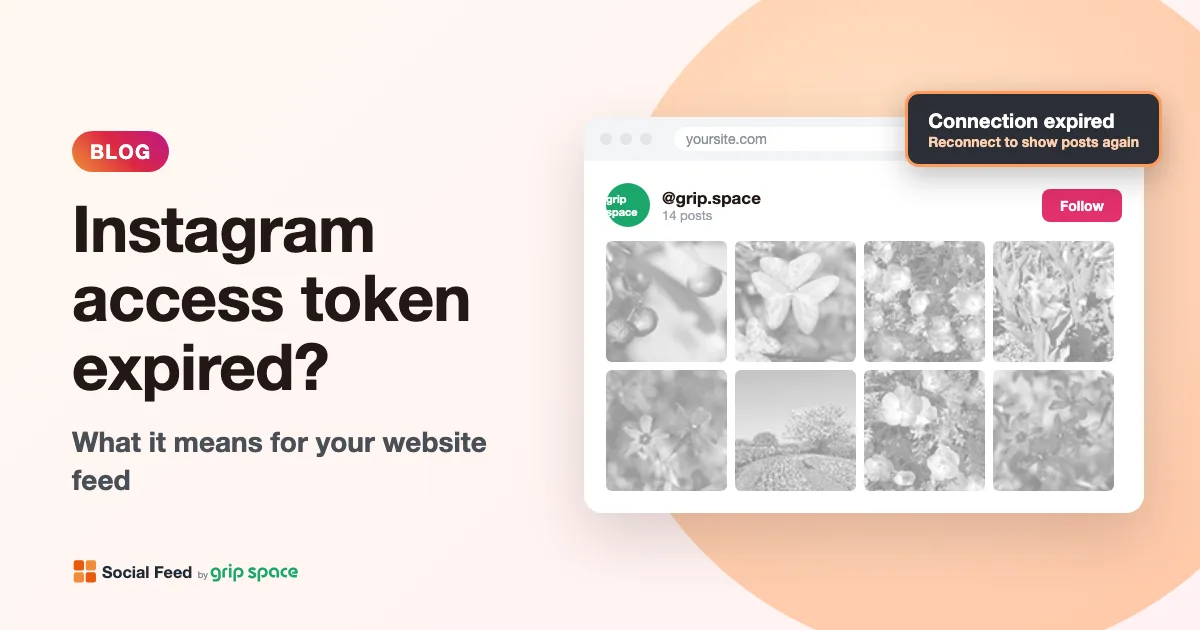
When Instagram rejects the token, the preview in “Settings & preview” does not just say there are no posts. It shows a red message:
Access is no longer valid, for example because the Instagram password was changed. Please reconnect the same Instagram account with the button below. There is no need to disconnect.
Your widgets and embed codes will keep working.
Below the message is a “Reconnect Instagram account” button. That button is the fix, as described step by step further down.
If you see “No posts to show.” instead, the connection is working, but none of your posts pass the widget’s filters, or the account has no posts. That is a different problem: check the filters in the same screen.
What visitors see on your website
An invalid token does not leave an error message on your website. Instead, the feed has no posts to show. Visitors may still see the account header, often with a letter in place of your profile picture and no posts underneath, because Instagram no longer returns your profile or your posts.
On the Free plan, posts are refreshed once a day, and the most recent saved copy can keep showing for the rest of its 24 hours. So on the Free plan, a broken connection may first look like a feed that has stopped updating and only later like an empty one. Our article on an Instagram feed that is not updating covers that situation in detail.
On paid plans the feed is read from Instagram on every page load, so the posts disappear on the next load after the token stops working.
How to fix an expired connection, step by step
You do not need to disconnect anything. When you sign in again with the same Instagram account, Social Feed recognizes the account it already has and replaces the old token with the new one. Your widgets, their settings, their view counts and their embed codes stay exactly as they are.
- Make sure you can sign in to Instagram with the account that is connected. If the password was changed, use the new one. If Instagram asks you to confirm your identity, do that first in the Instagram app.
- Open the widget. In the widget list, open “Settings & preview” for any widget of the account. The preview shows the red message.
- Reconnect. Click “Reconnect Instagram account” below the message, sign in with the same Instagram account and approve the connection. You return to the dashboard, and the account is connected again.
- Check the preview. Open “Settings & preview” again. Your posts should be back. One reconnection fixes every widget of that account, because they share one connection.
- Leave your website as it is. The embed code does not change, so there is nothing to replace.
- Clear your site’s cache if you use a caching plugin, a CDN or hosting cache, then check the page in a private window.
Do not use “Disconnect this account” on the account’s row for this. Disconnecting removes the account together with all of its widgets, their settings and their view counts, and their embed codes stop working. Its confirmation says so: “Disconnect this account? All of its widgets and embed codes will also be deleted, and this cannot be undone. (If the connection has only expired, you can reconnect without disconnecting.)” The “Delete widget” button inside a widget’s settings screen does not help either: it deletes only that widget, and it does not renew the token.
If reconnecting does not work
Most reconnections take a minute. If yours does not go through, check these points:
| What you see | What to check |
|---|---|
| “Failed to connect Instagram. Please try again.” | Try again. If it keeps happening, sign out of Instagram in the browser, sign in to the correct account, and connect once more. |
| “The Free plan allows up to 1 Instagram widget.” | You signed in with a different Instagram account than the one that is connected. Sign out of Instagram in your browser, sign in to the connected account, and click “Reconnect Instagram account” again. |
| The posts of a different account appear | A different Instagram account was connected as a new account. Disconnect only that new account (your original account and its widgets are separate), sign in to the right account on Instagram in your browser, and reconnect the original one. |
| The connection works, but the preview says “No posts to show.” | The token is fine. Look at the widget’s filters (videos, Reels, carousels, date range, caption keywords). |
| The account cannot be connected at all | Instagram’s API works with professional accounts (Business or Creator) only. If the account was switched to personal, switch it back first. |
For the difference between account types, see Instagram professional accounts.
How to avoid a broken connection
- Leave Social Feed connected in Instagram. If you review the apps and websites connected to your Instagram account, keep the one you use for your website feed.
- Check the preview after a password change. Changing your password is a good security habit, but it can end existing connections. Open “Settings & preview” afterwards; if the red message appears, reconnect right away.
- Keep your embed codes in one place. A short note of which page uses which widget helps when you check your pages after a reconnection.
- Look at your website now and then. Social Feed does not add an error message to your site when the connection breaks, so an occasional look at the page is the simplest check.
- Use an account that more than one person can sign in to, if your business shares the Instagram account. Only someone who can sign in to the account can reconnect it.
If you manage feeds for clients
Agencies and freelancers often connect a client’s Instagram account once and then hand the website over. Because renewal is automatic, the feed keeps working after the handover. The weak point is the client changing their Instagram password months later, without knowing that it affects the website.
Two habits help. First, tell the client during handover that a password change can disconnect the feed, and who to contact if the feed goes empty. Second, tell them that the fix is the “Reconnect Instagram account” button in the widget’s preview, not disconnecting, so that a reconnection stays a five-minute job instead of a redesign. If the client will reconnect on their own, give them the steps from this article.
Frequently asked questions
Do I need to renew the token myself every 60 days? No. Social Feed renews it automatically before it expires. You only need to act if the connection is cancelled early, for example by a password change, or if the dashboard shows the expired-connection message.
Does renewal depend on my website having visitors? No. A scheduled check renews tokens with fewer than 20 days left, whether or not anyone opens your page. Page loads can also trigger a renewal when fewer than 10 days are left, but they are not required.
Can you renew an expired token for me? No. Meta does not allow an expired token to be refreshed, and only the account owner can sign in with Instagram to create a new one.
Does every password change break the connection? Meta lists a changed password as one of the reasons an access token stops working, and the dashboard message mentions it as an example. Not every case may be the same, so simply check the preview after changing your password.
The “Token expires” date is in the past. Then the token has expired and cannot be renewed. Follow the reconnection steps above.
The date is in the future, but my feed is empty. The token may have been cancelled early. Open “Settings & preview”: if the red expired-connection message appears, reconnect. If the preview shows posts, the connection is fine, and our article on a feed that is not showing on your website covers the other causes.
Will I lose my view counts when I reconnect? No. View counts belong to each widget, and reconnecting keeps your widgets, so the counts continue. Only disconnecting the account deletes its widgets, and then a new widget starts counting from zero.
Is my access token visible in the embed code? No. The embed code only contains the widget’s ID. The token is used on Social Feed’s side to read your posts and is never sent to your visitors.
I used another feed tool and it also says my token expired. The 60-day rule is Meta’s, so it applies to every service. If that tool stopped working for good at some point, it may also rely on an API Instagram has retired; see the Instagram Basic Display API shutdown.
Still stuck? Email us at info@grip-space.co.jp with the address of the page where your feed should appear.
Related reading
If your feed is visible but old, read Instagram feed not updating. If you changed your Instagram name rather than your password, see changing your Instagram username. New to Social Feed? Learn what Social Feed by grip space is, compare plans and pricing, or sign up for free.
Sources
- Meta for Developers, “Business Login for Instagram”: https://developers.facebook.com/docs/instagram-platform/instagram-api-with-instagram-login/business-login
- Meta for Developers, “Refresh Access Token”: https://developers.facebook.com/docs/instagram-platform/reference/refresh_access_token/
- Meta for Developers, “Get Started” (Instagram API with Instagram Login): https://developers.facebook.com/docs/instagram-platform/instagram-api-with-instagram-login/get-started
- Meta for Developers, Graph API “Error Handling”: https://developers.facebook.com/docs/graph-api/guides/error-handling/
- Instagram, “Increasing Personal User Data Control”: https://about.instagram.com/blog/announcements/increasing-personal-user-data-control
Get your embed code in a few minutes. The Free plan needs no credit card.
Sign up freeMore articles
Changed your Instagram username? What happens to your website feed
After an Instagram username change, your website feed keeps showing posts, but the @name and Follow button still use the old name. Here is how to update them.
Read the article →
Can you show a private Instagram account on your website?
Why a private Instagram account can’t power a website feed, what Instagram’s rules and API require, and your real options if you want to stay private.
Read the article →
Where to put an Instagram feed on your website: placements that make sense
Homepage, footer, About, Contact, product pages, blog, thank-you pages, landing pages: where an Instagram feed helps, where it gets in the way, and why.
Read the article →
Instagram feed for restaurant and café websites: what to show and where
How restaurants and cafés can use an Instagram feed: which posts to show, where to place them, and filter recipes for menus, specials and Reels.
Read the article →
How to add an Instagram feed to a Ghost site
Three ways to show your Instagram posts on a Ghost site: an HTML card, Code Injection, or a theme partial. Which to use, step by step, and what each can’t do.
Read the article →
Free Instagram feed widget: what you get on the free plan (and its limits)
An honest look at the Social Feed by grip space Free plan: 1 widget, 16 posts, 3,000 views a month, daily updates, a credit link, and when to upgrade.
Read the article →