
Free Instagram feed widget: what you get on the free plan (and its limits)
Social Feed by grip space has a Free plan that you can use without a credit card. This article explains exactly what it includes, where its limits are, what happens when you reach them, and how to tell whether the Free plan is enough for your site or whether a paid plan is worth it.
Updated October 12, 2026
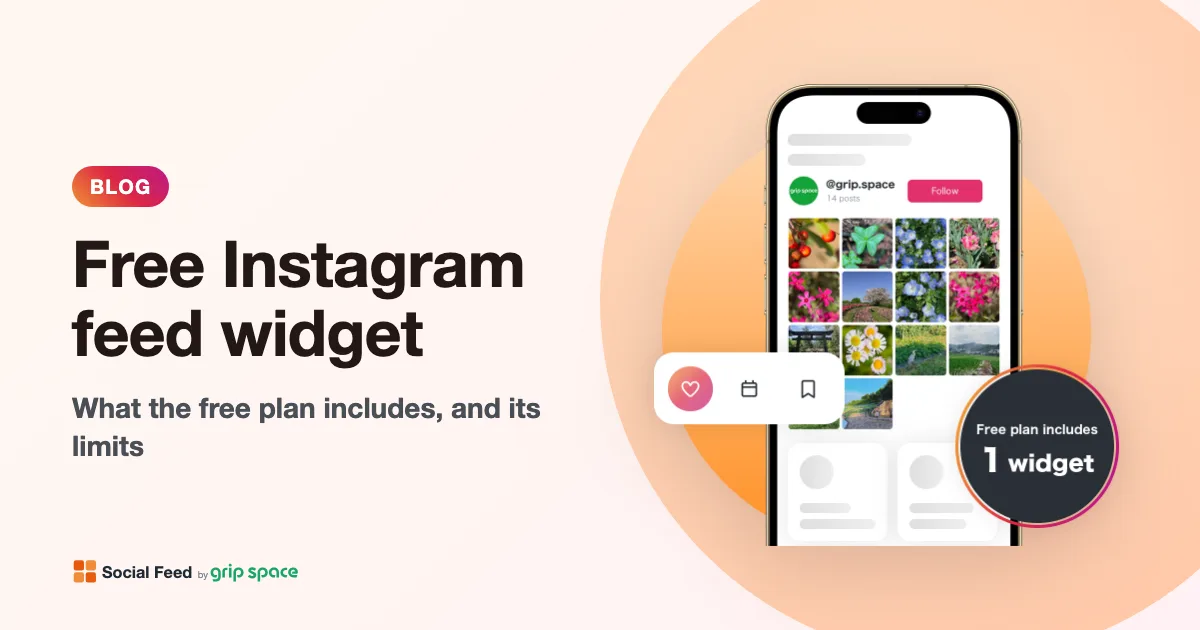
The Free plan at a glance
On the Free plan you get every display feature, with fewer widgets and posts, a monthly view limit, slower updates and a small credit link. Here is how it compares with the paid plans.
| Free | Light | Standard | |
|---|---|---|---|
| Price | $0 | $8 a month, or $80 a year | $24 a month, or $240 a year |
| Widgets | 1 | Up to 3 | Unlimited |
| Posts shown per widget | Up to 16 | Up to 30 | Up to 50 |
| Views per month (all widgets combined) | Up to 3,000 | Up to 30,000 | Unlimited |
| New posts appear on your site | Once a day | Right away | Right away |
| “Powered by Social Feed” link below the feed | Always shown | Optional (hidden by default) | Optional (hidden by default) |
| Display features and filters | All | All | All |
The yearly prices work out to two months free compared with paying monthly. Applicable tax is added at checkout.
What the Free plan includes
The layout options and filters are not split by plan. Everything below works on the Free plan exactly as it does on Standard:
- Grid or slider layout, with settings for the number of columns, image spacing, the maximum width of the widget and the font size. Columns adjust automatically in narrow spaces and on phones. (Our article on choosing a grid or a slider goes into detail.)
- Click behavior: open the post in a lightbox on your site, open it on Instagram, or do nothing. The lightbox can show the caption and the like count, can let visitors browse all the images of a carousel post, and plays videos.
- Hover icon: an Instagram icon over the tile when a visitor hovers on a computer, or no overlay at all.
- Account header above the feed with your profile picture, name and post count, and a Follow button with your own label and color.
- Post filters: show all posts, exclude Reels or show only Reels; show or hide carousel posts; include or leave out videos; show only posts from the last 30, 90 or 365 days; and show only posts whose captions contain certain keywords, or hide them.
- Published / Unpublished switch, so you can hide the feed without removing the code from your site.
- View counts for your widget, with a chart in the dashboard.
- Automatic language: the widget’s labels appear in English or Japanese depending on the language of the page it is placed on.
The embed code is the same on every plan: one script tag that you paste where the feed should appear. It works on any site where you can add HTML, and we have step-by-step guides for WordPress, Shopify, Wix, Squarespace, Webflow and plain HTML in our guides. When you upgrade, you do not need to change the code on your site.
To get started you need an email address and an Instagram professional account (Business or Creator). A personal account can be switched for free in the Instagram app; our guide to Instagram professional accounts shows how.
Limit 1: one widget
A widget is one set of settings with its own embed code: one layout, one number of posts, one set of filters. The Free plan lets you create one.
One widget is not the same as one page. You can paste the same embed code on several pages, and the feed will look the same on each. That covers most small sites: a feed on the homepage, or a feed in a footer that appears on every page.
Where one widget becomes a real limit is when you want different feeds in different places. For example:
- A grid on your gallery page and a slider on your product pages.
- A feed of Reels on one page and photos only on another.
- A caption keyword filter per page, such as one feed for “#weddings” and another for “#portraits”.
Each of those needs its own widget. The Light plan allows three widgets and Standard an unlimited number. In the dashboard, you can create a new widget by copying the settings of an existing one, so a second variation does not take long to set up.
Limit 2: up to 16 posts per widget
On the Free plan, a widget can show up to 16 of your posts. The number field in the settings shows the limit for your plan, and the widget never shows more than that, even if a higher number was saved earlier.
Sixteen posts is enough for most homepage sections and footers. It fills two rows of eight, four rows of four, or one row of a slider with plenty to swipe through. It becomes tight if you want a full gallery page: 24 or more posts is a common size for that, which needs the Light plan (30) or Standard (50).
Filters are applied within that number. If you show only posts from the last 30 days, or only posts with a certain keyword, the widget may show fewer than 16 posts because fewer match. That is not a plan limit; it just means fewer of your posts meet the filter.
Limit 3: 3,000 views a month
This is the limit most worth understanding before you install the feed, because it depends on your traffic rather than on your settings.
What counts as a view. One view is counted each time the widget is shown on a page. If one visitor opens five pages that each show the feed, that is five views. If you put the feed in a footer that appears on every page, every page view on your site counts. Views from all your widgets are added together, and the limit resets at the start of each month. Visits that our system identifies as bots are not counted.
How to estimate your usage. Look at your analytics tool and add up the monthly page views of the pages where the feed will appear. If you have a feed only on the homepage, that is your homepage’s page views. If the feed is in a site-wide footer or sidebar, it is close to the page views of your entire site.
Here are a few examples. The traffic numbers are made up for illustration; use your own.
| Where the feed is | Monthly page views of those pages | Views used | Plan that fits |
|---|---|---|---|
| Homepage only | 1,500 | 1,500 | Free (half the limit) |
| Homepage and About page | 2,400 | 2,400 | Free, but close to the limit in a busy month |
| Footer on every page | 9,000 | 9,000 | Light (30,000) |
| Footer on every page of a busy online store | 60,000 | 60,000 | Standard (unlimited) |
As a rule of thumb, if the pages that show the feed get fewer than about 100 page views a day in total, the Free plan’s 3,000 views a month should be enough. If you are not sure, start on Free and watch the counter for a month. The dashboard shows how many views you have used this month and what percentage of the limit that is.
What happens when you go over 3,000 views
Your feed does not disappear the moment you pass the limit. Here is the exact rule:
- The first month you go over, the feed keeps showing until the end of that month. Nothing changes on your site.
- If you go over again the next month, the feed keeps showing until the end of that month too, but it will pause from the 1st of the following month. The dashboard tells you this in advance.
- While the feed is paused, the widget shows nothing on your pages. The rest of the page loads normally; there is no error message and no empty frame, just no feed.
- Views are still counted while the feed is paused. If a paused month stays under the limit, the feed comes back on the 1st of the next month. If traffic stays high, the pause continues.
- Changing your plan lifts the pause within a few minutes, without changing the code on your site.
So one busy month, for example after a sale or a press mention, never takes your feed down. Only two months in a row over the limit do.
Email notices. We email you when your views reach 80% and 100% of the monthly limit, and when your feed has been paused. You also see a usage bar in the dashboard with a short message about what will happen next, such as “Your widgets will keep showing until the end of the month even if you exceed it.”
Limit 4: new posts appear once a day
On the Free plan, the widget reuses the posts it fetched from Instagram for 24 hours. In practice, a new Instagram post shows up on your website within about a day. On the Light and Standard plans, new posts appear right away.
A few details help here:
- The first time your widget is shown after you set it up, it fetches your latest posts, so the feed is up to date from the start.
- Changing the number of posts, the video setting or a filter refreshes the posts immediately, because the widget treats that as a new request.
- Design changes such as the layout, columns, spacing, colors or click behavior are not part of the daily update. They show on your site the next time the page is loaded.
- Deleting a post on Instagram follows the same rhythm: it may stay in your feed for up to about a day on the Free plan.
If your site uses page caching (common on WordPress with caching plugins, or behind a CDN), the widget is not affected by it, because the feed is loaded fresh by the visitor’s browser each time. If posts still seem stuck after a day, see whether a filter is hiding them, for example a period filter or a keyword filter that the new post does not match.
Is once a day a problem? For most portfolios, restaurants, salons and local businesses that post a few times a week, no one will notice. It matters more if you post time-sensitive things, like a flash sale, an event announcement or a “sold out” notice, and want them on your website within minutes.
Limit 5: the “Powered by Social Feed” link
On the Free plan, a small line reading “Powered by” with the Social Feed logo appears below the widget and links to our website. It cannot be turned off on the Free plan; it is how the plan pays for itself.
On the Light and Standard plans, this link is optional and hidden by default. You can turn it on in the widget settings if you want to.
What is not included on any plan
Some things are not Free-plan limits but features that Social Feed by grip space does not have at all, on any plan. It is better to know these before you start:
- Only your own Instagram account. You connect your account, and the widget shows its posts. It cannot show a hashtag feed, posts you are tagged in, or another person’s account.
- One account per widget. A single feed cannot mix several Instagram accounts or other networks.
- No hiding or pinning of individual posts. You choose which posts appear with filters (post type, period and caption keywords), not post by post.
- No shoppable tags or Stories. The feed shows regular posts, carousels, videos and Reels.
- Statistics are view counts only. You see how many times each widget was shown, not clicks or visitor details.
If you need any of these, a different kind of tool may suit you better. Our comparison of 10 Instagram feed tools lists which tools state hashtag feeds, moderation and multiple networks on their pricing pages.
How the Free plan compares with other free options
We compared free plans in detail in our Instagram feed widget comparison, using each tool’s own pricing page as of October 12, 2026. The short version for hosted widgets and aggregators with a free plan:
| Views a month | Posts | Updates | Branding | |
|---|---|---|---|---|
| Social Feed by grip space | 3,000 | Up to 16 per widget | Once a day | “Powered by Social Feed” link below the feed |
| Curator.io | 2,000 | 1,000 max | Every 24 hours | Not stated |
| Behold | 1,200 | 6 per feed | Once a day | Behold logo on hover |
| EmbedSocial | 500 | 500 media per source | Every 24 hours | Not stated |
| Juicer | 300 | Not stated | Every 24 hours | Juicer branding |
| Elfsight | 200 | Not stated | Not stated | Elfsight branding |
Among these, ours has the highest monthly view limit on a free plan. Other tools are stronger in other ways: Curator.io’s free plan includes 3 sources, Elfsight lists hashtag feeds on all its plans, and aggregators such as Juicer and EmbedSocial combine several networks. On WordPress, Smash Balloon and Spotlight offer free plugins that do not state a view limit because they run on your own site, but they only work on WordPress.
Over-limit rules differ too. According to the pricing pages we checked, Elfsight says going over “will temporarily deactivate your app,” and Behold pauses free accounts until the next month, while its paid plans pause only after two months in a row over the limit. Our Free plan uses the two-months-in-a-row rule.
When the Free plan is enough
The Free plan is a good fit if most of these are true:
- You need one feed design, even if it appears on more than one page.
- Sixteen posts or fewer is enough.
- The pages that show the feed get fewer than about 3,000 page views a month in total.
- It is fine if a new post takes up to a day to appear on your site.
- A small “Powered by Social Feed” link below the feed does not bother you.
Typical examples are a personal portfolio, a small café or salon with a feed on its homepage, a new business site, or a blog that shows a few recent posts in its sidebar on a modest number of pages.
When upgrading makes sense
There is no need to upgrade “just in case.” Upgrade when one of the following becomes a real problem:
| Situation | Plan to consider | Why |
|---|---|---|
| You went over 3,000 views and expect to again next month | Light | 30,000 views a month, ten times the Free limit; upgrading also lifts a pause |
| You want a different feed on another page (grid vs slider, different filters) | Light | Up to 3 widgets |
| You want a gallery page with more than 16 posts | Light (30) or Standard (50) | More posts per widget |
| You post time-sensitive news and want it on your site quickly | Light | New posts appear right away |
| You want the feed without our credit link | Light | The link is optional and hidden by default |
| The feed is site-wide on a busy site, or you need many widgets | Standard | Unlimited views and widgets, up to 50 posts |
If the only issue is views, check whether the feed needs to be on every page. Moving it from a site-wide footer to the homepage alone can cut your view count a lot, and keep you on the Free plan. If the feed is part of what makes your site work, for example in an online store or on a busy blog, the Light plan is usually the simpler answer.
Light at $8 a month or Standard at $24 a month: choose Standard when you expect more than 30,000 views a month, need more than three widgets, or want up to 50 posts in a widget. Paying yearly ($80 or $240) costs the same as ten months.
How to upgrade (and back)
- In the dashboard, open Plan.
- Choose monthly or annual billing and pick Light or Standard.
- Pay by credit card. The new plan is available as soon as you finish.
Your existing widget and its embed code stay the same, so nothing changes on your website except that the new limits apply. Paid plans renew automatically, there is no minimum term, and you can cancel at any time from the dashboard.
Tips to get the most out of the Free plan
- Place the feed where it earns its place. A feed on the homepage or a gallery page uses fewer views than one in a footer that appears on every page, and visitors are more likely to look at it there.
- Use filters to stay relevant. With a 16-post maximum, a period filter (such as the last 90 days) or a caption keyword filter helps the feed show your best, most current posts rather than older ones.
- Unpublish instead of deleting. If you close for a season or redesign your site, switch the widget to Unpublished. It stops showing (and stops using views) until you switch it back.
Frequently asked questions
Do I need a credit card for the Free plan?
No. You sign up with an email address and connect an Instagram professional account.
Is the Free plan a trial?
No. It is not a time-limited trial; it is a plan with the limits described above. You only pay if you choose a paid plan.
Can I use the free widget on more than one website?
The embed code can be pasted on any page, including on another site, and the feed will appear there. All the places it appears share the same 3,000 views a month and the same settings.
Does previewing my own pages count as views?
Yes. Every time the feed is shown on a live page, that counts, including when you open the page yourself. While setting up, use the preview in the dashboard to adjust the design.
What do visitors see when the feed is paused?
Nothing in the place of the feed. The rest of your page is unaffected, but there is no message explaining the missing feed, so keep an eye on our emails.
Why does Instagram require a professional account?
Social Feed by grip space uses Instagram’s official API, which works with Business and Creator accounts. Switching is free; our article on Instagram professional accounts explains how, and this article explains why the older method for personal accounts no longer works.
Ready to try it? Create a free account, then follow the guide for your platform: WordPress, Shopify, Wix, Squarespace, Webflow or HTML. To learn more about the service itself, read what Social Feed by grip space is.
Sources
Plan details: Social Feed by grip space pricing. Other tools’ free plans and over-limit rules: our Instagram feed widget comparison, based on each tool’s pricing page as checked on October 12, 2026 (links to those pages are listed at the end of that article).
Get your embed code in a few minutes. The Free plan needs no credit card.
Sign up freeMore articles
How to add an Instagram feed to your BigCommerce store
Show your Instagram posts on a BigCommerce store with a Page Builder HTML widget, and learn when Script Manager or theme files make sense instead.
Read the article →
How to add an Instagram feed to a GoDaddy website
Add an auto-updating Instagram feed to a GoDaddy Websites + Marketing site with an HTML section, plus tips on iframe height, the lightbox and GoDaddy WordPress.
Read the article →
How to add an Instagram feed in Divi
Show your Instagram posts on a Divi site: paste one embed code into a Code module, or add it to a global footer with the Divi Theme Builder. No plugin needed.
Read the article →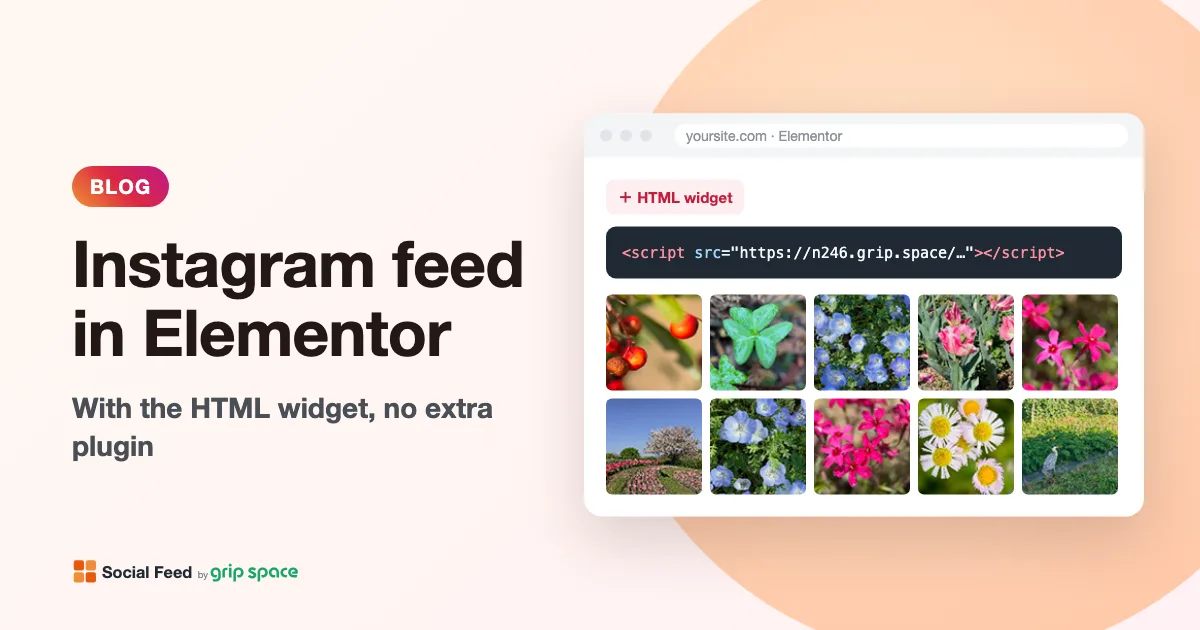
How to add an Instagram feed to Elementor (no extra plugin)
Add an Instagram feed to an Elementor page with the free HTML widget, or to every page with a Theme Builder footer (Elementor Pro). No extra plugin needed.
Read the article →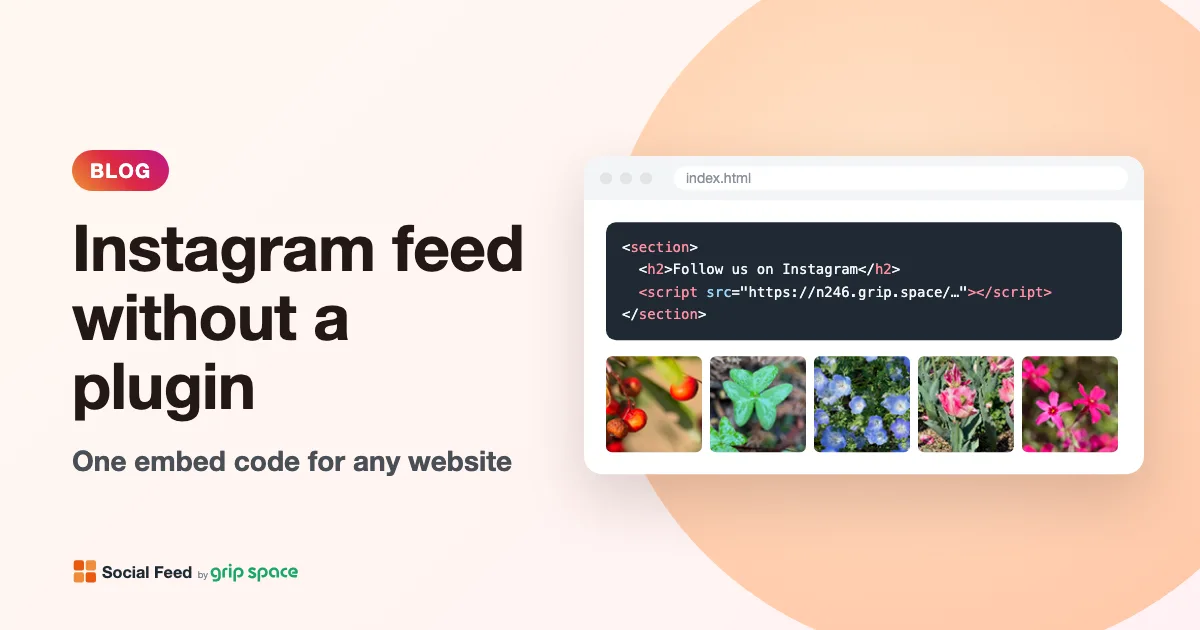
How to add an Instagram feed to a website without a plugin
Add an Instagram feed to any website with one pasted script tag instead of a plugin or app: how it works, where to paste it on each platform, and its honest limits.
Read the article →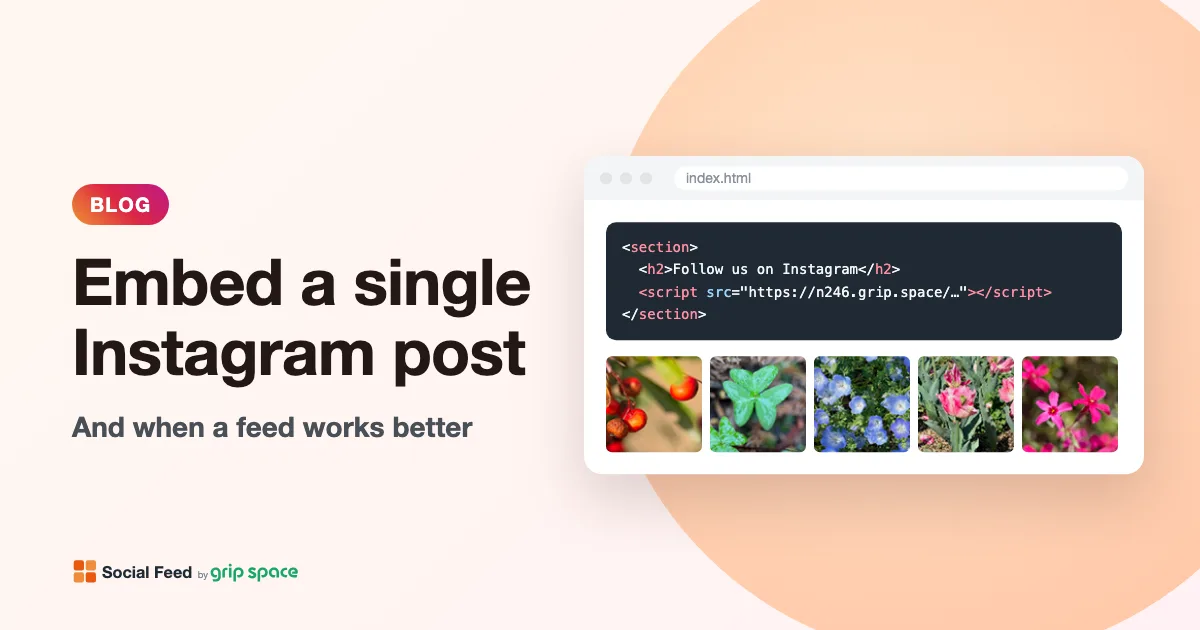
How to embed a single Instagram post on your website (and when a feed is better)
Step by step: copy Instagram’s embed code for one post, reel or profile, paste it into your site, and learn its limits and when an auto-updating feed fits better.
Read the article →