
How to add an Instagram feed in Divi
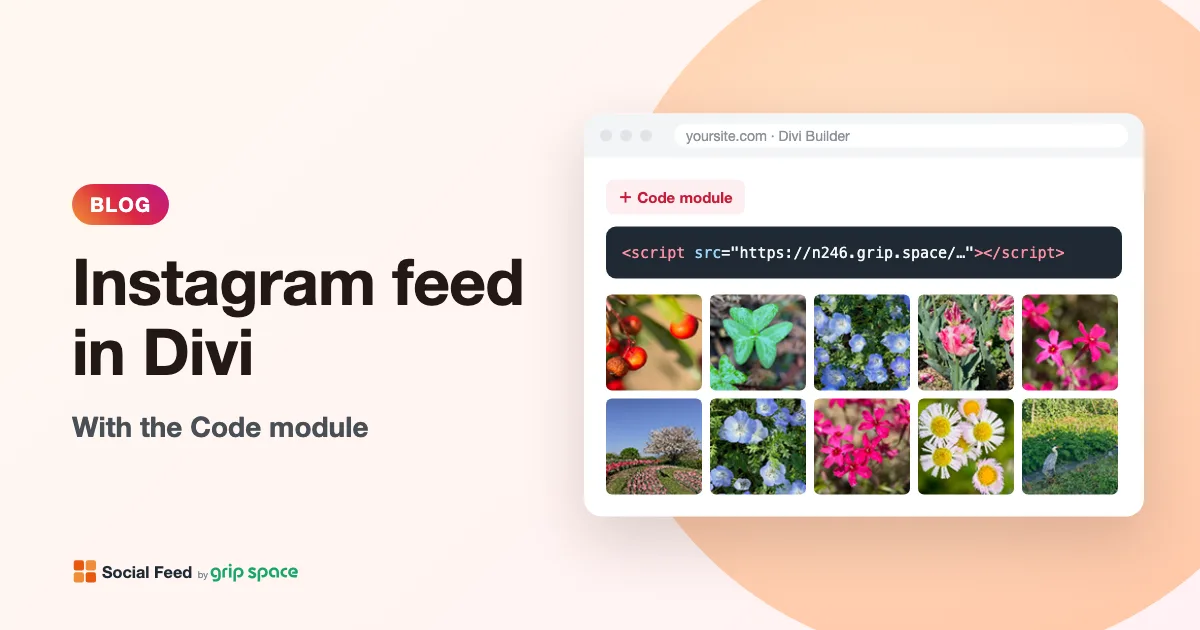
Divi’s Code module is all you need to show your Instagram posts. Paste one embed code into it, and your latest posts appear on the page and keep themselves up to date. This guide covers a single page, a global footer built with the Divi Theme Builder, reusing the feed with global modules, and what to do when the Visual Builder shows nothing.
Updated October 12, 2026
The short version
- Create a widget in Social Feed by grip space and copy its embed code (one
<script>tag). - In the Divi Visual Builder, add a Code module where you want the feed and paste the code into its text field.
- Save the page, exit the Visual Builder and look at the page as a visitor would.
For a feed on every page, add the same Code module to a Global Footer in Divi → Theme Builder. Both methods are part of Divi itself, so you do not need an Instagram plugin, a Divi extension or a child theme.
The feed is drawn by a small script that loads from our server. Nothing is stored in your WordPress database apart from the one line of code, and there is no plugin to keep updated.
Why the Code module (and not a Text module)
Elegant Themes describes the Code module as the module for inserting code such as HTML, CSS and JavaScript anywhere on your site, including embed code from third-party services. That is exactly what the embed code is: a single script tag.
The Text module is for formatted text. It is not designed to hold scripts, and pasting the code there can show the code as plain text or have it removed when the page is saved. Always use the Code module for the feed.
| Goal | Where to put the code in Divi |
|---|---|
| Feed on one page (home, About, Contact, a landing page) | A Code module on that page |
| The same feed on a few chosen pages | A Code module saved to the Divi Library as a global module, added to each page |
| Feed in the footer of every page | A Code module in the Global Footer of the Default Website Template (Divi → Theme Builder) |
| Feed in the footer of some pages only | A Code module in the custom footer of a Theme Builder template assigned to those pages |
| A different selection of posts on different pages | A separate widget (and embed code) for each selection, each in its own Code module |
Step 1: Get your embed code
- Sign up for Social Feed by grip space with your email address. The Free plan lets you create one widget.
- In the dashboard, click “+ Connect Instagram account” and connect an Instagram professional account (Business or Creator). A personal account can be switched to a professional account for free in the Instagram app. Our guide to professional accounts explains the difference.
- Open “Settings & preview”. Choose a grid or a slider, and set the number of posts and columns while you watch the preview. Save.
- Under “Add the embed code to your website”, click “Copy”.
The code is one line like this, with your own ID at the end:
<script type="text/javascript" src="https://n246.grip.space/api/v1/instagram/widget/xxxxxxxx"></script>The feed appears exactly where this tag is placed. In Divi terms, that means the feed shows up inside the Code module, within the row and column you put it in, and it takes the width of that column.
Step 2: Add a Code module to a page
- Open the page in WordPress. If the page does not use Divi yet, click Use The Divi Builder and choose to build from scratch, or open the existing page in the Visual Builder.
- Find the row where the feed should go. To add a new row, click the green + inside a section.
- Click the gray + inside the row to open the module library, and select Code. You can also type “Code” into the search field at the top of the library.
- In the module’s Content tab, paste the embed code into the Text field. Paste the whole line, from
<scriptto</script>. - Save the module (in Divi 4, with the green check mark at the bottom of the module settings; closing the settings without saving loses your work).
- Save the page with Ctrl + S (Windows) or Cmd + S (Mac), or with the Save button, then exit the Visual Builder.
- Look at the page as a visitor. You should see your Instagram posts where the Code module is.
Elegant Themes’ documentation reminds you to use opening and closing tags for code in the Code module. The embed code already has both, so paste it as it is. Do not wrap it in another script tag.
Why the Visual Builder may show nothing
Elegant Themes’ documentation for the Code module notes that JavaScript pasted into the module becomes visible after you save and exit the Visual Builder. In other words, an empty space in the builder is normal. The script runs on the real page, not necessarily while you are editing.
So the order is always: paste, save, exit, check. If you want to change how the feed looks, you do not need to go back into Divi. Open “Settings & preview” in the Social Feed dashboard, adjust the layout, columns, spacing or follow button, and save. Your Divi page picks up the changes without any change to the code.
If the builder does show the feed while you edit, that is fine too, but treat the published page as the final check. The builder wraps your page in its own editing interface, and scripts can behave differently there.
Step 3 (optional): Add the feed to a global footer
A footer feed appears on every page, which suits shops, restaurants, salons and studios that want their Instagram activity visible everywhere. The Divi Theme Builder handles this with a Global Footer.
- In the WordPress dashboard, go to Divi → Theme Builder.
- On the Default Website Template, click Add Global Footer and choose Build Global Footer. If you already have a global footer, open it for editing instead.
- Build or adjust the footer in the Visual Builder as you would a page. Add a row where the feed should go, then add a Code module and paste the embed code.
- Click Save, then Exit to return to the Theme Builder.
- Click Save Changes in the Theme Builder so the footer goes live. Theme Builder changes that are not saved are lost if you refresh or close the window.
- Open a few pages of your site as a visitor and check the footer.
According to Elegant Themes’ documentation, a custom footer built in the Theme Builder completely replaces Divi’s standard footer, including the bottom bar. If you create a global footer just to add the feed, remember to also add your copyright line, contact details and links, because the old footer content will no longer appear.
Showing the footer feed on some pages only
Maybe you want the feed in the footer of your blog and shop, but not on a checkout or legal page. The Theme Builder handles this with templates and assignments:
- In Divi → Theme Builder, click Add New Template.
- Choose where the template applies, such as a specific page, all posts or a product category. Divi lets you set both Use On and Exclude From rules; when they conflict, the exclusion wins.
- Inside the template, click Add Custom Footer and build a footer with (or without) the Code module.
- Save, exit and click Save Changes.
Pages covered by a template with a custom footer use that footer. Pages whose template has no custom footer keep the Global Footer.
When you add a new template, Divi copies the Global Header and Global Footer into it. To change the copy without changing the global version, right-click it and choose Disable Global. That is a quick way to remove the feed from the footer of one group of pages while keeping everything else the same.
Reuse the same feed on several pages with a global module
If you want the feed on several pages but not in the footer, for example in the middle of each service page, you can save the Code module to the Divi Library as a global item:
- Set up the Code module with the embed code on one page.
- Save the module to the Divi Library and tick Save As Global.
- On the other pages, add the module from the library instead of creating a new Code module.
Global items appear in green in the builder. Editing a global item updates it on every page where it is used. In practice, you rarely need to edit the Code module itself, because the feed’s look is set in the Social Feed dashboard. A global module is mostly useful to keep the code in one place, so that if you ever switch to a different widget, you change it once.
You can also save a whole global row or section, for example a heading “Follow us on Instagram”, the Code module and a button, and drop it into any page.
Size and layout inside Divi
The feed takes the full width of the column it is in, up to the maximum width set in the Social Feed dashboard (1,500 pixels by default, adjustable from 0 to 2,000, where 0 means no maximum). Divi rows have their own width and gutter settings, so the column usually decides the size:
- One-column row: the feed spans the content width of the row. Lower the widget width in the dashboard, for example to 1,000 pixels, if you want it narrower than the rest of the row.
- Two or three columns: the feed sits in one column, next to text or an image. Use fewer columns in the feed, or let it reduce them automatically.
- Wide layouts: if you want the feed wider than your normal content, give its row a larger width in the row’s sizing settings (Design tab), and raise the widget width in the dashboard to match.
The Code module’s Design tab controls spacing, borders and other styles around the module, as with any Divi module. The feed itself, including image spacing, the font size in the account header and the follow button color, is set in the Social Feed dashboard.
| Where in Divi | Layout | Columns | Posts | Tips |
|---|---|---|---|---|
| Home page section | Grid | 4–6 | 8–12 | Account header and follow button on |
| Global Footer | Slider, or a one-row grid | 6–8 | 6–16 | Keep it short; small image spacing |
| Column next to text (about 300–500 px) | Grid | 2–3 | 6 | Spacing 2–4 px |
| Landing page | Slider | 4–5 | 10–16 | Place it after the main call to action |
| Gallery page | Grid | 3–4 | Up to your plan’s maximum | Click opens the lightbox with caption |
More on choosing a layout: Grid or slider?
Phones and tablets
Divi’s Advanced tab includes visibility settings by device, so you could build one feed for phones and another for computers. You do not need to. You set the number of columns once (1 to 8). The widget measures the real width of its column and uses fewer columns when the images would get smaller than about 100 pixels, and it checks again when the window is resized or the phone is rotated. Most phones end up with about three columns.
Avoid placing two copies of the feed and hiding one per device. A module hidden on a device is still part of the page. Its script still runs, which means it still counts as a view and can load images nobody sees. Two copies use up the Free plan’s 3,000 monthly views twice as fast.
Several feeds and plan limits
One embed code always shows the same feed with the same settings. That is perfect for a footer or for repeating the feed on several pages. To show a different selection of posts on different pages, create more widgets from the same Instagram account in the dashboard, each with its own filters and embed code. For example, a service page could show only posts whose captions contain a certain keyword, while the home page shows everything from the last 90 days.
The Free plan includes 1 widget and up to 16 posts per widget, the Light plan 3 widgets and 30 posts, and the Standard plan unlimited widgets and 50 posts. On the Free plan, new posts appear once a day and a small “Powered by Social Feed” credit is shown below the feed; on paid plans, the credit is optional. See pricing.
Caching and performance
- Clear caches after adding the Code module: any caching plugin, your host’s cache and your CDN. Otherwise visitors may get an old copy of the page without the feed.
- Delayed JavaScript: optimization tools that delay scripts until the visitor interacts can keep the feed hidden until someone scrolls or clicks. Exclude the embed script (its address contains
n246.grip.space) from the delay. - Combined or moved scripts: the widget draws the feed next to its own tag. If an optimization setting moves scripts to the end of the page, the feed can end up in the wrong place. Exclude the script from that setting.
In a grid, the first row of images loads right away and the rest load as visitors scroll near them. A slider loads all of its images at once, so keep sliders to a modest number of posts. Placing the feed below your main content keeps it from pushing important text down while it appears.
A quick checklist before you publish
- The embed code is in a Code module, complete and unchanged.
- A heading or short line of text above the feed tells visitors what it is, especially if the account header is turned off.
- The number of posts fills whole rows at three columns (6, 9 or 12 work well), since most phones show about three.
- The feed sits below your main message and buttons, not above them.
- The page, the Theme Builder (if used) and all caches are saved and cleared.
- You have checked the live page on a computer and on a phone.
If your posts do not appear
- Save and exit the Visual Builder, then look at the page as a visitor, ideally in a private window.
- Check that the widget is Published in the Social Feed dashboard. An unpublished widget shows nothing.
- Check the module type. The code belongs in a Code module, not a Text module.
- Check the code. Open the Code module and make sure the whole line is there, with nothing extra before or after it.
- Check your user role. WordPress only lets users with the
unfiltered_htmlcapability post JavaScript: administrators and editors on a single site, and only Super Admins on a multisite network. If you are not one of them, the script may be removed when you save. Ask an administrator to add it. - Check the Theme Builder if the feed is in a footer: did you click Save Changes, and does the page use a template with a different custom footer?
- Check the Instagram connection. If the account was switched back to personal or Social Feed’s access was removed in Instagram, reconnect it in the dashboard.
- Check caches as described above.
- Check your monthly views. The limit applies to all widgets in your account together. If your account goes over it two months in a row, the feed stops showing in the following month. The dashboard shows your usage, and upgrading raises the limit.
Frequently asked questions
Do I need a Divi Instagram plugin or extension? No. The built-in Code module is enough. The embed code works the same way on any Divi page or Theme Builder template.
Does this work with Divi 5? Yes. Divi 5 still has the Code module, with Content, Design and Advanced tabs, and its documentation says JavaScript should be wrapped in script tags, which the embed code already is. Menu positions may differ slightly between Divi versions.
Will new posts appear automatically? Yes, without touching Divi: once a day on the Free plan, more often on paid plans.
Can I show a hashtag or another account? No. Social Feed shows posts from an Instagram professional account that you connect yourself. Hashtag feeds and accounts you do not own are not supported.
Can I style the feed with Divi’s Design tab? The Design tab styles the module box around the feed. The feed’s own look (layout, columns, spacing, width, header and follow button) is set in the Social Feed dashboard.
I also manage an Elementor site. The same code works there in the HTML widget. See How to add an Instagram feed to Elementor.
Next steps
Create a free account, connect your Instagram account and paste the code into a Code module. To learn more first, read what Social Feed by grip space is or see how it compares with other tools in our Instagram feed widget comparison. For other ways to add the code to WordPress, see the WordPress guide.
Sources
- Elegant Themes, “The Divi Code Module”: https://help.elegantthemes.com/en/articles/8608209-the-divi-code-module
- Elegant Themes, “The Code Module Divi 5”: https://help.elegantthemes.com/en/articles/10260309-the-code-module-divi-5
- Elegant Themes, “Using The Divi Theme Builder”: https://help.elegantthemes.com/en/articles/8624263-using-the-divi-theme-builder
- Elegant Themes, “Use The Theme Builder to Customize Your Website’s Header and Footer”: https://help.elegantthemes.com/en/articles/12984638-use-the-theme-builder-to-customize-your-website-s-header-and-footer
- Elegant Themes, “Divi Global Modules, Rows & Sections”: https://help.elegantthemes.com/en/articles/8630527-divi-global-modules-rows-sections
- WordPress.org, “Roles and Capabilities” (unfiltered_html): https://wordpress.org/documentation/article/roles-and-capabilities/
Get your embed code in a few minutes. The Free plan needs no credit card.
Sign up freeMore articles
How to add an Instagram feed to Elementor (no extra plugin)
Add an Instagram feed to an Elementor page with the free HTML widget, or to every page with a Theme Builder footer (Elementor Pro). No extra plugin needed.
Read the article →
How to add an Instagram feed to a website without a plugin
Add an Instagram feed to any website with one pasted script tag instead of a plugin or app: how it works, where to paste it on each platform, and its honest limits.
Read the article →
How to embed a single Instagram post on your website (and when a feed is better)
Step by step: copy Instagram’s embed code for one post, reel or profile, paste it into your site, and learn its limits and when an auto-updating feed fits better.
Read the article →
Why your Instagram feed isn’t updating on your website
New Instagram post not on your site yet? How update timing works on free and paid plans, and how filters, connections and caching can hold posts back.
Read the article →
Instagram feed not showing on your website? Causes and fixes
Your Instagram feed shows in the preview but not on your site, or not at all? Work through these causes, from an unpublished widget to stripped scripts.
Read the article →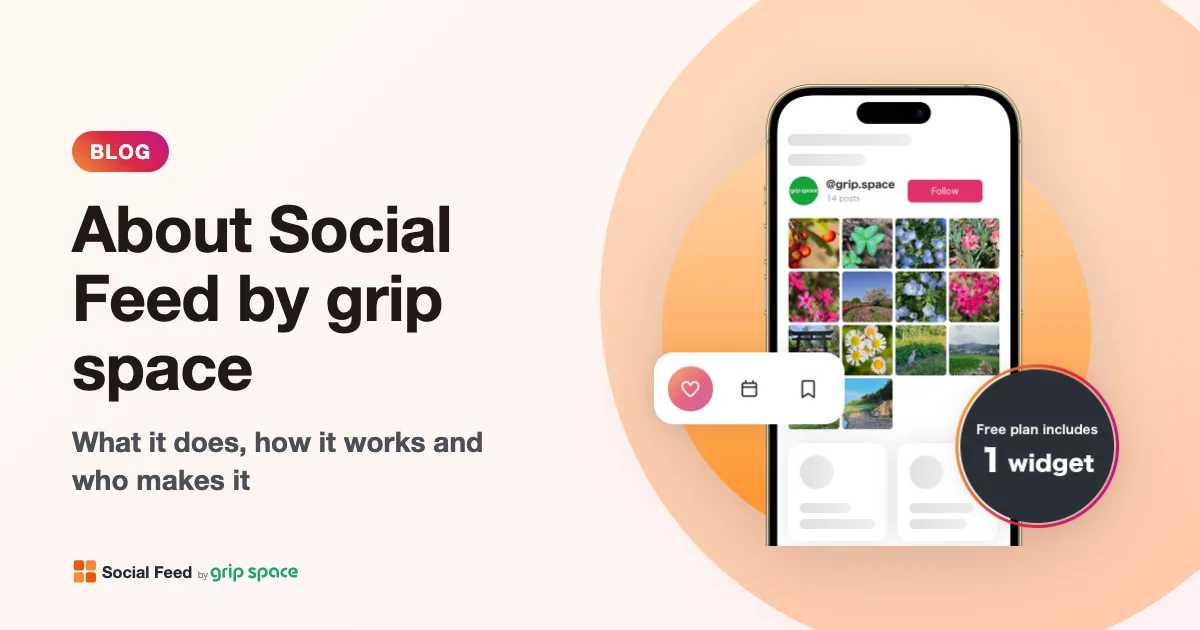
About Social Feed by grip space: what it does, how it works and who makes it
Social Feed by grip space shows your Instagram posts on your website with one embed code. What it does, how it connects to Instagram, its plans, and the company behind it.
Read the article →