
How to add an Instagram feed to a website without a plugin
You do not need a plugin, an app or a developer to show your Instagram posts on your website. A script-tag embed is a single line of code that you paste where the feed should appear, and it works on almost any site that lets you add custom HTML. This guide explains how that approach compares with plugins, where to paste the code on common platforms, and the situations where it will not work.
Updated October 12, 2026
What “without a plugin” actually means
There are three common ways to put an Instagram feed on a website:
- A plugin or app for your platform. You install it in WordPress, Shopify or another system. It runs inside your site, stores its settings there, and usually connects to Instagram from your site.
- A script-tag embed. A service connects to Instagram for you and gives you a short code to paste into your page. Nothing is installed on your site. The feed is drawn by the script when a visitor opens the page.
- Building it yourself with Instagram’s API. A developer creates a Meta app, handles access tokens and writes the code that fetches and displays posts.
This article is about the second option. It is the one most site owners mean when they search for an Instagram feed “without a plugin”: no installation, no maintenance of extra software, and the same method on every platform. The third option is possible but is real development work; our article on the Instagram Basic Display API shutdown explains what changed for developers in 2024.
How a script-tag embed works
With Social Feed by grip space, the embed code is one script tag. It looks like this (your code has your own ID at the end):
<script type="text/javascript" src="https://n246.grip.space/api/v1/instagram/widget/xxxxxxxx"></script>When a visitor opens your page, the browser loads that script. The script draws your feed right after the tag, inside your page, so the feed appears exactly where you pasted the code. A few details that matter when you compare it with a plugin:
- No iframe. The feed is part of your page, so it takes the width of the area it is placed in and grows in height with the posts. You do not have to guess a fixed height (with one exception, covered under Wix below).
- Images come from Instagram. Photos and videos load directly from Instagram’s servers, the same way they would on Instagram itself.
- No cookies from the widget. The widget does not set cookies or use local storage in the visitor’s browser.
- Settings live in the dashboard. Layout, columns, the number of posts, filters and click behavior are changed in the Social Feed dashboard. The code on your site never changes, so you do not need to edit your website again after the first paste.
- Interface text follows your page language. Labels such as the Follow button switch between English and Japanese based on the language set on your page.
Plugin vs. script-tag embed: pros and cons
| Plugin or app | Script-tag embed | |
|---|---|---|
| Installation | Installed and updated in your site | Nothing to install; paste one line |
| Works on | Only the platform it was built for | Any site that accepts custom HTML with scripts |
| Moving to another platform | Find a new plugin and set it up again | Paste the same code on the new site |
| Maintenance | Plugin updates and compatibility with your theme and other plugins | Handled by the service |
| Where settings are changed | In your site’s admin area | In the service’s dashboard |
| Placement | Often through blocks, shortcodes or theme settings | Wherever you can put an HTML element |
| Depends on | Your site’s server and the plugin developer | The service being available, and your platform allowing scripts |
| Typical risk | Conflicts, abandoned plugins, extra load on your server | Platforms or plans that strip scripts; editors that do not show the preview |
Neither approach is better in every case. If your whole business runs on one WordPress site and you are comfortable managing plugins, a good plugin is a perfectly reasonable choice. A script-tag embed shines when you use a hosted builder, run several sites on different platforms, want fewer moving parts, or simply do not want another plugin to keep updated.
Before you start: three checks
- Your Instagram account is a professional account. Feeds that use Instagram’s official API can only connect Business or Creator accounts. Switching is free and takes a minute in the Instagram app; see our guide to professional accounts.
- Your platform lets you add HTML with scripts. Most do, but some only on certain plans or for certain user roles. The table below lists the ones we know about, based on each platform’s own help pages.
- You know where the feed should go. A single page, a section of the homepage, or every page through a footer or shared template. The method is slightly different for each.
Step 1: get your embed code
- Sign up for Social Feed by grip space with your email address. The Free plan lets you create one widget.
- In the dashboard, click “+ Connect Instagram account” and connect your Instagram professional account.
- Open “Settings & preview”, choose a grid or a slider, set the number of posts and columns while watching the preview, and save.
- Under “Add the embed code to your website”, click “Copy”.
If you are unsure which layout to pick, our article on grid or slider walks through the choice. You can change it later without touching the code on your site.
Step 2: paste it where the feed should appear
Every major site builder has an element for custom HTML or code. The name differs, and some platforms limit scripts to certain plans:
| Platform | Element to use | Plan or permission notes | Our guide |
|---|---|---|---|
| WordPress (self-hosted) | Custom HTML block (type /html in the editor) | Your user needs the unfiltered_html capability. On a single site, administrators and editors have it; on multisite, only super admins. | WordPress guide |
| WordPress.com | Custom HTML block | JavaScript works only on a plugin-enabled plan with hosting features activated. | WordPress guide |
| Shopify | Custom Liquid section or block in the theme editor | Not every theme offers it; check your theme’s documentation. | Shopify guide |
| Wix | Add Elements → Embed Code → Popular Embeds → Embed HTML | The element is an iframe with a fixed size you set in the editor. The code must use HTTPS. | Wix guide |
| Squarespace | Code block in HTML mode, Display Source off | JavaScript in Code blocks needs the Core, Plus or Advanced plan. | Squarespace guide |
| Webflow | Code Embed element | Needs a paid Site plan or an eligible paid Workspace plan. Each embed is limited to 50,000 characters. | Webflow guide |
| Static HTML or a custom site | Anywhere inside the <body> | No restrictions beyond your own Content Security Policy, if you use one. | HTML guide |
Other builders usually call this element “HTML”, “Embed”, “Custom code” or “Code”. If you can paste a script into a part of the page and it runs on the published site, the feed will work there.
Example: a feed section on a hand-coded page
If you edit HTML directly, wrap the code in a section with its own heading so the feed has context. The feed takes the full width of the element that contains it:
<section class="instagram">
  <h2>Follow us on Instagram</h2>
  <script type="text/javascript" src="https://n246.grip.space/api/v1/instagram/widget/xxxxxxxx"></script>
</section>
To make the feed narrower, either give the section a maximum width in your own CSS, or set the widget’s maximum width (0 to 2,000 pixels) in “Settings & preview”. The heading is yours, so it uses your site’s fonts and can say whatever suits the page. The widget can also show its own account header with your profile picture, username and post count (you choose which to show), plus a Follow button.
Changing or removing the feed later
Because nothing is installed, undoing it is just as simple as adding it:
- To change how the feed looks, edit the widget in the dashboard. You do not need to open your website at all.
- To hide it for a while, set the widget to Unpublished. The code can stay where it is.
- To move it, cut the code from one HTML element and paste it into another, then publish.
- To remove it, delete the HTML element that contains the code. There is no plugin to deactivate and no leftover settings in your site’s database.
- To move your whole site to another platform, paste the same code on the new site. The widget and its settings stay as they are.
Showing the feed on every page
Because the feed appears wherever the code is, putting it in a shared part of your site puts it on every page:
- WordPress block themes: add a Custom HTML block to the footer template part in Appearance → Editor.
- WordPress classic themes: add a Custom HTML block or widget to a footer or sidebar widget area.
- Shopify: Shopify’s help pages note that the header and footer are shared across all pages, and that custom Liquid can be added there.
- Webflow: turn the Code Embed element into a component and place it in your shared footer.
- Hand-coded sites: paste the code once into your shared layout, footer include or template.
A feed on every page counts a view on every page load. On the Free plan (3,000 views a month) a site-wide footer feed uses the allowance much faster than a feed on one page, so think about whether every page really needs it.
Step 3: check the published page
Many editors do not run scripts while you are editing, for security or performance reasons. Squarespace, for example, may hide code while you are logged in and offers Preview in Safe Mode to see it, and Webflow shows a placeholder box in the Designer. Wix and Shopify’s editors may or may not show the feed. So the rule is simple: publish, then open the live page in a normal browser window, ideally on a phone as well as a computer.
Honest limits of the no-plugin approach
A script-tag embed is simple, but it is not magic. These are the situations where it does not work, or works differently:
- Platforms or plans that remove scripts. If your platform strips
<script>tags, the feed cannot appear. On WordPress, users without the unfiltered_html capability have scripts removed when they save. On WordPress.com and Squarespace, it depends on your plan. There is no workaround on our side; the platform has to allow scripts. - Builders that wrap code in an iframe. Wix shows custom code inside a box with the size you set. The box does not grow with the feed, so a tall grid can be cut off, and the lightbox opens inside the box rather than over the whole page. A slider, which is always one row high, is easier to fit; or set the click action to open the post on Instagram.
- Loading the script from a tag manager or the page head. The feed is drawn right after the script tag. If a tag manager injects it, or it is placed in the head, the feed ends up in the wrong place or not at all. Paste it directly into the page.
- Script optimizers. Caching and optimization plugins that delay, combine or move JavaScript can stop the feed from appearing. If that happens, exclude the embed script from those options and clear the cache.
- Content Security Policy. If your site sends a CSP header, allow scripts and images from
https://n246.grip.spaceand images and videos from Instagram’s servers. The browser console shows what was blocked. - Visitors with JavaScript turned off. Without JavaScript, the feed is not shown. This is rare, but it means you should never put essential information only in the feed.
- The feed depends on the service. A plugin depends on its developer; a script-tag embed depends on the service that serves it. If you stop using the service, remove the code from your site.
What the Free plan includes, and what it does not
The no-plugin approach is free to try. To be clear about what you get:
| Free | Light | Standard | |
|---|---|---|---|
| Price | $0 | $8/month or $80/year | $24/month or $240/year |
| Widgets | 1 | 3 | Unlimited |
| Posts per widget | Up to 16 | Up to 30 | Up to 50 |
| Views per month | 3,000 | 30,000 | Unlimited |
| New posts appear | Once a day | Your latest posts are loaded | Your latest posts are loaded |
| “Powered by Social Feed” credit | Always shown | Optional | Optional |
Views are counted per month across all widgets on your account. If a plan’s view limit is exceeded two months in a row, the feed stops showing from the following month, so keep an eye on the view count shown for each widget in the dashboard. Current prices are on the pricing section.
And a few things the widget does not do, plugin or no plugin: it shows only your own connected account (no hashtag feeds and no other people’s accounts), one account per feed, no Stories, and no shoppable product tags. Image descriptions (alt text) are not currently added to the images, so do not rely on the feed to carry information that visitors using screen readers need.
Other no-plugin options
There are two other ways to show Instagram content without installing anything. Both have their place:
- Instagram’s own Embed option. Every public post, reel and profile has an Embed option on the Instagram website that gives you a code for that one item. It is free and needs no account with another service, but each code shows one post, and new posts never appear by themselves. It is the right tool for featuring one specific post in an article.
- A linked image or button. The lowest-tech option: a static image or a button that links to your Instagram profile. It never breaks and costs nothing to load, but it does not show your posts.
For a wider look at feed services, including plugin-based ones, see our Instagram feed widget comparison.
Performance: does a script-tag feed slow down your page?
Any feed adds images to your page, so it adds some weight. A few details help keep that under control:
- Only the first row loads immediately in a grid. The rest of the images use lazy loading, so they load as the visitor scrolls near them. A slider loads all of its images right away, so keep sliders to a reasonable number of posts.
- Place the feed below the main content. Putting the feed above your page’s main image or heading can affect how quickly the page appears to load. Lower on the page is usually better.
- Show only as many posts as you need. Twelve posts in a grid are usually plenty for a homepage. More posts mean more images to download.
Troubleshooting checklist
- The widget is set to Published in the dashboard. An unpublished widget shows nothing.
- The whole code was pasted, from
<scriptto</script>. - The code is in an HTML or code element, not a text block, and not in the page head.
- You are looking at the published page, not the editor.
- Your platform plan and user role allow scripts (see the table above).
- Optimization or caching plugins are not delaying or combining the script, and their cache has been cleared.
- On Wix, the element is tall and wide enough for the feed.
- The browser console does not show the script or images being blocked by a Content Security Policy or a content blocker.
- Filters in the widget settings (date range, keywords, Reels or carousel settings) are not hiding all of your posts.
Frequently asked questions
Do I need to know how to code? No. You copy one line from the dashboard and paste it into your site’s HTML element. You do not need to edit or understand the code.
Will the feed update when I post on Instagram? Yes. On the Free plan, new posts appear once a day. On paid plans, the feed loads your latest posts. You do not need to change the code.
Can I change the layout after pasting the code? Yes. Change the settings in the dashboard and save. The same code shows the new layout.
Can I use different feeds on different pages? Yes, by creating more than one widget, each with its own code and settings. The Free plan includes one widget, the Light plan three, and the Standard plan an unlimited number.
Does it work on WordPress without a plugin? Yes, on self-hosted WordPress, if your user role can save scripts (administrators and editors on a single site). On WordPress.com, it depends on your plan.
Can I hide the feed temporarily without removing the code? Yes. Set the widget to Unpublished in the dashboard. The code stays on your site but shows nothing until you publish the widget again.
Want to see what the service is about first? Read about Social Feed by grip space, or create a free account and try the preview with your own posts.
Sources
- WordPress.org, “Custom HTML” block: https://wordpress.org/documentation/article/custom-html/
- WordPress.org, “Roles and Capabilities”: https://wordpress.org/documentation/article/roles-and-capabilities/
- WordPress.com Support, “Add code to your site”: https://wordpress.com/support/code/
- Shopify Help Center, “Customizing sections”: https://help.shopify.com/en/manual/online-store/themes/customizing-themes/theme-editor/customizing-sections
- Wix Help Center, “Embedding a site or a widget”: https://support.wix.com/en/article/wix-editor-embedding-a-site-or-a-widget
- Squarespace Help Center, “Code blocks”: https://support.squarespace.com/hc/en-us/articles/206543167-Code-blocks
- Webflow Help Center, “Custom code embed”: https://help.webflow.com/hc/en-us/articles/33961332238611-Custom-code-embed
- Instagram Help Center, “Embed an Instagram post or profile”: https://help.instagram.com/620154495870484
Get your embed code in a few minutes. The Free plan needs no credit card.
Sign up freeMore articles
How to embed a single Instagram post on your website (and when a feed is better)
Step by step: copy Instagram’s embed code for one post, reel or profile, paste it into your site, and learn its limits and when an auto-updating feed fits better.
Read the article →
Why your Instagram feed isn’t updating on your website
New Instagram post not on your site yet? How update timing works on free and paid plans, and how filters, connections and caching can hold posts back.
Read the article →
Instagram feed not showing on your website? Causes and fixes
Your Instagram feed shows in the preview but not on your site, or not at all? Work through these causes, from an unpublished widget to stripped scripts.
Read the article →
About Social Feed by grip space: what it does, how it works and who makes it
Social Feed by grip space shows your Instagram posts on your website with one embed code. What it does, how it connects to Instagram, its plans, and the company behind it.
Read the article →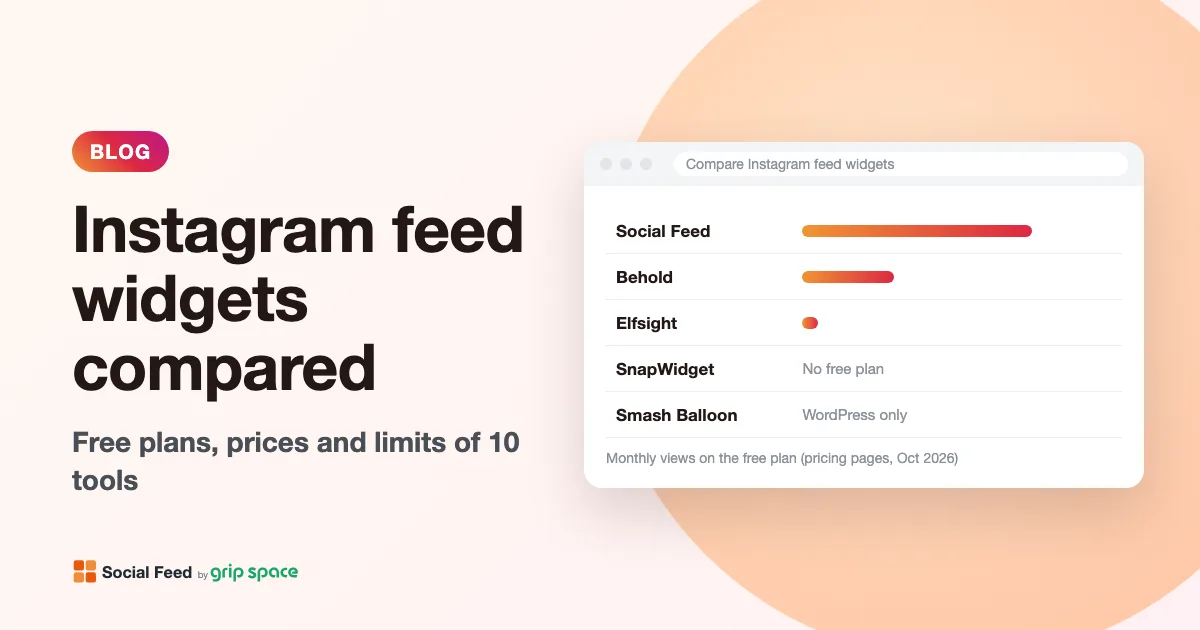
Instagram feed widgets compared: 10 tools, their free plans, prices and limits
Free plans, prices, view limits and update speed of 10 ways to embed your Instagram feed on a website, from simple widgets to WordPress plugins and social walls, checked on each pricing page in October 2026.
Read the article →
The Instagram Basic Display API is gone: how to keep your Instagram feed on your website
Meta shut down the Instagram Basic Display API on December 4, 2024, and many website feeds stopped working. What changed, how to tell if your feed is affected, and how to fix it.
Read the article →