
How to embed a single Instagram post on your website (and when a feed is better)
Instagram has a built-in way to put one post on your website: the Embed option. It is free, it needs no account with any other service, and it takes about a minute. This guide walks through it on a computer and on a phone, explains what the embed can and cannot do, and helps you decide when a single embedded post is enough and when an automatically updating feed is the better choice.
Updated October 12, 2026
What Instagram’s Embed option does
Every public post on Instagram has an Embed option. It gives you a short piece of HTML, the embed code, that you paste into your website. When a visitor opens your page, Instagram’s own script loads and turns that code into a card that looks like the post on Instagram, with the account name and a link back to Instagram.
According to Instagram’s Help Center, posts, reels and guides from public accounts can be embedded, and so can a public profile. When someone embeds your content, it appears directly on their website, so people can see it without using Instagram, and it includes your username and a link to your Instagram.
The key word is “single”. One embed code shows one post. If you want five posts on a page, you copy five codes and paste them one by one, and when you publish something new on Instagram, nothing on your website changes until you add another code yourself.
What you can and cannot embed
| Content | Can it be embedded? | Notes |
|---|---|---|
| A photo or carousel post from a public account | Yes | Copy the code from the post’s Options menu. |
| A reel from a public account | Yes | Reels use the same Embed option. |
| A public profile | Yes | Copy the code from the profile’s Options menu. |
| Anything from a private account | No | Instagram’s Help Center says private accounts and content from private accounts can’t be embedded. |
| A public account that turned off Embeds | No | Public accounts can switch off the Embeds setting without going private. |
| Stories | No | Meta’s developer documentation lists Stories as not supported by the embed endpoint. |
| Posts on inactive or age-restricted accounts | No | Also listed as not supported in Meta’s developer documentation. |
Embedding someone else’s public post is technically possible, because the Embed option is available to everyone who can see the post. Whether you should do it on a business website is a separate question. The account owner controls the setting and can turn embedding off at any time, and the post stays theirs. If you plan to feature another person’s or brand’s content on your site, asking first is the polite and safe route.
How to copy the embed code on a computer
Instagram does not offer embed codes in the mobile app. Its Help Center says you can’t copy embed codes from the Instagram app and should use a computer or a mobile browser instead. On a computer, the steps are:
- Open the Instagram website in the browser on your computer and log in if needed.
- Go to the post, reel or profile you want to embed.
- Click the Options button (the three dots) in the top right of the post or profile.
- Click Embed, then click Copy Embed Code.
- The code is now on your clipboard. Paste it into your website’s HTML editor or custom code element (see below).
Depending on the version of Instagram you see, the Embed window may also offer display options, such as whether to include the caption. Choose these before you copy the code, because the choice is written into the code itself.
How to copy the embed code on a phone
If you only have a phone with you, use the browser, not the app:
- Open the Instagram website in the browser on your phone (for example Safari or Chrome).
- Go to the post, reel or profile you want to embed.
- Tap Options in the top right.
- Tap Embed, then tap Copy Embed Code.
Pasting a long block of code into a website editor on a phone is fiddly. If you can, send the code to yourself and finish on a computer.
If you do not see the Embed option
Instagram’s Help Center gives three reasons the Embed option can be missing:
- The post or account is private.
- The account is public but has Embeds turned off.
- The content or profile cannot be embedded.
If it is your own account, check whether the account is public and whether the Embeds setting is on. Instagram notes that switching an account from public to private also turns off embedding.
Where to paste the code on your website
The embed code contains a script, so it has to go into a part of your site that keeps HTML and scripts as they are. A normal text or paragraph block will usually show the code as text, or remove the script. Most site builders have a dedicated element for this:
| Platform | Where to paste | Things to know |
|---|---|---|
| WordPress (self-hosted) | A Custom HTML block | Only users with the unfiltered_html capability can save scripts. On a single site, that is administrators and editors. |
| WordPress.com | A Custom HTML block | WordPress.com allows JavaScript only on sites with a plugin-enabled plan and activated hosting features. |
| Shopify | A Custom Liquid section or block in the theme editor | Custom Liquid can be added to templates, or to the header or footer to show on every page. |
| Wix | Add Elements → Embed Code → Popular Embeds → Embed HTML | Wix shows the code inside an iframe, which has the size you set in the editor. |
| Squarespace | A Code block in HTML mode, with Display Source off | JavaScript in Code blocks needs the Core, Plus or Advanced plan. |
| Webflow | A Code Embed element | Available with a paid Site plan or an eligible paid Workspace plan. |
| Hand-written HTML | Inside the <body>, where the post should appear | Upload or deploy the page, then check it in a browser. |
Our platform guides walk through each of these elements step by step: WordPress, Shopify, Wix, Squarespace, Webflow and plain HTML. They are written for our feed widget, but the element you paste into is the same for an Instagram embed code.
How the embedded post looks and sizes itself
You cannot style the embedded card with your own fonts or colors. It looks the way Instagram designs it. A few things are worth knowing about its size:
- It adapts to its container. Meta’s documentation says the embed is responsive and adapts to the size of its container, so its height varies with the width and the length of the caption.
- It has a maximum width. Developers who request embeds through Meta’s oEmbed API can set a maximum width between 320 and 658 pixels. On a wide page, expect a card about the width of a phone screen, not a full-width banner.
- A long caption makes it tall. If you include the caption, a long one pushes the content below the post further down the page.
On builders that place embedded code inside a fixed-size box, such as Wix, the box does not grow with the post. Make the element tall enough for the post and its caption, and check the result on a phone as well as a computer.
Limits of a single embedded post
The Embed option is great for what it is designed for. These are the limits to keep in mind before you use it for anything bigger:
- One code, one post. Showing several posts means managing several codes, and the cards do not line up into a grid by themselves.
- It does not update with your account. New posts never appear on their own. The embed always shows the post you copied it from.
- The account owner stays in control. If the post is deleted, the account goes private, or Embeds are turned off, the embed stops working. Instagram notes that embeds on other sites may take time to disappear after the setting is turned off.
- Instagram’s design, not yours. You can choose roughly how wide the card is, but not its colors, fonts or layout.
- It loads Instagram’s script. Each page with an embed loads Instagram’s embed script and content from Instagram. If your site uses a cookie consent tool or a Content Security Policy, check that it allows this, and mention embedded content in your privacy policy if your situation requires it.
- A profile embed is not a configurable gallery. Embedding a profile shows it the way Instagram designs the embed. You cannot choose columns, the number of posts or which posts appear, as you can with a feed.
For developers: Instagram oEmbed
If you build websites or apps, you can request embed code programmatically instead of copying it by hand. Meta provides an Instagram oEmbed endpoint that takes the URL of a post, reel or profile and returns the embed HTML along with a few basic fields. A few points from Meta’s documentation:
- Endpoint: a GET request to
instagram_oembedongraph.facebook.com, with the post URL as theurlparameter. - Access token: since Meta’s 2020 change to token-based access, the endpoint requires an app access token or a client access token, which means you need a Meta app. Check Meta’s current app and review requirements before relying on it.
- Options:
maxwidth(320 to 658 pixels),hidecaptionto leave out the caption, andomitscriptto leave out the script so you can load Instagram’s embed.js once and callinstgrm.Embeds.process()yourself. - Rate limit: up to 1,000 requests per hour.
- Usage rule: the endpoint is only meant for embedding content in websites and apps. Using the returned metadata or content for anything other than a front-end view, including analytics, is prohibited.
- Not supported: posts on private, inactive or age-restricted accounts, accounts that have turned off embeds, and Stories. Shadow DOM is not supported.
For most site owners, copying the code from the Instagram website is simpler. oEmbed matters when a content management system needs to turn a pasted Instagram link into an embed automatically.
When a single embed is the right choice
Use Instagram’s Embed option when the post itself is the point, and it will still be relevant in a year:
- A blog article that refers to a specific post, such as a launch announcement, a behind-the-scenes reel or a customer’s photo you have permission to feature.
- A press or news page that quotes a post as it was published.
- A product page that shows one demonstration reel that will not change.
- A one-off campaign page that lives only as long as the campaign.
- Someone else’s public post that you are discussing or featuring with permission. A feed widget can only show your own connected account.
When a feed is the better choice
A feed widget connects to your Instagram account and shows your latest posts as a grid or a slider. New posts appear on your site without you touching the page again. A feed fits better when:
- You want the website to stay fresh. Restaurants, salons, shops and studios post often. A feed shows that the business is active without anyone editing the website.
- You want several posts to look like a gallery. A feed arranges posts into even rows or a scrollable row, which a stack of single embeds does not do.
- You want the design to match your site. A feed widget lets you set columns, spacing and width, and choose what happens when someone clicks a post.
- You want to show only some posts. For example only Reels, only posts from the last 90 days, or only posts whose captions mention a keyword.
- You do not want to manage many codes. One embed code on the page, and all changes are made in a dashboard.
Single embed vs. feed at a glance
| Instagram’s Embed option | Social Feed by grip space | |
|---|---|---|
| What it shows | One post, reel or profile | Your latest posts as a grid or a slider |
| Whose content | Any public post that allows embedding | Your own connected Instagram professional account |
| New posts | Never appear on their own | Appear automatically (once a day on the Free plan) |
| Code to paste | One code per post | One code per widget |
| Design | Instagram’s card | Columns, spacing, max width, font size, account header and Follow button |
| Clicking a post | Opens Instagram | Lightbox on your page, open Instagram, or do nothing |
| Choosing posts | You pick each one | Filters for Reels, carousels, videos, date range and caption keywords |
| Account type | Any public account with Embeds on | Instagram professional account (Business or Creator) |
| Cost | Free | Free plan available; paid plans for more widgets, posts and views |
What a feed looks like with Social Feed by grip space
If a feed sounds like the better fit, here is how it works with Social Feed by grip space, so you can compare it fairly with the Embed option:
- You connect an Instagram professional account. Personal accounts cannot be connected, because Instagram’s API only gives access to professional accounts. Switching is free; see our guide to professional accounts.
- You choose a grid or a slider and set columns, the number of posts, spacing, a maximum width and font size, with a live preview. Our post on choosing between a grid and a slider covers this in detail.
- You choose what a click does: open a lightbox on your page that can show the caption and like count, open the post on Instagram, or do nothing. Videos play in the lightbox, and carousel posts can show all of their images there.
- You copy one script tag and paste it where the feed should appear, using the same HTML elements described above.
Like Instagram’s embed, the feed is drawn by a script and the images load from Instagram’s servers. Unlike the embed, the feed is drawn directly in your page (not in an iframe), and the widget itself does not set cookies or use local storage.
The Free plan includes one widget, up to 16 posts and 3,000 views a month. New posts are picked up once a day, and a small “Powered by Social Feed” credit is shown below the feed. The Light plan ($8 a month or $80 a year) allows 3 widgets, 30 posts and 30,000 views a month; the Standard plan ($24 a month or $240 a year) allows unlimited widgets, 50 posts and unlimited views. On paid plans the credit is optional. See pricing for details.
A feed cannot do everything the Embed option does. It shows only your own connected account, not other people’s posts, and it does not show Stories. If you want to feature a specific post from another account, the Embed option is still the right tool.
Using both on the same site
The two approaches work well together. A common setup is a feed on the homepage or footer that keeps the site current, and single embedded posts inside blog articles where a particular post is part of the story. Because the feed only needs one code and the embeds are placed one by one, they do not interfere with each other.
If you use both on one page, keep the page light: each single embed loads its own card, and a feed loads its own images. A handful of embeds plus one feed is fine; dozens of single embeds on one page is a sign that a feed would serve you better.
Troubleshooting embedded posts
- The code shows up as text on the page. It was pasted into a text block instead of an HTML or code element, or the element is set to display the source. Move it to an HTML element.
- There is a plain box or link instead of the post. The embed HTML is there, but Instagram’s script did not run. Your platform may have removed the script (check your plan and user role), a privacy or consent tool may be blocking it, or a Content Security Policy may not allow Instagram’s script.
- It works on the live page but not in the editor. That is normal on many platforms. Editors often do not run scripts.
- An embed that used to work has disappeared. The post may have been deleted, the account may have gone private, or the owner may have turned off Embeds. You cannot fix this from your side; remove the code or replace it.
- The post is cut off. On builders that use a fixed-size box, make the element taller. A long caption needs more space, especially on narrow phone screens.
Frequently asked questions
Is embedding an Instagram post free? Yes. The Embed option is part of Instagram and costs nothing.
Can I embed a post from the Instagram app? No. Instagram says embed codes can’t be copied from the app. Use the Instagram website in a computer or mobile browser.
Can I embed a post from a private account? No. Private accounts and their content can’t be embedded.
Can I embed my whole Instagram feed with the Embed option? You can embed a profile, which shows it in Instagram’s own embed design. To show a grid or a slider of your latest posts that updates by itself, you need a feed widget.
Will a new post replace the embedded one? No. An embed always shows the post it was copied from.
Can I hide the caption? If the Embed window offers a caption option, choose it before copying. Developers using oEmbed can pass hidecaption.
Can I stop other sites from embedding my posts? Yes. A public account can turn off the Embeds setting without going private, and switching to a private account also turns embedding off. Existing embeds may take some time to disappear.
New to Social Feed? Read what Social Feed by grip space is, or compare options in our Instagram feed widget comparison. When you are ready, create a free account.
Sources
- Instagram Help Center, “Embed an Instagram post or profile”: https://help.instagram.com/620154495870484
- Meta for Developers, “oEmbed” (Instagram Platform): https://developers.facebook.com/docs/instagram-platform/oembed
- Meta for Developers, “Instagram oEmbed” (Graph API reference): https://developers.facebook.com/docs/graph-api/reference/instagram-oembed/
- Meta for Developers blog, “Required migration to token-based access for User Picture and oEmbed endpoints” (2020): https://developers.facebook.com/blog/post/2020/10/14/required-migration-token-based-access-user-picture-oEmbed-endpoints/
- WordPress.org, “Custom HTML” block: https://wordpress.org/documentation/article/custom-html/
- WordPress.org, “Roles and Capabilities”: https://wordpress.org/documentation/article/roles-and-capabilities/
- WordPress.com Support, “Add code to your site”: https://wordpress.com/support/code/
- Shopify Help Center, “Customizing sections”: https://help.shopify.com/en/manual/online-store/themes/customizing-themes/theme-editor/customizing-sections
- Wix Help Center, “Embedding a site or a widget”: https://support.wix.com/en/article/wix-editor-embedding-a-site-or-a-widget
- Squarespace Help Center, “Code blocks”: https://support.squarespace.com/hc/en-us/articles/206543167-Code-blocks
- Webflow Help Center, “Custom code embed”: https://help.webflow.com/hc/en-us/articles/33961332238611-Custom-code-embed
Get your embed code in a few minutes. The Free plan needs no credit card.
Sign up freeMore articles
Why your Instagram feed isn’t updating on your website
New Instagram post not on your site yet? How update timing works on free and paid plans, and how filters, connections and caching can hold posts back.
Read the article →
Instagram feed not showing on your website? Causes and fixes
Your Instagram feed shows in the preview but not on your site, or not at all? Work through these causes, from an unpublished widget to stripped scripts.
Read the article →
About Social Feed by grip space: what it does, how it works and who makes it
Social Feed by grip space shows your Instagram posts on your website with one embed code. What it does, how it connects to Instagram, its plans, and the company behind it.
Read the article →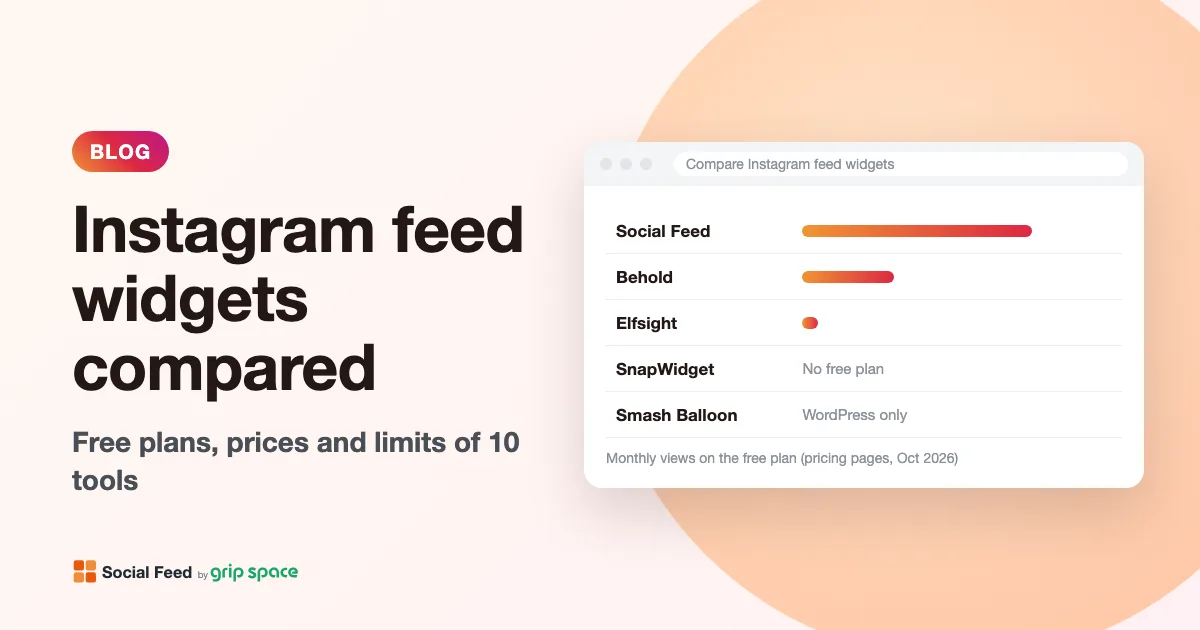
Instagram feed widgets compared: 10 tools, their free plans, prices and limits
Free plans, prices, view limits and update speed of 10 ways to embed your Instagram feed on a website, from simple widgets to WordPress plugins and social walls, checked on each pricing page in October 2026.
Read the article →
The Instagram Basic Display API is gone: how to keep your Instagram feed on your website
Meta shut down the Instagram Basic Display API on December 4, 2024, and many website feeds stopped working. What changed, how to tell if your feed is affected, and how to fix it.
Read the article →
Why you need an Instagram professional account to show your feed on your website (and how to switch)
Since December 2024, website feeds can only show posts from Instagram professional accounts. What a professional account is, Business vs Creator, how to switch in the app, and what changes when you do.
Read the article →