
Can you show a private Instagram account on your website?
Short answer: no. A website feed shows your posts to anyone who visits your site, and a private Instagram account exists precisely so that only approved followers can see them. Instagram’s own rules and its API both reflect this. This guide explains why, what happens when you switch, and the practical options if you want to keep some or all of your Instagram private.
Updated October 12, 2026
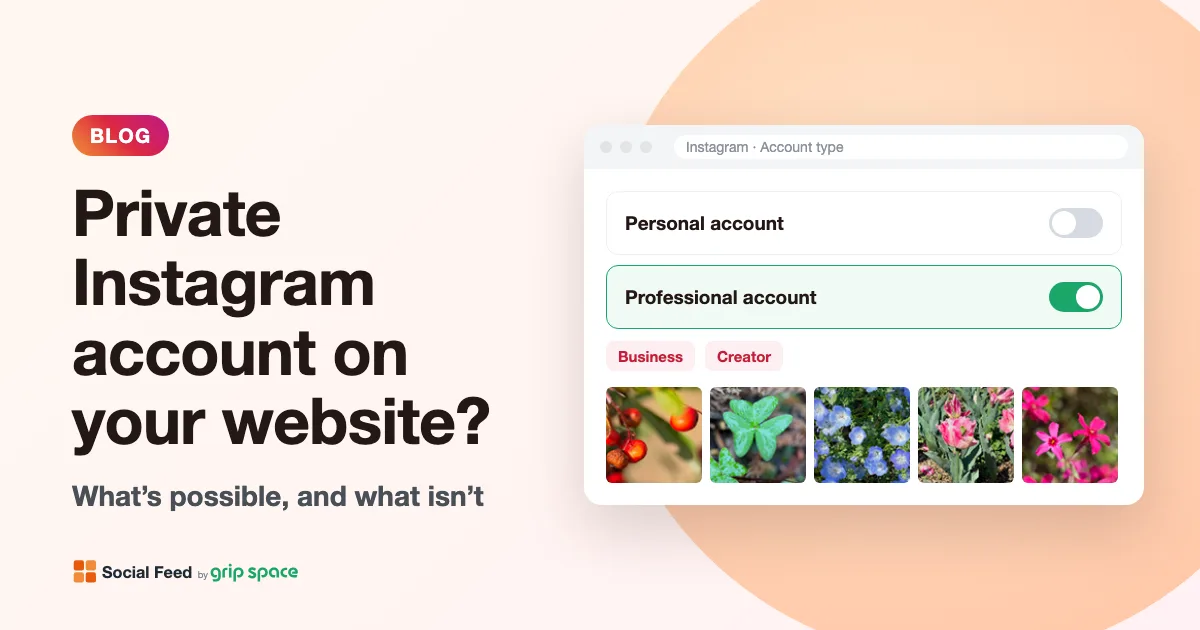
The short answer
You can’t show the posts of a private Instagram account in a website feed. Not with Social Feed by grip space, and not with any tool that uses Instagram’s official API. There are three reasons, and they all point the same way:
- Instagram’s privacy promise. On a private account, only the followers you approve can see your photos and videos. A website is open to everyone, so showing private posts there would break that promise.
- Instagram’s account rules. Instagram’s Help Center says business profiles can’t be made private. To make an account private, you first have to switch it back to a personal account.
- Instagram’s API. Website feeds today get your posts through the Instagram API, and Meta’s developer documentation says that the people using it must have an Instagram professional account (Business or Creator).
Put the last two together and you get the real answer: the only accounts that can power a feed are professional accounts, and professional accounts are always public. So the question is not “how do I get around this?” but “which posts am I comfortable showing publicly, and how do I show just those?” The rest of this guide helps you answer that.
What “private” actually means on Instagram
It helps to be precise about what a private account hides, because it explains why a website feed and a private account can never fit together. Here is a summary of the differences Instagram lists in its Help Center:
| Who can… | Public account | Private account |
|---|---|---|
| Follow you | Anyone on Instagram | Only people you approve |
| See your photos and videos on your profile or in feed | Anyone on Instagram | Your followers |
| See your posts in search, Explore, hashtag and location pages | Anyone on Instagram | No one |
| See links to your posts in search engine results | Anyone off Instagram | No one |
| Embed your photos and videos off Instagram | Anyone on or off Instagram | No one |
| See your profile photo, name, username and bio | Anyone on or off Instagram | Anyone on or off Instagram |
Look at the “embed” row. Instagram itself says that nobody can embed a private account’s photos and videos off Instagram. That includes you. A website feed is a kind of embed, so it falls under the same rule. Note also the last row: even on a private account, your profile photo, name, username and bio stay visible to everyone. Only the posts are hidden.
Why professional accounts can’t be private
Instagram has two broad kinds of accounts: personal accounts and professional accounts. Professional accounts come in two types, Business and Creator. They give you insights, ads, contact buttons and the access that third-party tools need.
Instagram’s Help Center is direct about privacy here: business profiles aren’t able to make their accounts private, and if you want to make a business account private, you first need to switch back to a personal account. On a professional account, there is simply no private option to turn on.
The reverse also holds. Instagram notes that if your personal account is private, switching it to a professional account makes it public, and all pending follow requests are automatically accepted when you go public. So you can’t have it both ways: as soon as an account is able to power a website feed, it is public.
Why website feeds need a professional account
For years, Instagram offered a separate API for personal accounts called the Basic Display API, which many feed plugins used. Meta shut it down on December 4, 2024. Our post on the end of the Basic Display API explains what changed and why many older feeds broke.
Today, tools that show your Instagram posts on a website use the Instagram API. Meta’s developer documentation describes it as an API for Instagram professionals, businesses and creators, and says app users must have an Instagram professional account. The version Social Feed uses lets you log in with your Instagram credentials and doesn’t require a linked Facebook Page.
Social Feed asks Instagram for read-only access to your own profile and your own posts. It can’t post, comment, message or change anything on your account, and it only ever shows posts from the account you connect. In practice, that means the feed can only show what anyone could already see by opening your public profile.
Your options if you want to stay private
If keeping your Instagram private matters more than having a feed on your website, that is a perfectly reasonable choice. Here are the realistic options, from most to least common:
| Option | What you do | Good for | Trade-offs |
|---|---|---|---|
| 1. Make your account professional (public) | Switch to Business or Creator, review your posts, then connect the account | Businesses, shops, studios, venues, freelancers whose posts are already “for customers” | Every post on the account is public, not just the ones on your site |
| 2. Keep your private account and open a separate public one | Keep your personal account private and create a new professional account for your work | Owners who use one account for family and friends | Two accounts to post to; the new account starts with no followers |
| 3. Stay private and link to your profile | Add a plain link or icon to your Instagram profile on your site | People who mainly want new followers | Visitors see no photos; they must request to follow you |
| 4. Stay private and build a gallery yourself | Upload your own photos to your website’s gallery or image block | Portfolios where you choose every image | No automatic updates; you add each photo by hand |
Option 2 is the most common for small businesses that started on the owner’s personal account. Your private account stays exactly as it is, and the new professional account holds only content meant for customers. The website feed then shows that account.
Option 4 is worth a moment’s thought if you are a photographer or designer: images you upload yourself can be shown at full quality and in the order you choose. A feed is better when you want the site to update itself whenever you post.
Before you switch to public: a checklist
If you decide to make your existing account professional, take ten minutes to prepare. Switching is quick, but it makes everything on the account visible to anyone at once.
- Scroll through your whole grid. Ask of each post: would I be comfortable with a customer seeing this? Remove anything that is too personal, out of date or off-brand.
- Check your captions. Old captions sometimes mention people’s names, home locations or private events. Edit or remove them.
- Look at your profile. Your bio, profile photo and name are what visitors see first, both on Instagram and in the feed header on your site.
- Check your follow requests. Instagram accepts all pending follow requests automatically when a private account goes public. If there are requests you don’t want to accept, decline them before you switch.
- Think about who follows you now. People who already follow you stay followers. If someone shouldn’t see your business content, you can remove them from your followers or block them.
- Choose Business or Creator. Either works with Social Feed. Business is typical for shops, services and organizations; Creator for individuals and artists.
How to switch to a professional account
Instagram’s Help Center describes these steps for the app. Menu names can change over time, so if something looks different, search for “professional account” in Instagram’s Help Center.
- Open your profile by tapping your profile picture in the bottom right.
- Tap More (the menu) to open Settings and activity.
- Below For professionals, tap Account type and tools.
- Tap Switch to professional account and choose a category that describes what you do.
- Choose Business or Creator, tap Next, and finish or skip the optional steps.
You can also switch on instagram.com: click More, then Settings, and under For professionals choose Account type and tools. For more detail, including the difference between Business and Creator, see our professional account guide.
Public account, selective website feed
Going public on Instagram doesn’t mean every post has to appear on your website. Social Feed has filters that decide which of your public posts the widget shows. They are a good way to keep the website focused, even if the Instagram account has a mix of content.
| Filter | Choices | Use it to |
|---|---|---|
| Caption keywords | Only posts that contain a keyword, or exclude posts that contain it | Show only posts tagged with your own word or hashtag, for example #shop, or hide posts that mention a topic |
| Date range | Any time, last 30 days, last 90 days, last year | Keep old posts off your site |
| Reels | All, exclude Reels, Reels only | Show photos only, or a Reels-only section |
| Carousel posts | Show or hide multi-image posts | Keep the feed simple |
| Include video posts | On or off | Show photos only |
The keyword filter is the most useful here. If you add a word like “#studio” to the captions of posts you want on the website, you can set the widget to show only posts that contain it. Everything else stays on Instagram only. To be clear, this is not a hashtag feed: it only looks at your own posts, never at other people’s posts that use the same hashtag.
Remember that filters decide what appears on your website, not what is private. Every post on a professional account can still be seen by anyone who visits your Instagram profile.
Connecting your account to Social Feed
Once your account is professional, connecting it takes a couple of minutes:
- Create a free Social Feed account with your email address and a password.
- In the dashboard, click + Connect Instagram account and log in on the Instagram page that opens.
- Approve access. Social Feed only asks to read your profile and posts.
- Click + Add widget, open Settings & preview, set the layout and filters, and click Save settings.
- Copy the embed code under Add the embed code to your website and paste it into your site. Our guides cover WordPress, Shopify, Wix, Squarespace, Webflow and plain HTML.
The Free plan includes one widget with up to 16 posts and 3,000 views a month, updated once a day. Paid plans add more widgets, more posts and instant updates. See pricing for details.
What if you switch back to private later?
You can switch a professional account back to personal at any time, and then make it private. Instagram notes that when you switch back, you lose access to some Meta business tools such as Meta Business Suite and Meta Ads Manager, and any Facebook Page connected to the professional account is disconnected.
Because the Instagram API only serves professional accounts, don’t expect a website feed to keep working after the account goes back to personal. If that happens and you want the feed back, switch the account to professional again and reconnect it; if the preview says the connection has expired, use Reconnect Instagram account there, which keeps your widgets. If you only want to take the feed off your site for a while, there is an easier way: switch the widget to Unpublished in the dashboard. The embed code then shows nothing, and you can switch it back on later without touching your website.
Common situations and what to do
Most people who ask this question are in one of a few situations. Here is what we would suggest for each.
“My business started on my personal account, and it’s private.” This is very common for home bakers, makers, tutors and freelancers. If nearly everything on the account is already about your work, switching it to professional is the simplest path: review the grid with the checklist above, then switch. If the account is mostly family photos with some work mixed in, open a separate professional account for the business instead, and start posting your work there. Your website feed then shows the new account, and the private one stays private.
“I want people to request to follow me before they see anything.” Then a website feed is the wrong tool, because it shows posts to everyone without asking. Add a link to your Instagram profile on your site instead. Visitors can see your profile photo, name and bio, and send you a follow request that you approve or ignore.
“Our organization’s account is private for safety reasons.” Schools, youth groups and care providers sometimes keep accounts private because the posts show children or vulnerable people. In that case, keep the account private and don’t try to work around it. If you want photos on your website, choose them one by one, with the permissions your organization requires, and upload them to the site yourself.
“I only want a few posts on my website, not my whole account.” The account still has to be professional and public, but the website doesn’t have to show everything. Use the caption keyword filter described above so the widget shows only the posts you mark. You can also create more than one widget from the same account, each with its own filters, if you want different posts on different pages. The number of widgets depends on your plan.
“I made my account public, but I’m nervous about it.” Start small. Publish the widget on one page, look at it on a phone and a computer, and see how it feels. If you change your mind, set the widget to Unpublished and the feed disappears from your site right away, without editing your website.
What visitors see in the feed
Once the account is connected, it helps to know exactly what your website shows, so you can decide what to post publicly. The widget shows your posts as square tiles in a grid or a slider. Above them, you can show a header with your profile picture, your username, your post count and a Follow button. When someone clicks a post, it can open in a lightbox on your page with the caption and like count, open the post on Instagram, or do nothing. All of these are settings you choose.
The feed shows only your own posts. It doesn’t show Stories, the text of comments, your followers, the accounts you follow, or posts other people have tagged you in. That means switching to professional for the sake of a website feed doesn’t put your followers list or your conversations on your website.
Troubleshooting
“I can’t find a private option in my settings.” Your account is probably a Business or Creator account. Instagram doesn’t offer a private setting for those; switch back to personal first if you really want it private.
“The connection fails or no account appears.” Check that the account you log in with is a professional account. A personal account, public or private, can’t be connected. Also make sure you are logged in to the right account in Instagram, if you use several.
“My feed was working and then stopped.” Check whether someone switched the account back to personal or changed the password. In the dashboard, a message asks you to reconnect if Instagram has revoked access. Our guide to an Instagram feed not showing on your website covers other causes too.
“Some posts aren’t on my website.” Check the widget’s filters, especially caption keywords and the date range. Also see why an Instagram feed isn’t updating.
Frequently asked questions
Can a feed show posts only to my followers? No. A website can’t check who follows you on Instagram, and the Instagram API doesn’t offer this. Anything in the feed is visible to every visitor.
Can I password-protect the page the feed is on? Many website builders offer password-protected pages, and you can place the feed there. That limits who can see the page on your site, but the posts themselves are still public on Instagram, because the account has to be professional.
Can I embed a single post from a private account? No. Instagram says no one can embed photos and videos from a private account. See how to embed a single Instagram post for public posts.
Can I show a friend’s or another business’s private account? No. Social Feed only shows posts from the account you connect yourself, and that account must be professional and therefore public.
Do other feed tools get around this? Tools that use Instagram’s official API face the same rule. Be careful with anything that asks for your Instagram password directly instead of sending you to Instagram’s own login page. For a broader view, see our comparison of Instagram feed widgets.
Does Social Feed set cookies on my website? No. The widget sets no cookies and doesn’t use local storage. Images and videos load directly from Instagram’s servers.
Next steps
If you’re happy for your work account to be public, switch it to professional, choose the posts you want to show with filters, and start with the free plan. If you want to stay private, a separate public account for your business is usually the cleanest answer. New here? Read what Social Feed by grip space is. Questions? Write to us at info@grip-space.co.jp.
Sources
- Instagram Help Center, “Make your Instagram account private”: https://help.instagram.com/448523408565555
- Instagram Help Center, “Differences between public and private accounts on Instagram”: https://help.instagram.com/517073653436611
- Instagram Help Center, “Set up a professional Instagram account”: https://help.instagram.com/502981923235522
- Instagram Help Center, “Switch back to a personal Instagram account”: https://help.instagram.com/1717693135113805
- Meta for Developers, “Instagram Platform overview”: https://developers.facebook.com/docs/instagram-platform/overview
- Meta for Developers, “Instagram API with Instagram Login”: https://developers.facebook.com/docs/instagram-platform/instagram-api-with-instagram-login
Get your embed code in a few minutes. The Free plan needs no credit card.
Sign up freeMore articles
Where to put an Instagram feed on your website: placements that make sense
Homepage, footer, About, Contact, product pages, blog, thank-you pages, landing pages: where an Instagram feed helps, where it gets in the way, and why.
Read the article →
Instagram feed for restaurant and café websites: what to show and where
How restaurants and cafés can use an Instagram feed: which posts to show, where to place them, and filter recipes for menus, specials and Reels.
Read the article →
How to add an Instagram feed to a Ghost site
Three ways to show your Instagram posts on a Ghost site: an HTML card, Code Injection, or a theme partial. Which to use, step by step, and what each can’t do.
Read the article →
Free Instagram feed widget: what you get on the free plan (and its limits)
An honest look at the Social Feed by grip space Free plan: 1 widget, 16 posts, 3,000 views a month, daily updates, a credit link, and when to upgrade.
Read the article →
How to add an Instagram feed to your BigCommerce store
Show your Instagram posts on a BigCommerce store with a Page Builder HTML widget, and learn when Script Manager or theme files make sense instead.
Read the article →
How to add an Instagram feed to a GoDaddy website
Add an auto-updating Instagram feed to a GoDaddy Websites + Marketing site with an HTML section, plus tips on iframe height, the lightbox and GoDaddy WordPress.
Read the article →