
How to add an Instagram feed to a Ghost site
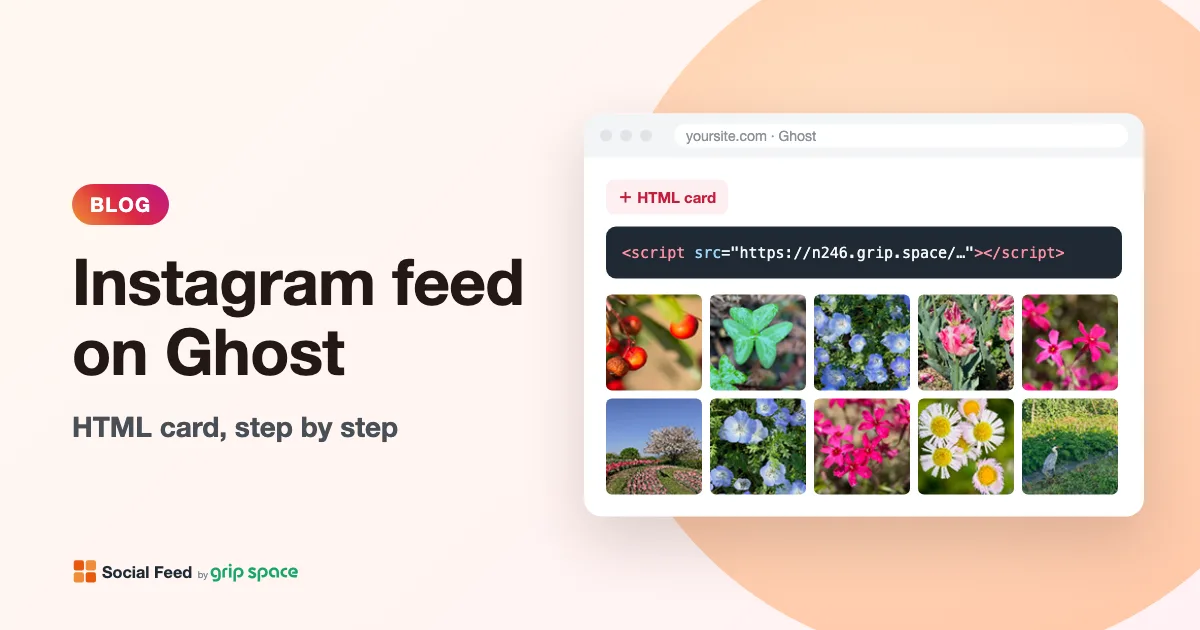
Ghost does not have a built-in Instagram feed, but it gives you three places to add one: an HTML card inside a post or page, Code Injection in the settings, and partials in your theme. This guide walks through each with Social Feed by grip space, explains which one puts the feed where you want it, and covers the plan limits and common problems.
Updated October 12, 2026
Three ways at a glance
The embed code from Social Feed by grip space is a single script tag, and the feed is drawn right where that tag sits on the page. That one fact decides which Ghost method works best, because each method puts the code in a different place.
| HTML card | Code Injection | Theme partial | |
|---|---|---|---|
| Where the feed appears | Exactly where you put the card in a post or page | At the very end of the page, below your theme’s footer | Anywhere in your theme’s templates, such as above the footer or on the homepage |
| Scope | One post or page | Every page (site-wide) or one post | Every page that uses the template |
| Skills needed | None | None | Editing theme files and uploading a .zip |
| Plan notes | Uses the editor; no special plan mentioned in Ghost’s help | Ghost’s help pages do not state which plans include it; check your plan | Needs a custom theme upload, which Ghost(Pro) Starter does not allow |
| Best for | An Instagram or gallery page, or a feed inside an article | Rarely the right choice for this widget (see below) | A feed on the homepage or on every page |
For most Ghost sites, the answer is simple: use an HTML card if you want the feed on a specific page, and a theme partial if you want it on the homepage or across the site.
Before you start: get your embed code
- Sign up for Social Feed by grip space with your email address. The Free plan needs no credit card and lets you create one widget.
- In the dashboard, click “+ Connect Instagram account” and connect an Instagram professional account (Business or Creator). A personal account can be switched to a professional one for free in the Instagram app; here is how.
- Open “Settings & preview”, choose a grid or a slider, set the number of posts and columns while watching the preview, and save.
- Under “Add the embed code to your website”, click “Copy”. The code looks like this:
<script type="text/javascript" src="https://n246.grip.space/api/v1/instagram/widget/xxxxxxxx"></script>Keep this code handy. Every method below uses the same code; only the place you paste it changes. The widget runs in the visitor’s browser, so it works the same whether your Ghost site is hosted on Ghost(Pro) or on your own server.
Method 1: an HTML card in a post or page
Ghost’s editor is built from cards: images, galleries, embeds, and an HTML card for your own code. Ghost’s help center describes the HTML card as useful for “embedding external content such as forms, custom buttons, adding custom styling, and integrating with third-party tools.” An Instagram feed fits that description well.
- In Ghost Admin, open the post or page where the feed should appear, or create a new page, for example one called “Instagram”.
- Click on an empty line where the feed should go.
- Open the card menu: click the + button, or type / on the new line and start typing html.
- Choose the HTML card.
- Paste the embed code into the card. If you want a heading such as “Follow us on Instagram”, write it as a normal paragraph or heading above the card, so it is styled like the rest of your content.
- Click outside the card, then Publish the post or page, or Update it if it is already published.
- Open the published page in your browser to check the feed.
Card visibility. Ghost lets you control who sees an HTML card. Its help center says the settings let you “create custom experiences for public visitors, free members, or paid members,” and you reach them through the eye icon in the card toolbar. For an Instagram feed you usually want everyone to see it, so leave the card visible to all visitors. If the post itself is for members only, visitors who are not signed in will not see the feed either.
Reuse the card with snippets. If you want the same feed in several posts, save it once as a snippet. Select the HTML card and click the snippet icon in the toolbar to save it with a name. Later, type / followed by the snippet’s name on a new line to insert it. Ghost’s help page does not say whether editing a snippet updates the posts where you already used it, so treat each inserted copy as independent. Because the embed code never changes when you change your widget’s settings, this rarely matters: change the design in the Social Feed dashboard, and every copy updates on your site.
What about the homepage? On most Ghost themes, the homepage is not a page you write in the editor. The theme builds it automatically from your list of posts, so there is no place to add an HTML card. For a feed on the homepage, use a theme partial (Method 3).
Method 2: Code Injection (and why it is not ideal here)
Code Injection is Ghost’s way to add code to your site without editing the theme. Ghost’s help center places it under Settings → Advanced → Code Injection (one of Ghost’s tutorials gives the path as Settings → Code Injection, so the label may differ slightly in your version). There are two fields:
- Site Header: code placed inside the page’s
<head>. - Site Footer: code placed just before the closing
</body>tag.
You can also add code to a single post from the post settings sidebar in the editor. That code is output only on that post’s page, in the same two places.
This is very convenient for analytics tags, fonts and small scripts that do not show anything themselves. For an Instagram feed it has a catch. The Social Feed widget appears exactly where its script tag is, and Code Injection only offers two places:
- Site Header: do not use it. The
<head>is not displayed, so the feed would not be visible at all. - Site Footer: it works, but the feed lands at the very end of the page, after your theme’s footer, copyright line and any other content. It is not styled as part of the footer and usually looks out of place.
The widget has no setting to move itself into another part of the page. So unless a feed below everything else is what you want, use an HTML card for a specific page or a theme partial for site-wide placement.
Ghost’s help pages we checked do not say which Ghost(Pro) plans include Code Injection. If you do not see it in your settings, check your plan or ask Ghost support.
Method 3: a theme partial (homepage or every page)
Ghost themes are made of Handlebars template files. A partial is a small template file that you can include in other templates, which makes it the cleanest way to put the feed exactly where you want it across your site, for example just above the footer on every page, or below the latest posts on the homepage.
Step 1: download your current theme. In Ghost Admin, go to the theme settings (Ghost’s help center gives the path as Settings → Site → Theme). Open Installed, where your active theme and earlier themes are listed, and download a copy of the active theme. Keep an untouched copy as a backup.
Step 2: create the partial. Unzip the theme. Inside it there is usually a partials folder (create one if it does not exist; Ghost’s documentation says all partials are stored in the partials/ directory of the theme). Add a new file named instagram-feed.hbs with your embed code. You can wrap it in a section with a heading:
<section class="instagram-feed">
  <h2>Follow us on Instagram</h2>
  <script type="text/javascript" src="https://n246.grip.space/api/v1/instagram/widget/xxxxxxxx"></script>
</section>
Replace the code with your own embed code from the dashboard. The class name is just a hook in case you want to add spacing with your theme’s CSS.
Step 3: include the partial in a template. Ghost includes partials with this syntax: {{> "instagram-feed"}}. Where you put that line decides where the feed appears:
| Template file | What it controls | Where to put the line |
|---|---|---|
default.hbs | The outer layout shared by every page, including the site footer | Just above the footer markup, to show the feed on every page |
index.hbs | The main list of posts, which usually includes the homepage | Below the post list, to show the feed after your latest posts |
post.hbs | A single post | After the post content, to show the feed under every article |
page.hbs | Static pages (if the theme has this file; otherwise pages use post.hbs) | After the page content |
Theme files differ, so open the template and look for the obvious landmarks: the footer element in default.hbs, the loop that lists posts in index.hbs, or the content block in post.hbs. Put the line just before or after them.
To show the feed only on the homepage while still placing it in a shared template, wrap the include in Ghost’s is helper. Ghost’s documentation says the “home” context is true only on the home page:
{{#is "home"}}
  {{> "instagram-feed"}}
{{/is}}
Step 4: upload the theme. Zip the theme folder again and upload it with the Upload theme button in the theme settings, then activate it if Ghost asks. Open your site and check the pages where the feed should appear.
Which method should you choose?
- You want an “Instagram” or gallery page: create a page and add an HTML card. It takes a minute and works on every plan where you can use the editor.
- You want the feed inside a particular article, such as a recipe or a project write-up: add an HTML card in that post.
- You want the feed on the homepage: use a theme partial with the “home” condition. On Ghost(Pro) Starter, where custom themes are not available, make a dedicated page with an HTML card and link to it from your navigation instead.
- You want the feed on every page: use a theme partial in default.hbs. Keep in mind that every page view then counts toward your widget’s monthly views.
- You are fine with the feed at the very bottom of every page: Code Injection’s Site Footer will do it without touching the theme.
Making the feed look right on a Ghost site
Ghost themes usually lay out posts in a reading column that is narrower than the screen. The widget measures the space it is placed in and uses fewer columns when each image would get smaller than about 100 pixels, so a 4-column grid in a narrow column or on a phone automatically drops to fewer columns. You do not need separate settings for mobile.
- In a post or page (HTML card): 3 or 4 columns with 9 or 12 posts usually fills the reading column neatly. A slider is a good choice in the middle of an article, because it stays one row high and does not push the rest of the text far down.
- Above the footer on every page (partial): keep it to one or two rows. A slider, or a grid with as many posts as columns, adds color without making every page much longer.
- On the homepage (partial): two or three rows of a grid work well below your latest posts. Turn on the account header and the Follow button so visitors can follow you in one click.
- Width: the widget has a maximum width setting (0 to 2,000 pixels). In a partial that spans the full page width, set a maximum such as 1,000 to 1,200 pixels so the tiles do not become huge on wide screens.
For more on layouts, post counts and spacing, see Grid or slider? Choosing a layout for the Instagram feed on your website. Design changes you make in the dashboard appear on your Ghost site without touching the code again.
Ghost newsletters and the feed
Ghost can send posts to your members as email newsletters. Email apps do not run scripts, so the Instagram feed will not appear in the email version of a post, even if it shows on the website. If a post with a feed goes out as a newsletter, check how the email looks before you send it, and consider adding a plain text link such as “See our latest posts on Instagram” so email readers have something to click.
Troubleshooting
- Nothing appears on the published page. Check that the widget is set to Published in the Social Feed dashboard; an unpublished widget shows nothing. Then check that the whole code was pasted, from
<scriptto</script>. - The feed shows in the wrong place. If you used Code Injection, the feed appears at the end of the page by design. Move the code to an HTML card or a theme partial.
- The feed is invisible after using Code Injection. The code was probably put in Site Header. Move it to Site Footer, or better, use one of the other methods.
- The feed appears twice. The code is in two places, for example in a partial in default.hbs and in an HTML card on the same page, or in both the partial and Site Footer. Remove one.
- The feed shows on some pages but not others. With a partial, check that the include line is in a template those pages use. Pages use page.hbs, or post.hbs if the theme has no page.hbs, and the post list uses index.hbs.
- The theme upload fails or the site looks broken. Re-upload your untouched backup to restore the site, then check that the include line was typed exactly as
{{> "instagram-feed"}}and that the partial file name matches. - The feed disappeared after a theme update. The update replaced your modified files. Add the partial and the include line again.
- Members do not see it, or visitors do not. Check the HTML card’s visibility (the eye icon) and the post’s own access setting.
- New Instagram posts are missing. On the Free plan, new posts appear on your site once a day; on paid plans, right away. Also check whether a filter (period, caption keywords or post type) is hiding them.
- The feed stopped showing after a busy period. If your views go over your plan’s monthly limit two months in a row, the feed pauses from the following month. The dashboard and our emails tell you when this is about to happen.
Frequently asked questions
Do I need a Ghost integration or app for this?
No. The feed is added with a plain script tag, so it uses Ghost’s HTML card or theme files, not the integrations area.
Does it work on self-hosted Ghost?
Yes. The widget runs in the visitor’s browser and does not depend on where Ghost is hosted. On a self-hosted site you can upload your own theme, so the partial method is available too.
Can I show different feeds on different pages?
Yes, with one widget per variation, each with its own embed code. The Free plan includes one widget, the Light plan three and the Standard plan an unlimited number. See pricing.
Will the feed slow down my Ghost site?
The widget is one small script, and images load directly from Instagram. In a grid, images below the first row load only when visitors scroll near them. A slider loads all its images right away, so keep sliders reasonably short.
Can I hide the feed for a while without editing Ghost?
Yes. Switch the widget to Unpublished in the Social Feed dashboard. The code stays in your HTML card or partial but shows nothing until you switch it back, so you do not need to edit posts or upload the theme again.
Do I need to replace the code when I change the feed’s design?
No. Layout, columns, filters and colors are saved with the widget, not in the code. Change them in the dashboard and your Ghost pages show the new design the next time they load.
Can I show a hashtag or someone else’s account?
No. Social Feed by grip space shows the posts of the Instagram account you connect. For tools that state hashtag feeds, see our comparison of Instagram feed widgets.
Using another platform as well? We have guides for WordPress, Shopify, Wix, Squarespace, Webflow and HTML. New to the service? Read what Social Feed by grip space is.
Sources
- Ghost Help, “Editor cards”: https://ghost.org/help/cards/
- Ghost Help, “Snippets”: https://ghost.org/help/snippets/
- Ghost Help, “Adding styles with code injection”: https://ghost.org/help/code-injection-styles/
- Ghost Tutorials, “How to use Code Injection in Ghost”: https://ghost.org/tutorials/use-code-injection-in-ghost/
- Ghost Changelog, “Post Code Injection”: https://ghost.org/changelog/post-code-injection/
- Ghost Help, “Installing a theme”: https://ghost.org/help/installing-a-theme/
- Ghost(Pro) pricing: https://ghost.org/pricing/
- Ghost Developer Docs, “Structure”: https://docs.ghost.org/themes/structure
- Ghost Developer Docs, “partials”: https://docs.ghost.org/themes/helpers/utility/partials
- Ghost Developer Docs, “is”: https://docs.ghost.org/themes/helpers/functional/is
Get your embed code in a few minutes. The Free plan needs no credit card.
Sign up freeMore articles
Free Instagram feed widget: what you get on the free plan (and its limits)
An honest look at the Social Feed by grip space Free plan: 1 widget, 16 posts, 3,000 views a month, daily updates, a credit link, and when to upgrade.
Read the article →
How to add an Instagram feed to your BigCommerce store
Show your Instagram posts on a BigCommerce store with a Page Builder HTML widget, and learn when Script Manager or theme files make sense instead.
Read the article →
How to add an Instagram feed to a GoDaddy website
Add an auto-updating Instagram feed to a GoDaddy Websites + Marketing site with an HTML section, plus tips on iframe height, the lightbox and GoDaddy WordPress.
Read the article →
How to add an Instagram feed in Divi
Show your Instagram posts on a Divi site: paste one embed code into a Code module, or add it to a global footer with the Divi Theme Builder. No plugin needed.
Read the article →
How to add an Instagram feed to Elementor (no extra plugin)
Add an Instagram feed to an Elementor page with the free HTML widget, or to every page with a Theme Builder footer (Elementor Pro). No extra plugin needed.
Read the article →
How to add an Instagram feed to a website without a plugin
Add an Instagram feed to any website with one pasted script tag instead of a plugin or app: how it works, where to paste it on each platform, and its honest limits.
Read the article →