
Where to place a third-party widget script: head or body, async or defer?
Most advice about third-party scripts says “put it in the head with async” or “move it to the bottom of the page”. That works for analytics, but not for widgets that draw something in place, such as an Instagram feed. This post explains how browsers run a script tag, what async and defer change, how a widget like Social Feed by grip space decides where to appear, and which tools quietly move scripts and break it.
Updated October 12, 2026
The short answer
- Paste the embed code inside the body, at the exact spot where the feed should appear. The feed is inserted right after its script tag.
- Never put it in the head. The feed would be inserted into the head, which browsers do not display, so nothing appears.
- async or defer are optional. The tag works as given. Adding either attribute still shows the feed in the same place; it only changes when it appears.
- Do not load it through a tag manager, and exclude it from optimization features that delay, move or combine scripts.
The rest of this post explains why, so you can apply the same reasoning to any other widget on your site.
Two kinds of third-party scripts
Third-party scripts fall into two broad groups, and the placement advice is different for each.
| Page-wide scripts | In-place widgets | |
|---|---|---|
| Examples | Analytics, ad tags, chat bubbles, cookie banners | Instagram feeds, review boxes, booking forms, some calendars |
| What they draw | Nothing, or something fixed to a corner of the screen | A block of content inside your page layout |
| Does the tag’s position matter? | Mostly no; only when it runs | Yes. The tag’s position is often how the widget knows where to draw |
| Typical placement | In the head, often with async or defer | In the body, where the content should appear |
Some in-place widgets ask you to add an empty element, such as a div with a special ID, plus a script elsewhere. Others, like Social Feed by grip space, need only one script tag and draw right where that tag is. For the second kind, the position of the tag is the setting.
How a browser handles a script tag
A browser reads (parses) your HTML from top to bottom. When it reaches a script tag, what happens next depends on the attributes. MDN Web Docs describes the three cases:
| Script tag | When it downloads | When it runs | Effect on the rest of the page |
|---|---|---|---|
| Plain (no attribute) | Immediately | As soon as it has downloaded | The browser stops parsing until the script has been fetched and run |
| async | In parallel with parsing | As soon as it has downloaded | Parsing continues while it downloads; no guaranteed order between async scripts |
| defer | In parallel with parsing | After the whole document has been parsed, before the DOMContentLoaded event | Parsing continues; deferred scripts run in the order they appear |
Two details from MDN are easy to miss:
- A plain script blocks parsing, not rendering. Content above the tag can already be on screen; content below waits.
- async and defer only apply to scripts with a src attribute. On an inline script they have no effect.
Google’s web.dev guide to third-party JavaScript recommends loading third-party scripts asynchronously unless the script has to run before the page can be rendered, and suggests defer for less critical resources, such as a video player below the fold. That is good general advice. For an in-place widget, you also need to make sure the script still knows where it is when it runs.
How an in-place widget finds its spot: document.currentScript
While a script is being processed, the browser exposes the script’s own tag as document.currentScript. MDN describes it as the script element whose script is currently being processed, as long as it is not a JavaScript module. Two limits matter:
- It only points to the tag while the script is first being processed. Code that runs later, in a callback or an event handler, gets nothing.
- It is not available to module scripts (type="module"). Modules use import.meta instead.
A widget can therefore ask “which tag am I?” the moment it runs, and insert its content next to that tag. This is what Social Feed by grip space does:
- The script reads document.currentScript to find its own tag.
- It builds the feed: the account header, the grid or slider, and the optional “Powered by” credit.
- It inserts the feed into the page directly after its script tag, inside the same parent element.
- The lightbox is created only when a visitor clicks a post, and is attached to the end of the page so it can cover the whole screen.
If the browser cannot report the current tag, the widget falls back to the last script tag on the page at that moment. In a normal page that is the widget’s own tag. When a tool has rearranged the page, it may be a completely different tag, and the feed ends up somewhere unexpected.
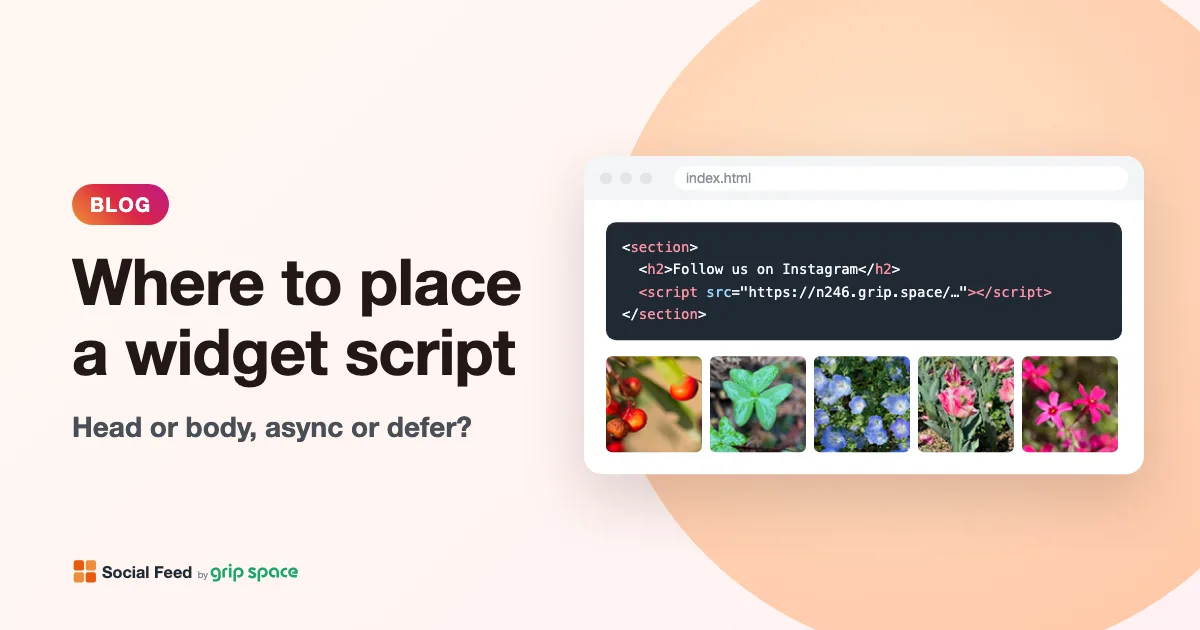
The script tag itself stays in your HTML, and because the feed is inserted after it, you can wrap the tag in your own element to control the surrounding layout:
<section class="instagram">
  <h2>Follow us on Instagram</h2>
  <script type="text/javascript" src="https://n246.grip.space/api/v1/instagram/widget/xxxxxxxx"></script>
</section>
Head or body: what happens in each spot
We checked each placement in a current version of Chrome with a test page that uses the same currentScript logic as the widget. Here is what you can expect:
| Where the tag is | What you see |
|---|---|
| In the head | Nothing. The feed is inserted into the head, which is never displayed. The same happens with async or defer. |
| At the top of the body | The feed appears above everything else, before your header or navigation. |
| Inside your content, where you want the feed | The feed appears there. This is the correct placement. |
| Just before the closing body tag | The feed appears at the very bottom of the page, after your footer. |
| In a footer area of your theme | The feed appears in the footer on every page that uses it. Fine if that is what you want; see our footer post. |
The common advice “put scripts at the end of the body for speed” is the one that most often moves a feed to the wrong place. It is meant for page-wide scripts. For a feed, the tag has to be in the content. If you do want a site-wide feed in the footer, put it inside the footer’s own markup; our post on an Instagram feed in your website footer explains how.
Plain, async or defer: which to use for the feed
In our tests, the feed appeared directly after its tag with all three. document.currentScript is available while an async or deferred classic script is first being processed, so the widget still finds its own tag. What changes is timing:
| Tag | What visitors experience |
|---|---|
| Plain (as provided) | Content above the feed shows first. Content below the feed waits until the widget script has downloaded and run, then appears below the feed. Nothing jumps, but the lower part of the page appears later. |
| async | The page keeps loading while the script downloads. The feed is inserted whenever the script is ready, and content already shown below it moves down. |
| defer | The whole page is parsed first; the feed is inserted after that. Content below the feed moves down when it appears. |
Which is better depends on what is below the feed:
- If the feed is near the bottom of the page (the most common case), any option works. With async or defer, little or nothing below the feed is affected, and the rest of the page is never held up by the widget.
- If important content is below the feed, such as a contact form, async or defer let that content appear sooner, at the cost of moving it down when the feed arrives. That movement counts toward Cumulative Layout Shift (CLS), for which web.dev considers 0.1 or less a good score.
- If you keep the tag plain, content below the feed is not shown until the script runs, so it does not jump, but it appears later.
To add an attribute, edit the tag you paste:
<script async type="text/javascript" src="https://n246.grip.space/api/v1/instagram/widget/xxxxxxxx"></script>Do not change the type to module. A module script cannot use document.currentScript, so the widget would fall back to guessing its position.
Tools that move or delay scripts, and how to exclude the feed
Many sites run tools that change how scripts load. They are useful for page-wide scripts, but they can stop an in-place widget from appearing, or make it appear in the wrong place.
Tag managers
Tag managers such as Google Tag Manager add your tags to the page with their own code. Google’s help page for Custom HTML tags explains how to paste code into a tag, but it does not offer a way to choose where in your page layout the tag’s HTML is placed. A feed loaded this way appears wherever the tag manager puts its tag, not in the section you designed for it.
Paste the feed’s embed code directly into the page instead. Keep your tag manager for page-wide scripts, where position does not matter.
Cloudflare Rocket Loader
Cloudflare’s documentation says Rocket Loader defers the loading of all your JavaScript until after rendering, and advises you to disable it and retest if you see JavaScript problems. Cloudflare lets you exclude a single script by adding data-cfasync="false" to its tag, before the src attribute:
<script data-cfasync="false" type="text/javascript" src="https://n246.grip.space/api/v1/instagram/widget/xxxxxxxx"></script>If the feed is missing or misplaced on a site that uses Rocket Loader, try this exclusion first.
WordPress optimization plugins
Performance plugins often include options to delay, defer, move or combine scripts. As an example, WP Rocket’s documentation says its “Delay JavaScript execution” option delays the loading of all JavaScript files and inline scripts until there is a user interaction, such as moving the mouse, touching the screen, scrolling or pressing a key. With a feed, that means visitors see nothing in its place until they interact with the page.
WP Rocket offers several ways to exclude a script: adding a URL or keyword to the “Excluded JavaScript Files” field, or adding the nowprocket attribute to the script tag. A keyword that matches the embed URL, such as instagram/widget, is a reasonable choice. Other plugins have similar exclusion lists; check your plugin’s documentation for the exact option.
Watch for these kinds of settings in any optimization tool:
- Delay until interaction: the feed appears only after the visitor moves, scrolls or taps.
- Move scripts to the footer: the feed may appear at the bottom of the page.
- Combine or host third-party scripts locally: the widget script is generated fresh by our server so it can include your latest posts and current settings. A saved copy would not update, and the combined file would no longer be the widget’s own tag.
- Load scripts as modules or through a custom loader: the widget cannot find its own tag and may guess the wrong position.
If you are not sure which setting is responsible, turn the tool’s JavaScript features off one at a time and reload the published page, clearing the plugin’s cache in between.
Other ways a script ends up not running
- Code inserted with innerHTML. MDN notes that innerHTML prevents script elements from executing when they are injected. Some page builders, themes and single-page apps insert custom HTML this way, so the tag is in the page but never runs. Use the platform’s dedicated embed or custom code feature instead.
- Platforms that strip script tags. Some editors remove script tags from content fields. Our post on why an Instagram feed is not showing covers this and the other common causes.
- Editor previews. Many visual editors do not run scripts in the editing canvas, so the feed may only appear on the published page.
- A strict Content Security Policy. If your site sends a policy that does not allow the widget’s script, or images from Instagram’s servers, the browser blocks them.
Platform by platform
On hosted website builders you usually do not choose head or body directly. You add an embed or custom code block to the spot on the page where the feed should appear, and the platform places the tag there. Avoid the site-wide “header code” or “code injection in the head” settings for the feed, for the reason explained above. Our step-by-step guides show the right block on each platform:
- WordPress: a Custom HTML block where the feed should appear, or a widget area for sidebars and footers.
- Shopify: a Custom Liquid section in the theme editor.
- Wix: an Embed HTML element, placed on the page where the feed belongs.
- Squarespace: a Code block. JavaScript in Code blocks needs a plan that allows it; the guide explains which.
- Webflow: a Code Embed element, which needs a paid Site or Workspace plan.
- Plain HTML: paste the tag inside the body, in the section where the feed belongs.
If you are not using a plugin on WordPress, our post on adding an Instagram feed without a plugin walks through the whole process.
A note on preconnect and other resource hints
Performance guides sometimes suggest adding a preconnect hint for third-party domains so the browser opens the connection early. web.dev advises using preconnect only for the most critical connections and dns-prefetch for less important third-party domains. A feed placed below your main content is rarely critical, so you do not need either for it. If you do add one, test the page before and after with PageSpeed Insights rather than assuming it helps.
Should the widget be loaded only when visitors scroll to it?
Some sites load third-party embeds only when the visitor scrolls near them, and web.dev mentions this as a way to improve page speed. With an in-place widget like ours, that means writing your own loader that creates the script tag later, and a script created that way must still be inserted at the right spot for the feed to appear there. In most cases it is not worth the effort: the widget is one script, and in the grid layout, only the first row of images loads right away. Placing the tag low on the page and adding async or defer gives most of the benefit with no custom code.
Several widgets on one page
Because each script tag inserts its own feed directly after itself, you can place two different widgets on the same page, each with its own embed code, and each appears where its tag is. They do not interfere with each other. See multiple Instagram feeds on one website for when that is useful.
How to check where the script ended up
- Open the published page in Chrome, right-click where the feed should be and choose Inspect.
- In the Elements panel, press Command+F (Mac) or Control+F (Windows) and search for instagram/widget. This finds the script tag.
- Check that the tag is inside the body, in the section you intended. Directly after it you should see a div with the class grip-ig-widget, which contains the feed.
- If the tag is in the head, at the end of the body, or missing, a tool or setting moved or removed it. If the tag has a different type, such as one added by an optimizer, exclude it from that optimizer.
- Open the Network tab, reload, and search for instagram/widget to confirm the script was requested and when.
A placement checklist
- The embed code is inside the body, in the section where the feed should appear.
- It is not in a site-wide head, header-code or body-start setting.
- The type is unchanged (not module), and if you added async or defer, you checked the result on the published page.
- It is not loaded through a tag manager.
- It is excluded from any optimizer feature that delays, moves or combines scripts, and you cleared that tool’s cache.
- You checked the published page, logged out or in a private window, on a phone as well as a computer.
Troubleshooting
The feed appears at the very bottom of the page. The tag was placed at the end of the body, or a tool moved it there. Paste it into the content section, and exclude it from any “move scripts to footer” option.
The feed appears at the top, above my header. The tag is at the start of the body, often from a “body start” code setting. Remove it there and add it to the page content.
The feed only appears after I move the mouse or scroll. A “delay JavaScript” feature is holding the script back. Exclude the widget script from it.
Nothing appears, and the tag is in the head. Move it into the body. A widget inserted into the head is never displayed.
Nothing appears, and the tag is not in the page source. The platform stripped it or a builder inserted it without running it. Use the platform’s embed block.
Frequently asked questions
Should I add async to the embed code? You can. The feed still appears in the same place. The trade-off is that content below the feed may move down when the feed arrives. If the feed is near the bottom of the page, async is a good choice.
Is defer better than async for the feed? Neither is clearly better. defer waits until the whole page has been parsed; async runs as soon as the script arrives. Both keep the widget from holding up the rest of the page.
Can I load the feed with Google Tag Manager? We do not recommend it. You cannot choose the feed’s position in your layout from a tag manager. Paste the code into the page instead.
Why not put all scripts in the head? Page-wide scripts can live there. An in-place widget inserted into the head is not displayed, because browsers do not show the contents of the head.
Will the feed slow down my page? It adds one script and the feed’s images. In the grid layout, images below the first row load lazily as visitors scroll. Our post on lazy loading Instagram feed images explains exactly what loads and when.
New to Social Feed? Create a free account to get your embed code, or see the plans in the pricing section.
Sources
- MDN Web Docs, “<script>: The Script element”: https://developer.mozilla.org/en-US/docs/Web/HTML/Reference/Elements/script
- MDN Web Docs, “Document: currentScript property”: https://developer.mozilla.org/en-US/docs/Web/API/Document/currentScript
- MDN Web Docs, “Element: innerHTML property”: https://developer.mozilla.org/en-US/docs/Web/API/Element/innerHTML
- Google web.dev, “Efficiently load third-party JavaScript”: https://web.dev/articles/efficiently-load-third-party-javascript
- Google Tag Manager Help, “Custom tags”: https://support.google.com/tagmanager/answer/6107167
- Cloudflare Docs, “Rocket Loader”: https://developers.cloudflare.com/speed/optimization/content/rocket-loader/
- Cloudflare Docs, “Ignore JavaScripts” (Rocket Loader): https://developers.cloudflare.com/speed/optimization/content/rocket-loader/ignore-javascripts/
- Google web.dev, “Cumulative Layout Shift (CLS)”: https://web.dev/articles/cls
- WP Rocket Docs, “Delay JavaScript execution”: https://docs.wp-rocket.me/article/1349-delay-javascript-execution
Get your embed code in a few minutes. The Free plan needs no credit card.
Sign up freeMore articles
Content Security Policy and Instagram feed widgets: what to allow
The exact CSP directives an Instagram feed widget needs: script-src, img-src, media-src and style-src, plus how to find blocked hosts and test safely.
Read the article →
How to add alt text to Instagram posts (and why it matters on your website)
How to write and edit alt text on Instagram, what makes a good description, and what happens to it when your posts appear on your website.
Read the article →
Making social media embeds on your website more accessible
A practical WCAG checklist for social media embeds: images, keyboard, focus, motion, video and contrast, plus an honest look at what our feed widget does and doesn’t do.
Read the article →
Core Web Vitals and third-party embeds: a practical guide for small sites
How social feeds, videos and other embeds affect LCP, INP and CLS, how to measure the impact on a small site, and practical fixes that don’t need a developer.
Read the article →
Instagram embed vs. feed widget speed: what each one loads on your page
What Instagram’s native embed loads (embed.js plus an iframe per post) compared with a feed widget (one script plus images), and how to measure both yourself.
Read the article →
How to add an Instagram feed to Carrd
Add an auto-updating Instagram feed to a Carrd site with the Embed element (Pro Standard or higher): steps, layout tips, sections, columns and fixes.
Read the article →