
How to add an Instagram feed to Carrd
Carrd is a favorite for one-page sites, link-in-bio pages and small landing pages, which are exactly the kind of pages where a few recent Instagram posts make sense. Carrd has no built-in Instagram feed, but its Embed element accepts script tags on the right plan. This guide explains which Carrd plan you need, how to add a feed from Social Feed by grip space step by step, how to make it look good in Carrd’s narrow layouts, and how to fix the most common problems.
Updated October 12, 2026
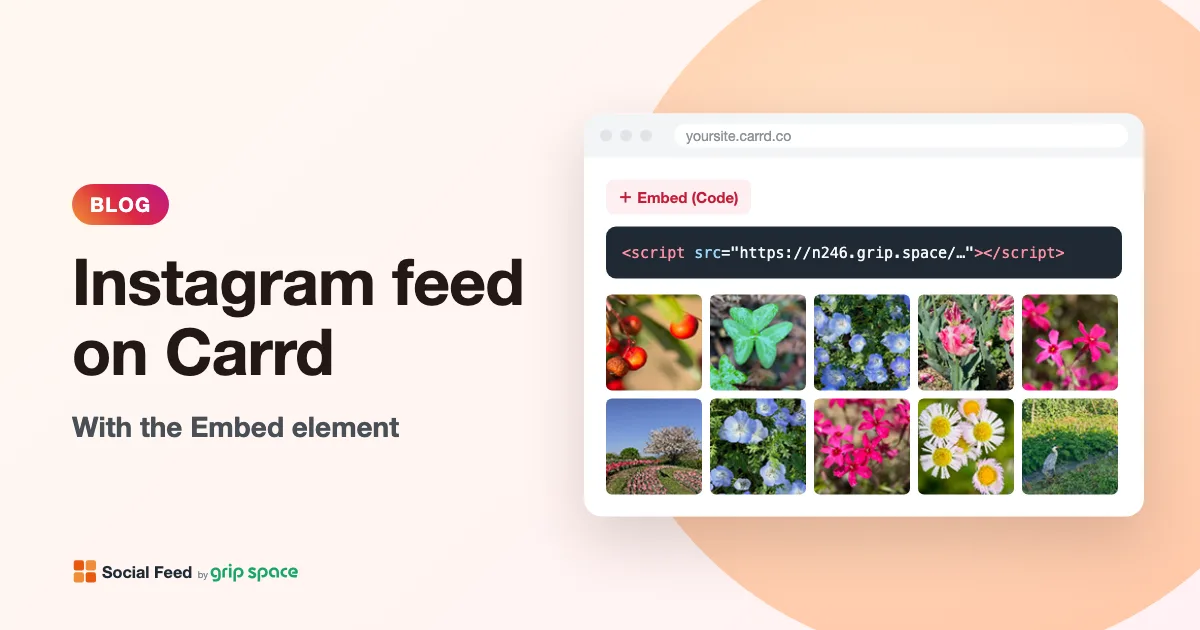
What you need
- A Carrd Pro Standard plan or higher. Carrd’s documentation for embedding custom code says the Embed element “Requires Pro Standard or higher.” More on plans below.
- An Instagram professional account (Business or Creator). Instagram’s API only gives feed tools access to professional accounts. Switching from a personal account is free; see our guide to professional accounts.
- A Social Feed by grip space account. The Free plan needs no credit card and includes one widget, which is usually all a Carrd site needs.
Which Carrd plan allows embeds?
This is the first thing to check, because without the right plan there is no way to add third-party code to a Carrd site. According to Carrd’s Plans page, checked today:
| Carrd plan | Price (per year) | Sites | Embeds (custom code with script tags) |
|---|---|---|---|
| Free | $0 | — | No. Carrd lists embeds among the features exclusive to its Pro plans. |
| Pro Lite | $9 | 3 | Not listed in Pro Lite’s features |
| Pro Standard | $19 | 10 | Yes: “Directly embed your own code (including script tags) as well as external content.” |
| Pro Plus | $49 | 25 | Yes, plus advanced settings such as attributes, custom styles and JS events |
Carrd’s Features page mentions site limits ranging up to much larger numbers across its Pro tiers, so there may be options beyond the three shown here. Prices and plan contents can change; check Carrd’s Plans page before you upgrade. If you are on Free or Pro Lite and do not see the Embed option, that is the reason, not a problem with the feed.
Step 1: Get your embed code
- Sign up for Social Feed by grip space with your email address.
- In the dashboard, click “+ Connect Instagram account” and log in with the Instagram professional account whose posts you want to show.
- Open “Settings & preview”. Choose a grid or a slider, set the number of posts and columns while watching the preview, and save. Suggestions for Carrd layouts are further down.
- Under “Add the embed code to your website”, click “Copy”. The code looks like this:
<script type="text/javascript" src="https://n246.grip.space/api/v1/instagram/widget/xxxxxxxx"></script>You paste this code into Carrd once. The layout, columns, filters and colors are stored with the widget, so when you change them in the Social Feed dashboard later, your Carrd site shows the new design without editing the embed again.
Step 2: Add an Embed element in Carrd
Carrd’s documentation describes the steps for adding custom code with the Embed element. For an Instagram feed, they look like this:
- Open your site in the Carrd builder.
- Click Add Element.
- Click Embed to create a new Embed element.
- Set Type to Code.
- Paste your Social Feed embed code into the Code field. Paste the whole tag, from
<scriptto</script>. - (Optional) Set Label to something you will recognize later, such as “Instagram feed”. Carrd’s docs suggest a label like “My Widget Code”.
- Set Style to Inline. This is important; see the next section.
- Move the Embed element to where the feed should appear, for example below a heading such as “Latest on Instagram” and above your footer links.
- Publish your site, then open the published site in a browser.
Inline vs. Hidden: why the style matters
Carrd’s Embed element has two styles, and only one of them is right for a visible widget like an Instagram feed.
| Style | Where Carrd puts the code | Good for an Instagram feed? |
|---|---|---|
| Inline | Exactly where the Embed element sits in your layout, like any other element | Yes. Use this. |
| Hidden → Head | In the site’s head element | No. Nothing in the head is displayed. |
| Hidden → Body Top | Just after the opening body tag | No. The feed would appear above all of your content. |
| Hidden → Body End | Just before the closing body tag | No. The feed would appear after everything else, outside your design. |
The Social Feed widget draws the feed right after its own script tag. That is why the position of the tag decides the position of the feed. With the Inline style, Carrd outputs the code at the spot where you placed the element, so the feed appears exactly there. Hidden embeds are meant for code that does not show anything, such as analytics; Carrd describes them as being outside the normal element flow.
Carrd’s Embed element also has an IFRAME type for embedding an external page by URL. Do not use it for Social Feed. The widget is a script, not a page address, and the Code type is what runs it.
Making the feed look right on a Carrd site
Many Carrd sites are narrow, centered, single-column pages. That affects which feed settings look best. A few suggestions for the Social Feed dashboard:
| Setting | Suggestion for Carrd | Why |
|---|---|---|
| Layout | Grid for a dedicated block; slider for a compact strip | A grid shows more at once; a slider keeps the page short |
| Columns | 3 columns on a narrow page; 4 on a wider one | Tiles stay large enough to see what is in them |
| Number of posts | 6 or 9 (with 3 columns), 8 or 12 (with 4) | Full rows look tidy; the Free plan allows up to 16 posts |
| Image spacing | Match the spacing of your other elements, for example 4 to 8 pixels | Keeps the feed in rhythm with the rest of the page |
| Max width | Leave it wide; Carrd’s page width already limits it | The feed fills the space it is given, up to this value |
| Font size | Close to your body text size | For the header, Follow button and other text inside the widget |
| Account header | On for a link-in-bio page; off if your heading already says “Instagram” | Avoids saying the same thing twice |
| Follow button | Set its label and color to match your buttons | The color is a setting, so it can use your accent color |
The widget takes your site’s font, because it does not load fonts of its own. It also adjusts its column count to the space it actually gets: when tiles would become narrower than about 100 pixels, it uses fewer columns automatically. A 4-column grid on desktop therefore drops to fewer columns on a small phone without any extra settings. For more on layouts, see grid or slider?
Using Carrd containers and columns
Carrd’s Container element can be set to the Columns type, which splits it into two equal columns by default. According to Carrd’s documentation, you can resize them or add more, up to five, and the minimum width for a column is 20%. On mobile, columns adapt automatically, and you can switch the Appearance tab’s Mobile option to Manual for more control.
You can place the feed’s Embed element inside a column, for example with text about your business on the left and the feed on the right. Keep in mind:
- A column is narrower than the page. The feed fits the column, so tiles are smaller. Use 2 or 3 columns in the widget settings, or give the feed column more width.
- On phones, Carrd adapts the columns. Carrd says columns responsively adapt to mobile screens, so the space for the feed may change. The widget follows whatever width it gets. Check the published site on a phone to see the actual result.
- A slider works well in a narrow column. It stays one row high, so it does not make the column much taller than the text next to it.
Using the feed with Carrd sections
Carrd’s sections let a one-page site behave like it has several pages: they divide a site into named regions that visitors can link to and switch between. You can put the feed’s Embed element in any section, for example a “Gallery” or “About” section.
The widget watches the width of the space it is placed in and recalculates its columns when that width changes, so a feed in a section that is not visible at first should lay itself out when the section appears. Carrd’s documentation does not describe how sections are loaded behind the scenes, so check this on the published site by switching to the section, on desktop and on a phone.
Carrd also offers header and footer markers for content that stays in place. Carrd’s documentation we checked does not spell out how embeds behave inside them, so if you want the feed to show in a footer across all sections, place it, publish, and check every section on the live site.
Where to put the feed on a Carrd page
Carrd pages are short, so placement matters. Some patterns that work well:
- Link-in-bio page: your name and links at the top, the feed below them. Visitors coming from Instagram see your links first, then your latest posts.
- Small business landing page: headline, short pitch and contact button first; the feed near the end as proof that you are active.
- Portfolio or creator page: a slider of recent posts under your introduction, with the lightbox turned on so visitors can view posts without leaving.
- Event or launch page: a feed filtered to posts whose captions contain a campaign word, so only related posts appear. See how to filter a feed by keyword.
In all cases, keep your own main message at the top and the feed lower down. It keeps the page focused and helps loading speed. Our article on where to put an Instagram feed goes into more detail.
Clicks, lightbox and videos
When a visitor clicks a post, the widget can open a lightbox on your page, open the post on Instagram, or do nothing. The lightbox can show the caption and/or like count, and for carousel posts it can show either the first image or all images. Videos and Reels play in the lightbox. Hovering over a tile can show an Instagram icon.
Because Carrd outputs Inline embed code directly into the page (not inside a frame), the lightbox opens as an overlay over the whole page. For a link-in-bio page, opening Instagram directly is also a reasonable choice, because many visitors are on their phones and already use the app.
More on this choice: lightbox or link to Instagram? If you post a lot of Reels, see how to show only Reels.
Social Feed plans for a Carrd site
Most Carrd sites need one feed, which the Free plan covers. Social Feed plans are counted by widgets and monthly views:
| Free | Light | Standard | |
|---|---|---|---|
| Price | $0 | $8 a month or $80 a year | $24 a month or $240 a year |
| Widgets | 1 | 3 | Unlimited |
| Posts per widget | Up to 16 | Up to 30 | Up to 50 |
| Views a month | 3,000 | 30,000 | Unlimited |
| New posts appear | Once a day | Right away | Right away |
| “Powered by Social Feed” credit | Always shown | Optional | Optional |
A view is counted each time the feed loads. On a one-page Carrd site, that is usually each time someone opens the page. If you have several Carrd sites (Pro Standard allows 10), each feed on each site needs its own widget, which is where the Light plan’s 3 widgets or the Standard plan’s unlimited widgets come in. If you go over your plan’s monthly view limit two months in a row, the feed pauses from the following month, and we email you when you reach 80% and 100% of the limit. See pricing for details.
Performance
Carrd sites are known for being lightweight, and a feed should not undo that. The widget is one script and draws the feed directly in your page without an iframe. It does not set cookies or use local storage. Images load directly from Instagram’s servers. In a grid, the first row of images loads right away and the rest load when the visitor scrolls near them; a slider loads all its images at once, so keep sliders to a sensible number of posts.
If you want to compare the feed with Instagram’s own Embed option, or measure the cost on your own page, see Instagram embed vs. feed widget speed.
Quick checklist before you publish
- Your Carrd site is on Pro Standard or higher.
- The Embed element’s Type is Code and its Style is Inline.
- The full script tag is pasted, with nothing added before or after it.
- The element sits where you want the feed, below your main message.
- The widget is set to Published in the Social Feed dashboard.
- After publishing, you checked the live site on a computer and on a phone, including any section that contains the feed.
Troubleshooting
- There is no Embed option in Add Element. Your site is not on Pro Standard or higher. Check your plan in Carrd.
- Nothing shows in the builder. That is expected. Carrd’s Embed element does not output anything in the builder. Publish and check the live site.
- Nothing shows on the published site. First, make sure the widget is Published in the Social Feed dashboard; an unpublished widget draws nothing. Then check that the Embed’s Type is Code and its Style is Inline, and that the whole script tag was pasted. Then publish the Carrd site again.
- The feed appears at the very top or bottom of the page. The Embed’s Style is Hidden with Body Top or Body End. Change it to Inline and move the element where you want it.
- Changes do not appear on the published site. Carrd’s troubleshooting page says you are likely seeing a locally cached older copy, and suggests a hard refresh or clearing your browser cache.
- The whole site stops loading after you add code. Carrd warns that custom code must be 100% valid JavaScript, because an error can stop the site from loading, and suggests opening the browser console to confirm. Paste the Social Feed code exactly as copied, and check for a missing or extra character at the start or end.
- The tiles are tiny. The Embed sits in a narrow column. Use fewer columns in the widget settings or give the column more width.
- The feed appears twice. There are two Embed elements with the code, possibly in different sections. Remove one.
- New Instagram posts are missing. On the Free plan, new posts appear once a day; on paid plans, right away. Also check whether a filter (Reels, carousels, videos, period or caption keywords) is hiding them.
- Still stuck? Our checklist Instagram feed not showing on your website? covers more causes.
Frequently asked questions
Can I add an Instagram feed to a free Carrd site?
Not with a script-based widget. Carrd lists embeds as a Pro feature, and its documentation says the Embed element requires Pro Standard or higher.
Does Pro Lite work?
Embeds are not listed among Pro Lite’s features on Carrd’s Plans page. If you are on Pro Lite and cannot find the Embed element, upgrading to Pro Standard is the way to get it.
Do I need a Carrd plugin?
No. Carrd’s own Embed element is enough, because the feed is a plain script tag.
Can I show my feed on several Carrd sites?
Yes. Create one widget per site (or per placement) in the Social Feed dashboard and paste each code into the matching site. The Free plan includes one widget; Light includes 3 and Standard is unlimited. You can create a new widget by copying the settings of an existing one.
Can I hide the feed for a while without editing my Carrd site?
Yes. Switch the widget to Unpublished in the Social Feed dashboard. The Embed element stays in place but shows nothing until you switch it back. See how to hide your feed temporarily.
Will the widget’s text match my site’s language?
The small amount of text inside the widget, such as the Follow button and lightbox labels, switches between English and Japanese based on the page’s language setting, falling back to the visitor’s browser language. Your captions appear as you wrote them.
Can I show a hashtag feed or someone else’s account?
No. Social Feed by grip space shows posts from the Instagram account you connect, one account per widget. If you only want to feature one specific post, Instagram’s own Embed option can do that; see how to embed a single Instagram post.
Building on another platform too? We have step-by-step guides for WordPress, Shopify, Wix, Squarespace, Webflow and plain HTML, and posts for Framer and Duda. Ready to start? Create a free account.
Sources
- Carrd Docs, “Embedding Custom Code”: https://carrd.com/docs/building/embedding-custom-code
- Carrd Docs, “Plans” (Pro): https://carrd.com/docs/pro/plans
- Carrd Docs, “Features” (Pro): https://carrd.com/docs/pro/features
- Carrd Docs, “Organizing Elements into Columns”: https://carrd.com/docs/building/organizing-elements-into-columns
- Carrd Docs, “Using Sections”: https://carrd.com/docs/building/using-sections
- Carrd Docs, “Troubleshooting” (Building): https://carrd.com/docs/building/troubleshooting
Get your embed code in a few minutes. The Free plan needs no credit card.
Sign up freeMore articles
How to show only Instagram Reels on your website
Set up a Reels-only Instagram feed on your website: the Reels filter, how videos play, layout tips, and why some Reels show as still images.
Read the article →
How to show only recent Instagram posts on your website
Keep your website’s Instagram feed current: show only posts from the last 30 days, 90 days or year, how the date range is measured, and seasonal tips.
Read the article →
How to show different Instagram feeds on different pages of one website
Run several Instagram feeds on one website: one widget per page, Duplicate to copy settings, per-page filters, plan widget limits and how views are counted.
Read the article →
How to hide your website’s Instagram feed temporarily without removing the code
Switch your Instagram feed off for a closure, rebrand or account cleanup, then back on later, without touching the embed code on your website.
Read the article →
How to add an Instagram follow button to your website
Add an Instagram Follow button to your website with your feed’s header, change its text and color, and use Instagram’s own profile link and QR code.
Read the article →
How to add an Instagram feed to your website footer
Put your Instagram feed in the footer of every page: settings for narrow footer columns, slider vs grid, site-wide steps per platform, and how views add up.
Read the article →