
How to show only Instagram Reels on your website
Reels are often the most-watched content on a business’s Instagram, so it makes sense to put them on your website too. This guide shows how to build a feed that shows only your Reels with Social Feed by grip space, how the filter decides what counts as a Reel, what visitors see when they click, and how to fix the most common surprises.
Updated October 12, 2026
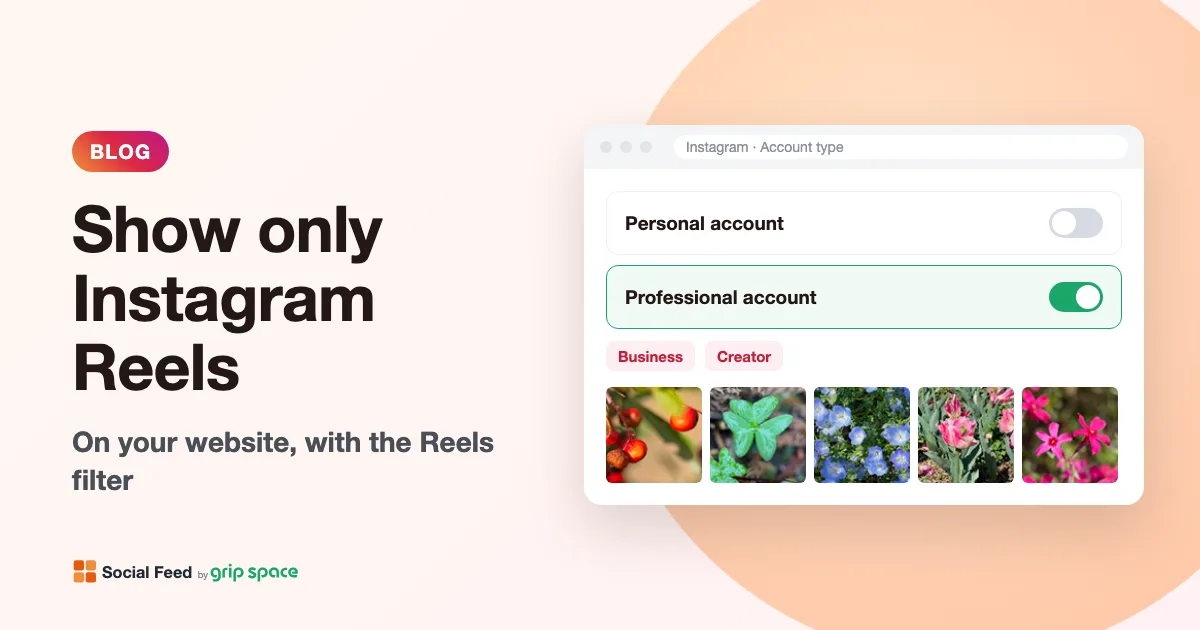
The short version
In Social Feed, every widget has a Reels setting with three choices: All, Exclude Reels and Reels only. Choose Reels only, and the widget shows nothing but your Reels. Visitors see a tile for each Reel with a play mark, and when they click it, the video plays right on your page in a lightbox.
- Open the widget’s Settings & preview.
- Make sure Include video posts is checked. The Reels setting only appears when it is.
- Under Filter posts, set Reels to Reels only.
- Set On click to Open lightbox so the Reels play on your site.
- Click Save settings. If the widget is already on your site, the change appears there without new embed code.
The rest of this guide explains each step, what to expect, and how to get the most out of a Reels feed.
The three Reels options
| Option | What the widget shows | Good for |
|---|---|---|
| All | Photos, carousels, regular videos and Reels, in the order you posted them | A feed that mirrors your Instagram profile |
| Exclude Reels | Everything except Reels. Photos, carousels and regular feed videos still appear | A calm photo gallery, or a page where moving content would distract |
| Reels only | Only Reels. Photos, carousels and regular feed videos are left out | A video section: tutorials, behind the scenes, product demos, event highlights |
You choose per widget, not per account. That means you can have a Reels-only widget on one page and a photos-only widget on another, both from the same Instagram account. How many widgets you can create depends on your plan; see the pricing for the current limits.
How the widget tells a Reel from a regular video
This is less obvious than it sounds. In Instagram’s API, every video, whether it is a Reel or a video posted to your feed, has the same media type: VIDEO. The difference is in a separate field Meta calls the media product type, which tells you where the post was published. Its possible values are AD, FEED, STORY and REELS.
Social Feed uses that second field. A post counts as a Reel only when Instagram explicitly marks it as REELS. If Instagram doesn’t return the field for a post, which can happen with some older posts, Social Feed treats it as a regular feed post. In practice:
- Reels you have posted recently are recognized as Reels.
- Videos posted to your feed as regular videos are not Reels, so Reels only leaves them out and Exclude Reels keeps them.
- If an older video that you think of as a Reel doesn’t appear in a Reels-only widget, Instagram is probably not labeling it as a Reel. There is nothing in the widget settings that changes this.
Setting it up step by step
If you haven’t created a widget yet, start here. You’ll need an Instagram professional account (Business or Creator). If you aren’t sure, our guide to Instagram professional accounts shows how to check.
- Create a free account and click + Connect Instagram account to link your Instagram.
- Click + Add widget. Give it a name you’ll recognize later, such as “Reels – homepage”.
- Open Settings & preview. Check Include video posts.
- In Filter posts, choose Reels only next to Reels.
- Pick a layout (grid or slider), the number of posts and the number of columns. Tips for each follow below.
- Under On click, choose Open lightbox.
- Click Save settings, then copy the embed code under Add the embed code to your website and paste it where you want the Reels to appear.
For where to paste the code on your platform, see our guides for WordPress, Shopify, Wix, Squarespace, Webflow and plain HTML.
The “Include video posts” setting comes first
The two video settings work together, and the order matters. Include video posts decides whether any videos appear at all. Reels are videos, so when this box is unchecked, every Reel is left out, and the Reels choice disappears from the settings because it has nothing to act on.
When you uncheck Include video posts, the Reels choice is set back to All, so a widget that was set to Reels only becomes a photos-and-carousels widget instead of an empty one. If you later turn videos back on and want only Reels again, choose Reels only once more.
| Include video posts | Reels | Result |
|---|---|---|
| On | All | Everything, including all videos |
| On | Exclude Reels | Photos, carousels and regular feed videos |
| On | Reels only | Only Reels |
| Off | (not shown; treated as All) | Photos and carousels only |
Combining Reels with other filters
The Reels filter can be combined with the other filters. When you use several, a post has to pass all of them to appear.
- Date range. Combine Reels only with “Last 90 days” to show only recent Reels. Older Reels drop off on their own as time passes, which suits seasonal businesses.
- Caption keywords. Add a word such as “#tutorial” to the captions of certain Reels, then set the widget to show only posts that contain it. You get a tutorials-only Reels section. This only looks at your own posts; it is not a hashtag feed.
- Carousel posts. Carousels aren’t Reels, so this setting doesn’t change a Reels-only widget.
Each filter you add narrows the selection, so the widget may find fewer Reels than the number of posts you set. See the troubleshooting section below.
What visitors see on your website
Here is what a Reels widget looks like on your page and how it behaves:
| Where | What happens |
|---|---|
| Tiles | Each Reel appears as a square tile showing its cover image, with a round play mark in the middle |
| Hover | If the hover icon is on, an Instagram icon appears over the tile when a mouse is over it |
| Click with “Open lightbox” | The Reel opens in a lightbox on your page and starts playing, muted, with video controls |
| Click with “Open Instagram” | The Reel opens on Instagram in a new tab |
| Click with “Do nothing” | Nothing happens; the tiles work as a preview only |
| In the lightbox | The caption and the like count, if you turned them on, plus a “View on Instagram” link |
Videos don’t play in the grid or slider itself. The tiles are still images, and a Reel only starts playing once a visitor opens it. This keeps your page light: the video file isn’t downloaded until someone actually wants to watch it.
Why the video starts muted
When a Reel opens in the lightbox, it starts playing without sound. Visitors can turn the sound on with the video controls. This isn’t a setting in Social Feed; it’s how modern browsers work. MDN, the Mozilla developer documentation, explains that browsers generally block video from playing automatically with sound, but allow it when the audio is muted. Starting muted means the Reel actually plays instead of sitting on a frozen frame.
The video also plays inline on phones, inside the lightbox, instead of jumping to the phone’s full-screen player. Visitors can still choose full screen from the controls if their browser offers it.
Why some Reels show as still images
Sometimes a Reel appears without a play mark, and the lightbox shows a still image instead of a video. This happens when Instagram doesn’t provide the video file. Meta’s API documentation says the video URL is left out when the media contains copyrighted material or has been flagged for a copyright violation. Reels that use licensed music from Instagram’s audio library are a common example.
Without the video file, the widget has nothing to play, so it shows the cover image instead and doesn’t display a play mark that would do nothing. Visitors can still use the “View on Instagram” link in the lightbox to watch it there. If you plan Reels specifically for your website, consider using your own audio or audio you have the rights to use outside Instagram.
Grid or slider for Reels?
Both layouts work with Reels. Our post on choosing between a grid and a slider goes into detail; here is how it applies to Reels:
| Grid | Slider | |
|---|---|---|
| Feels like | A video library | A row of “watch next” videos |
| Space used | Grows with the number of Reels | One row high |
| Good number of Reels | 6, 9 or 12 | 8 to 15 |
| Good places | A dedicated “Videos” or “Watch” page | Homepage sections, product pages, below a blog post |
Reels are made in a tall, vertical format, but the tiles are square. The tile shows the middle of the cover image and crops the top and bottom. When you choose the cover for a Reel on Instagram, keep the important part, such as a face or the product, near the center so it still reads well in a square tile. In the lightbox, the full video is shown without cropping.
Ideas for a Reels-only section
- Restaurants and cafés: short clips of dishes being made, on the menu page.
- Shops: product demos and unboxing Reels near the products, or on the homepage.
- Salons and studios: before-and-after Reels on the booking page.
- Gyms and instructors: class previews on the schedule page, filtered to the last 90 days.
- Venues and event organizers: highlight Reels from recent events.
- Service businesses: tutorial or “how we work” Reels on the About page, filtered by a caption keyword.
A common pattern is two widgets from the same account: a Reels-only slider on the homepage, and a photos-only grid set to Exclude Reels on a gallery page.
Making Reels that work well on a website
A Reel that does well on Instagram usually works on your website too, but visitors watch in a slightly different way. They arrive on your page for a reason, such as checking a menu, a price or opening hours, and they open a Reel out of curiosity. A few habits make your Reels more useful in that setting:
- Make the first seconds work without sound. The video starts muted in the lightbox, so the opening should make sense with the sound off. On-screen text or captions burned into the video help a lot.
- Choose a clear cover. The cover is what visitors see in the tile before they decide to click. A clear subject near the center survives the square crop; a busy frame or text at the very top or bottom may not.
- Write the first line of the caption for strangers. If you show captions in the lightbox, the first line is often what people read. Say what the Reel shows, not just an inside joke for followers.
- Keep website Reels evergreen, or use the date range. A Reel about last month’s sale can confuse visitors weeks later. Either keep the Reels on your site general, or use the “Last 30 days” or “Last 90 days” filter so older ones drop off automatically.
- Mind the audio rights. As explained above, Reels with copyrighted music may come through without a playable video. If a Reel is meant for your website, original sound or narration is the safest choice.
Checking your Reels feed before you share the page
Once the embed code is on your page, take a few minutes to check it like a visitor would. The preview in the dashboard is close to the real thing, but your site’s fonts, margins and column width can change how the feed looks.
- Open the page on a computer and on a phone. On a phone, the widget automatically uses fewer columns if the space is narrow, so the tiles stay large enough to recognize.
- Click a Reel. Check that it opens in the lightbox, starts playing muted, and that the sound comes on when you use the volume control.
- Close the lightbox with the × button or by clicking the dark area around it. Closing it stops the video.
- If you use a slider, swipe through it on the phone and try the arrow buttons on the computer.
- Look for Reels without a play mark. Those are Reels Instagram didn’t provide a video for. If one of them matters to you, consider re-posting it with different audio, or hide it from the widget with a caption keyword and the “Exclude matching posts” option.
If something looks wrong on the live page but right in the preview, the guide to an Instagram feed not showing on your website lists the usual causes, such as a page builder that removes script tags.
Page speed and data use
A Reels feed is lighter than you might expect. The grid or slider only loads cover images, not videos. In a grid, the first row of images loads right away and the rest load as visitors scroll near them; a slider loads all its images right away so that swiping never shows blank tiles. The video for a Reel is requested only when a visitor opens it in the lightbox, and it streams directly from Instagram’s servers, not from your website. The widget sets no cookies.
Troubleshooting
The widget shows no posts at all. First check that Include video posts is on and Reels only is selected. Then check that your account actually has Reels Instagram marks as Reels, and that other filters, like a short date range or a caption keyword, aren’t excluding them. Also check that the widget is set to Published. For other causes, see Instagram feed not showing on your website.
Fewer Reels than the number I set. The widget goes through your recent posts, newest first, and keeps the ones that pass your filters until it reaches your number. If Reels are a small share of what you post, it may run out of matching posts before it gets there. Lower the number of posts so the grid has no empty spaces, or remove other filters.
The preview shows fewer Reels than my live site. The preview in the dashboard is built from your latest 50 posts. The widget on your website looks further back, so a Reels-only widget may find more Reels on the live site than the preview shows.
A new Reel isn’t showing yet. On the Free plan, the posts on your site are updated once a day. Paid plans show new posts right away. Changes to the widget’s settings don’t wait for the daily update. Also see why an Instagram feed isn’t updating.
A Reel shows as a still image. Instagram didn’t provide the video file, usually because of copyrighted audio. Visitors can watch it on Instagram from the lightbox link.
There’s no sound. The video starts muted; visitors can turn the sound on with the volume control.
Frequently asked questions
Can the Reels play automatically in the grid? No. Tiles show cover images, and a Reel plays when a visitor opens it in the lightbox. There is no autoplaying grid or slider.
Can I show Reels from other accounts, or Reels with a certain hashtag? No. Social Feed only shows posts from the account you connect. You can use your own hashtags in captions with the caption keyword filter to choose among your own Reels.
Can I pick individual Reels by hand? Not one by one. The closest way is to add a keyword to the captions of the Reels you want, and set the widget to show only posts that contain it.
How many Reels can I show? Up to 16 posts on the Free plan, 30 on the Light plan and 50 on the Standard plan, per widget. See what the free plan includes.
Does the Reels filter need a paid plan? No. The Reels filter and the other post filters are available on every plan, including Free.
Can I show regular feed videos only, without Reels and without photos? Not exactly. Exclude Reels removes Reels but keeps photos and carousels, and there is no “videos only” option. If you need a videos-only section, posting those videos as Reels and using Reels only is the simplest way.
Does the widget show how many times a Reel was played? No. The lightbox can show the like count and the caption. Play counts aren’t shown. In the dashboard, Social Feed counts how often each widget is viewed on your site, not how often individual Reels are played.
What happens if I delete a Reel on Instagram? The widget shows what Instagram returns for your profile, so a Reel you delete also leaves your website when the feed next updates. On the Free plan, that can take up to a day.
Do Reels count toward the number of posts like photos do? Yes. Each Reel is one post, so a Reels-only widget set to 12 posts shows up to 12 Reels.
Get started
Create a free Social Feed account, connect your Instagram, and set your first widget to Reels only. It takes a few minutes, and you can change the setting at any time without touching your website. New to Social Feed? Read what Social Feed by grip space is. Questions about Reels? Write to us at info@grip-space.co.jp.
Sources
- Meta for Developers, “IG Media” reference (media_type, media_product_type, media_url, thumbnail_url): https://developers.facebook.com/docs/instagram-platform/reference/instagram-media
- MDN Web Docs, “Autoplay guide for media and Web Audio APIs”: https://developer.mozilla.org/en-US/docs/Web/Media/Guides/Autoplay
Get your embed code in a few minutes. The Free plan needs no credit card.
Sign up freeMore articles
How to show only recent Instagram posts on your website
Keep your website’s Instagram feed current: show only posts from the last 30 days, 90 days or year, how the date range is measured, and seasonal tips.
Read the article →
How to show different Instagram feeds on different pages of one website
Run several Instagram feeds on one website: one widget per page, Duplicate to copy settings, per-page filters, plan widget limits and how views are counted.
Read the article →
How to hide your website’s Instagram feed temporarily without removing the code
Switch your Instagram feed off for a closure, rebrand or account cleanup, then back on later, without touching the embed code on your website.
Read the article →
How to add an Instagram follow button to your website
Add an Instagram Follow button to your website with your feed’s header, change its text and color, and use Instagram’s own profile link and QR code.
Read the article →
How to add an Instagram feed to your website footer
Put your Instagram feed in the footer of every page: settings for narrow footer columns, slider vs grid, site-wide steps per platform, and how views add up.
Read the article →
How Instagram carousel posts appear on your website
How carousel posts show in an Instagram feed on your site: the first-image tile, the carousel mark, browsing all images in the lightbox, and hiding carousels.
Read the article →