
How to add an Instagram feed to your website footer
A strip of recent Instagram posts in the footer shows up on every page of your site, which makes it one of the most popular places for a feed. It is also one of the trickiest: footers are often split into narrow columns, they are shared by every page, and every page load counts. This guide covers the settings that work in a footer, how to add the feed once for the whole site on the main platforms, and what to watch out for.
Updated October 12, 2026
Why the footer is different from other placements
We covered the footer briefly in where to put an Instagram feed on your website. This post goes deeper, because a footer feed behaves differently from a feed on a single page in four ways:
- It is on every page. Anything you put in a shared footer appears on your homepage, your blog posts, your contact page and, unless you exclude them, pages like checkout or your privacy policy.
- It is often narrow. Many footers are split into three or four columns for contact details, links and opening hours. A column on a computer can be 250 to 400 pixels wide, about the same as a phone screen.
- It should stay short. Visitors who reach the footer are looking for contact details, social links and other next steps. A feed that takes up half a screen pushes those further down on every page.
- It loads on every page view. Each time any page is opened, the feed is loaded and counted as a view of your widget. That matters for loading speed and for your plan’s monthly view allowance.
The short version: recommended footer settings
| Setting | Recommended for a footer | Why |
|---|---|---|
| Layout | Slider | Stays one tile high at every width, including phones |
| Columns | 4–8 for a full-width footer, 2–3 for a footer column | The widget reduces columns automatically when space is narrow |
| Number of posts | 6–12 | Every image loads on every page; more posts mean more weight |
| Image spacing | 2–6 px | Keeps tiles large in narrow spaces |
| Account header | Off, or the follow button only | Saves height; the username text is dark and can be hard to read on dark footers |
| Icon on hover | Show or none, as you like | Phones have no hover, so it only affects computers |
| On click | Open lightbox, or Open Instagram | On Wix, prefer Open Instagram (see below) |
| Widget width | 0 (no maximum) or the width of your footer content | The widget does not center itself when it is narrower than its container |
All of these are in “Settings & preview” in the dashboard.
How the feed fits narrow footer columns
You set a number of columns from 1 to 8, but that number is a maximum. The widget measures the real width of the space it is placed in, not the width of the screen, and uses fewer columns whenever each image would get narrower than about 100 pixels. It measures again when the window is resized or a phone is rotated.
So six columns in a 300-pixel footer column become two columns of about 148 pixels, not six thumbnails of 45 pixels.
Here is how many columns fit at typical footer widths with the default spacing of 4 pixels, if you have set at least that many columns:
| Width of the space for the feed | Columns shown | Approximate tile size | Typical footer |
|---|---|---|---|
| 220–310 px | 2 | 108–153 px | One of four columns on a laptop |
| 320–410 px | 3 | 104–134 px | One of three columns, or a phone screen |
| 420–510 px | 4 | 102–125 px | Half of a two-column footer |
| about 600 px | 5 | about 117 px | A wide footer column |
| about 800 px | 7 | about 111 px | A footer on a tablet |
| 1,000 px and wider | Up to 8 | 120 px and up | A full-width footer row on a computer |
Spacing counts too, because the gaps take up width. With 8 pixels of spacing, a 320-pixel column shows two columns instead of three. If your footer column is just around one of these thresholds, lowering the spacing to 2 or 4 pixels can give you one more column.
Slider or grid in a footer?
Our guide to grids and sliders compares the two layouts in general. In a footer, one difference decides most cases: what happens when the number of columns goes down.
A grid wraps. If you make a “one-row grid” on a computer, for example 8 posts in 8 columns, the same grid on a phone with three columns becomes three rows: three, three and two posts. The footer gets three times taller on phones.
A slider never wraps. It shows as many tiles as fit, and the rest continue to the side. Visitors can swipe on a phone, scroll sideways with a trackpad, or use the arrow buttons on the left and right. Whatever the width, the slider stays one tile high, so your footer keeps the same shape on every device.
| Slider | Grid | |
|---|---|---|
| Height in a footer | Always one tile | Grows when the column count drops |
| 8 posts on a computer (8 columns) | One row | One row |
| 8 posts on a phone (3 columns) | One row; 5 more posts to swipe to | Three rows, last one incomplete |
| Narrow footer column (2 columns) | Two tiles visible, arrows to see more | Four rows of two |
| Image loading | All images load right away | The first images (as many as the columns you set) load right away; the rest when visitors scroll near them |
A grid still works for a small, fixed block of photos: six posts make two rows of three on a phone or three rows of two in a narrow column, and the last row is never incomplete.
In a narrow footer column, the slider’s round arrow buttons sit on top of the first and last visible tiles and cover part of them. That is still usable, but a six-post grid avoids it.
Account header, colors and dark footers
Above the posts, the widget can show an account header: your profile picture, your username, your number of posts and a follow button. You choose which of the first three to show, and you can change the follow button’s text, color and margin. You can also turn the whole header off.
In a footer, think about two things:
- Height. The header adds about 56 pixels above the posts. If your footer already has a heading such as “Follow us on Instagram”, you may not need it.
- Contrast. The username is shown in a dark gray and the post count in a light gray. Those colors are fixed. On a white or light footer they look fine. On a dark footer, the username can be hard to read. Turn the username and the post count off and keep only the profile picture and the follow button, or turn the header off and write your own heading in the footer’s text, in your footer’s colors.
The follow button’s color is up to you, so you can match it to your footer’s link or button color. Its default label follows the language of your page: “Follow” on English pages. If you type your own label, it is shown as you typed it.
On the Free plan, a small gray “Powered by Social Feed” link appears under the feed, aligned to the right. On paid plans, you can turn it off.
Width and alignment
The widget takes the full width of the element it is placed in, up to the “Widget width” you set (0 to 2,000 pixels, 1,500 by default; 0 means no maximum). If the widget width is smaller than the footer area, the feed lines up on the left; the widget does not center itself.
For a full-width footer row, set the widget width to 0. For a narrower feed in the center of a wide footer, put the embed code inside a centered column in your site builder instead of lowering the widget width.
Adding the feed to every page, platform by platform
The embed code is a single script tag, and the feed appears exactly where the tag is placed. To show it in the footer of every page, the tag has to be inside your site’s shared footer. Each platform does this differently. The steps below come from the platforms’ own help pages and from our setup guides; follow the guide for your platform for the full steps, including where to copy the embed code.
| Platform | Where to put the code for every page | Our guide |
|---|---|---|
| WordPress, block theme | Appearance → Editor → Patterns → footer template part → Custom HTML block | WordPress guide |
| WordPress, classic theme | Appearance → Widgets → footer widget area → Custom HTML | WordPress guide |
| Elementor Pro | Theme Builder footer template with an HTML widget, set to Entire Site | Elementor post |
| Divi | Theme Builder Global Footer with a Code module | Divi post |
| Shopify | Theme editor → footer area → Add section → Custom Liquid | Shopify guide |
| Wix | Embed HTML element moved into the footer (Move To Footer) | Wix guide |
| Squarespace 7.1 | Edit footer → Add block → Code (Core plan or higher) | Squarespace guide |
| Webflow | Code Embed inside a footer component placed on every page | Webflow guide |
| Duda | HTML widget placed in the footer | Duda post |
| Ghost | A partial in the theme’s default.hbs, just above the footer | Ghost post |
| BigCommerce | HTML widget in a footer global region, if your theme has one | BigCommerce post |
| Hand-coded HTML | The shared footer, layout or include file | HTML guide |
WordPress
With a block theme such as Twenty Twenty-Four, go to Appearance → Editor, open Patterns, and open the Footer template part. Add a Custom HTML block where the feed should go, paste the embed code and save. WordPress’s documentation for the Site Editor notes that changes to the header and footer apply to all pages of your site that use them, not just the page you were working on. That is exactly what you want here.
With a classic theme, go to Appearance → Widgets, add a Custom HTML block (or the Custom HTML widget) to the footer widget area and save.
If you build your site with Elementor Pro or Divi, use their theme builders instead: a footer template with the HTML widget set to Entire Site in Elementor, or a Code module in the Global Footer in Divi. Both posts linked above walk through the steps and how to leave the feed out of certain pages. On WordPress.com, script tags are kept only on plans that allow plugins; see the note in the WordPress guide.
Shopify
Shopify’s help says your header and footer are shared across all of your online store’s pages, and that the footer area can include custom Liquid. In the theme editor (Online Store → Themes → Customize), find the footer area in the left sidebar, click Add section, choose Custom Liquid, paste the embed code and save. The section appears on every page that uses the footer.
If your theme has no Custom Liquid section, see the note on older themes in our Shopify guide. Whether you can hide a footer section on particular pages, such as the cart, depends on your theme, so check its settings.
Wix
Wix’s help says your header and footer are visible on all pages. To put the feed there, add an Embed HTML element and paste the code as described in our Wix guide, then drag the element to the bottom of the page, as close to the footer as it goes, and click Move To Footer.
Two Wix-specific points matter in a footer:
- The element has a fixed height. Wix shows embedded code inside a box with the size you set in the editor, and the box does not grow with its content. A slider is the best fit, because it stays one row high at every width. A grid that wraps onto more rows on phones would be cut off.
- The lightbox stays inside the box. Because the feed is inside that box, the larger view that opens on click is shown inside it, not over the whole page. In a short footer box, set On click to Open Instagram.
Squarespace
On version 7.1, Squarespace’s help explains that you edit the footer by clicking Edit on any page, hovering over the footer and clicking Edit footer. The footer appears on all pages of your site. Add a block with Add block (or +), choose Code, paste the embed code with the mode set to HTML and Display Source off, and save.
The plan matters: Squarespace runs JavaScript in Code blocks only on the Core, Plus and Advanced plans, so on Basic the feed does not appear. Squarespace also notes that code sometimes does not appear while you are logged in, even when visitors can see it; check the feed in a private window or with Preview in Safe Mode. If you do not want the footer on a particular layout page, Squarespace lets you turn off Show Footer in that page’s navigation settings; collection pages such as blog or store pages do not have that option.
Webflow
Webflow’s Code Embed element needs a paid Site plan or Workspace plan. Place it in your footer, then turn the footer into a component: Webflow’s help describes selecting an element and choosing Convert selection in the Components panel, or right-clicking and choosing Create component. Place the component on every page. When you edit the main component, every instance updates, so changing the embed later is a single edit.
Other platforms
Duda, Ghost and BigCommerce: see the posts linked in the table above. GoDaddy Websites + Marketing: GoDaddy’s help says headers and footers cannot be added as sections, so a site-wide footer feed is not possible there; see the GoDaddy post for alternatives. Weebly: use the Embed Code element, not the Footer Code box in the settings (see the Weebly post).
Every page load counts a view
Each time the embed script runs on a page, the widget is counted once. A footer feed therefore counts one view for every page view of your site, not one per visitor. A visitor who reads five pages counts five views. Known bots and crawlers are filtered out, so search engine crawls do not use up your views.
The monthly allowance is per account, across all of your widgets:
| Plan | Views per month | Rough site size for a footer feed |
|---|---|---|
| Free | 3,000 | About 100 page views a day |
| Light ($8/month or $80/year) | 30,000 | About 1,000 page views a day |
| Standard ($24/month or $240/year) | Unlimited | Any size |
Compare them with your page views, not visitors. If another widget also runs on some pages, for example a gallery on your homepage, those pages count twice: once for each widget.
Going over once does not take your feed down. The feed stops showing only after the limit has been exceeded two months in a row. When that happens, the footer simply shows nothing where the feed was; there is no broken box or error message on your site. See what you get on the Free plan for details, and pricing for the plans.
- Use a separate widget for the footer. The dashboard shows a view count and a chart for each widget. If the footer has its own widget, you can see exactly how much of your allowance it uses.
- Unpublish to pause. Switching the widget to Unpublished hides it everywhere it is embedded, without removing the code from your footer.
Loading speed on every page
A footer feed adds images to every page. The tiles use Instagram’s own image files, loaded directly from Instagram’s servers, so each tile is a real photo, not a tiny thumbnail. A few points help keep the cost reasonable:
- Keep the number of posts modest. A slider loads all of its images as soon as the page loads, because images that load late would appear blank after each swipe. For a footer slider, 6 to 12 posts are plenty.
- Grids load part of the images later. In a grid, the first images (as many as the number of columns you set) load right away and the rest load as visitors scroll near them. A one-row footer grid loads all of its images right away, the same as a short slider.
- The footer rarely affects the first view. On most pages the footer is far below what visitors see first, so the feed does not delay your main content. On very short pages, such as a contact page, the footer may be visible immediately, and the content below the feed moves down when it appears. Check those pages in PageSpeed Insights.
Troubleshooting a footer feed
The feed appears in the editor’s preview but not on the site, or the other way round. Many editors do not run scripts while you edit. Check the published page. If your footer is a template (Elementor, Divi, Webflow component), make sure the template itself was saved and published. More causes are in Instagram feed not showing on your website.
The footer is very tall on phones. The layout is a grid that wraps when the column count drops. Switch to a slider, or reduce the grid to six posts.
The feed appears twice on the homepage. The homepage has its own feed section as well as the footer feed. Remove one, or give the homepage feed different filters so the photos differ.
The feed disappeared after a busy period. Check the view count in the dashboard. If the account went over its monthly views two months in a row, the feed stops showing. Page views are still counted while it is stopped, so the simplest way back is a plan with a larger allowance.
Frequently asked questions
Can I show a different number of columns on phones? There is no separate phone setting. The widget reduces the columns automatically when tiles would be narrower than about 100 pixels, so on most phones it shows about three.
Can I use different posts in the footer and on the homepage? Yes. Create a second widget from the same Instagram account with its own filters, for example only recent posts in the footer and a keyword filter on the homepage. The Free plan includes one widget, Light three, and Standard unlimited.
Ready to try it? Create a free account, connect your Instagram professional account, set the layout to slider and paste the code into your footer.
Sources
- WordPress.org Documentation, “Site Editor”: https://wordpress.org/documentation/article/site-editor/
- Shopify Help Center, “Customizing sections”: https://help.shopify.com/en/manual/online-store/themes/customizing-themes/theme-editor/customizing-sections
- Wix Help Center, “Wix Editor: Placing Elements in Your Header, Footer and Page”: https://support.wix.com/en/article/wix-editor-placing-elements-in-your-header-footer-and-page
- Squarespace Help Center, “Edit your site’s footer”: https://support.squarespace.com/hc/en-us/articles/205816028-Editing-footers
- Squarespace Help Center, “Code blocks”: https://support.squarespace.com/hc/en-us/articles/206543167-Code-blocks
- Webflow Help Center, “Components overview”: https://help.webflow.com/hc/en-us/articles/33961303934611-Components-overview
Get your embed code in a few minutes. The Free plan needs no credit card.
Sign up freeMore articles
How Instagram carousel posts appear on your website
How carousel posts show in an Instagram feed on your site: the first-image tile, the carousel mark, browsing all images in the lightbox, and hiding carousels.
Read the article →
Showing Instagram videos and Reels on your website: what to expect
How Instagram videos and Reels look in a website feed: cover-image tiles, muted playback in a lightbox, the video setting, and why some videos show as stills.
Read the article →
Lightbox or link to Instagram? Choosing what happens when visitors click a post
Should clicks on your website’s Instagram feed open a lightbox, open Instagram or do nothing? How each option works, what the lightbox shows, and when to use which.
Read the article →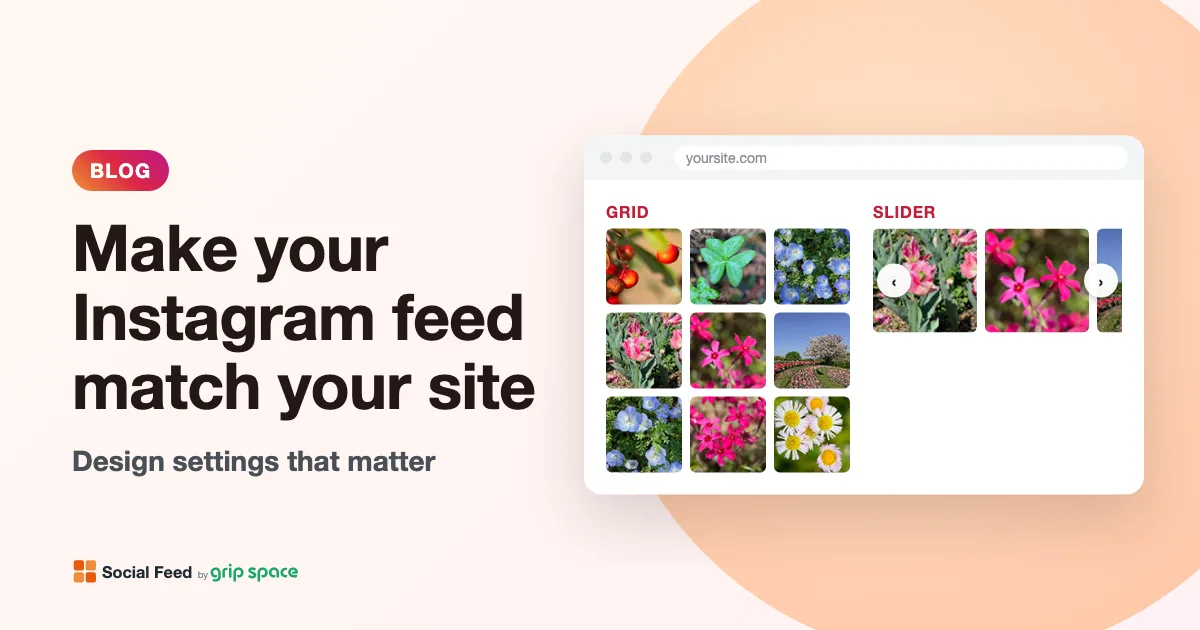
Instagram feed design: how to make the widget match your website
Make your Instagram feed look like part of your site: width, spacing, columns, font size, header, follow button color and hover, plus what stays fixed.
Read the article →
Does an Instagram feed on your website help SEO? An honest answer
What Google can and cannot see in an Instagram feed widget, why it adds little direct SEO value, and what to do instead if search traffic matters.
Read the article →
Instagram feed for hair and beauty salon websites: a portfolio that updates itself
Turn your salon’s Instagram into a website portfolio: feeds per stylist and service, caption tags that work as filters, and setups for booking pages.
Read the article →