
How to add an Instagram feed to Weebly or Square Online
Weebly and Square Online both belong to Square, but they are different website builders with different editors, plans and rules for custom code. This guide shows how to add an Instagram feed to each one with Social Feed by grip space: the Embed Code element on Weebly, and the Embed code section on Square Online. It also covers which plans allow embed code, when Square Online’s own Instagram section may be enough, and what to check if the feed does not show up.
Updated October 12, 2026
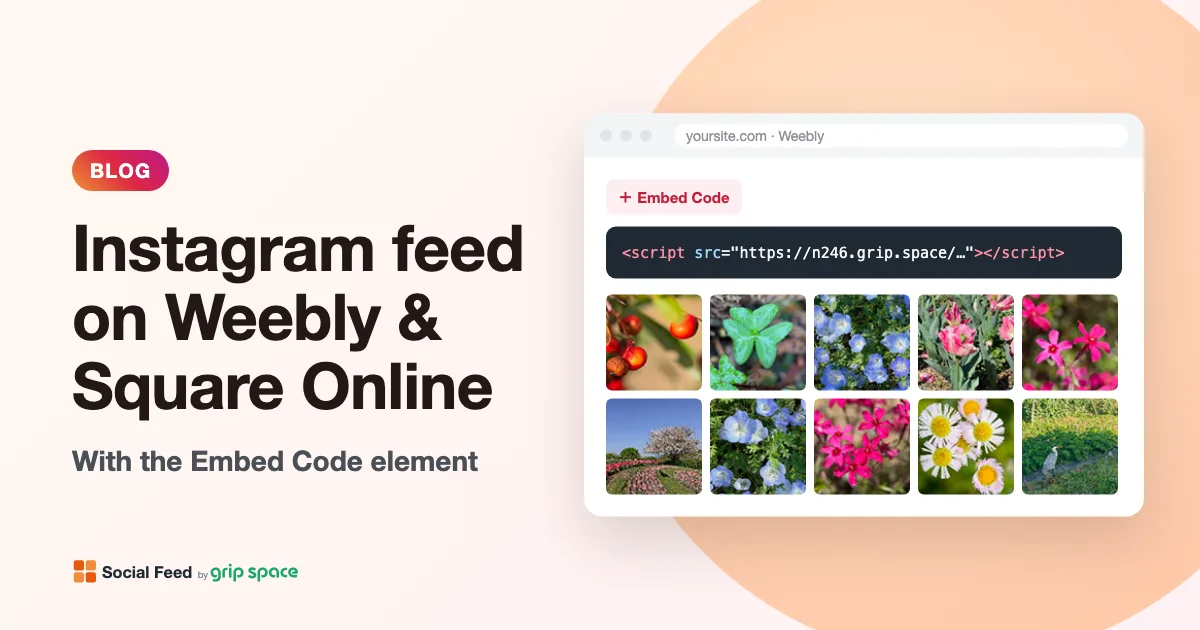
First, which builder is your site on?
Square bought Weebly, and Weebly’s help articles now live in the Square Support Center under a Weebly topic. Square also runs its own website builder, Square Online, which you reach from the Square Dashboard. People often use the names interchangeably, but the steps are different, so start by checking which one you have:
| Weebly | Square Online | |
|---|---|---|
| Where you edit the site | The Weebly site editor, where you drag elements onto the page | Square Dashboard → Channels → Square Online → Website → Edit site |
| How you add code | The Embed Code element, then “Edit Custom HTML” | Add → Section → Embed code, then paste into the editing panel |
| Plan needed for embed code | Weebly’s pricing page lists “Add 3rd party embed code” on its plans, including Free | Square’s help article lists Plus and Premium subscribers; check your plan |
| Built-in Instagram option | Not covered in the help pages we used for this guide | An “Instagram feed” section (see below) |
If you log in at weebly.com and edit pages by dragging elements from a sidebar, follow the Weebly part. If you build your site inside the Square Dashboard, follow the Square Online part. Everything else in this guide, from getting the code to troubleshooting, applies to both.
Before you start: get your embed code
Social Feed by grip space shows your own Instagram posts on your website as a grid or a slider. The feed is added with one line of code that you paste once; after that, new posts appear on your site automatically and design changes are made in the Social Feed dashboard, not in Weebly or Square.
- Sign up for Social Feed by grip space with your email address. The Free plan needs no credit card and includes one widget.
- In the dashboard, click “+ Connect Instagram account” and log in to the Instagram account you want to show. It must be a professional account (Business or Creator). A personal account can be switched in the Instagram app at no cost; here is how.
- Open “Settings & preview”. Choose a grid or a slider, set the number of columns and posts, and watch the preview update. Save when it looks right.
- Under “Add the embed code to your website”, click “Copy”. The code looks like this:
<script type="text/javascript" src="https://n246.grip.space/api/v1/instagram/widget/xxxxxxxx"></script>The widget draws the feed exactly where this script tag sits on the page. It does not use an iframe of its own, it does not set cookies, and the images load directly from Instagram. Keep that in mind as you read on: the place where you paste the code is the place where the feed appears.
Part 1: Weebly, with the Embed Code element
Weebly’s help article “Create Widgets, Embed Code and Add External Content” describes the Embed Code element as the way to add external content and widgets to a page. Older tutorials sometimes call it the Custom HTML element; the option inside it is still labeled “Edit Custom HTML”.
- Open your site in the Weebly editor and go to the page where the feed should appear, for example your home page or a new page called “Instagram”.
- Find the Embed Code element in the list of elements and drag it onto the page, to the spot where you want the feed.
- Click inside the element and choose Edit Custom HTML.
- Paste your embed code from Social Feed. Paste the whole line, from
<scriptto</script>, with nothing extra before or after it. - Click outside the element to close it.
- Click Publish, then open the live site in a new browser tab to check the feed.
Adding a heading. Put a Title or Text element above the Embed Code element with something like “Follow us on Instagram”. That way the heading uses your theme’s fonts and colors. You can also turn on the account header in the Social Feed settings, which shows your profile picture, name, post count and a Follow button above the feed.
Moving it later. Because the feed lives in a normal element, you can drag the element to another spot or another page the same way as any text or image. The embed code stays the same.
Several pages. To show the same feed on more than one page, add an Embed Code element with the same code on each page. Every page view of every page with the feed counts toward your widget’s monthly views, which matters on the Free plan (see the plan table below).
Weebly plans and embed code
Weebly’s pricing page lists “Add 3rd party embed code” among the features of its plans, including the Free plan, alongside Personal, Professional and Performance. In other words, a Weebly site does not need an upgrade just to add the Social Feed code. Paid Weebly plans add things like a custom domain, but they are not required for the feed itself. Plans and labels change from time to time, so if you do not see the Embed Code element, check your plan on Weebly’s pricing page.
Why not use Weebly’s Header Code or Footer Code?
Weebly also has Header Code and Footer Code boxes in its SEO settings. Weebly’s own blog describes them as boxes meant “solely to use for HTML or JavaScript code”, and they are typically used for things like site verification and analytics, which run in the background and show nothing on the page.
The Social Feed widget is different: it is visible content and appears exactly where its script tag is. Code in a header box would sit in a part of the page that is not displayed, and code in a footer box would place the feed outside the layout you designed, if at all. Use the Embed Code element instead. It puts the feed in a specific spot on a specific page, and you can see and move it in the editor.
Part 2: Square Online, with an Embed code section
Square Online builds pages out of sections. Square’s help article “Add External Content and Widgets With Embedded Code” explains how to add an Embed code section, which is the place for visible third-party content such as calendars, booking tools and feeds.
- Sign in to the Square Dashboard and go to Channels > Square Online.
- Select Website, then Edit site.
- Open the page where the feed should appear.
- Select + Add > Section and choose the Embed code section.
- In the editing panel, select Embed code and paste your Social Feed code into the text box.
- Publish your site, then open the live page to check the feed.
Like Weebly, Square says you should publish to test custom code, so do not worry if the section looks empty in the editor. Add a heading in a text section above the embed section if your theme does not give you one.
Script tags in embed sections. Square’s help article notes that many services provide embed code as an iframe. The Social Feed code is a script tag instead, and Square’s article does not describe how scripts are handled inside the section. The only reliable test is your published page. If the feed shows, check two things there: that the whole feed is visible and not cut off at the bottom, and that clicking a post opens the lightbox (or does whatever you chose in the click setting). If something looks wrong, see the troubleshooting section below.
Not the Tracking Tools page. Square Online also has Settings > Tracking Tools, where you can add code to the head or the end of the body of every page. Square’s help describes that page as being for code that is “not intended to be visible,” such as analytics and pixels, and distinguishes it from embedded code that displays on your website. The Instagram feed is visible content, so it belongs in an Embed code section, not in Tracking Tools.
Square Online’s own Instagram section: when it is enough
Square Online has a built-in way to show Instagram, documented in Square’s help article “Connect Instagram to your online store”: you add a section, choose Instagram feed, connect your account, and adjust the options in the editing panel. The same article describes an Instagram page that shows more of your feed than a section does, and Square offers product tagging for Instagram through its separate Instagram Shopping feature.
If that section does what you need, it is the simplest choice, because it does not need an embed code section. A third-party widget like Social Feed makes more sense when you want things the built-in section may not offer, or when the embed section is already part of your plan anyway. Compare the options against your own needs; this is what Social Feed by grip space offers:
- Grid or slider, with your own number of columns, number of posts, spacing between images, maximum width and font size.
- Click behavior: open posts in a lightbox on your site (with caption and like count if you want), link to Instagram, or do nothing.
- Filters: include or exclude Reels, hide carousel posts, include or skip videos, show only recent posts (30, 90 or 365 days), and show or hide posts by caption keywords.
- Account header and Follow button with your own button label and color.
- Several feeds with different settings, each with its own code, plus a view count for each one.
What Social Feed does not do: it does not show hashtag feeds or other people’s accounts, and it has no product or shopping tags. If shoppable Instagram posts are the goal on Square Online, Square’s own Instagram Shopping feature is the place to look. For a broader comparison of widget tools, see our comparison of Instagram feed widgets.
Plans on both sides at a glance
Two sets of plans are involved: your website builder’s plan decides whether you can paste embed code at all, and your Social Feed plan decides how many feeds you can have and how many times they can be shown each month.
| Social Feed plan | Price | Widgets | Posts per feed | Views per month | Updates |
|---|---|---|---|---|---|
| Free | $0 | 1 | Up to 16 | 3,000 | Once a day; “Powered by Social Feed” credit always shown |
| Light | $8/month or $80/year | 3 | Up to 30 | 30,000 | New posts appear right away; credit optional |
| Standard | $24/month or $240/year | Unlimited | Up to 50 | Unlimited | New posts appear right away; credit optional |
A free Weebly site with the free Social Feed plan is a perfectly good setup for a small business, a club or a portfolio. On Square Online, the embed section needs a paid Square plan according to Square’s help article, but the Social Feed side can still be Free. See pricing for details.
Getting the design right
Weebly themes and Square Online themes both use a content area that is narrower than the screen on large monitors and full width on phones. The widget handles this for you: it measures the space it has and uses fewer columns whenever each image would become smaller than about 100 pixels. A 4-column grid on a desktop therefore turns into fewer columns on a phone, without separate mobile settings.
- Home page: a grid of two or three rows works well near the bottom of the page, just above the footer. Turn on the account header and Follow button so visitors can follow you in one click.
- A dedicated Instagram page: use more posts (up to your plan’s maximum) and a grid. Link the page from your navigation.
- Product or menu pages: a single-row slider adds color without pushing your products or menu far down the page.
- Wide layouts: if the section spans the full width of the screen, set a maximum width such as 1,000 to 1,200 pixels in the widget settings so the images do not become huge on large monitors.
- Spacing: match the image spacing to your theme. Tight spacing (0 to 4 pixels) looks like an Instagram profile; wider spacing looks more like a gallery.
For a deeper look at layouts, post counts and click behavior, read Grid or slider? Choosing a layout for the Instagram feed on your website. Every change you save in the dashboard shows on your site the next time the page loads; you never need to edit the Weebly element or Square section again.
The widget’s text, such as the Follow button and “Posts”, appears in English or Japanese depending on the language your page declares (and the visitor’s browser language if the page does not declare one). You can also set your own label for the Follow button.
Troubleshooting
- The element or section is empty in the editor. This is normal on both builders. Publish and check the live site.
- Nothing appears on the published site. In the Social Feed dashboard, check that the widget is set to Published; an unpublished widget shows nothing. Then open the element or section again and make sure the full code is there, from
<scriptto</script>, with no missing characters. Both Weebly and Square say incomplete code is the most common cause of problems. - You cannot find the Embed code section on Square Online. Check your plan. Square’s help article lists embed code sections for Plus and Premium subscribers. Also check that your team role has online permissions.
- The feed is cut off on Square Online. The embed section may be showing the code in a fixed-height area. Try fewer posts or a slider, which keeps the feed to one row. If it is still cut off, contact us with the page address and we will take a look; Square says it cannot troubleshoot third-party code.
- The feed shows up twice. The same code is on the page in two places, for example in two elements, or in an element and a header or footer code box. Remove one.
- The page looks broken after pasting. Delete the element or section and publish again. Square and Weebly both suggest this as a first step. Then paste the code again carefully, on its own, without any other code in the same box.
- New Instagram posts are missing. On the Free plan, new posts appear once a day; on paid plans, right away. A filter (time period, caption keywords, Reels or post type) may also be hiding them. Read Instagram feed not updating? for more causes.
- The feed was working and then disappeared. Check the dashboard for a disconnected Instagram account (for example after a password change) and for your monthly view count. Our checklist Instagram feed not showing on your website? walks through the common causes one by one.
Frequently asked questions
Do I need an app from the Weebly App Center?
No. The Social Feed code is pasted into the standard Embed Code element, so no app is needed.
Can I use the free Weebly plan?
Weebly’s pricing page lists third-party embed code on its Free plan, so yes, the feed can be added to a free Weebly site. Paid Weebly plans are about other features such as a custom domain.
Can I use the free Square Online plan?
Not with an embed code section, according to Square’s help article, which lists embed code for Plus and Premium subscribers. On the free plan, Square’s built-in Instagram feed section may be an option instead.
Do I need to update the code when I change the design?
No. The layout, columns, filters and colors are saved with the widget in the Social Feed dashboard. Change them there and your site updates automatically.
Can I hide the feed without editing my site?
Yes. Switch the widget to Unpublished in the dashboard. The code stays in place but shows nothing until you publish the widget again.
Can I show different feeds on different pages?
Yes. Create one widget per variation, for example a slider for the home page and a larger grid for an Instagram page. Each has its own code. The Free plan includes one widget, Light three, and Standard an unlimited number.
Will it slow down my site?
The widget is a single small script and the images come straight from Instagram. In a grid, images below the first row load only when the visitor scrolls near them. A slider loads all its images right away, so keep the number of posts in a slider modest.
Is this the same as Instagram Shopping on Square?
No. Social Feed shows your posts and links them to Instagram or a lightbox; it does not tag products. For shoppable posts, use Square’s own Instagram Shopping feature.
Using another platform? We have guides for WordPress, Shopify, Wix, Squarespace, Webflow and plain HTML, and posts for GoDaddy and BigCommerce. New to the service? Start with what Social Feed by grip space is.
Sources
- Square Support (Weebly), “Create Widgets, Embed Code and Add External Content”: https://squareup.com/help/us/en/article/7341-create-widgets-embed-code-and-add-external-content
- Weebly pricing: https://www.weebly.com/pricing
- Weebly blog, “4 Weebly SEO Features You Should Be Using Right Now”: https://www.weebly.com/blog/4-weebly-seo-features-you-should-use
- Square Support, “Add external content to your online store with embedded code”: https://squareup.com/help/us/en/article/6899-add-external-content-and-widgets-with-embedded-code-in-square-online-store
- Square Support, “Add custom tracking codes to your online store”: https://squareup.com/help/us/en/article/6957-add-custom-tracking-code-to-your-website
- Square Support, “Connect Instagram to your online store”: https://squareup.com/help/us/en/article/6883-add-an-instagram-section-in-square-online-store
- Square Support, “Add Instagram Shopping to Square Online”: https://squareup.com/help/us/en/article/7073-instagram-shop-for-square-online-store
Get your embed code in a few minutes. The Free plan needs no credit card.
Sign up freeMore articles
How to add an Instagram feed to a Duda site
Add an Instagram feed to a Duda site with the HTML widget, compare it with Duda’s Photo Gallery Instagram option, and set it up for client sites.
Read the article →
How to add an Instagram feed to a Framer site
Add an auto-updating Instagram feed to Framer with the Embed component’s HTML option: steps, sizing across breakpoints, testing on the live site and fixes.
Read the article →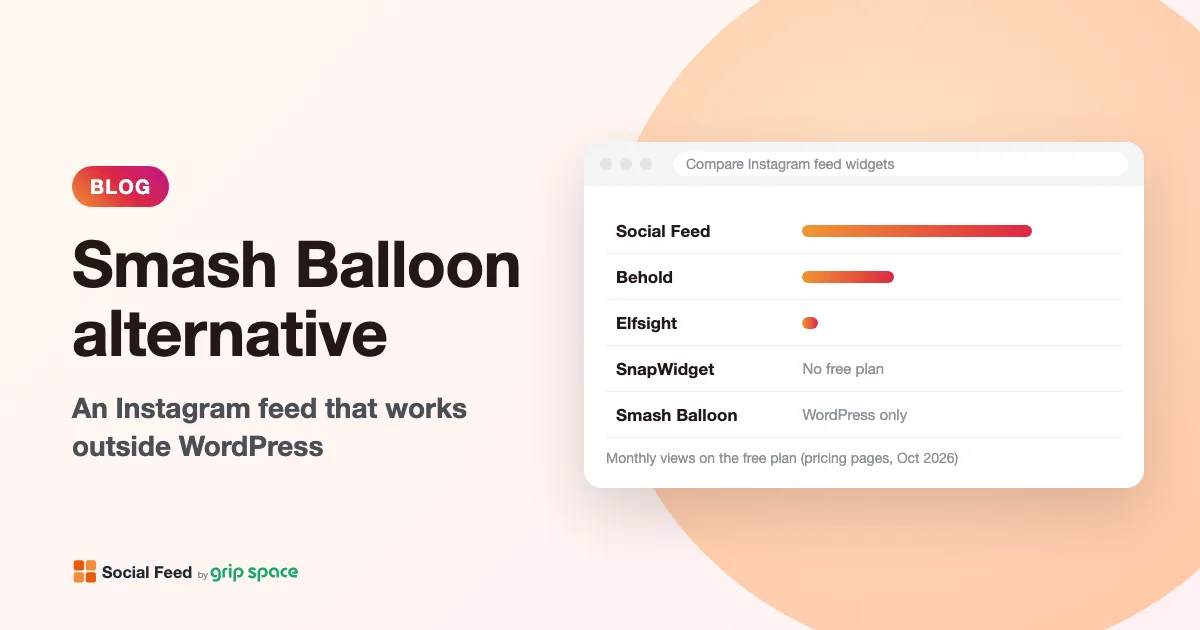
Smash Balloon alternative: an Instagram feed that works outside WordPress
Smash Balloon only runs on WordPress. An honest look at what it does well, where a hosted Instagram widget fits better, prices over two years and how to switch.
Read the article →
Instagram access token expired: what it means for your website feed
Why Instagram access tokens expire, how long they last, how Social Feed renews them automatically, and what to do when your connection stops working.
Read the article →
Changed your Instagram username? What happens to your website feed
After an Instagram username change, your website feed keeps showing posts, but the @name and Follow button still use the old name. Here is how to update them.
Read the article →
Can you show a private Instagram account on your website?
Why a private Instagram account can’t power a website feed, what Instagram’s rules and API require, and your real options if you want to stay private.
Read the article →