
How to add an Instagram feed to a Framer site
Framer has no built-in Instagram feed, but its Embed component accepts HTML, including script tags. That is all you need to show your latest Instagram posts on a Framer site. This guide walks through adding a feed from Social Feed by grip space with the Embed component, sizing it so it looks right on desktop, tablet and phone, testing it on the published site, and fixing the most common problems.
Updated October 12, 2026
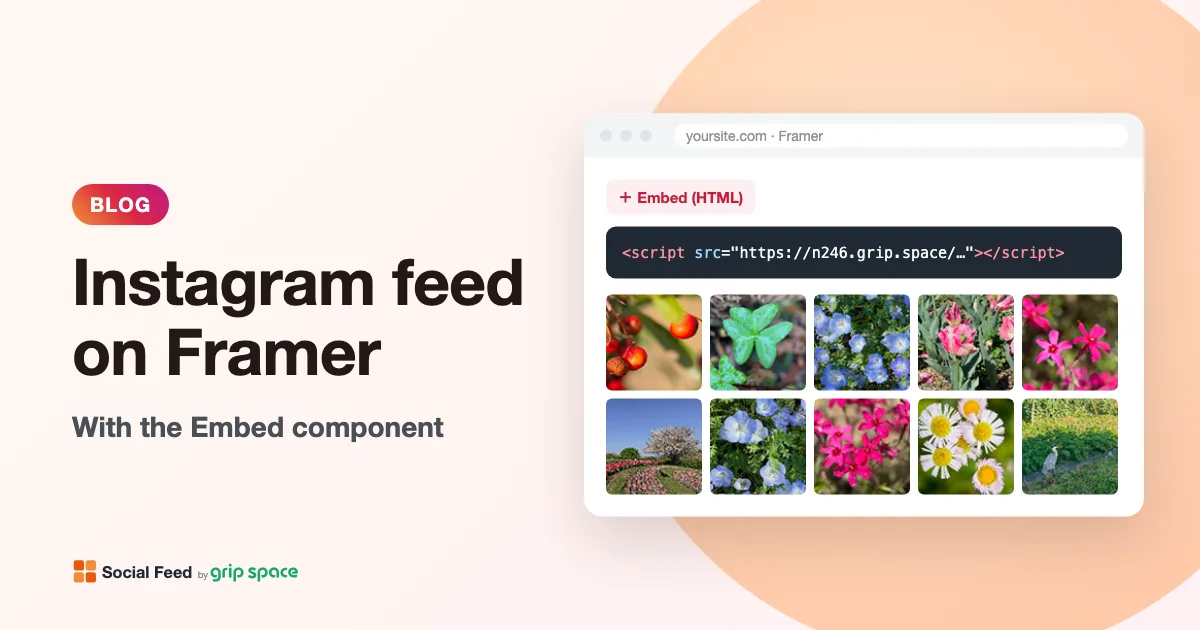
Two places for code in Framer
Framer gives you two ways to add third-party code. Which one to use depends on where the code needs to show something.
| Embed component (HTML) | Custom Code (settings) | |
|---|---|---|
| Where you find it | Insert menu → search for “Embed” → drag onto the canvas | Project Settings → Custom Code tab (or a page’s own settings for one page) |
| Where the code goes | Exactly where you place the component in your layout | At the start or end of the page’s head or body |
| Typical use | Widgets, forms, iframes that appear in one spot on a page | Analytics tags and scripts that load in the background |
| Good for an Instagram feed? | Yes, this is the method to use | No, the feed would not land where you want it (see below) |
The embed code from Social Feed by grip space is a single script tag, and the feed is drawn right next to where that tag sits on the page. That is why the Embed component is the right tool: you decide the position on the canvas, like any other layer, and the feed appears there.
Before you start: get your embed code
- Sign up for Social Feed by grip space with your email address. The Free plan needs no credit card and includes one widget.
- In the dashboard, click “+ Connect Instagram account” and connect an Instagram professional account (Business or Creator). A personal account can be switched to a professional one for free in the Instagram app; here is how.
- Open “Settings & preview”. Choose a grid or a slider, set the number of posts and columns while watching the preview, and save.
- Under “Add the embed code to your website”, click “Copy”. The code looks like this:
<script type="text/javascript" src="https://n246.grip.space/api/v1/instagram/widget/xxxxxxxx"></script>You only paste this code once. Layout, columns, filters and colors are stored with the widget, so when you change them in the dashboard later, your Framer site shows the new design without touching the Embed again.
Step by step: add the feed with the Embed component
- Open your project in Framer and go to the page where the feed should appear, for example your home page or a dedicated “Instagram” page.
- Open the Insert menu and search for Embed. Framer’s help center describes this exact path for adding an iframe or embed script.
- Drag the Embed component onto the canvas and drop it where the feed should go, for example inside a section just above your footer, or below a heading such as “Follow us on Instagram”.
- With the Embed selected, look at its options in the properties panel. Embeds can take a URL or HTML. Choose the HTML option. (Framer’s help article says to add the script tag “in the HTML section of the Embed component.”)
- Paste your Social Feed embed code into the HTML field. Paste the whole thing, from
<scriptto</script>. - Set the Embed’s width so it fills the section (see “Sizing the Embed” below), and give it a generous height to start with.
- Publish your site, then open the live URL in a browser to see the feed.
Framer’s help article also says that depending on the integration, you “may need to manually wrap the script in additional code.” The Social Feed code does not need any wrapper: paste it as it is. If the feed does not appear on the published page, work through the troubleshooting list further down before changing the code.
Sizing the Embed
Framer is a visual tool, and every layer, including the Embed, has a width and a height. Getting these right is the main thing that decides whether the feed looks native to your design.
Width. Make the Embed follow its container rather than using a fixed pixel width. Framer Academy explains that relative sizing is for “when a layer should follow its container,” and fixed sizing is “when it needs a stable dimension.” A feed should follow its container, so it shrinks on tablets and phones. The widget itself fills 100% of the space it gets, up to the max width you set in the Social Feed dashboard (0 to 2,000 pixels; 0 means no maximum).
Columns adjust by themselves. The widget measures the space it is placed in. When each image would be smaller than about 100 pixels, it automatically uses fewer columns. A 4-column grid on desktop therefore drops to fewer columns on a narrow phone screen without any extra settings.
Height. This is where Framer needs a little care. A grid’s height depends on its width: wider screens mean bigger square tiles and a taller feed. The account header, Follow button and (on the Free plan) the “Powered by Social Feed” credit add some height too. Framer’s help pages we checked do not describe a height option for the Embed component or say whether HTML with scripts is shown directly in the page or inside a frame. So check the published page and adjust:
- If the whole feed shows and the content below it moves down neatly, you are done. The Embed is sizing itself to its content.
- If the bottom of the feed is cut off, or a small scrollbar appears inside the box, the Embed has a fixed height that is too small. If the properties panel offers a height that fits the content, use it; otherwise increase the height until the full feed shows at your widest breakpoint. For a similar case (HubSpot forms, which also sit inside a frame), Framer’s help advises setting the component to “hug its content vertically, not fixed to a small height,” and not wrapping it in a container with a smaller fixed height.
- If there is a large empty gap below the feed, the Embed is taller than the feed. Reduce its height, or check it on each breakpoint, because the right height on desktop may be too tall on a phone.
Tip: if you find height hard to control, use the slider layout. A slider is always one row high, so its height changes much less between screen sizes than a grid of several rows does.
Breakpoints: desktop, tablet and phone
Framer sites use breakpoints. According to Framer Academy, you add one with the add control on the breakpoint bar and choose tablet, phone or a custom width, and the new layout “inherits from the primary breakpoint.” Changes to the primary (desktop) layout flow down, while changes made on tablet or phone become overrides for that breakpoint. The width shown on the canvas “is also the minimum viewport width at which that breakpoint becomes active.”
For an Instagram feed, this means:
- Use one Embed and let it inherit. Add the Embed on the desktop breakpoint. The tablet and phone layouts inherit it, and the widget adapts its column count to the width on its own.
- Override only the size. On tablet and phone, adjust the Embed’s height (if it uses a fixed height) and the section’s padding. You don’t need a second embed code for mobile.
- Avoid separate Embeds per breakpoint. Two copies of the code means two widgets on the page, and it is easy to forget to update one of them. If you really want a different look on phones, such as a slider instead of a grid, create a second widget in the dashboard and test the published page carefully at each width to make sure only one feed shows.
- Preview at several widths. Framer Academy recommends checking the page “at wide, medium, and narrow widths” rather than only at preset device sizes. Do the same on the published site by resizing your browser window.
Settings that suit Framer designs
Framer sites tend to be clean, design-led and full of white space. A few settings in the Social Feed dashboard help the feed fit in:
| Setting | Suggestion for Framer | Why |
|---|---|---|
| Layout | Grid for a dedicated section; slider for a compact strip | A grid shows more at once; a slider keeps the section short |
| Columns and posts | 3 or 4 columns with 6, 8 or 12 posts | Full rows look tidy; the free plan allows up to 16 posts |
| Image spacing | Match the gap you use elsewhere, such as 8 or 16 pixels | Keeps the feed in rhythm with your other grids |
| Max width | The same as your content width, such as 1,000 to 1,200 pixels | Stops tiles from becoming huge on wide screens |
| Font size | Close to your body text size | For the header and button text inside the widget |
| Account header | On for a dedicated section; off if your own heading already says “Instagram” | Avoids saying the same thing twice |
| Follow button | Set the label and color to match your brand | The button color is a setting, so it can use your accent color |
When visitors click a post, the widget can open a lightbox with the caption and/or like count, open the post on Instagram, or do nothing. Hovering can show an Instagram icon. For more on choosing layouts and post counts, see Grid or slider? Choosing a layout for your Instagram feed.
Why not use Custom Code for the feed?
Framer’s Custom Code area is great for scripts that do not show anything on the page. Framer’s help center describes the steps: open Project Settings, select the Custom Code tab, click Add Script (or the + icon), name the script, choose where it goes, optionally pick specific pages, and choose whether it runs “Once” or on every page visit. Framer Academy says the available positions are “at the start or end of the head and body,” and that you can add code for a single page in that page’s settings.
Those positions do not fit an Instagram feed. Code in the head is never displayed, and code at the start or end of the body is outside your layout: the feed would appear above everything or after your footer, not inside the section you designed. The widget has no setting to move itself to another part of the page. Use the Embed component, which puts the code exactly where you drop it.
Framer plans and Social Feed plans
Framer’s pricing page (Free, Basic, Pro and Enterprise when we checked) does not list embeds or custom code as a feature of any plan, and the help articles we read do not mention a plan requirement either. If the Embed component or its HTML option is not available in your project, check your plan or ask Framer support. Framer’s pricing page does say that connecting a custom domain needs a paid plan; free sites use a Framer domain. The feed works the same on either.
On the Social Feed side, plans are counted by widgets and monthly views:
| Free | Light | Standard | |
|---|---|---|---|
| Price | $0 | $8 a month or $80 a year | $24 a month or $240 a year |
| Widgets | 1 | 3 | Unlimited |
| Posts per widget | Up to 16 | Up to 30 | Up to 50 |
| Views a month | 3,000 | 30,000 | Unlimited |
| New posts appear | Once a day | Right away | Right away |
| “Powered by Social Feed” credit | Always shown | Optional | Optional |
A view is counted each time the feed loads, not each visitor. A feed on a page that every visitor sees, such as your home page, counts on every visit. If you go over your plan’s limit two months in a row, the feed pauses from the following month, and we email you when you reach 80% and 100% of the limit. See pricing for details.
Performance on a Framer site
The feed is designed to stay light. It is one small script, and it does not set cookies or use local storage. Images and videos load directly from Instagram’s servers. In a grid, images in the first row load right away and the rest load only when the visitor scrolls near them. A slider loads all of its images at once, so keep sliders to a sensible number of posts.
If the feed sits far down a long home page, most visitors who never scroll that far will not download the lower images of a grid, which keeps the page light.
Troubleshooting
- Nothing shows in the Framer editor. That is expected. Framer does not run these scripts on the canvas. Publish and check the live site.
- Nothing shows on the published site. First, make sure the widget is set to Published in the Social Feed dashboard; an unpublished widget shows nothing. Then check that you pasted the code into the Embed’s HTML option (not the URL field), and that the whole tag is there. Then publish again; changes in Framer appear on the live site only after you publish.
- The feed is cut off at the bottom. The Embed or its parent frame has a fixed height that is too small. Increase it, or let it fit the content if your editor offers that, and check each breakpoint.
- There is a big gap under the feed. The Embed is taller than the feed, often only on smaller breakpoints. Reduce the height on that breakpoint.
- The feed appears twice. There are two Embeds with the code on the page, or the code is both in an Embed and in Custom Code. Remove one.
- The feed shows too few or too many columns. The widget reduces columns when tiles would be smaller than about 100 pixels. If the Embed is very narrow, widen it or choose fewer columns in the dashboard.
- The lightbox looks cramped. See the note above: switch the click action to open Instagram if the lightbox can only cover the feed’s box.
- New Instagram posts are missing. On the Free plan, new posts appear once a day; on paid plans, right away. Also check whether a filter in the dashboard (Reels, carousels, videos, period or caption keywords) is hiding them.
- The feed stopped after a busy period. If your views went over your plan’s monthly limit two months in a row, the feed pauses. The dashboard shows your views per widget, and we email you before this happens.
- Still stuck? Our checklist Instagram feed not showing on your website? covers more causes.
Frequently asked questions
Do I need a Framer plugin or code component?
No. The Embed component that comes with Framer is enough, because the feed is a plain script tag.
Can I put the feed in a reusable component, such as my footer?
Framer’s documentation we checked does not cover embeds inside components specifically. In general, place the Embed inside the component, publish, and check that the feed shows on every page that uses it. Remember that every page with the feed counts toward your monthly views.
Can I hide the feed for a while without editing my Framer site?
Yes. Switch the widget to Unpublished in the Social Feed dashboard. The Embed stays in place but shows nothing until you switch the widget back. You may want to hide or resize the empty section in Framer if you leave it off for long.
Will the feed match my site’s language?
The small amount of text inside the widget, such as the Follow button and lightbox labels, switches between English and Japanese based on the page’s language setting, falling back to the visitor’s browser language. Your own captions appear as you wrote them on Instagram.
Can I show a hashtag feed or someone else’s account?
No. Social Feed by grip space shows posts from the Instagram account you connect, one account per widget. If you need hashtags, see our comparison of Instagram feed widgets for tools that list them.
Why did Instagram’s old API stop working with some feed tools?
Meta retired the Instagram Basic Display API in December 2024, which is why tools now need a professional account. We explain it in this article.
Building on another platform too? We have step-by-step guides for Webflow, Wix, Squarespace, WordPress, Shopify and plain HTML, and a general guide to adding a feed without a plugin.
Sources
- Framer Help, “How to add an iframe or embed script”: https://www.framer.com/help/articles/how-to-add-an-iframe-or-embed-script/
- Framer Help, “How to add custom code”: https://www.framer.com/help/articles/how-to-add-custom-code/
- Framer Help, “Embedding a Trustpilot widget in your site”: https://www.framer.com/help/articles/how-to-embed-trustpilot-widget-into-your-website/
- Framer Help, “Troubleshooting HubSpot forms on your site”: https://www.framer.com/help/articles/troubleshooting-hubspot-forms-on-your-site/
- Framer Academy, “Add Custom Code to your site”: https://www.framer.com/academy/lessons/custom-code
- Framer Academy, “Create responsive breakpoints”: https://www.framer.com/academy/lessons/framer-fundamentals-breakpoints
- Framer Academy, “Use relative, fixed, and viewport sizing”: https://www.framer.com/academy/lessons/framer-fundamentals-fixed-and-relative-sizing
- Framer pricing: https://www.framer.com/pricing
Get your embed code in a few minutes. The Free plan needs no credit card.
Sign up freeMore articles
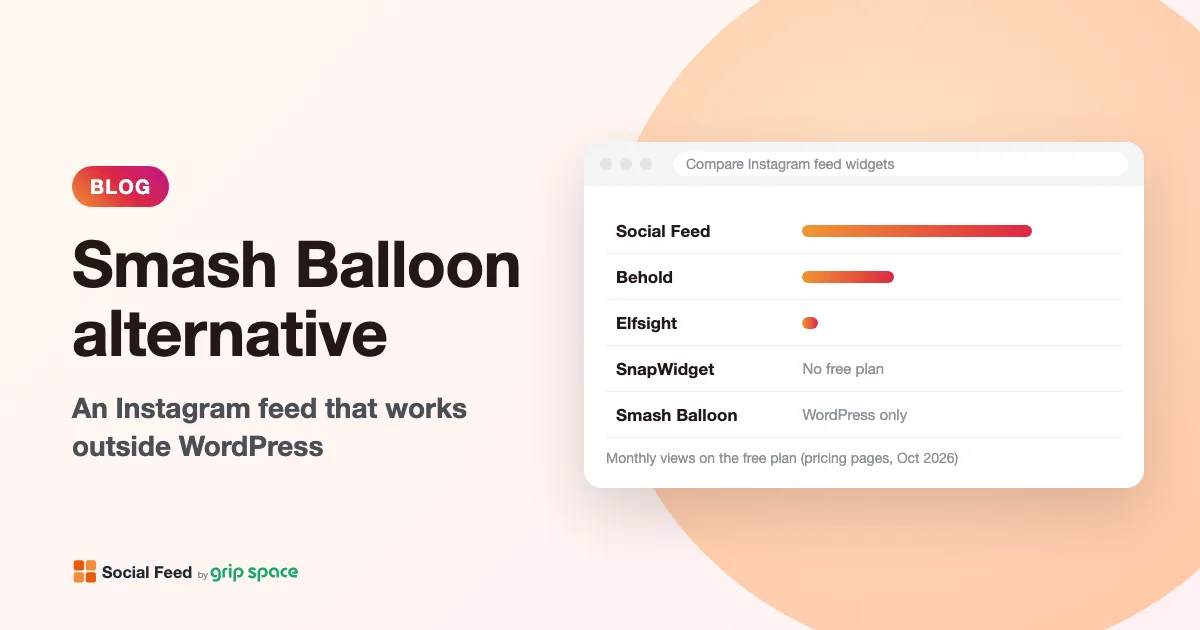
Smash Balloon alternative: an Instagram feed that works outside WordPress
Smash Balloon only runs on WordPress. An honest look at what it does well, where a hosted Instagram widget fits better, prices over two years and how to switch.
Read the article →
Instagram access token expired: what it means for your website feed
Why Instagram access tokens expire, how long they last, how Social Feed renews them automatically, and what to do when your connection stops working.
Read the article →
Changed your Instagram username? What happens to your website feed
After an Instagram username change, your website feed keeps showing posts, but the @name and Follow button still use the old name. Here is how to update them.
Read the article →
Can you show a private Instagram account on your website?
Why a private Instagram account can’t power a website feed, what Instagram’s rules and API require, and your real options if you want to stay private.
Read the article →
Where to put an Instagram feed on your website: placements that make sense
Homepage, footer, About, Contact, product pages, blog, thank-you pages, landing pages: where an Instagram feed helps, where it gets in the way, and why.
Read the article →
Instagram feed for restaurant and café websites: what to show and where
How restaurants and cafés can use an Instagram feed: which posts to show, where to place them, and filter recipes for menus, specials and Reels.
Read the article →