
How to add an Instagram feed to a Duda site
Duda gives you two ways to show Instagram posts on a site: the Photo Gallery widget can connect to an Instagram account, and the HTML widget lets you embed a third-party feed. This guide explains when the built-in option is enough, how to add a feed from Social Feed by grip space with the HTML widget, where to place it for one page or every page, and how agencies can handle Instagram connections for client sites.
Updated October 12, 2026
Two ways to show Instagram on Duda
Before adding anything, it is worth knowing what Duda already does. Duda’s help article for the Photo Gallery widget describes a “Connect Instagram” option that fills the gallery with posts from a professional Instagram account. For some sites that is all you need. For others, a dedicated feed widget fits better. Here is how they compare, based on Duda’s help pages and our own product:
| Duda Photo Gallery + Connect Instagram | Social Feed by grip space in an HTML widget | |
|---|---|---|
| Setup | Built into the editor, no extra service | Free sign-up, then paste one line of code |
| Posts shown | Up to 100 images, according to Duda | Up to 16, 30 or 50 posts depending on your plan |
| Videos and Reels | Duda says only photos display; posts with videos are not visible | Videos and Reels can be shown and play in a lightbox; you can also exclude Reels or show only Reels |
| Carousel posts | Only the first image of each post | First image in the feed; the lightbox can show all images of the post |
| Accounts | One Instagram account per site, per Duda | One account per feed; each feed (widget) has its own code |
| New posts | Duda says new images may take up to 2 hours | Once a day on the Free plan, right away on paid plans |
| Layout and extras | Duda’s gallery layouts and lightbox | Grid or slider, account header with Follow button, filters by date, post type and caption keywords, view counts |
| Duda plan | Not tied to custom code | Uses custom code; Duda’s Custom Code article says “Available on Team plans and higher” |
If you only want a handful of recent photos in a gallery that matches the rest of the site, try the Photo Gallery first. If the account posts a lot of Reels or videos, if you want a Follow button and header, or if you want filters such as “only posts from the last 90 days”, use a feed widget. The rest of this guide covers the second route.
Check your Duda plan first
Duda’s help article “Custom Code”, which covers both the HTML widget and Developer Mode, starts with the line “Available on Team plans and higher.” Duda’s pricing page lists Basic, Team, Agency and White Label plans, plus custom plans. If you are on Basic, or if you cannot find the HTML widget in the widget list, check your plan and your account permissions before going further.
On the Social Feed side, the Free plan is enough to test the setup on one site. Agencies building feeds for several clients will usually need more than one widget; see the plan table further down.
Get your embed code from Social Feed
- Sign up for Social Feed by grip space with an email address. No credit card is needed for the Free plan.
- Click “+ Connect Instagram account” and log in to the Instagram account whose posts you want to show. It must be a professional account (Business or Creator). If it is a personal account, it can be switched in the Instagram app; see how.
- Open “Settings & preview”, choose a grid or a slider, and set the columns, number of posts and spacing while you watch the preview. Save.
- Under “Add the embed code to your website”, click “Copy”. You get one script tag like this:
<script type="text/javascript" src="https://n246.grip.space/api/v1/instagram/widget/xxxxxxxx"></script>The script draws the feed right where the tag is placed, using plain JavaScript in the visitor’s browser. It does not load jQuery, it does not add an iframe, and it does not set cookies. The code loads over HTTPS, which matters on Duda (more on that below).
Add the feed with the HTML widget
Duda describes the HTML widget as the easiest way to add custom code, and recommends it for code that is meant to be visible on the site. An Instagram feed is exactly that.
- Open the site in the Duda editor and go to the page where the feed should appear.
- In the side panel, click Add, then Elements.
- Search for HTML, then drag the HTML widget into a row or column on the page. Duda shows a blue placement indicator where the widget will land. (In Editor 2.0, Duda notes that widgets can only be added to existing columns.)
- Open the widget’s content editor. Duda’s help says to right-click the widget and select Edit Content, or, in flex mode or Editor 2.0, to click the widget and use the content editor option in the floating menu.
- Paste the Social Feed code into the text box. Paste only that one line, without anything around it.
- Close the editor, then preview the page or republish the site to see the feed on the live site.
Adding a heading. Put a Duda title widget such as “Follow us on Instagram” above the HTML widget so it uses the site’s fonts. Or turn on the account header in the Social Feed settings to show the profile picture, account name, post count and a Follow button above the feed. You can change the button label and color to match the site.
One page, or every page?
Where you drop the HTML widget decides where the feed appears. Duda’s Custom Code article explains that an HTML widget placed in the header or the footer appears on all pages, because every page shares the header and footer, while an HTML widget anywhere else appears only on that page.
| Placement | Where the feed shows | Good for |
|---|---|---|
| HTML widget in the page body | That page only | The home page, an “Instagram” or gallery page, an about page |
| HTML widget in the footer | Every page of the site | A slim, one-row slider just above the footer links |
| Settings → Header HTML → Body End HTML | Every page, at the very end of the body | Not recommended for a feed (see below) |
Duda also has site-wide fields under More → Settings → Header HTML: “Head HTML” for the head section and “Body End HTML” for code just before the closing body tag. Duda says invisible code should usually go in the header area, and visible code in an HTML widget. Follow that advice here. In the head, the feed would not be visible at all, and in Body End HTML it would land after everything else on the page instead of inside your layout.
Footer feeds and views. A feed in the footer is loaded on every page view of the site. That is fine on the Light and Standard plans for most sites, but on the Free plan (3,000 views a month) a busy site can use up the allowance quickly. For a site-wide feed, a paid plan or a feed on just the home page is usually the better fit.
Desktop, tablet and mobile
Duda builds responsive sites with breakpoints for desktop, tablet and mobile. The feed adapts by itself: it measures the width of the column it is in and uses fewer columns whenever each image would become smaller than about 100 pixels. A 4-column grid on desktop therefore drops to fewer columns on a phone without any extra settings.
If you want something different on mobile, Duda lets you hide elements per breakpoint. In flex mode and Editor 2.0, switch to the breakpoint, click the element (or its column), open the three-dot menu and choose “Hide on this breakpoint”. In the Classic Editor, right-click and use “Hide on device”. For example, you could show a grid on desktop and a one-row slider on mobile by using two HTML widgets with two different Social Feed widgets and hiding each on the other breakpoint.
Building Duda sites for clients
Many Duda sites are built by agencies and freelancers for clients. A few points make Instagram feeds easier to manage in that setup.
Who connects Instagram. Connecting a feed always requires logging in to the client’s Instagram account. There are two common ways to organize this:
- Agency-managed: you keep one Social Feed account for your clients. One account can connect several Instagram accounts, and each connected account can have its own widgets. Someone who can log in to the client’s Instagram has to complete the connection, so either do it together on a call or ask the client to log in on your screen. Every client’s widget counts toward your plan’s widget limit: one on Free, three on Light, unlimited on Standard.
- Client-owned: the client creates their own Social Feed account, connects their Instagram, and sends you the embed code. They keep control of their account and plan, and you only paste the code. This is the simplest option when a client does not want to share Instagram access.
Client permissions in Duda. Duda’s client management (listed in its help as available on Team plans and higher) lets you choose what each client can do on each site. Permissions such as Editor, Widget content and Dev Mode are separate, and publishing has its own Site publish and Site republish permissions. Because the feed design lives in the Social Feed dashboard, a client does not need any editor permission to change the feed’s layout or filters; they only need access to the Social Feed account. Many agencies leave HTML and Dev Mode permissions off for clients and handle code changes themselves.
Reused sites and templates. If you copy an existing site as the starting point for a new client, the HTML widget comes along with the old embed code. Replace it with the new client’s code before you publish, or the new site will show the previous client’s Instagram posts.
Turning a feed off. If a client pauses their Instagram or the account needs to be reconnected, switch the widget to Unpublished in the Social Feed dashboard. The feed disappears from the site without editing or republishing the Duda site, and comes back when you publish the widget again.
A short handover checklist. Before you hand a site over, open the live site on a phone and a desktop and confirm that the feed shows the right account, that clicking a post does what you chose (lightbox, Instagram or nothing), and that the Follow button opens the client’s profile. Write down which Social Feed account holds the widget and who can log in to it, so that a reconnection after an Instagram password change does not turn into a search for credentials months later.
Plans and limits
| Social Feed plan | Price | Widgets | Posts per feed | Views per month | Notes |
|---|---|---|---|---|---|
| Free | $0 | 1 | Up to 16 | 3,000 | Updates once a day; “Powered by Social Feed” credit always shown |
| Light | $8/month or $80/year | 3 | Up to 30 | 30,000 | New posts right away; credit optional |
| Standard | $24/month or $240/year | Unlimited | Up to 50 | Unlimited | New posts right away; credit optional; suits agencies with many client sites |
A view is one page load that shows the feed. If a widget goes over its plan’s monthly views, it keeps showing for the rest of that month; only after two months in a row over the limit does it pause from the following month. The dashboard shows the view count for each widget. See pricing for the full details.
Design tips for Duda layouts
- Home page: a grid of 4 columns and 8 or 12 posts near the bottom of the page, with the account header and Follow button turned on.
- Inside a two-column section: if the feed sits next to text, use 2 or 3 columns, or a slider, so the images do not become too small.
- Full-width sections: set the widget’s maximum width (0 to 2,000 pixels) to around 1,000 to 1,200 pixels so the images do not become oversized on wide screens.
- Footer: a one-row slider keeps every page short. Note that a slider loads all of its images right away, while a grid loads images below the first row only when the visitor scrolls near them.
- Click behavior: the lightbox keeps visitors on the client’s site and can show the caption and like count; linking straight to Instagram is better when the goal is more followers.
More on these choices in Grid or slider? Choosing a layout for the Instagram feed on your website. Any change you save in the Social Feed dashboard appears on the Duda site the next time the page loads, without touching the HTML widget.
Troubleshooting
- Nothing shows on the live site. Check that the widget is Published in the Social Feed dashboard, then open the HTML widget and make sure the whole code is there, from
<scriptto</script>. Remember to republish the Duda site after adding the widget. - The feed shows in preview but not on the live site, or the other way round. Duda’s help points out that the editor and preview use HTTPS and that scripts loading non-HTTPS files will fail there. The Social Feed code already uses HTTPS, so make sure no one changed it to http://. Also check that the live site has an SSL certificate.
- The script does not seem to run on the live site. Duda says it runs page speed optimization on most pages, which can affect how custom scripts run. Its suggested test is to duplicate the page, change its URL to “testing_scripts”, publish, and check that page. If the feed works there, Duda suggests contacting their support about page speed optimization for your site. You do not need to add async or defer to the Social Feed code.
- You cannot select the HTML widget any more. Delete the column or container it sits in, which is why Duda recommends giving it its own. Duda also creates a backup when you publish, which you can restore under More → Settings → Site Backup.
- The feed appears twice. The code is in both a page HTML widget and the footer, or in two widgets on the same page. Remove one.
- The feed is too narrow or the images are tiny. The column is too narrow for the number of columns you chose. Reduce the columns, switch to a slider, or move the HTML widget into a wider column.
- New posts are missing. On the Free plan, new posts appear once a day; on paid plans, right away. Check whether a filter (period, Reels, carousel or caption keywords) hides them. See Instagram feed not updating?.
- The feed stopped working after a while. Look for a disconnected Instagram account in the dashboard (for example after a password change on the client’s side) and check the monthly view count. Our checklist Instagram feed not showing on your website? covers the common causes.
Duda’s help states that its support team cannot troubleshoot custom code. For problems with the feed itself, contact us instead and include the page address.
Frequently asked questions
Do I need an app from the Duda App Store?
No. The feed is added with Duda’s standard HTML widget.
Will the code conflict with Duda’s editor?
Duda warns against loading a different version of jQuery, because its editor relies on jQuery 3.0. The Social Feed widget does not use or load jQuery, so this does not apply.
Can I use the same feed on several client sites?
Technically the same code works anywhere, but each client normally has their own Instagram account, so each site needs its own widget connected to that account.
Does the client need to change the code when they want a different look?
No. Layout, columns, filters and colors are stored with the widget. Change them in the Social Feed dashboard and the site updates without republishing.
Does the widget work with a cookie consent banner?
The widget itself sets no cookies and no local storage. Images are loaded from Instagram’s servers, so if your consent setup requires blocking third-party content until consent, treat the feed like other embedded media. Our guide on adding a feed without a plugin explains more about how the script works.
Can it show a hashtag or someone else’s account?
No. Social Feed shows posts from Instagram accounts you connect by logging in. For tools that state hashtag support, see our comparison of Instagram feed widgets.
Working on other platforms too? See our guides for WordPress, Shopify, Wix, Squarespace, Webflow and HTML, and our posts on Ghost and Elementor. New here? Read what Social Feed by grip space is.
Sources
- Duda Support, “Widgets: HTML”: https://support.duda.co/hc/en-us/articles/26519240974487-Widgets-HTML
- Duda Support, “Custom Code”: https://support.duda.co/hc/en-us/articles/26519250445079-Custom-Code
- Duda Support, “Widgets: Library and Overview”: https://support.duda.co/hc/en-us/articles/26519267254423-Widgets-Library-and-Overview
- Duda Support, “Media Widgets: Photo Gallery”: https://support.duda.co/hc/en-us/articles/26519248800919-Media-Widgets-Photo-Gallery
- Duda Support, “Screen Sizes and Devices”: https://support.duda.co/hc/en-us/articles/26519216195095-Screen-Sizes-and-Devices
- Duda Support, “Manage Clients”: https://support.duda.co/hc/en-us/articles/26519392519575-Manage-Clients
- Duda pricing: https://www.duda.co/pricing
Get your embed code in a few minutes. The Free plan needs no credit card.
Sign up freeMore articles
How to add an Instagram feed to a Framer site
Add an auto-updating Instagram feed to Framer with the Embed component’s HTML option: steps, sizing across breakpoints, testing on the live site and fixes.
Read the article →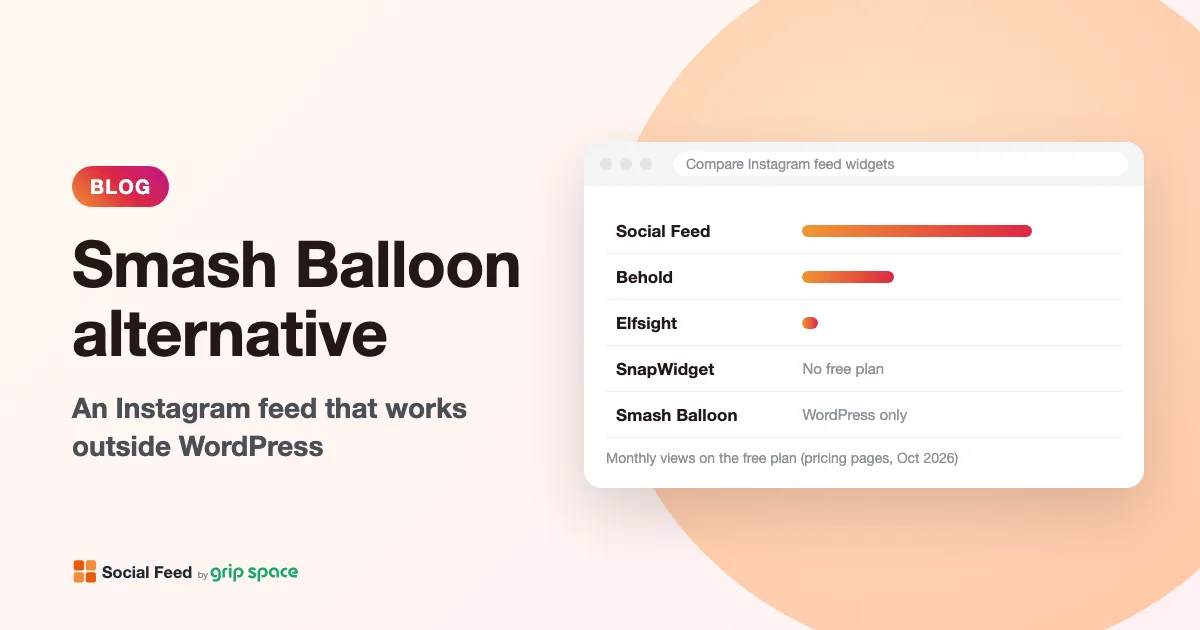
Smash Balloon alternative: an Instagram feed that works outside WordPress
Smash Balloon only runs on WordPress. An honest look at what it does well, where a hosted Instagram widget fits better, prices over two years and how to switch.
Read the article →
Instagram access token expired: what it means for your website feed
Why Instagram access tokens expire, how long they last, how Social Feed renews them automatically, and what to do when your connection stops working.
Read the article →
Changed your Instagram username? What happens to your website feed
After an Instagram username change, your website feed keeps showing posts, but the @name and Follow button still use the old name. Here is how to update them.
Read the article →
Can you show a private Instagram account on your website?
Why a private Instagram account can’t power a website feed, what Instagram’s rules and API require, and your real options if you want to stay private.
Read the article →
Where to put an Instagram feed on your website: placements that make sense
Homepage, footer, About, Contact, product pages, blog, thank-you pages, landing pages: where an Instagram feed helps, where it gets in the way, and why.
Read the article →