
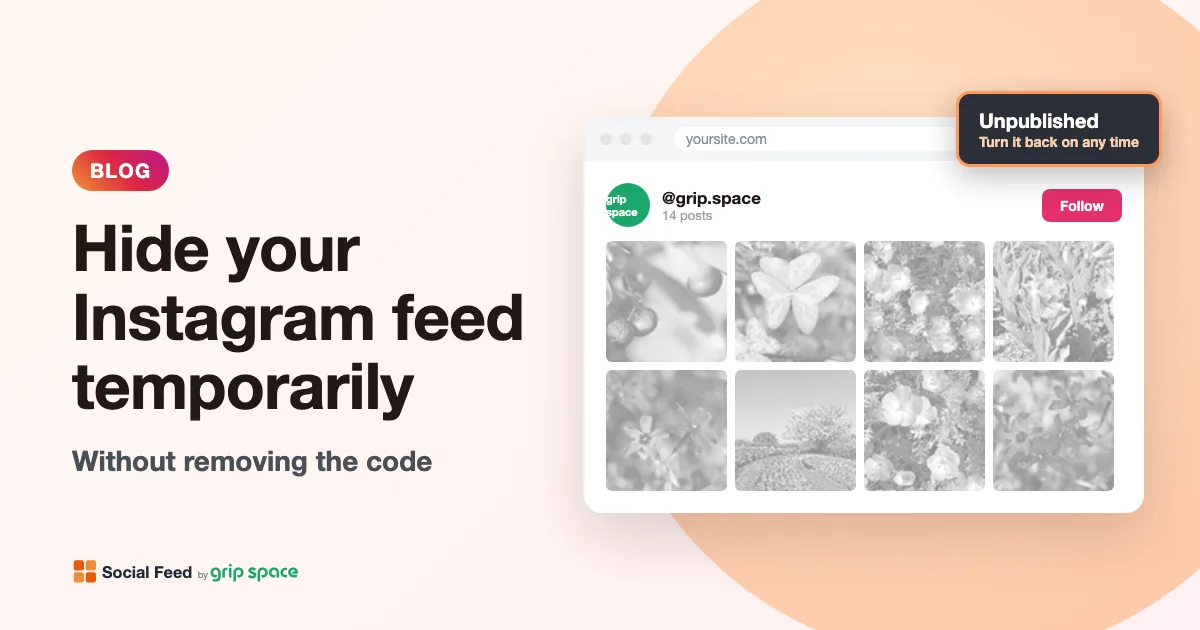
How to hide your website’s Instagram feed temporarily without removing the code
Sometimes the Instagram feed on your website needs to disappear for a while: the shop is closed for the season, the brand is changing, or the account is being cleaned up. You do not have to edit your site to do that. This guide explains the Published switch in Social Feed by grip space: what your visitors see while a feed is switched off, what happens to view counts, what stays the same, and when another option makes more sense.
Updated October 12, 2026
The short answer
Every widget in Social Feed by grip space has a Published switch. Turn it off, and the embed code on your website stays exactly where it is but shows nothing. Turn it back on, and the feed reappears with all of its settings. You never have to open your website editor, find the code again or ask your web designer for help.
Here is what changes and what does not when you switch a widget off:
| Published (On) | Unpublished (Off) | |
|---|---|---|
| What visitors see | Your feed: account header, posts and, on the Free plan, the small credit link | Nothing. No posts, no header, no credit, no empty frame drawn by the widget |
| Embed code on your site | Stays in place | Stays in place, unchanged |
| Images loaded from Instagram | Yes, as visitors view the feed | None |
| Views counted | Yes, once each time the feed is shown | No |
| Your settings | Kept | Kept |
| Dashboard preview | Works | Still works, so you can keep editing |
| Instagram connection | Stays connected | Stays connected |
| Counts toward your plan’s widget limit | Yes | Yes |
The rest of this article goes through each of these points and covers the situations where you might want a different approach, such as hiding just a few posts instead of the whole feed.
When hiding the feed makes sense
A feed is there to show that you are active and to give visitors a feel for what you do. If it starts sending the wrong message, a short break is often better than leaving it up. Common reasons:
- Seasonal closures. A beach café closed for the winter, a ski school in summer, a garden center between seasons. If your latest posts say “See you in spring!”, that is fine to show. If they show a busy summer terrace, visitors may think you are open.
- Rebrands and renames. While a new logo, name or visual style rolls out, older posts can clash with a freshly redesigned website. Hiding the feed until you have a few posts in the new style keeps the site consistent.
- Cleaning up the Instagram account. If you are archiving or deleting older posts, changing the grid’s look, or switching account types, the feed may look half-finished for a while.
- A sale or campaign that has ended. If the newest posts advertise a deal that is no longer available, visitors who click through may be disappointed. Hiding the feed until new posts go up avoids that.
- A website relaunch. You may want the embed code in place on a new page while you work on the layout, but not visible to anyone until launch day.
- A sensitive moment. After bad news, an emergency or a period of mourning, cheerful promotional posts can feel out of place. Switching the feed off takes seconds and can be undone just as quickly.
- Staying within your monthly view limit. On the Free and Light plans, views from all widgets count toward a monthly limit. Switching off a widget on a page where it adds little stops it from using up views. More on this below.
How to switch a feed off
- Log in to your Social Feed dashboard.
- Find the widget in the widget list and click “Settings & preview” on its card.
- At the top of the settings, next to the connected Instagram account, you will see a switch labeled On. Click it so that it reads Off.
- That is it. The change is saved immediately; you do not need to click “Save settings”. Back in the widget list, the card now shows an Unpublished label next to the widget name.
- Open the page on your website where the feed was and reload it. The feed is gone.
What visitors see while the feed is off
The embed code is a single script tag. Each time someone opens your page, their browser asks our server for the feed, and the server answers with the code that draws it. While a widget is unpublished, the server answers with a one-line comment and nothing else:
/* instagram widget: unpublished */Because that line does not add anything to the page, the widget draws nothing at all. There is no blank box, no “feed unavailable” message and no loading spinner. Visitors cannot tell that a feed was ever there, unless they look at the page source.
A few things are worth knowing about how that looks on a real page:
- Your own heading stays. The widget only controls what it draws itself. If you added a heading such as “Follow us on Instagram” or a paragraph above the code in your website editor, that text is part of your page, not the widget, and it stays visible. Either hide that section in your editor as well or write the heading so it still makes sense on its own.
- Spacing from your page may stay. If the code sits inside a section with its own padding or background color, the section remains, just without the feed in it.
- Fixed-size embed boxes may stay empty. Some site builders put custom code inside a box with a height you set in the editor. On those, the box itself belongs to the builder, so an empty area of that height can remain. If you see a gap, hide the block in the builder or reduce its height while the feed is off.
Since no feed is drawn, no images or videos are requested from Instagram either. Your page loads exactly as it would without the widget, apart from the one small script request.
How quickly the change appears
The embed script is sent with instructions not to be cached, so browsers ask for a fresh copy every time the page loads. That means switching a widget off or on takes effect on the next page load for every visitor. You do not need to clear a caching plugin or republish your site.
If you still see the feed after switching it off, reload the page. A tab that was already open keeps showing what it drew when it loaded. If the feed is still there after a reload, see the troubleshooting section below; the most common reason is that the page shows a different widget than the one you switched off.
Do views count while the feed is hidden?
No. A view is counted when the feed is actually drawn on a page. While a widget is unpublished, nothing is drawn, so nothing is counted. On the widget’s card, the Views (30 days) number and the small chart will show the drop: days while the widget was off show no views from it.
This is different from what happens when an account goes over its monthly view limit for two months in a row. In that case the feed is also not shown, but views are still counted, because the limit is about how much traffic the feed’s pages receive. Unpublishing is the only state where the widget deliberately shows nothing and counts nothing.
That makes the switch a practical tool for the view limit on the Free plan (3,000 views a month) and the Light plan (30,000 views a month), which apply to all of your widgets together. If one widget sits on a busy page where it is not doing much, for example on every blog post, switching it off leaves more room for the widget on the page that matters. The Standard plan has no view limit, so there the switch is purely about what you want visitors to see. For more on how views add up, see the Free plan guide, and for current prices, the pricing section.
What stays the same while the feed is off
Switching a widget off is designed to be completely reversible. Nothing is deleted:
- All settings stay. Layout, columns, number of posts, spacing, width, font size, click and hover behavior, lightbox options, account header, Follow button and filters are all kept.
- The embed code stays valid. It is the same code, so when you switch back on, the feed reappears wherever the code is, on every page.
- The preview keeps working. In “Settings & preview”, you still see a live preview of your posts. That is useful: you can change the design while the feed is hidden and switch it on only when it looks right.
- Your Instagram account stays connected. Unpublishing is not the same as disconnecting.
- The widget still counts toward your plan’s widget limit. The Free plan allows 1 widget, Light 3 and Standard unlimited. An unpublished widget still occupies one of those places. If you need the place for a different widget, you would have to delete it instead.
Switching the feed back on
- Open the widget’s “Settings & preview”.
- Look at the preview first. It shows the posts that will appear, with your current settings and filters. If the latest posts are not what you want to show yet, wait or adjust the filters before going live.
- If the preview shows a red message saying your Instagram connection has expired, reconnect the account before switching on. Otherwise the feed will appear without posts. Our article on expired Instagram connections explains what to do.
- Click the switch so it reads On. The card in the widget list shows Published again.
- Reload your website page and check the feed on a computer and a phone.
If you changed your Instagram username while the feed was off, also read what to do after an Instagram username change. The header and the Follow button use the username saved when you connected, so they need updating.
Other ways to hide a feed, and when to use them
The Published switch is the right tool for “not now, but later”. For other goals, other options fit better:
| Option | What happens | Good for | Downside |
|---|---|---|---|
| Switch the widget to Unpublished | The code stays, the feed draws nothing | Temporary breaks of any length | The widget still uses a widget place on your plan |
| Delete the widget in the dashboard | The widget and its settings are removed; your Instagram connection is kept | Feeds you will not use again | The code on your site no longer works; a new widget gets new code |
| Disconnect the Instagram account | The connection and all of that account’s widgets and settings are removed | Stopping use of an account entirely | Everything has to be set up again, and every embed code for that account stops working |
| Remove the code from your website | The feed disappears from that page only | Showing the feed on fewer pages | You need to paste the code back later |
| Hide the section in your site builder | Your builder hides the block holding the code, including your own heading | Hiding the feed and its heading together | Depends on your builder; must be undone in the builder |
| Use filters | The feed stays, but only some posts appear | Hiding specific posts or older posts | Not a way to hide the whole feed |
Two points to keep in mind. First, deleting a widget and disconnecting an account cannot be undone from the dashboard; both ask for confirmation, and the disconnect message warns that all of the account’s widgets and embed codes will be deleted too. Second, removing the code from your site is fine for a single page, but if the feed sits in a footer or sidebar template, finding it again later takes longer than flipping a switch.
Hiding only some posts instead of the whole feed
Often the problem is not the feed itself but a few posts in it. In that case, filters let you keep the feed up while leaving out what does not fit right now. All filters are in “Settings & preview”, and the preview shows the result immediately.
| Situation | Filter to use |
|---|---|
| Older posts in the old branding | Period: show only posts from the last 30, 90 or 365 days |
| Posts about an ended sale | Caption keywords: exclude posts containing words like “sale” or a campaign hashtag |
| Only posts about the new season or product line | Caption keywords: show only posts containing a word you use in those captions |
| Reels that do not suit the page | Reels: exclude Reels, or show Reels only on a different widget |
| Multi-image posts that look busy | Hide carousel posts |
| No videos on this page | Turn off videos |
Keyword matching ignores upper and lower case, and you can enter several words separated by commas. For a full walkthrough with examples, see how to filter your Instagram feed by keyword.
Be careful with very narrow filters during a cleanup. If no post passes all filters, the widget shows the account header with nothing below it, which looks broken. The preview shows “No posts to show.” in that case, so check it before saving. If you expect that to happen for a while, switching the widget off is the cleaner choice.
Swapping in a seasonal version of your feed
Sometimes you do not want to hide the feed, but to show a different version of it for a while: only holiday posts in December, or only posts about the summer menu. Because an unpublished widget draws nothing, you can prepare this in advance:
- In the widget list, click Duplicate on your current widget. The copy starts with the same settings.
- In the copy, set the filters for the seasonal version, for example a caption keyword, and adjust anything else you like. Give it a clear name such as “Holiday feed”.
- Switch the copy to Off, then paste its embed code on your page right next to the existing code.
- When the season starts, switch the seasonal widget On and the regular one Off. When it ends, do the reverse.
Since only the published widget draws anything, visitors only ever see one feed. You change what is on your website from the dashboard, without editing the page again.
Troubleshooting
The feed is still showing after I switched it off. Reload the page first; an already open tab does not update by itself. If it is still there, the page is probably showing a different widget. Open your page source and search for instagram/widget; each widget has its own address in the code. Compare it with the embed code shown at the bottom of each widget’s settings, under “Add the embed code to your website”, to find the one that is actually on the page.
I switched it back on, but nothing appears. Check that the card says Published. Then look at the preview: a red message about an expired connection means you need to reconnect; “No posts to show.” means the filters exclude everything. If the preview looks right but the site does not, the cause is somewhere else, such as the code having been removed during the break or a monthly view limit. Our checklist for a feed that is not showing covers every case.
There is an empty space where the feed was. The widget itself draws nothing when it is off, so the space comes from your page: a section with padding, a heading, or a fixed-height embed block in your site builder. Hide or resize that part in your editor.
The switch flips back by itself. The dashboard changes the switch right away and then saves the change. If saving fails, for example because your internet connection dropped, the switch returns to its previous position and an error message appears. Try again once you are back online.
The dashboard preview still shows my posts. That is expected. The preview always works so you can keep editing; only the embed code on your website is switched off. To check what visitors see, open your actual website page, ideally in a private browser window.
Frequently asked questions
Is there a limit to how long a widget can stay unpublished? No. A widget can stay off for as long as you like and keeps its settings. When you switch it back on after a long break, check the preview first, as described above, in case the Instagram connection needs to be renewed.
Can I schedule the feed to switch on or off at a certain date? No, the switch is manual. Put a reminder in your calendar for the day your shop reopens or your rebrand launches.
Does switching off affect my Instagram account? No. The switch only controls what the embed code shows on your website. Your Instagram profile, posts and followers are not touched.
Will visitors see an error message? No. An unpublished widget shows no message at all. Only someone reading the page source would see the one-line comment.
Can I hide the feed on mobile only? Not with the Published switch, which applies to every device. Some site builders let you hide a section on certain screen sizes; if yours does, that is the way to do it.
Can I hide the feed on one page but keep it on another? If both pages use the same widget, the switch hides it on both. Either remove the code from the one page, or use a separate widget for each page (Light or Standard plan) so each can be switched on its own. Our guide on where to put an Instagram feed can help you decide which pages need one.
Summary
To hide your Instagram feed for a while, switch the widget to Off in “Settings & preview”. The embed code stays on your site and draws nothing, no images are loaded from Instagram, and no views are counted. All settings are kept and the preview keeps working, so you can prepare the feed’s comeback while it is hidden. When you are ready, check the preview and switch it back on.
If you are setting up a feed for the first time, our guides for WordPress, Shopify, Wix, Squarespace, Webflow and plain HTML show where to paste the code. You can create a free account without a credit card.
Get your embed code in a few minutes. The Free plan needs no credit card.
Sign up freeMore articles
How to add an Instagram follow button to your website
Add an Instagram Follow button to your website with your feed’s header, change its text and color, and use Instagram’s own profile link and QR code.
Read the article →
How to add an Instagram feed to your website footer
Put your Instagram feed in the footer of every page: settings for narrow footer columns, slider vs grid, site-wide steps per platform, and how views add up.
Read the article →
How Instagram carousel posts appear on your website
How carousel posts show in an Instagram feed on your site: the first-image tile, the carousel mark, browsing all images in the lightbox, and hiding carousels.
Read the article →
Showing Instagram videos and Reels on your website: what to expect
How Instagram videos and Reels look in a website feed: cover-image tiles, muted playback in a lightbox, the video setting, and why some videos show as stills.
Read the article →
Lightbox or link to Instagram? Choosing what happens when visitors click a post
Should clicks on your website’s Instagram feed open a lightbox, open Instagram or do nothing? How each option works, what the lightbox shows, and when to use which.
Read the article →
Instagram feed design: how to make the widget match your website
Make your Instagram feed look like part of your site: width, spacing, columns, font size, header, follow button color and hover, plus what stays fixed.
Read the article →