
Can you show someone else’s Instagram feed on your website?
Maybe you are building a website for a client, or you want a partner brand’s posts on your page, or you simply like how another account looks and want it on your site. Can you show someone else’s Instagram feed? The honest answer is: only with the owner’s involvement. This article explains why, based on Meta’s developer documentation and Instagram’s Terms of Use, what you can do without the owner, and the practical workflow for agencies and freelancers who need a client’s feed on a client’s site.
Updated October 12, 2026
The short answer
- An auto-updating feed needs the owner to connect the account. Feed tools read Instagram through Meta’s API, and Meta’s overview says a permission “only allows access to data created by the app user who granted the permission.” The owner has to sign in and approve.
- A single public post can be embedded without the owner connecting anything. Instagram’s own Embed option works for public posts and profiles, unless the owner has turned embedding off.
- Copying or scraping someone’s posts is a different matter. Instagram’s Terms of Use prohibit collecting information “in an automated way without our express permission,” and violating someone else’s rights, including intellectual property rights.
- Social Feed by grip space only shows accounts that were connected to it. Each widget shows one connected account’s own posts. It cannot show a public account just because you know the username.
Why a feed tool can’t just read a public account
It seems strange at first. The posts are public; anyone can see them in a browser. Why can’t a widget show them too?
Because a website feed is not a browser looking at a page. A feed tool is an app that asks Instagram for data through Meta’s API, and the API works on permission. When you connect an account, the owner signs in on Instagram’s own page and approves a specific permission. Instagram then gives the app an access token tied to that account. Meta’s overview of the Instagram Platform puts it this way: “a permission only allows access to data created by the app user who granted the permission.”
So the API is not a public directory of accounts. It is a set of doors, and each door is opened by the account owner. Our explainer on the Instagram API with Instagram Login describes that sign-in step in detail.
Meta does document a few exceptions. The same overview notes that some endpoints can reach data the app user did not create, but that “the accessible data is limited and public.” The best known is Business Discovery, covered next.
What about Business Discovery?
Meta’s reference describes Business Discovery as a way to get “data about another Instagram Business or Creator IG User.” An app passes a username and can request public fields, such as follower and media counts, and the account’s media. It sounds like exactly what you want, so it is worth knowing its limits:
| What Meta’s documentation says | What it means |
|---|---|
| “Available for the Instagram API with Facebook Login.” | It belongs to the setup where you sign in with Facebook and the professional account is linked to a Facebook Page. The page does not mention Instagram Login. |
| The request must be made by an Instagram Business or Creator account, with a Facebook User access token and the instagram_basic, instagram_manage_insights and pages_read_engagement permissions | Someone still has to connect their own professional account first. Business Discovery runs on top of that connection. |
| Returns data about other Business or Creator accounts | Personal accounts are not covered. |
| “Data about age-gated Instagram Business IG Users will not be returned.” | Some accounts are excluded even if they are professional. |
Even where Business Discovery works, it answers a technical question, not a permission question. Being able to read another account’s public posts through an API does not give you the right to publish them on your website. That depends on who owns the photos and videos, which the next section covers.
Social Feed by grip space does not use Business Discovery. It uses the Instagram API with Instagram Login and shows only accounts that signed in to it.
What Instagram’s Terms of Use say
Three parts of Instagram’s Terms of Use matter when you think about using another account’s content.
- Owners keep ownership. Instagram says: “We do not claim ownership of your content.” The person who posted a photo or video still owns it.
- The license goes to Instagram, not to you. When people post, they grant Instagram “a non-exclusive, royalty-free, transferable, sub-licensable, worldwide license to host, use, distribute” their content so that Instagram can run its service. That license is between the user and Instagram. It does not give website owners a right to republish the content.
- Don’t violate others’ rights or scrape. Among the things you cannot do, the terms list “anything that violates someone else’s rights, including intellectual property rights,” and “creating accounts or accessing or collecting information in an automated way without our express permission.”
The practical takeaway: if you want another account’s posts on your website, the clean route is to ask the owner. A yes from the owner covers both the technical side (they can connect their account) and the rights side (they agree to the use).
What you can do without the owner connecting
You do have one option that does not need the owner to sign in to anything: Instagram’s own Embed feature.
Instagram’s Help Center says: “If your Instagram account is public, anyone can embed your posts, reels, guides, or profile directly on their website.” Embeds appear with the account’s username and a link back to its profile. The owner stays in control, because a public account can turn off the Embeds setting, and Instagram notes that existing embeds “may take time to be removed” after it is turned off. Private accounts cannot be embedded at all.
An embed shows one post, or a profile, in Instagram’s design. It does not update itself with new posts, and you cannot change its layout. Our guide to embedding a single Instagram post covers the steps and limits. Instagram’s embed tool is designed for public sharing, but it is still polite, and often wise, to ask before featuring someone else’s post prominently, especially in advertising or on a product page.
Your options compared
| Approach | Owner involvement | Updates by itself? | Notes |
|---|---|---|---|
| Feed widget, owner connects | Owner signs in once and approves | Yes | The normal way for a client’s site or a partner page |
| Instagram Embed (one post or profile) | None, if the account is public and embeds are on | No | Instagram’s design; owner can turn embeds off |
| Repost with permission | Owner agrees and ideally sends the original file | No | You publish the image yourself, with credit as agreed |
| Business Discovery (developers) | Your own professional account connects through Facebook Login | Possible | Public data only, Business and Creator accounts only; rights still apply |
| Scraping tools | None | Varies | Conflicts with Instagram’s terms on automated collection; avoid |
Common situations and what to do
You are building a website for a client. This is the most common case, and the easiest. The client owns the account and wants the feed on their own site. They just need to sign in once. The agency workflow below explains how.
You want a partner brand’s or supplier’s posts on your site. Ask them. If they agree to an auto-updating feed, they would connect their account. Many businesses prefer you embed a few selected posts with Instagram’s Embed option instead, which leaves them in control.
You run a venue and want performers’ or vendors’ posts. Each account is separate and each owner would have to connect. For a handful of posts, embedding them one by one is usually simpler.
A customer posted about your business. Their post is their content. Ask before featuring it, and either embed it or, with permission, repost the original on your own account so it appears in your own feed.
You want a celebrity’s, competitor’s or news account’s feed. Without the owner’s agreement, the realistic option is embedding individual public posts. A tool that offers an ongoing feed of any account you name has to get the content some other way, and you should ask how.
Your own business has several accounts. That is not “someone else’s” account. Connect each one; see multiple Instagram feeds on one website.
What Social Feed by grip space can and cannot show
| Can show | Cannot show |
|---|---|
| Posts from an Instagram professional account that signed in and connected | An account you know only by its username |
| Photos, videos, Reels and carousels from that account | Hashtag feeds or posts that mention you |
| Several connected accounts, each in its own widget | Two or more accounts mixed in one feed |
| A filtered selection of the account’s own posts (by date, caption keyword, Reels and more) | Stories or Highlights |
The connected account must be a professional account and public. See why you need an Instagram professional account and can you show a private Instagram account on your website? For Stories, see can you embed Instagram Stories or Highlights?
The agency workflow: the owner signs in
If you build or manage websites for clients, here is how a client’s feed gets onto a client’s site with Social Feed. The key point: the connection is started from inside a Social Feed dashboard, and the Instagram sign-in happens on Instagram’s own page. There is no invitation link to email to a client. So either the client works in their own Social Feed account, or the client signs in to Instagram during a connection you start in yours. Both work; choose based on who should own the account long term.
| A: client’s own Social Feed account | B: your agency’s Social Feed account | |
|---|---|---|
| Who signs up for Social Feed | The client, with their email and a password | You |
| Who signs in to Instagram | The client | The client, on the Instagram page that opens from your dashboard |
| Who changes the widget settings | Whoever has access to the client’s Social Feed account | You |
| Who pays, if a paid plan is needed | The client | You (and you bill the client as you agree) |
| After the project ends | Nothing changes; the client already owns everything | Plan a handover or keep managing it for the client |
| Best for | One-off builds, clients who want full ownership | Ongoing care plans, agencies managing many sites |
Workflow A: the client owns the Social Feed account
- The client creates a free account with their own email address.
- In the dashboard, the client clicks + Connect Instagram account. Instagram’s sign-in page opens. They sign in with the business’s Instagram account and approve.
- The client, or you working with them on a call, sets up the widget in Settings & preview: layout, number of posts, filters, header and Follow button.
- The client copies the embed code and sends it to you. You paste it into the site. The platform guides cover WordPress, Shopify, Wix, Squarespace, Webflow and plain HTML.
The embed code does not change when settings change, so later tweaks happen in the dashboard without touching the website. How you get access for those tweaks is between you and your client; the safest arrangement is that the client keeps the login and makes changes with you on a call.
Workflow B: the connection lives in your agency account
- Sign in to your agency’s Social Feed account. Schedule a few minutes with the client, in person or on a video call.
- Click + Connect Instagram account. Instagram’s sign-in page opens. Social Feed asks Instagram to show the sign-in step every time, so you are not silently connected to whatever account the browser was last signed in to.
- Let the client type their own Instagram username and password on Instagram’s page, and approve. In person, hand them the keyboard. Never ask a client to send you their Instagram password.
- Finish the sign-in in one go. The connection request does not wait indefinitely; if it times out, click Connect again.
- Check the username shown next to the new account in the dashboard, so you know the right account was connected.
- Sign out of Instagram in that browser afterwards, if the client signed in on your computer.
- Set up the widget, copy the embed code and paste it into the client’s site.
instagram_business_basic, which reads the profile and posts. It cannot post, comment, read messages or read insights. That is a reassuring thing to tell a client who is nervous about connecting.Plans and limits when you manage several clients
Connecting an Instagram account creates its first widget, and widget limits count all widgets in the Social Feed account, across every connected Instagram account. Monthly views are also counted for the whole Social Feed account.
| Plan | Widgets | Posts per widget | Views per month |
|---|---|---|---|
| Free | 1 | Up to 16 | 3,000 |
| Light ($8/month or $80/year) | 3 | Up to 30 | 30,000 |
| Standard ($24/month or $240/year) | Unlimited | Up to 50 | Unlimited |
In practice, a free agency account can hold one client. With Workflow B and several clients, the Standard plan’s unlimited widgets and views avoid one busy client’s traffic affecting the others. With Workflow A, each client has their own account and their own limits. On the Free plan, the feed on the website refreshes once a day and shows the “Powered by Social Feed” credit; on paid plans new posts appear right away and the credit is optional. Current prices are in the pricing section.
Handover, password changes and ending a project
- Password changes can end the connection. If the client changes their Instagram password, the feed may stop updating until someone reconnects. Tell the client this at handover. Our article on an expired Instagram access token has the reconnection steps.
- Username changes are fine. The connection is tied to the account, not the name, though a custom Follow button label may need updating. See changing your Instagram username.
- The client can always revoke access. Instagram’s settings list connected apps and websites, and removing Social Feed there stops the connection. That is the owner’s right, so agree in advance how a change of plans will be handled.
- Disconnecting deletes that account’s widgets. In Social Feed, Disconnect removes the account and also deletes its widgets and settings, so the feed disappears from the site. To pause a feed instead, switch the widget to Unpublished; see hiding a feed temporarily.
- Moving from Workflow B to A. If a client takes things over, they create their own account, connect their Instagram, rebuild the widget settings, and you swap the embed code on the site. Keep a note of each widget’s settings so this takes minutes.
A checklist before you put anyone else’s posts on a site
- Do you have the owner’s agreement to show their posts, in writing if it is a client or partner?
- Is the account a public professional account? If not, a feed is not possible.
- Did the owner sign in themselves, on Instagram’s own page?
- Does everyone know who controls the Social Feed account and who pays for it?
- Does the client know that a password change or removing the app in Instagram affects the website?
- For any customer or partner content you feature outside a feed, did you ask first and credit as agreed?
Frequently asked questions
Can I show any public Instagram account’s feed on my site?
Not as an auto-updating feed with Social Feed, or with any tool that reads accounts through owner sign-in. You can embed individual public posts with Instagram’s Embed option.
Can I add another account by typing its username?
No. Social Feed only shows accounts whose owners signed in and connected.
Can the client connect without me being there?
Yes, with Workflow A: they sign up for their own Social Feed account and connect from their dashboard. There is no invitation link that connects an Instagram account to someone else’s Social Feed account.
Do I need the client’s Instagram password?
No, and you should not ask for it. The client types it on Instagram’s page. Social Feed never sees it; it receives an access token instead.
Does the client need a Facebook Page?
No. Social Feed uses Instagram Login, which Meta says does not require a Facebook Page. The account must be a professional account.
Can I embed a partner’s single post without asking?
Instagram’s Embed option allows it for public accounts that have not turned embeds off, and the embed credits the account and links back to it. Asking first is still good practice, especially for advertising or product pages, and it avoids an embed that suddenly disappears because the owner turned embeds off.
Can one widget mix the client’s account and mine?
No. Each widget shows one account. You can place two widgets on the same page.
Can I show posts where the client is tagged, or a hashtag campaign?
No. Social Feed shows the connected account’s own posts. Hashtag feeds and tagged posts are not offered.
To learn more about the product, read what Social Feed by grip space is or our Instagram feed widget comparison. Ready to set up a client? Create a free account.
Sources
- Meta for Developers, “Overview of the Instagram API”: https://developers.facebook.com/docs/instagram-platform/overview/
- Meta for Developers, “IG User Business Discovery” reference: https://developers.facebook.com/docs/instagram-platform/instagram-graph-api/reference/ig-user/business_discovery
- Meta for Developers, “IG User” reference: https://developers.facebook.com/docs/instagram-platform/instagram-graph-api/reference/ig-user
- Meta for Developers, “oEmbed” (Instagram Platform): https://developers.facebook.com/docs/instagram-platform/oembed
- Instagram Help Center, “Embed an Instagram post or profile”: https://help.instagram.com/620154495870484
- Instagram Help Center, “Terms of Use”: https://help.instagram.com/581066165581870
Get your embed code in a few minutes. The Free plan needs no credit card.
Sign up freeMore articles
Instagram’s embeds setting explained: what “allow people to embed your posts” controls
What Instagram’s Embeds setting turns off, what happens to existing embeds, and what Meta does and doesn’t say about API-based website feeds.
Read the article →
How to see and remove apps connected to your Instagram account
Find the apps and websites connected to your Instagram account, remove the ones you no longer use, and learn what removal means for a website feed.
Read the article →
Changed your Instagram password? Why your website feed may disconnect
Why an Instagram password change can disconnect the feed on your website, how to check it, and how to reconnect while keeping your widgets.
Read the article →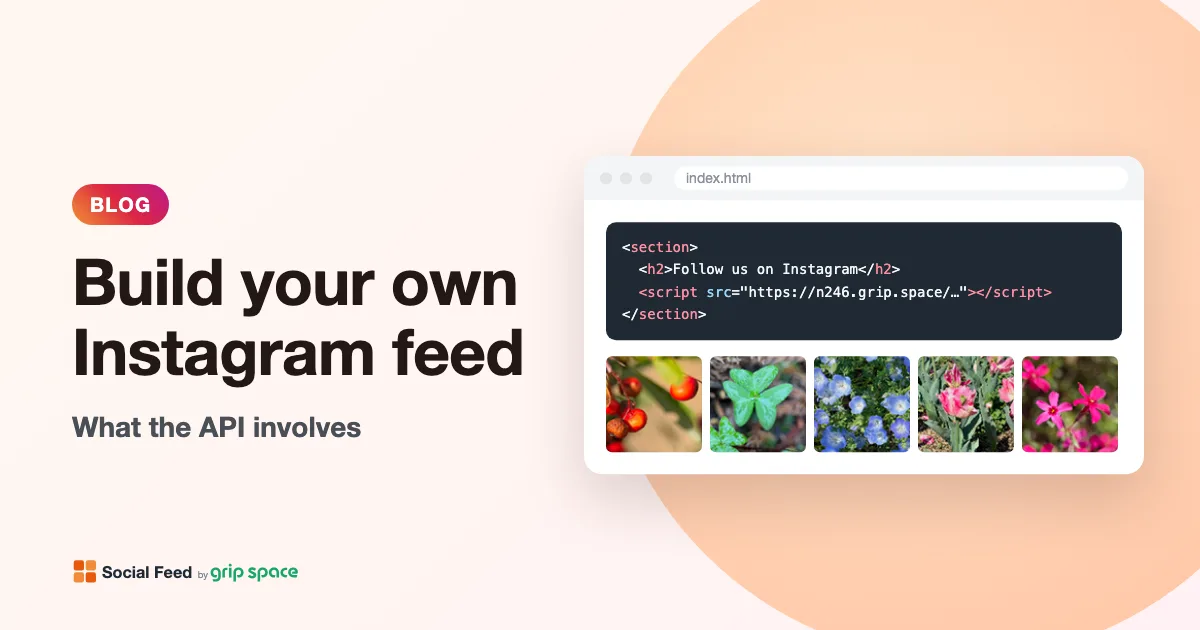
Building your own Instagram feed with the Instagram API: what’s involved
What it takes to build an Instagram feed with the Instagram API: Meta app setup, App Review, tokens and refresh, caching, rate limits, and upkeep.
Read the article →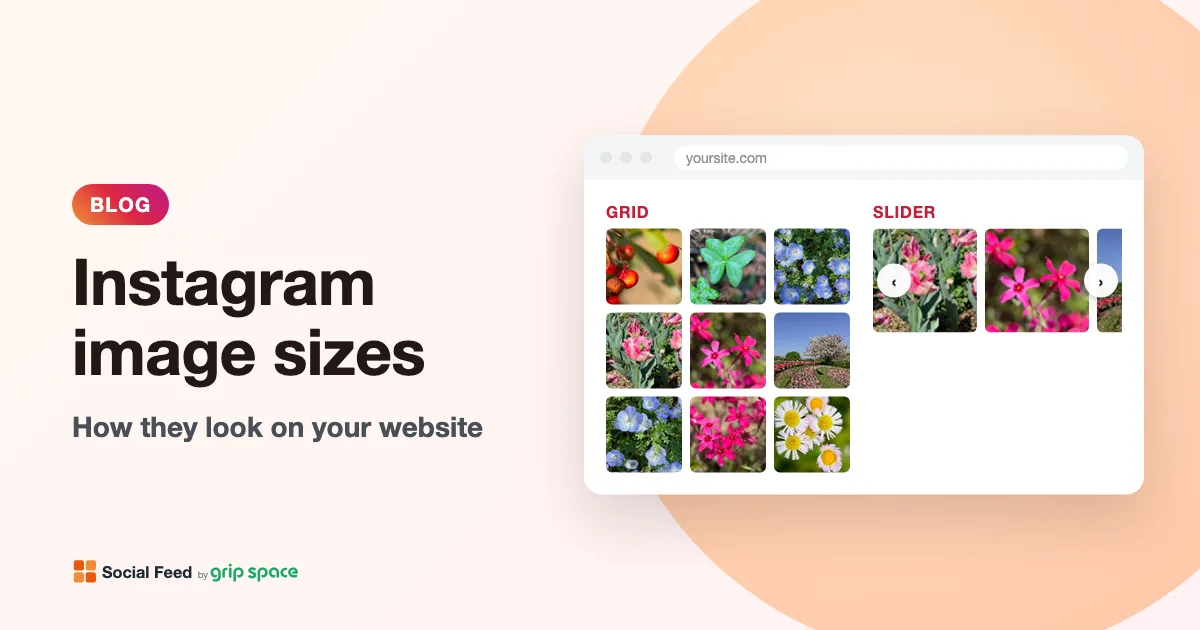
Instagram image sizes and aspect ratios: how they look on your website
Instagram’s supported photo and Reels aspect ratios from official sources, and how square, portrait, landscape and 9:16 posts look in a website feed.
Read the article →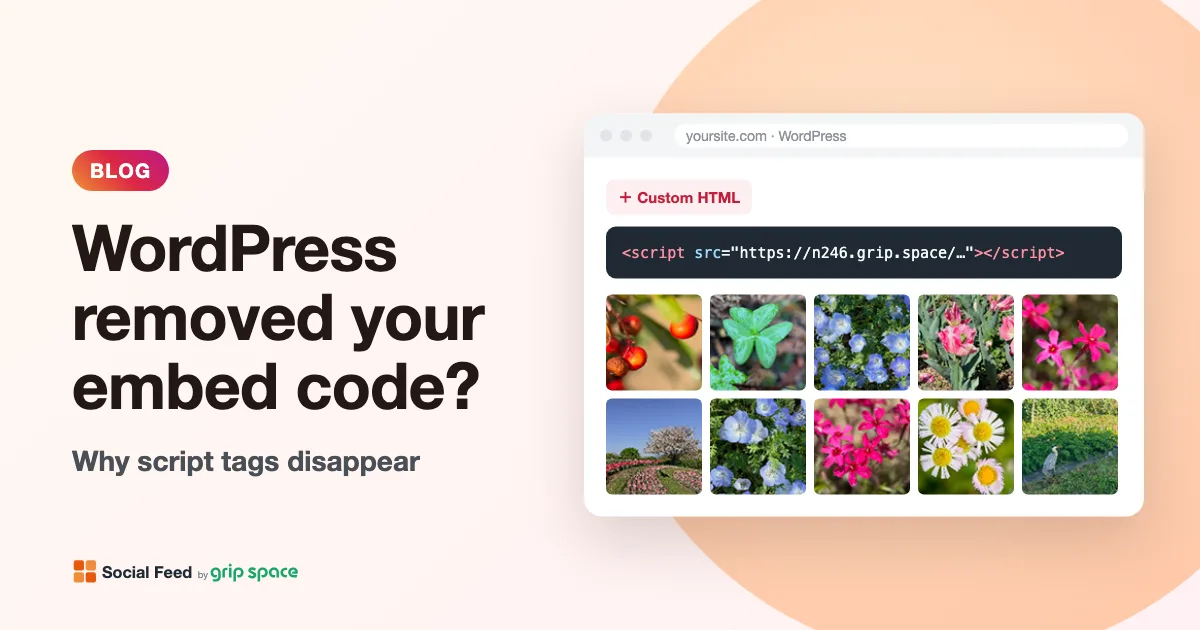
WordPress removed your embed code? Why script tags disappear and how to fix it
Why WordPress strips script tags from embed codes (unfiltered_html, multisite, DISALLOW_UNFILTERED_HTML, WordPress.com plans) and how to fix each case.
Read the article →