
Instagram image sizes and aspect ratios: how they look on your website
Instagram lets you post square, portrait and landscape photos, plus tall 9:16 Reels. Your website feed then has to fit all of those shapes into one tidy layout. This guide covers the sizes Instagram officially supports, how Social Feed by grip space shows each shape in its tiles and in the lightbox, and how to post so your feed looks good on your site without changing how you use Instagram.
Updated October 12, 2026
The short answer
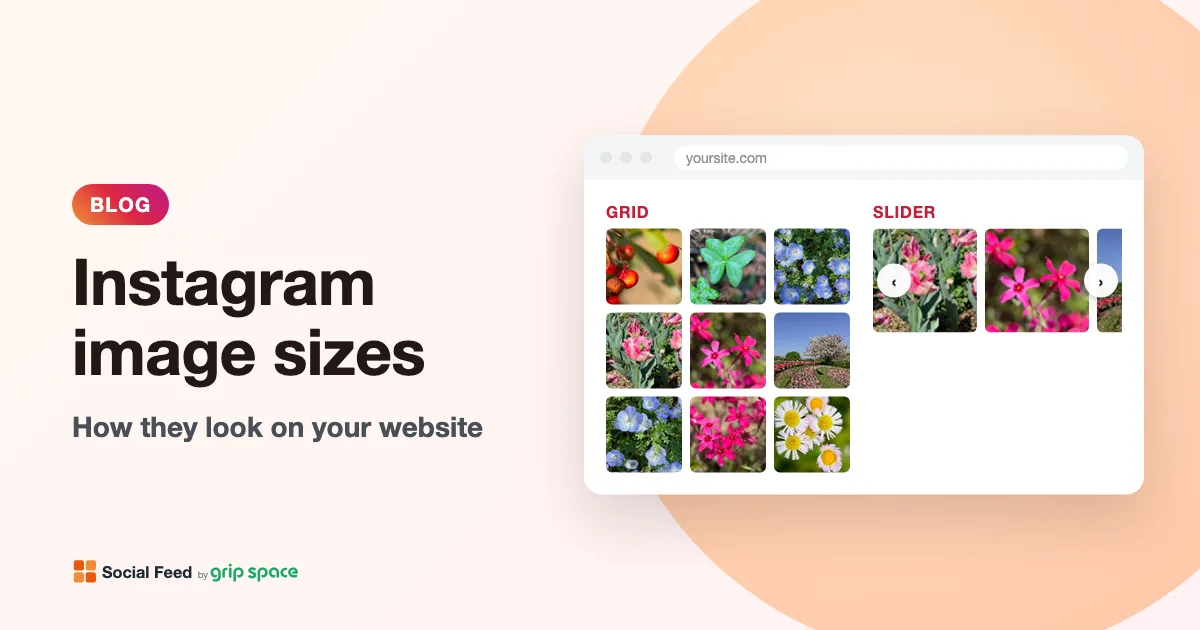
Instagram feed photos can be anywhere from wide landscape (1.91:1) to portrait (4:5), and Reels are designed for a tall 9:16 frame. In Social Feed by grip space, every post appears in a square tile, center-cropped, in both the grid and the slider. When a visitor clicks a tile and the click action is set to open the lightbox, the post is shown uncropped. So the post’s full shape still matters, but visitors only see it after they click.
| Format you post | Instagram’s official range | Tile on your website | Lightbox on your website |
|---|---|---|---|
| Square photo (1:1) | Supported | Shown whole | Shown whole |
| Portrait photo (4:5) | The tallest supported photo shape | Square crop from the middle; a little lost at the top and bottom | Full frame |
| Landscape photo (up to 1.91:1) | The widest supported photo shape | Square crop from the middle; the sides are lost | Full frame |
| Reel or video (9:16) | Recommended shape for Reels | The cover image, square crop from the middle | The video plays in its full shape |
| Carousel | Each image follows the photo rules | The first image only, square crop | The first image, or all images if you choose that option |
If you are a photographer and want the exact share of each frame that the tile hides for 3:2, 16:9 and other landscape shapes, our guide for photographers has a full crop table. This article focuses on the bigger picture: what Instagram accepts, what reaches your website, and how to plan for it.
What Instagram officially supports
It helps to know where the shapes come from, because your website feed can only show what Instagram stores. Here is what Instagram and Meta say in their own documentation.
Feed photos. The Instagram Help Center article on image resolution says that when you share a photo between 320 and 1080 pixels wide, Instagram keeps its original resolution as long as the aspect ratio is between 1.91:1 and 4:5. Photos outside that range are cropped to fit a supported ratio. At Instagram’s usual width of 1080 pixels, that range works out to heights from 566 pixels (landscape) to 1350 pixels (portrait).
Reels. Instagram’s Help Center page on Reel size and aspect ratios gives a range from 1.91:1 to 9:16, and Meta’s developer documentation for publishing Reels recommends 9:16 “to avoid cropping or blank space.” In practice, most Reels are filmed vertically on a phone, so 9:16 is the shape to plan for.
Through the API. Meta’s Instagram Platform reference for publishing media lists the same photo range (4:5 to 1.91:1) and a width from 320 to 1440 pixels. That is the rule for apps that publish to Instagram, but it is a useful confirmation: no feed photo on Instagram is taller than 4:5 or wider than 1.91:1.
Common sizes in pixels
If you prepare images in an editor before posting, these sizes match Instagram’s supported range at a width of 1080 pixels:
| Shape | Aspect ratio | Size at 1080 px wide | Notes |
|---|---|---|---|
| Square | 1:1 | 1080 × 1080 | Looks the same everywhere, including your website tiles |
| Portrait | 4:5 | 1080 × 1350 | Tallest feed photo Instagram keeps without cropping |
| Landscape | 1.91:1 | 1080 × 566 | Widest feed photo Instagram keeps without cropping |
| Reels | 9:16 | 1080 × 1920 | Recommended for Reels; a common phone video size |
You do not need to export at exactly these sizes. Instagram resizes photos to fit its own rules either way. What matters most is the aspect ratio, because that decides what Instagram crops when you post, and what the square tile on your website crops later.
How Social Feed shows your posts
Social Feed by grip space does not store or re-encode your photos. When a visitor opens your page, the widget loads each image straight from Instagram’s servers, using the image file that Instagram’s API provides for that post, and the visitor’s browser scales it to fit the tile. Here is exactly what the widget does with each shape.
- Every tile is a square. In both the grid and the slider, each tile has a 1:1 shape. The image fills the whole tile and is cropped evenly from the center. There is no letterboxing, so there are no white or black bars inside the tiles, and every row lines up neatly.
- The crop is always centered. There is no setting to move the crop up, down or to the side, and no way to upload a different thumbnail for the website. What sits in the middle of the post is what the tile shows.
- The lightbox shows the full shape. With the click action set to “Open lightbox”, a click opens the post uncropped on a black background, scaled down to fit. The lightbox panel is at most 760 pixels wide, and the image or video is limited to 60% of the screen height so that the caption has room below it.
- Videos and Reels use their cover image in the tile. Instagram provides a thumbnail for video posts, and the widget uses it for the tile, cropped to a square like a photo. A small play icon marks videos that can be played. In the lightbox, the video itself plays, muted at first, with the usual controls.
- Carousels show their first image. The tile always uses the first image of a carousel post, with a small stacked-squares icon in the corner. In the lightbox you can show only the first image or all of them, with arrows and a counter.
Because all tiles are square, a feed of mixed shapes still looks orderly on your page. The trade-off is that portrait, landscape and vertical video posts never appear whole until someone clicks. If you would rather send visitors straight to Instagram, our article on lightbox or link compares the click options.
Portrait posts (4:5): the safest choice
A 4:5 portrait photo is taller than it is wide, so a square tile keeps the full width and trims a strip from the top and the bottom. Because 4:5 is close to square, the loss is small, about a tenth of the frame at each end. Most photos survive this well, and in the lightbox the full frame is visible again.
For anything you expect to appear on your website, portrait or square posts are the safest choice. Portrait also fills more of the screen in the Instagram app, which is why many accounts use it already. Keep faces, products and text away from the very top and bottom edges, and the tile will look intentional rather than cut off.
Landscape posts: the sides are lost
Landscape photos lose their left and right sides in a square tile, and the wider the photo, the more is lost. A 1.91:1 photo, the widest Instagram keeps, shows only about half of its width in the tile. Group photos, wide interiors, panoramas and banners with text across the full width suffer most. The photographer guide lists the exact numbers for each landscape shape.
If your account posts a lot of landscape images, there are two good options. Post the most important shots as a square or portrait version, or use a carousel whose first image is a strong square or portrait detail. The tile only ever shows the first image, so a good cover makes the whole carousel look better on your site. Our article on carousel posts on your website covers this in detail.
Reels and vertical video (9:16)
A 9:16 frame is much taller than a square. When its cover image is cropped to a square from the center, the tile keeps the full width but only the middle 56% of the height. Roughly 22% is cut from the top and 22% from the bottom.
That matters because Reels often place important things near the edges: a title near the top, captions or a logo near the bottom. On your website, the tile will usually show only the middle of the cover. If a Reel’s cover is mostly text at the top, the tile may look like a random crop of a person or a background.
- Choose covers with the subject in the middle. When you share a Reel, Instagram lets you pick a cover frame or upload a cover image. A cover with the face, dish or product in the vertical center makes a much better square tile.
- Keep cover text in the center band. If you put a title on the cover, place it in the middle of the frame, not at the top.
- Expect the lightbox video to be modest in size. The video plays within 60% of the screen height. On a laptop screen 900 pixels high, a 9:16 video is about 540 pixels tall and 300 pixels wide. That is fine for a preview, and the “View on Instagram” link is there for anyone who wants the full experience.
- Use the Reels filter if Reels do not suit a page. Each widget has a Reels filter: show all posts, exclude Reels, or show Reels only. A product page might show photos only, while a separate Reels-only widget in a slider works well elsewhere on the site.
One more detail from Meta’s documentation: the API leaves out the video file for media with copyrighted material, such as some audio on Reels. When that happens, the widget still shows the cover image, but without a play icon, and the lightbox shows the still image with its link to Instagram, since there is no video to play. See how to show Reels on your website and Instagram videos on your website for more.
Why your website feed may look different from your Instagram profile
People often compare their website feed with their profile grid in the Instagram app and notice differences. That is expected. When Instagram introduced portrait and landscape posts in 2015, it said that posts would appear in the profile grid as center-cropped squares. How the profile grid looks is Instagram’s decision, and it can change with app updates.
The website feed does not copy the app’s grid. It uses its own square tiles, so a post can look slightly different on your site than in the app, depending on how the app shows your profile at the time. When you want to know how a post looks on your website, check the preview in “Settings & preview” in the Social Feed dashboard, or the live page, rather than the app.
How large the tiles really are
The size of each tile depends on the width of the space you put the feed in, the number of columns and the spacing between images. The width of each tile is the available width, minus the gaps, divided by the number of columns. Here are a few typical cases with the default spacing of 4 pixels:
| Width of the space for the feed | Columns | Approximate tile size |
|---|---|---|
| 1200 px (wide page section) | 4 | About 297 × 297 px |
| 1200 px | 6 | About 197 × 197 px |
| 960 px (typical content column) | 3 | About 317 × 317 px |
| 600 px (half of a two-column layout) | 3 | About 197 × 197 px |
| 360 px (phone, minus page margins) | 3 | About 117 × 117 px |
The widget measures the space it is actually placed in and uses fewer columns when tiles would become narrower than about 100 pixels. The number of columns you choose is the maximum. You can also set a maximum width for the whole feed, from 0 (no limit) to 2000 pixels, to stop tiles from becoming very large on wide screens.
Smaller tiles mean the crop matters less, because details are hard to see anyway. Larger tiles show off the image but also make a bad crop more obvious. For photo-led pages, three or four columns usually give a good balance. Our grid or slider guide explains how columns adapt on phones in more detail.
Does image size affect page speed?
Every tile is an image downloaded from Instagram, so more posts mean more downloads. In a grid, the widget loads the first row right away and lets the browser load the rest as visitors scroll near them. In a slider, all images load right away so that the next tiles are ready when visitors swipe. The tiles have a fixed square shape, so the space for each image is the same before and after it loads. If speed is a concern, show fewer posts rather than worrying about the pixel size of each upload. See lazy loading an Instagram feed and is an Instagram feed slowing down your site? for more.
A posting checklist for a good-looking website feed
None of this means you have to post differently for your website. But if the feed sits on an important page, a few habits help a lot:
- Use 4:5 or 1:1 for photos you want to be seen on your website. They lose little or nothing in the tile.
- Keep the subject near the center. The tile crop is always centered.
- Avoid text near the edges of posts and Reel covers. Text near the edges is the first thing a square crop cuts off.
- For wide shots, post a carousel with a square or portrait first image, or a separate square version of the photo.
- Pick Reel covers on purpose. A clear, centered frame looks better than a blurry frame from the middle of the video.
- After posting, check the widget preview in the dashboard to see how the new post sits next to the others.
- If a type of post never looks right on a particular page, use the filters: exclude Reels, hide carousels, or include or exclude posts by caption keyword.
If your feed should match your brand closely, our article on matching the feed design to your website covers spacing, columns, the account header and the Follow button.
Frequently asked questions
Can the widget show portrait tiles instead of squares?
No. Tiles are always square in both the grid and the slider. Portrait and landscape posts are shown in full in the lightbox.
Can I choose which part of the image the tile shows?
No. The crop is always taken from the center, and there is no setting to move it or to upload a different thumbnail for the website. The best control you have is how you frame the post, or the first image of a carousel, on Instagram.
Does Social Feed compress or lower the quality of my images?
Social Feed does not store or re-encode your images. The widget shows the image file that Instagram’s API provides, loaded directly from Instagram’s servers. That file is Instagram’s own copy of your post, not your original upload, so its quality is whatever Instagram serves.
Why does a post look different in the tile than on my profile?
The website tile is always a center-cropped square. The Instagram app’s profile grid is controlled by Instagram and may use a different shape or crop. Check the dashboard preview to see what visitors to your site will see.
My landscape photo is cut off on the sides. Is that a bug?
No. That is how a square tile shows a wide photo. Open the post in the lightbox to see the full frame. To show more of a wide image in the tile, post it as a square or portrait version, or as a carousel with a square first image.
Instagram cropped my photo when I posted it. Can the widget show the original?
No. If a photo is outside Instagram’s supported range, Instagram crops it when you post, and only the cropped version exists on Instagram. The widget, including the lightbox, can only show that version.
Do vertical Reels get black bars in the tile?
No. The tile is filled edge to edge with the center of the cover image. In the lightbox, the video is shown in its own shape on the black background of the lightbox.
Does the image shape affect accessibility?
Shape does not, but what the image shows does. The widget uses your Instagram alt text, or the start of the caption, as each image’s alt text, so write alt text on Instagram and do not rely on the feed alone for important information. Our article on Instagram alt text explains what this means for your site.
Try it with your own posts
The quickest way to see how your posts look as square tiles is to try it. Create a free account, connect your Instagram professional account and open “Settings & preview”. The preview shows your real posts in the grid or slider with your chosen columns. The Free plan includes one widget with up to 16 posts, and paid plans add more widgets and posts (see pricing). To place the feed on your site, follow the guide for WordPress, Shopify, Wix, Squarespace, Webflow or plain HTML.
Sources
- Instagram Help Center, “Image resolution of photos you share on Instagram”: https://help.instagram.com/1631821640426723/
- Instagram Help Center, “Reel size & aspect ratios on Instagram”: https://help.instagram.com/1038071743007909
- Instagram, “Introducing Landscape and Portrait Formats on Instagram” (2015): https://about.instagram.com/blog/announcements/introducing-landscape-and-portrait-formats-on-instagram
- Meta for Developers, Instagram Platform, “IG User Media” (publishing specifications): https://developers.facebook.com/docs/instagram-platform/instagram-graph-api/reference/ig-user/media
- Meta for Developers, Instagram Platform, “IG Media” reference (media_url, thumbnail_url): https://developers.facebook.com/docs/instagram-platform/reference/instagram-media
Get your embed code in a few minutes. The Free plan needs no credit card.
Sign up freeMore articles
WordPress removed your embed code? Why script tags disappear and how to fix it
Why WordPress strips script tags from embed codes (unfiltered_html, multisite, DISALLOW_UNFILTERED_HTML, WordPress.com plans) and how to fix each case.
Read the article →
Can you add an Instagram feed to Jimdo? Creator vs Website Builder
Jimdo Creator lets you paste a feed widget into a Widget/HTML Element. The Jimdo Website Builder (Dolphin) does not allow custom code. What works on each.
Read the article →
How to add an Instagram feed to Joomla with a Custom module
Add an Instagram feed to Joomla 4 or 5 with a Custom module, and stop TinyMCE and the Text Filters from stripping the script. Steps, positions and fixes.
Read the article →
How to add an Instagram feed to Drupal
Add an auto-updating Instagram feed to Drupal with a custom block: why Basic HTML strips the script, which text format to use, and how to place the block.
Read the article →
Can you embed an Instagram feed in Notion (or a Notion-based site)?
An honest look at Instagram feeds in Notion: what /embed supports, why script embed codes don’t run, and which Notion-based site builders allow custom code.
Read the article →
How to add an Instagram feed to Blogger
Show your Instagram posts on a Blogger blog with the HTML/JavaScript gadget in Layout or the HTML view of a post or page. Step by step, with fixes.
Read the article →