
How to add an Instagram feed to Joomla with a Custom module
Joomla does not need an extension to show your Instagram posts. A Custom site module can hold the one-line embed code from Social Feed by grip space and place the feed in any module position, on all pages or only some. The one catch is that Joomla is careful about scripts: the TinyMCE editor and the Text Filters in Global Configuration can both remove a script tag when you save. This guide shows how to add the feed and how to get the code through those filters safely.
Updated October 12, 2026
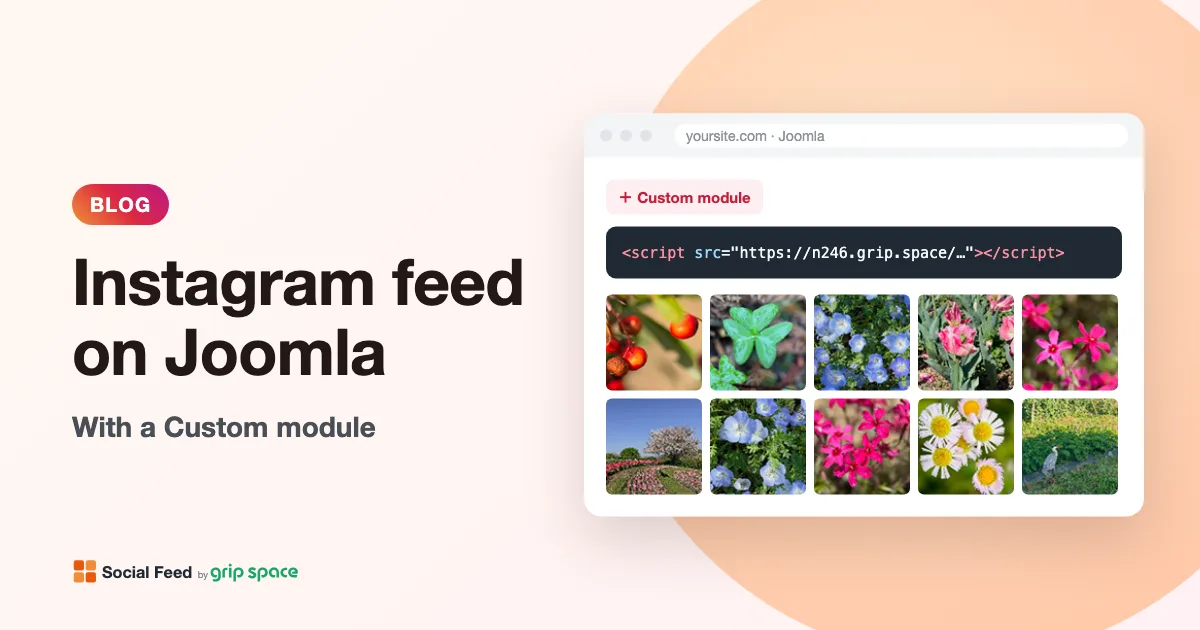
How it works, in one paragraph
Joomla’s documentation describes the Custom module as a way to “create a self-contained HTML unit and then put it in any valid location on a page,” and gives pasting HTML code from other sites as a typical use. The Social Feed by grip space embed code is a single script tag, and the feed is drawn exactly where that tag sits. Put the tag in a Custom module, assign the module to a position in your template, and the feed appears in that position. Menu names below follow Joomla 5; Joomla 4’s help screen gives the same path to Site Modules. In Joomla 3, modules were under Extensions → Modules.
Before you start: get your embed code
- Sign up for Social Feed by grip space with your email address. The Free plan needs no credit card and includes one widget.
- Click “+ Connect Instagram account” and connect an Instagram professional account (Business or Creator). Personal accounts can be switched to professional for free in the Instagram app; here is how.
- Open “Settings & preview”, choose a grid or a slider, set posts and columns while watching the preview, and save.
- Under “Add the embed code to your website”, click “Copy”. It looks like this:
<script type="text/javascript" src="https://n246.grip.space/api/v1/instagram/widget/xxxxxxxx"></script>The code stays the same when you change the widget’s design. Layout, colors, filters and post count are stored with the widget, so once the module is in place you never have to edit it again to change the look of the feed.
Why Joomla might strip the script
Two separate layers can remove a script tag from module content, and it helps to know which is which before you start:
| The editor (TinyMCE) | The Text Filters (Global Configuration) | |
|---|---|---|
| Where it runs | In your browser, while you edit | On the server, when you save |
| What Joomla’s docs say | “TinyMCE automatically re-formats and strips some HTML when a file is saved. This can cause complex HTML to not work correctly.” | The text filter settings “will be applied to all text editor fields submitted by users in the selected groups” |
| Default for scripts | In Joomla 5’s source code, the TinyMCE plugin’s Prohibited Elements field defaults to “script,applet,iframe” | Depends on your user group (see the table further down) |
| How to get past it | Use “Editor - None” or CodeMirror for your own user while you create the module | Save the module as a user whose group is not filtered, normally a Super User |
Custom module content goes through both. The module’s content field is an editor field, and in Joomla’s source code it is saved through the same text filter used for articles. So the most reliable approach is: create the module as a Super User, with your editor temporarily switched away from TinyMCE. That is also exactly the workaround Joomla’s own help screen for the Custom module recommends.
Step 1: switch your editor (temporarily)
Joomla’s help screen for the Custom module says: “The editor does not allow you to enter certain HTML tags. To work around this, you can temporarily change your User’s editor to ‘No Editor’, create the Custom HTML Module, and then change the editor back to TinyMCE.” Here is how to change it:
- In the Administrator, go to Users → Manage.
- Click your own name in the list.
- Open the Basic Settings tab.
- Set Editor to Editor - None. (Editor - CodeMirror also works and gives you syntax highlighting; Joomla’s docs say it “offers some of the same advantages of using ‘Editor - None’, but makes it somewhat easier to work with raw HTML code.”)
- Click Save & Close.
This affects only your user. Everyone else keeps their usual editor. The site-wide default is set separately under Global Configuration → Site → Default Editor, and you do not need to change it.
Step 2: create the Custom module
- Go to System → Manage panel → Site Modules.
- Click New in the toolbar and choose the module type Custom.
- Enter a Title, for example “Follow us on Instagram”. You decide on the next step whether it is shown.
- Paste the embed code into the content area, exactly as copied, from
<scriptto</script>. Do not add anything else around it. - In the right panel, set Show Title to Show if you want the title as a heading above the feed, or Hide if not.
- Choose a Position (Step 3 explains how to choose).
- Make sure Status is Published and Access is Public, so every visitor can see the module.
- Open the Menu Assignment tab and choose where the module appears (Step 3).
- Click Save and stay on the screen.
Check that the code survived. After saving, look at the content area again. If the whole <script ...></script> line is still there, the filters let it through. If it has vanished or only the URL text is left, a filter removed it; jump to “If the script still disappears” below.
Step 3: choose a position and pages
Position. Module positions are defined by your template, so the list differs from site to site. Click the Position field to pick from your template’s positions. Joomla’s help screen also allows a custom position name, which is useful for the article method described later.
Menu Assignment. Joomla gives you four choices: On All Pages, No Pages, Only on the pages selected, or On all pages except those selected. With the last two, a list of your menu items appears, and you tick the pages you want. Use this to put the feed only on the home page, or on every page except, say, the contact page.
| Goal | Position | Menu Assignment | Suggested layout |
|---|---|---|---|
| Feed on the home page | A main-content or bottom position below your home content | Only on the pages selected → your Home menu item | Grid, 3–4 columns, 2 rows |
| Feed above the footer on every page | A bottom or footer position | On All Pages | One row of a grid, or a slider |
| Feed in a sidebar | A sidebar position | On All Pages, or selected pages | Slider, or a 2–3 column grid |
| A dedicated “Instagram” page | A main or bottom position | Only on the pages selected → that page’s menu item | Grid with more posts and the lightbox |
The widget measures the space it is placed in and uses fewer columns when each image would get smaller than about 100 pixels, so the same widget works in a narrow sidebar and a full-width band. You can also set a maximum width (0 to 2,000 pixels) in the widget settings so it does not stretch too far on wide screens.
Step 4: check the live site, then switch your editor back
- Click Save & Close on the module.
- Open your website in a new tab (not the Administrator) and go to a page where the module is assigned. The feed should appear in the chosen position.
- Go back to Users → Manage, open your user, and set Editor back to what you had before (or “Use Default”).
If the script still disappears: the Text Filters
If the code is removed even with “Editor - None”, the server-side Text Filter for your user group is stripping it. You find these settings under System → Setup panel → Global Configuration → Text Filters. Each user group gets a filter type. In Joomla 5 the choices are named Default Forbidden List, Custom Forbidden List, Allowed List, No HTML and No Filtering.
On a fresh Joomla 5 installation, the defaults in Joomla’s source code are:
| User group | Default filter type | Can save a script tag? |
|---|---|---|
| Super Users | No Filtering | Yes |
| Administrator, Manager | Default Forbidden List | No: the default forbidden list includes script (and iframe, style and others) |
| Author, Editor, Publisher | Default Forbidden List | No |
| Registered, Public, Guest | No HTML | No |
Your own site may have different settings if someone changed them, so check the Text Filters tab rather than relying on the defaults. In practice this gives you two options:
- Recommended: ask a Super User to create the module. Super Users are not filtered by default, and once the module is saved, other administrators can leave it alone. This keeps your site’s protection in place for everyone else.
- Only if you understand the risk: relax the filter for a trusted group. Joomla describes the default settings as providing “good protection against markup commonly associated with website attacks.” Setting “No Filtering” lets everyone in that group save any script on your site. If you do change a group, keep it to a small, fully trusted group, and change it back afterwards. Joomla also warns that when a parent group is set to No Filtering, it cannot be overridden in child groups.
What about TinyMCE’s own settings?
The TinyMCE editor is a plugin with its own filter options, organised in “sets” per user group (System → Manage panel → Plugins, then open Editor - TinyMCE). Two options matter here:
- Joomla Text Filter. The plugin’s description says: “If on, the text filter from the Joomla Global Configuration is applied. If off, the filters as defined here are used.” In Joomla 5’s source code this switch defaults to off.
- Prohibited Elements. Joomla’s plugin documentation describes it as “the elements that will be cleaned from the text.” In Joomla 5’s source code the default value is “script,applet,iframe”.
You could remove “script” from Prohibited Elements, but we do not recommend it just for one module. It changes the editor for everyone using that set, and the server-side Text Filter still applies on save anyway. Switching your own editor to None or CodeMirror for a minute is simpler and safer.
Putting the feed inside an article
Sometimes you want the feed in the middle of an article rather than in a template position. Joomla’s core plugin Content - Load Modules handles this. Its description gives the syntax: {loadmoduleid 1} loads a module by ID, and {loadposition user1} loads the modules in a position. A clean way to use it:
- In your Custom module, type a position name of your own into the Position field, for example
instagram-feed. Joomla’s help screen says a custom position “can be entered for use with the load position plugin.” Because your template does not use that name, the module will not appear anywhere else. - Set Menu Assignment to On All Pages, so the module is available wherever the article is shown.
- In the article, on its own line where the feed should appear, type:
{loadposition instagram-feed}Save the article and view it on the site. The article only contains that short text, not the script, so the article itself passes through any editor and filter without trouble. The script lives in the module, which you saved once with the steps above. Alternatively, note the module’s ID in the Site Modules list and use {loadmoduleid ID} with that number. If the text shows up literally instead of the feed, check that the Content - Load Modules plugin is enabled under Plugins.
Making it look right
- Heading. Use the module’s own title with Show Title, so it matches your template’s other module headings. Joomla lets you pick the Header Tag (h1 to h6 or p) on the Advanced tab.
- Spacing. The Module Class field on the Advanced tab adds a CSS class to the module, so you can add margins in your template’s user.css if the feed sits too close to other content. The widget also has its own image spacing setting.
- Account header and Follow button. Turn them on in the widget settings to show your profile picture, name and a Follow button with your own label and color.
- Click behavior. A lightbox keeps visitors on your site and plays videos; “open Instagram” sends them to the post. See lightbox or link?
- Language. The widget’s small interface texts switch between English and Japanese based on your page’s
langattribute, falling back to the visitor’s browser language.
For more ideas, read Grid or slider? and adding an Instagram feed to your website footer.
Plans and views
The Free plan includes one widget with up to 16 posts and 3,000 views a month, updates once a day, and always shows a small “Powered by Social Feed” credit. The Light plan ($8/month or $80/year) gives you 3 widgets, 30 posts and 30,000 views; the Standard plan ($24/month or $240/year) gives unlimited widgets, 50 posts and unlimited views. On paid plans the credit is optional and new posts appear right away. A module assigned to all pages counts a view on every page load, so watch your monthly views in the dashboard. If you go over your limit two months in a row, the feed pauses from the following month. See pricing.
Troubleshooting
- The script line disappears when you save. Switch your editor to None or CodeMirror; if it still disappears, the Text Filter for your group is removing it. Have a Super User save the module.
- The module saves fine but nothing shows on the site. Check that the module is Published, Access is Public, the Menu Assignment includes the page you are looking at, and the position exists in your current template. Then check that the widget is set to Published in the Social Feed dashboard.
- The module shows its title but no feed. Open the module and confirm the full code is there. A partial line (for example, the URL without the tags) means a filter changed it.
- The feed vanished after someone edited the module. It was probably reopened and saved with TinyMCE. Paste the code again with Editor - None, as described above.
- The feed appears twice. Two modules contain the code, or the module is both in a template position and loaded into an article. Unpublish one.
{loadposition ...}appears as text. The Content - Load Modules plugin is disabled, or the position name in the article does not match the module’s position.- New posts are missing. Free plan feeds update once a day. Filters for period, keywords, Reels or carousel posts may also hide posts. See why your feed isn’t updating.
- Your site uses a Content Security Policy. If you have enabled one, it must allow our script and Instagram’s images. See Content Security Policy and the Instagram widget.
- Anything else. Our general checklist: Instagram feed not showing on your website?
Frequently asked questions
Do I need a Joomla Instagram extension?
No. The Custom module is part of Joomla’s core, and the feed is a plain script tag. That means one less extension to install and keep updated. See also adding an Instagram feed without a plugin.
Is it safe to allow a script in a module?
The module only contains our one script tag, saved by a trusted administrator. What matters for security is not loosening the filters for groups you do not fully trust; the method above avoids that.
Does Joomla’s caching cause problems?
The module content is the same script tag every time, so module or page caching does not freeze the feed. The posts are loaded by the script in the visitor’s browser.
Can I show different feeds on different pages?
Yes: create one widget per design, put each embed code in its own Custom module, and use Menu Assignment to choose the pages. The Free plan has one widget, Light three and Standard unlimited. See multiple Instagram feeds on one website.
Can I schedule the feed?
Joomla’s Start Publishing and Finish Publishing fields work on the module as usual. You can also switch the widget to Unpublished in our dashboard to hide it without touching Joomla.
Can I show a hashtag or someone else’s account?
No. Social Feed by grip space shows the posts of the Instagram account you connect. For other tools, see our comparison of Instagram feed widgets.
Other platforms: WordPress, Shopify, Wix, Squarespace, Webflow, HTML and Ghost.
Sources
- Joomla Help, “Site Modules: Custom” (5.x): https://docs.joomla.org/Help5.x:Site_Modules:_Custom/en
- Joomla Help, “Site Modules: Custom” (4.x): https://docs.joomla.org/Help4.x:Site_Modules:_Custom/en
- Joomla Help, “Extensions Module Manager Custom HTML” (3.10): https://docs.joomla.org/Help310:Extensions_Module_Manager_Custom_HTML/en
- Joomla Help, “Editors” (5.x): https://docs.joomla.org/Help5.x:Editors/en
- Joomla Help, “Users: Edit Profile” (5.x): https://docs.joomla.org/Help5.x:Users:_Edit_Profile/en
- Joomla Help, “Site Global Configuration” (5.x): https://docs.joomla.org/Help5.x:Site_Global_Configuration/en
- Joomla Help, “Plugins” (5.x): https://docs.joomla.org/Help5.x:Plugins/en
- Joomla Help, “Extensions Plugin Manager Edit” (3.10, Editor - TinyMCE options): https://docs.joomla.org/Help310:Extensions_Plugin_Manager_Edit
- Joomla source, Global Configuration language strings: https://github.com/joomla/joomla-cms/blob/5.4-dev/administrator/language/en-GB/com_config.ini
- Joomla source, default text filters at installation: https://github.com/joomla/joomla-cms/blob/5.4-dev/installation/sql/mysql/base.sql
- Joomla source, module content field filter: https://github.com/joomla/joomla-cms/blob/5.4-dev/administrator/components/com_modules/forms/module.xml
- Joomla source, TinyMCE set options (Prohibited Elements default): https://github.com/joomla/joomla-cms/blob/5.4-dev/plugins/editors/tinymce/forms/setoptions.xml
- Joomla source, TinyMCE plugin language strings: https://github.com/joomla/joomla-cms/blob/5.4-dev/administrator/language/en-GB/plg_editors_tinymce.ini
- Joomla source, Content - Load Modules plugin: https://github.com/joomla/joomla-cms/blob/5.4-dev/administrator/language/en-GB/plg_content_loadmodule.ini
- Joomla Framework, InputFilter default blocked tags: https://github.com/joomla-framework/filter/blob/3.x-dev/src/InputFilter.php
Get your embed code in a few minutes. The Free plan needs no credit card.
Sign up freeMore articles
How to add an Instagram feed to Drupal
Add an auto-updating Instagram feed to Drupal with a custom block: why Basic HTML strips the script, which text format to use, and how to place the block.
Read the article →
Can you embed an Instagram feed in Notion (or a Notion-based site)?
An honest look at Instagram feeds in Notion: what /embed supports, why script embed codes don’t run, and which Notion-based site builders allow custom code.
Read the article →
How to add an Instagram feed to Blogger
Show your Instagram posts on a Blogger blog with the HTML/JavaScript gadget in Layout or the HTML view of a post or page. Step by step, with fixes.
Read the article →
How to add an Instagram feed to Hostinger Website Builder
Add an auto-updating Instagram feed to a Hostinger Website Builder site with the Embed code element: steps, sizing for desktop and mobile, and fixes.
Read the article →
How to add an Instagram feed to Strikingly
Strikingly’s Social Feed section does not support Instagram. Here is how to add an auto-updating feed with the HTML section on a Pro or VIP plan.
Read the article →
Can you add an Instagram feed to a Canva website?
An honest answer: Canva websites have no documented way to add custom script code, so feed widgets cannot run there. What works instead, step by step.
Read the article →