
How to add an Instagram feed to Drupal
Drupal does not ship with an Instagram feed, but it has everything you need to add one: custom blocks, text formats and the block layout. The catch is that Drupal’s default text formats are built to strip code like script tags, so pasting an embed code into an ordinary body field usually shows nothing. This guide explains why, shows the safe way to set up a text format for embed code, and walks through creating and placing a custom block with Social Feed by grip space.
Updated October 12, 2026
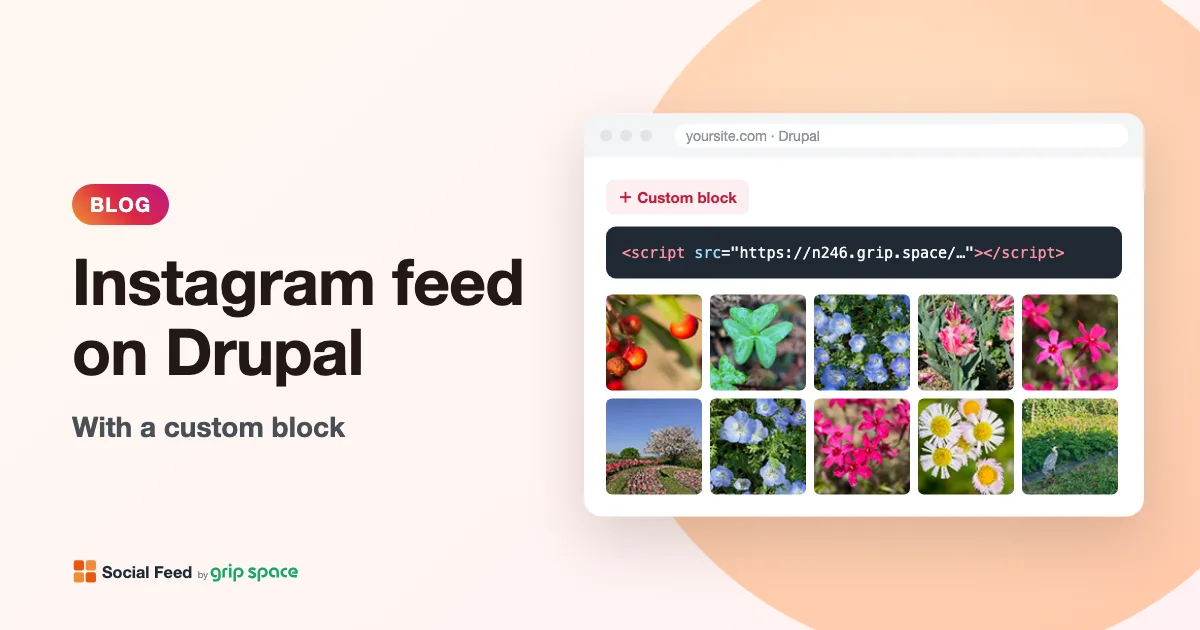
The short version
The embed code from Social Feed by grip space is a single script tag. The feed is drawn by that script, right where the tag sits on the page. To show it on a Drupal site you need three things:
- A text format that keeps the script tag. Drupal’s Basic HTML and Restricted HTML formats only allow a list of safe tags, and script is not on it. Full HTML does not restrict tags, and a dedicated format with no editor is even more reliable.
- A custom block (called a content block in recent Drupal versions) whose body uses that format and contains the embed code.
- A placement in Block layout, so the block appears in the region and on the pages you choose.
The rest of this guide goes through each step, plus a few alternatives for sites that use Layout Builder or a custom theme.
Why pasting the code into a normal field shows nothing
Every rich text field in Drupal has a text format. The format decides which editor you type in and which filters are applied to the text. Drupal’s filter documentation describes the formats that a standard site usually has:
| Text format | Intended for (per drupal.org) | Keeps a script tag? |
|---|---|---|
| Restricted HTML | Anonymous users; no CKEditor by default | No. Only an allowlist of basic tags is kept. |
| Basic HTML | Authenticated users; CKEditor enabled by default | No. The “Limit allowed HTML tags and correct faulty HTML” filter only keeps the tags on its list. |
| Full HTML | Trusted users only (administrators) | The format itself does not restrict tags, but the editor attached to it may still remove a script tag (see below). |
| Plain text | Everyone (the fallback format) | No. HTML is shown as text, not run. |
Drupal’s documentation is blunt about Full HTML: it is “intended for trusted users only (administrators), because it does not restrict the allowed HTML tags at all,” and the same page calls that a severe security risk if given to the wrong people. The goal is to give the ability to add embed code to administrators only, and to keep everyone else on the safer formats.
If you have already pasted the code into a Basic HTML field and saved it, nothing is broken. The script tag simply does not make it onto the page. Once the field uses a format that keeps it, the feed appears.
The CKEditor 5 catch with Full HTML
Even with Full HTML, there is a second layer: the visual editor. Drupal 10 and later use CKEditor 5, which is designed to edit content, not code. An open bug report on drupal.org (issue #3570973) describes what happens on a Full HTML field with the “Limit allowed HTML” filter turned off and the Source editing button available: a script tag added in source mode is saved and appears on the page, but if you later switch from source mode back to the normal editing view, CKEditor removes the script tag. At the time of writing that issue is still open.
In practice this means a Full HTML block can work, but the embed code may quietly disappear the next time someone opens the block and clicks out of source mode. If you go this way, always paste the code in source mode and save directly from source mode. The more robust option is a small text format of its own with no editor at all, described next.
Step 1: create an “Embed code” text format (recommended)
A dedicated format keeps things tidy: your content editors stay on Basic HTML, and only administrators can use the format that keeps scripts. Because it has no visual editor, nothing rewrites the code. Drupal’s change record for the Text Editor module confirms that when you configure a format, “You may choose ‘None’ to not have a text editor associated with a format.”
- In the Manage administrative menu, go to Configuration → Content authoring → Text formats and editors (
/admin/config/content/formats). - Click Add text format.
- Give it a clear name, such as Embed code. Drupal creates a machine name from it, for example
embed_code. - Set Text editor to None, so the field is a plain text area and the code is stored exactly as you paste it.
- Under the enabled filters, leave Limit allowed HTML tags and correct faulty HTML turned off. Filters that convert URLs to links or line breaks to paragraphs are not needed for an embed code either, so you can leave them off too.
- If your version shows role checkboxes on this form, select only Administrator. Click Save configuration.
Who can use the format. Each text format has its own permission, named after its machine name (for this example, “use text format embed_code”). In Drupal 10.3 and later, the roles setting on the text format was deprecated in favor of granting that permission to roles directly. To check it, go to People → Roles, open the dropdown next to a role, choose Edit permissions, and make sure the permission for your new format is granted only to the roles you trust, typically Administrator. Click Save permissions if you change anything. The exact label on the permissions page can differ slightly between versions, so look for your format’s name.
Step 2: get your embed code
- Sign up for Social Feed by grip space with your email address. The Free plan needs no credit card and includes one widget.
- In the dashboard, click “+ Connect Instagram account” and connect an Instagram professional account (Business or Creator). If yours is a personal account, you can switch it for free in the Instagram app; here is how.
- Open “Settings & preview”, choose a grid or a slider, set the number of posts and columns while you watch the preview, and save.
- Under “Add the embed code to your website”, click “Copy”. The code looks like this:
<script type="text/javascript" src="https://n246.grip.space/api/v1/instagram/widget/xxxxxxxx"></script>You will not need to change this code again. Layout, colors, filters and post count are stored with the widget, so when you change them in the dashboard, your Drupal block shows the new design on the next page load.
Step 3: create the custom block
Drupal’s user guide describes custom blocks as reusable pieces of content that you create once and place in a region. In current versions they are managed under the Content menu.
- In the Manage administrative menu, go to Content → Blocks (
/admin/content/block). In older Drupal versions the same list is called the custom block library and lives under the block layout pages. - Click Add content block. If your site has several block types, choose the basic one with a body field.
- In Block description, enter a name that only administrators see, such as Instagram feed.
- Below the Body field, change the text format to Embed code (or Full HTML). Do this before pasting, so the body switches to the right kind of field first.
- Paste the embed code into Body. If you are using Full HTML with CKEditor 5, click Source first and paste the code there.
- Click Save.
Keep the body to the embed code alone, or the code plus a short heading. A heading works best as the block title, which you set when you place the block, because then it is styled by your theme like your other block titles.
Step 4: place the block in a region
- Go to Structure → Block layout (
/admin/structure/block). - Make sure your front-end theme is selected in the secondary tabs. Block placement is stored per theme, so placing it in the admin theme will not show it on your site.
- Find the region where the feed should go, for example Content, a sidebar or the footer, and click Place block next to it.
- Find your Instagram feed block in the list and click Place block.
- In the configuration dialog, set the title, for example “Follow us on Instagram”, and choose whether to display it.
- Use the visibility settings to show the block only on certain pages if you want. Drupal’s user guide notes that you can hide or display a block on specific pages; leave the settings empty to show it everywhere.
- Click Save block, then check the position in the region list and click Save blocks.
Open a page where the block should appear, in a private window or while logged out, and you should see the feed.
Choosing a region
Region names depend on your theme, but most Drupal themes offer a main content area, one or two sidebars and a footer. Where you place the feed changes how it should be set up:
| Region | Good setup | Things to watch |
|---|---|---|
| Content, on one page only | Grid, 3 or 4 columns, 9 to 12 posts; account header and Follow button on | Use page visibility so it does not appear under every article |
| Sidebar | Grid, 2 or 3 columns, 6 posts | The narrow width makes small tiles; fewer columns look better |
| Footer or a region above it | Slider, or a grid with one row | Shows on every page, so every page view counts toward your monthly views |
| Front page highlight | Grid, 2 to 3 rows, with the Follow button | Restrict visibility to the front page |
The widget measures the space it is placed in and uses fewer columns when each image would get smaller than about 100 pixels, so a 4-column grid in a sidebar or on a phone automatically drops to fewer columns. In a wide region, use the maximum width setting (0 to 2,000 pixels) to keep the feed from stretching across very wide screens. For layout ideas, see Grid or slider? and where to put an Instagram feed on your website. For a footer placement in particular, see how to add an Instagram feed to your website footer.
Alternative: Layout Builder
If your site uses Layout Builder to design pages, you can add the feed inside a layout instead of a theme region. In the layout, click Add Block in the section where the feed should go. You can choose your existing Instagram feed block, or create a new custom block right there. Drupal’s documentation notes that a block created inside Layout Builder this way is “only available to the Layout - not visible in Block UI,” so if you want to reuse the feed in several places, create it under Content → Blocks first and add that block instead.
The same text format rules apply. If the body of a block created in Layout Builder uses Basic HTML, the script tag is removed and the feed does not appear.
Alternative: a Twig template in your theme
If you maintain a custom theme and want the feed fixed in the page structure, for example in the footer of every page, you can put the embed code directly in a template. This avoids text formats entirely, and the code cannot be changed by content editors.
{# Example: inside a region or block template in your custom theme #}
<section class="instagram-feed">
  <h2>Follow us on Instagram</h2>
  <script type="text/javascript" src="https://n246.grip.space/api/v1/instagram/widget/xxxxxxxx"></script>
</section>
Two notes from Drupal’s theming documentation are worth knowing here. First, Drupal’s usual way to add JavaScript is a library defined in your theme’s libraries.yml file, and “by default, all JS assets are loaded in the footer.” That is fine for most scripts, but not for this widget: it draws the feed where its tag is, so a library would put the feed at the very end of the page. The script tag has to sit in the template at the spot where the feed should appear. Second, Drupal’s documentation strongly discourages inline JavaScript. The embed code is not inline JavaScript, just a tag that loads an external file, but it is still a third-party script, so treat it like any other external code you add to the theme.
Showing different feeds on different pages
You can create one widget per variation, for example a slider for the footer and a larger grid for a gallery page, each with its own embed code. Put each code in its own custom block and place the blocks with page visibility settings. The Free plan includes one widget, the Light plan three, and the Standard plan an unlimited number. See pricing and how to show different Instagram feeds on different pages.
All widgets show posts from the Instagram account you connect. You can, however, use the post filters to make each one different: a period filter for recent posts only, caption keywords to show only posts about a topic, or a Reels setting to show only Reels or leave them out.
Caching, performance and security
Drupal’s page cache. Drupal caches pages heavily, but that does not hold back your Instagram posts. The cached HTML only contains the script tag; the feed is loaded in the visitor’s browser each time the page is viewed. You do not need to clear Drupal’s cache when you post on Instagram or change the widget design.
Page speed. The widget is one small script, and images and videos load directly from Instagram’s servers. In a grid, images below the first row load only when visitors scroll near them; a slider loads all of its images right away, so keep sliders reasonably short. The widget does not use an iframe and does not set cookies or local storage. For more, see does an Instagram feed slow down your website?
Content Security Policy. If your site sends a Content Security Policy header, for example through a contributed module or your server configuration, the browser blocks scripts and images from domains that are not on the list. The feed then does not appear even though the code is in place. See Content Security Policy and Instagram feed widgets for what to allow.
Who can paste code. Keep the format that allows scripts restricted to administrators. Anyone who can use it can add any script to your site, not just an Instagram feed. Drupal’s own advice is to give each role the least functionality it needs.
Troubleshooting
- The block shows its title but no feed. The body most likely uses Basic HTML or Restricted HTML, which remove the script tag. Edit the block, switch the text format to your embed format or Full HTML, paste the code again and save.
- The code was there, and now it is gone. With Full HTML and CKEditor 5, switching from Source back to the normal editor can strip the script tag. Paste it again in source mode and save from there, or move the block to a format with the editor set to None.
- You cannot see the text format option. Your role does not have permission to use that format. Ask an administrator, or grant the permission under People → Roles → Edit permissions.
- The block does not appear at all. Check that it was placed for your front-end theme, not the admin theme, that the region exists in your theme, and that visibility settings are not hiding it on the page you are viewing. Then click Save blocks again.
- Nothing appears on any page. Check that the widget is set to Published in the Social Feed dashboard, and that the whole code was pasted, from
<scriptto</script>. - The feed appears twice. The same code is in two blocks placed on the same page, or in a block and a template. Remove one.
- New Instagram posts are missing. On the Free plan, the feed picks up new posts once a day; on paid plans, right away. Also check whether a filter (period, caption keywords or post type) is hiding them.
- The feed stopped after a busy period. If your views go over your plan’s monthly limit two months in a row, the feed pauses from the following month. The dashboard and our emails tell you when this is about to happen.
For a broader checklist that applies to any website, see Instagram feed not showing on your website? Causes and fixes.
Frequently asked questions
Do I need a Drupal module for an Instagram feed?
No. The feed is added with a script tag, so Drupal core’s custom blocks and text formats are enough. There is nothing to install or update on the Drupal side. For more on this approach, see how to add an Instagram feed without a plugin.
Does this work on Drupal 9, 10 and 11?
The widget runs in the visitor’s browser, so it does not depend on the Drupal version. What differs between versions is the admin interface: menu names, where custom blocks are listed, and the editor. The steps above follow the current Drupal user guide.
Can I hide the feed for a while without editing Drupal?
Yes. Switch the widget to Unpublished in the Social Feed dashboard. The block stays in place but shows nothing until you switch it back. See how to hide your Instagram feed temporarily.
What does the feed show, and what happens when someone clicks a post?
It shows the posts of the Instagram account you connect, in a grid or slider. You can choose what a click does: open a lightbox with the caption and like count, open the post on Instagram, or do nothing. Videos play inside the lightbox. An optional header shows your profile picture, name, post count and a Follow button.
Can I show a hashtag feed or several accounts in one feed?
No. Social Feed by grip space shows posts from the one Instagram account connected to the widget. For tools that offer other options, see our comparison of Instagram feed widgets.
Working on another platform too? We have guides for WordPress, Shopify, Wix, Squarespace, Webflow and plain HTML, and a post on Ghost. New to the service? Read what Social Feed by grip space is.
Sources
- Drupal, “Filter module overview”: https://www.drupal.org/docs/core-modules-and-themes/core-modules/filter-module/filter-module-overview
- Drupal User Guide, “Configuring Text Formats and Editors”: https://www.drupal.org/docs/user_guide/en/structure-text-format-config.html
- Drupal change record, “Text Editor module added: pluggable text/WYSIWYG editors”: https://www.drupal.org/node/1911614
- Drupal change record, “roles property of text format config entity … is deprecated”: https://www.drupal.org/node/3168851
- Drupal issue #3570973, “Script tags are removed on source editing toggle CKEditor5”: https://www.drupal.org/project/drupal/issues/3570973
- Drupal User Guide, “Creating a Custom Block”: https://www.drupal.org/docs/user_guide/en/block-create-custom.html
- Drupal User Guide, “Placing a Block in a Region”: https://www.drupal.org/docs/user_guide/en/block-place.html
- Drupal User Guide, “Assigning Permissions to a Role”: https://www.drupal.org/docs/user_guide/en/user-permissions.html
- Drupal, “Building Layouts Using the Layout Builder UI”: https://www.drupal.org/docs/8/core/modules/layout-builder/building-layouts-using-the-layout-builder-ui
- Drupal, “Adding assets (CSS, JS) to a Drupal theme via *.libraries.yml”: https://www.drupal.org/docs/develop/theming-drupal/adding-assets-css-js-to-a-drupal-theme-via-librariesyml
Get your embed code in a few minutes. The Free plan needs no credit card.
Sign up freeMore articles
Can you embed an Instagram feed in Notion (or a Notion-based site)?
An honest look at Instagram feeds in Notion: what /embed supports, why script embed codes don’t run, and which Notion-based site builders allow custom code.
Read the article →
How to add an Instagram feed to Blogger
Show your Instagram posts on a Blogger blog with the HTML/JavaScript gadget in Layout or the HTML view of a post or page. Step by step, with fixes.
Read the article →
How to add an Instagram feed to Hostinger Website Builder
Add an auto-updating Instagram feed to a Hostinger Website Builder site with the Embed code element: steps, sizing for desktop and mobile, and fixes.
Read the article →
How to add an Instagram feed to Strikingly
Strikingly’s Social Feed section does not support Instagram. Here is how to add an auto-updating feed with the HTML section on a Pro or VIP plan.
Read the article →
Can you add an Instagram feed to a Canva website?
An honest answer: Canva websites have no documented way to add custom script code, so feed widgets cannot run there. What works instead, step by step.
Read the article →
Can you show your Instagram feed on Linktree or a link-in-bio page?
What Linktree allows for Instagram (its own link app and grid), why feed widget code can’t go there, and how to build your own link page with a live feed.
Read the article →