
Will an Instagram feed slow down your website? How to check
Any widget you add to a page costs something: a script, some images, a bit of work for the browser. The useful question is not “does it add anything?” but “does it add enough to matter on my page?” This guide explains what the Social Feed by grip space widget loads and when, how to measure the difference with Google’s free tools, and which changes actually make a feed lighter.
Updated October 12, 2026
The short answer
An Instagram feed adds a script and a set of images to your page, so it always has some cost. How much that cost matters depends mostly on three things you control: where on the page the feed sits, how many posts it shows, and which layout it uses. A feed in the lower part of a page, with a moderate number of posts in a grid, usually has a small effect on what visitors see first. A large slider at the very top of a page is a different story.
You do not have to guess. PageSpeed Insights, Lighthouse and the Network panel in Chrome DevTools can show you exactly what the feed loads and how your page scores with and without it. The rest of this article walks through both parts: what loads, and how to check it on your own site.
What the widget loads, piece by piece
The embed code is a single script tag. When the browser reaches it, this is what happens:
| What | Where it comes from | When it loads | Notes |
|---|---|---|---|
| The widget script | The Social Feed server | When the browser reaches the script tag | Contains the drawing code plus your posts and settings in one response, so there is no second request for data |
| Post images (tiles) | Instagram’s image servers | Grid: the first row right away, the rest as visitors scroll near them. Slider: all right away | For videos, the tile shows the video’s cover image, not the video |
| Profile picture | Instagram’s image servers | Right away, if the account header with the avatar is turned on | A single small round image |
| View counter | The Social Feed server | Once per page view, after the feed is drawn | A tiny 1×1 image request used for your monthly view count |
| Larger images and videos in the lightbox | Instagram’s servers | Only when a visitor clicks a post | Nothing in the lightbox is downloaded until it is opened |
Just as important is what the widget does not load. There is no separate stylesheet file, no web font (the feed uses your page’s font), no iframe, and no extra library such as jQuery. The widget does not set cookies or write to the browser’s local storage. Everything the feed needs to draw itself comes in the one script response, and the only other requests are for the images themselves and the view counter.
How big is the script?
The script has two parts: the code that draws the feed, and the data for your posts. The code part is the same for everyone. The data part grows with the number of posts and the length of your captions, because captions are included so they can be shown in the lightbox.
To give a sense of scale, we looked at one live widget showing 16 posts. Before compression, the response was about 59 KB: roughly 16 KB of drawing code and the rest post data. Each post took between about 1.4 KB and 3.8 KB, with long captions and carousel posts at the upper end. Your numbers will differ, so treat this as an order of magnitude, not a promise. The Network panel steps below show how to see the real size for your own widget, including the size actually transferred after compression.
Two practical consequences follow. Fewer posts means a smaller script as well as fewer images. And very long captions add weight even though visitors only see them in the lightbox.
Why the script is not cached by the browser
The script is sent with headers that tell browsers not to store it (Cache-Control: no-store). That is deliberate: it is how changes you make in “Settings & preview”, new posts, and switching a widget to Unpublished reach your site without you touching the embed code. The trade-off is that the browser asks for the script again on each page view instead of reusing a stored copy.
If PageSpeed Insights lists the widget script under caching advice, this is the reason. The images come from Instagram’s servers, and how long browsers may keep them is decided by Instagram, not by the widget or your site.
How the script tag affects the rest of the page
The embed code is a plain script tag without async or defer. Google’s web.dev guide to loading third-party JavaScript explains that a script like this is synchronous: the browser pauses building the part of the page that comes after the tag until the script has downloaded and run.
This is why placement matters for speed, not just for design. A feed near the end of your page holds up very little, because most of the page is already built by the time the browser reaches it. A feed placed high in the page, or in the header, sits in front of everything that follows it.
Lighthouse’s render-blocking check looks at scripts in the <head> of the document. The feed’s script belongs in the body, where you want the feed to appear, so it is normally not reported there. That does not mean it costs nothing; it means the cost shows up in the timing of whatever comes after it.
defer to the tag? The widget finds its place on the page through the script element that loaded it and inserts the feed right after that element, which also works for deferred scripts in current browsers. Our setup guides use the code exactly as provided, though, so if you try it, check the live page afterwards: the feed should still appear in the same spot. If anything looks wrong, go back to the original code. Placing the feed lower on the page is the simpler fix and usually enough.How images load: grid versus slider
Images are usually the largest part of any feed, and this is where the layout setting makes a real difference.
- Grid. The images in the first row (as many as your column setting) load right away. All other images use the browser’s built-in lazy loading (
loading="lazy"), so they load only when a visitor scrolls near them. A tall grid near the bottom of the page therefore costs little for visitors who never scroll that far. - Slider. All images load right away. Lazy loading does not work well for a row that scrolls sideways: images would show up blank for a moment after each swipe. The upside is a smooth slider; the cost is that every post in it is downloaded on page load. Keep the post count in a slider modest.
web.dev’s article on browser-level lazy loading recommends against lazy-loading images that are likely to be visible when the page first loads, and in favor of lazy-loading images further down. The grid follows that pattern.
You can read more about the layouts themselves in Grid or slider? Choosing a layout for the Instagram feed.
Why PageSpeed Insights may flag the feed’s images
The widget shows the image file Instagram provides for each post and does not make its own smaller copies. A tile in a five-column grid is fairly small on screen, while the file behind it was made for viewing on Instagram itself. Lighthouse checks for this: its documentation for the “Properly size images” audit says an image fails when its rendered size is at least 4 KiB smaller than its actual size. In Lighthouse 13 this check was moved into the “Improve image delivery” insight.
You cannot fix those particular images from your own site, because they are served by Instagram. What you can do is reduce how many of them load early: use the grid layout so only the first row loads right away, show fewer posts, and use fewer columns so each tile is larger and closer to the file’s real size.
Step 1: Measure your page with PageSpeed Insights
PageSpeed Insights (pagespeed.web.dev) is the easiest place to start.
- Open pagespeed.web.dev and enter the address of a page that has the feed. Use the live page, not a page builder preview.
- Run the test and note the results for Mobile and Desktop separately. Phones usually show the larger difference.
- Look at the two parts of the report. The top part, if your site has enough visitors, is field data: what real Chrome users experienced over the previous 28 days. The lower part is lab data from Lighthouse, a single simulated page load.
- Write down the lab metrics, especially Largest Contentful Paint (LCP), Total Blocking Time and Cumulative Layout Shift (CLS), along with the overall Performance score.
- Run the test two or three more times. Google’s documentation notes that lab results vary between runs because of network conditions, hardware and other load on the test machine, so a single run is not a reliable comparison.
Google’s documentation uses these thresholds for the field metrics. A page is judged on the 75th percentile of visits, so most visitors need to have a good experience, not just the average one.
| Metric | Good | Needs improvement | Poor |
|---|---|---|---|
| Largest Contentful Paint (LCP) | Up to 2.5 s | 2.5 s to 4 s | Over 4 s |
| Interaction to Next Paint (INP) | Up to 200 ms | 200 ms to 500 ms | Over 500 ms |
| Cumulative Layout Shift (CLS) | Up to 0.1 | 0.1 to 0.25 | Over 0.25 |
| First Contentful Paint (FCP) | Up to 1.8 s | 1.8 s to 3 s | Over 3 s |
The lab Performance score runs from 0 to 100: 90 or above is good, 50 to 89 needs improvement, and below 50 is poor.
Step 2: Compare with and without the feed
A single score tells you how the page performs, not what the feed contributes. For that, you need a comparison. There are two ways to get one.
- Before and after. Test the page several times before you add the feed, then several times after.
- Switch it off for a moment. If the feed is already live, set the widget to Unpublished in the dashboard. The script then draws nothing, but the page and everything else on it stay the same. Test, switch it back to Published, and test again. This is the cleanest comparison, because nothing else on the page changes in between.
If the difference is within the normal run-to-run variation, the feed is not your problem, and your time is better spent elsewhere: large hero images, heavy sliders, chat widgets, or too many tracking scripts are common causes of slow pages. If the difference is clear, the next steps show where it comes from.
Our article on hiding the Instagram feed temporarily explains the Published and Unpublished switch in more detail.
Step 3: Run Lighthouse in Chrome DevTools
PageSpeed Insights runs Lighthouse on Google’s servers. You can run the same tool in your own Chrome, which helps when you want to test a page that is not public yet, or repeat a test quickly. Chrome’s documentation describes these steps:
- Open the page in Chrome on a computer.
- Open Chrome DevTools (right-click the page and choose Inspect).
- Click the Lighthouse tab.
- Choose the analysis mode for a page load, leave the categories enabled, and choose mobile or desktop.
- Click the button to analyze the page and wait for the report.
Results depend on your computer and connection, so compare runs made the same way with each other, not with PageSpeed Insights.
In the report, look at the diagnostics and insights that mention third-party code, image delivery and layout shifts. Lighthouse identifies third-party resources as those served from a different domain than your page, so the widget script and the Instagram images are listed there. Lighthouse’s documentation for its “Reduce the impact of third-party code” audit says it flags pages where third-party code blocks the main thread for 250 ms or longer. That total covers all third-party code on the page, such as analytics, chat and ad scripts, not only the feed, so check which entries take the most time. Lighthouse 13 regrouped several audits into “insights”, so the exact headings you see depend on the version.
Step 4: See the real requests in the Network panel
The Network panel shows every file the page downloads, with its size and timing. It is the most direct way to see what the feed adds.
- Open DevTools and click the Network tab.
- Check Disable cache so you see what a first-time visitor downloads.
- Optionally choose a slower preset in the Throttling menu to get closer to a phone on a mobile network.
- Reload the page.
- Type
instagram/widgetin the Filter box to find the widget script. Its Size column shows how much was transferred. In Settings, turn on Big request rows to see the transferred size and the uncompressed size together. - Change the filter to
cdninstagram(orfbcdn) to see the Instagram images. Count how many loaded before you scrolled. In a grid, scroll down slowly and watch the rest appear as you go. - Click a request and look at the Timing tab to see how long the server took to answer.
Chrome also has a Network request blocking tool in the DevTools drawer. Blocking the widget script’s address there and reloading shows you the page exactly as it would be without the feed, which is another quick way to compare.
Reading the results: common patterns
| What you see | Likely reason | What to try |
|---|---|---|
| LCP got worse after adding the feed | The feed is near the top, and one of its images became the largest element in view | Move the feed lower so your own headline or hero image stays the largest element |
| Many Instagram images load before you scroll | Slider layout, or a grid with many columns | Use a grid; reduce posts or columns in a slider |
| Content below the feed appears late | The script tag sits early in the page and the content after it waits for it | Place the feed lower on the page |
| CLS increased | The feed appears after the page starts to display and pushes content down | Place it lower or reserve space for it (see below) |
| “Improve image delivery” lists Instagram images | Instagram’s files are larger than the small tiles | Fewer posts, fewer columns, grid layout |
| No measurable difference | The feed is low on the page and modest in size | Nothing to do; look elsewhere for speed gains |
How to make a feed lighter
If you decide the feed is costing too much, these changes help most, roughly in order of impact:
- Move it down the page. This helps the script timing, keeps feed images out of LCP, and reduces layout shift, all at once. Our guide on where to put an Instagram feed covers good spots.
- Show fewer posts. The number of posts drives both the script size and the number of images. Eight to twelve posts is often plenty for a homepage section.
- Prefer the grid for larger feeds. Only the first row loads right away; the slider loads every image on page load.
- Use fewer, larger tiles. Fewer columns means fewer images in the first row and tiles closer to the size of Instagram’s files.
- Use one feed per page. Two widgets on the same page means two scripts and two sets of images. See multiple Instagram feeds on one website.
- Think twice about the footer on every page. A footer feed is convenient, but it adds the feed to every page view. Keep it small, as described in adding an Instagram feed to your website footer.
- Reserve space if it has to be high. This does not make the page faster, but it stops the page from jumping. Our article on avoiding layout shift from social media widgets shows how.
What does not help
Caching plugins. Page caching speeds up your own HTML, but the feed is drawn by a script from another server, so caching your pages does not change how the feed loads. Some optimization plugins combine or delay scripts automatically; if the feed disappears or moves after you turn on such an option, exclude the widget script from it.
Hiding the feed on phones with CSS. If you hide the feed with display: none, the script still downloads and runs, and images that are set to load right away may still be requested. Hiding is a design decision, not a speed fix.
A five-minute checklist
- The feed is below your main headline and call to action.
- The post count is what you need, not the maximum your plan allows.
- Large feeds use the grid layout; sliders have a modest number of posts.
- There is only one feed on each page.
- You tested the page in PageSpeed Insights on mobile, more than once, with and without the feed.
- CLS is 0.1 or less, or you have reserved space for the feed.
Frequently asked questions
Will an Instagram feed hurt my Google rankings? Page experience is one of many signals, and a feed placed low on the page with a moderate number of posts usually changes little. Measure before and after rather than assuming. Our article Does an Instagram feed help SEO? covers the search side in detail.
Why does my score change every time I test? Lab tests are a single simulated page load, and Google’s documentation lists network conditions, hardware and resource contention as sources of variation. Run several tests and compare typical values.
Do videos slow down the page? Not on page load. Tiles for videos show the cover image only. The video itself is loaded only when a visitor opens it in the lightbox. If you prefer, you can turn off videos or Reels in the post filters.
Does the free plan load differently from paid plans? The widget code and the way images load are the same on every plan. On the free plan, the posts shown are updated once a day, and a small “Powered by Social Feed” credit appears below the feed. See what the free plan includes.
Try it on your own site
The quickest way to know is to measure. You can create a free account, add a feed to a test page, and run the checks above in a few minutes. Setup steps for each platform are in our guides for WordPress, Shopify, Wix, Squarespace, Webflow and plain HTML. Plan details are on the pricing section.
Sources
- Google for Developers, “About PageSpeed Insights”: https://developers.google.com/speed/docs/insights/v5/about
- Chrome for Developers, “Introduction to Lighthouse”: https://developer.chrome.com/docs/lighthouse/overview
- Chrome for Developers, “Reduce the impact of third-party code”: https://developer.chrome.com/docs/lighthouse/performance/third-party-summary
- Chrome for Developers, “Properly size images”: https://developer.chrome.com/docs/lighthouse/performance/uses-responsive-images
- Chrome for Developers, “Eliminate render-blocking resources”: https://developer.chrome.com/docs/lighthouse/performance/render-blocking-resources
- Chrome for Developers, “Network features reference”: https://developer.chrome.com/docs/devtools/network/reference
- web.dev, “Efficiently load third-party JavaScript”: https://web.dev/articles/efficiently-load-third-party-javascript
- web.dev, “Third-party JavaScript performance”: https://web.dev/articles/third-party-javascript
- web.dev, “Browser-level image lazy loading for the web”: https://web.dev/articles/browser-level-image-lazy-loading
- MDN, “Document: currentScript property”: https://developer.mozilla.org/en-US/docs/Web/API/Document/currentScript
Get your embed code in a few minutes. The Free plan needs no credit card.
Sign up freeMore articles
Avoiding layout shift (CLS) from social media widgets
Why social media widgets make pages jump, how CLS is measured, and how to reserve space for an Instagram feed with a min-height wrapper for phones and desktops.
Read the article →
How to lazy load an Instagram feed on your website (and what our widget already does)
How native lazy loading works for Instagram feed images, which images Social Feed loads right away and which wait, and how to check it in your browser.
Read the article →
Where to place a third-party widget script: head or body, async or defer?
Head or body, async or defer: how browsers run a widget script, why an in-place widget must sit where it renders, and what tag managers and optimizers break.
Read the article →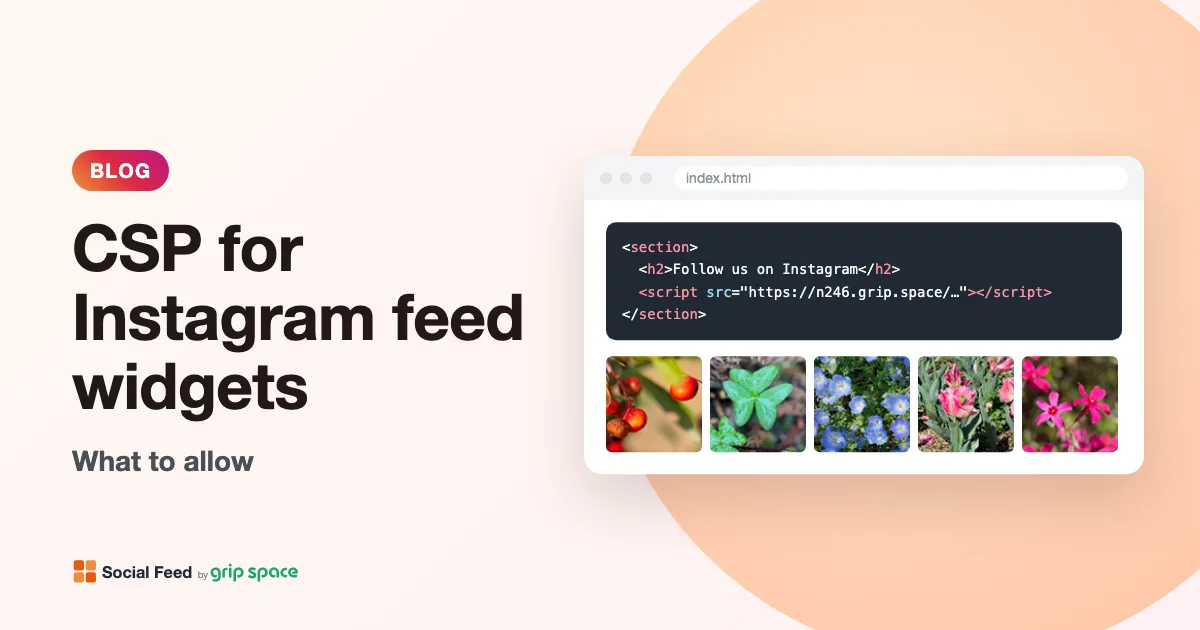
Content Security Policy and Instagram feed widgets: what to allow
The exact CSP directives an Instagram feed widget needs: script-src, img-src, media-src and style-src, plus how to find blocked hosts and test safely.
Read the article →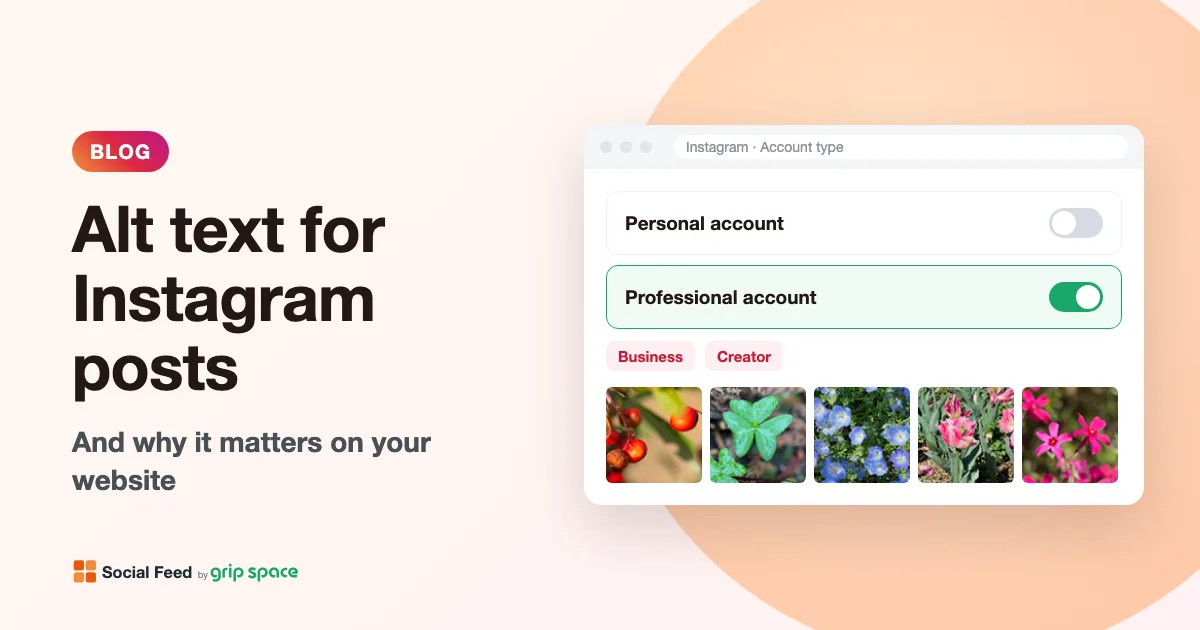
How to add alt text to Instagram posts (and why it matters on your website)
How to write and edit alt text on Instagram, what makes a good description, and what happens to it when your posts appear on your website.
Read the article →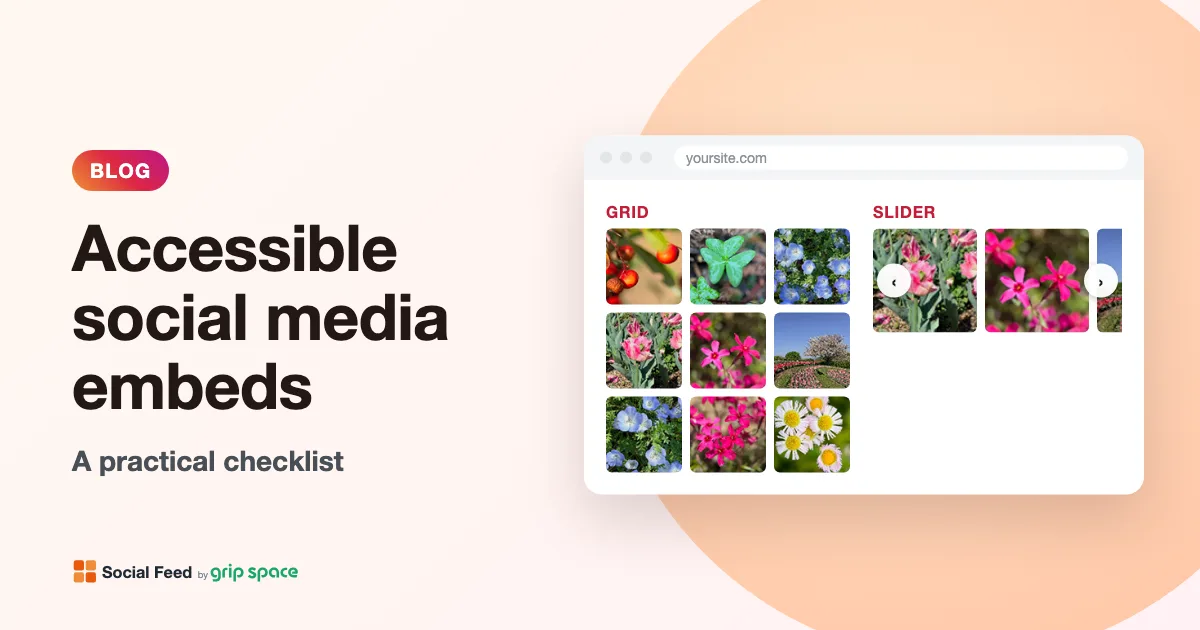
Making social media embeds on your website more accessible
A practical WCAG checklist for social media embeds: images, keyboard, focus, motion, video and contrast, plus an honest look at what our feed widget does and doesn’t do.
Read the article →