
How to add an Instagram feed to Blogger
Blogger has no built-in Instagram feed, but it has two good places for one: the HTML/JavaScript gadget in Layout, which shows the feed in your sidebar or footer on every page, and the HTML view of the post and page editor, which puts the feed inside a single post or page. This guide walks through both with Social Feed by grip space, shows which one fits your blog, and covers layout tips, plan limits and the problems people most often run into.
Updated October 12, 2026
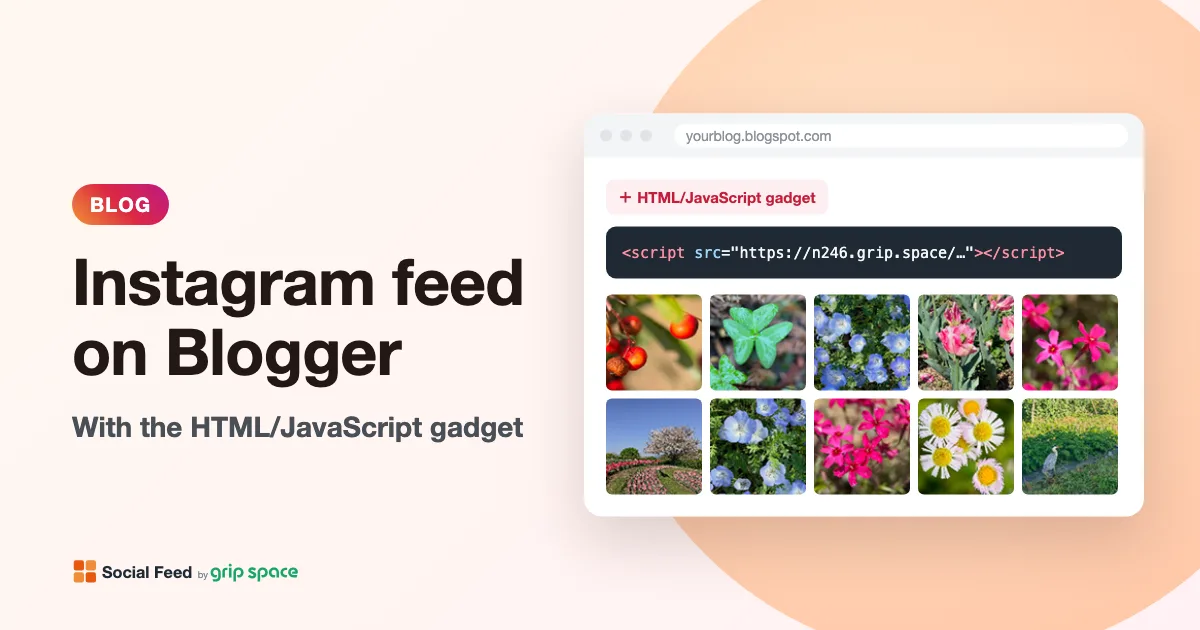
Two ways at a glance
The embed code from Social Feed by grip space is one script tag. When a page loads, the widget draws the feed right where that tag sits. So on Blogger the question is simply where you paste the tag, and Blogger gives you two natural spots.
| HTML/JavaScript gadget (Layout) | HTML view (post or page editor) | |
|---|---|---|
| Where the feed appears | In a gadget area of your theme, such as the sidebar or footer | Exactly where you paste it inside one post or page |
| Scope | Every page where that gadget area is shown | Only that post or page |
| Where you edit it | Layout → Add a Gadget → HTML/JavaScript | Posts or Pages → open the editor → HTML button in the top left |
| Skills needed | None | None, but you work in HTML for that post |
| Best for | A small feed next to every post, or above the footer | A dedicated “Instagram” page, or a feed inside one article |
There is a third place, the theme’s HTML (Theme → Edit HTML), but for an Instagram feed you rarely need it. The gadget method already reaches every page without touching your theme code, and it survives theme changes better. We cover the theme option briefly near the end.
Before you start: get your embed code
- Sign up for Social Feed by grip space with your email address. The Free plan needs no credit card and includes one widget.
- In the dashboard, click “+ Connect Instagram account” and connect an Instagram professional account (Business or Creator). If your account is personal, you can switch it to a professional account for free in the Instagram app; here is how.
- Open “Settings & preview”. Choose a grid or a slider, set the number of posts and columns while watching the preview, and save. If you plan to put the feed in a sidebar, read the sidebar tips further down before you pick the number of columns.
- Under “Add the embed code to your website”, click “Copy”. The code looks like this:
<script type="text/javascript" src="https://n246.grip.space/api/v1/instagram/widget/xxxxxxxx"></script>Both methods below use this same code; only the place you paste it changes.
Method 1: the HTML/JavaScript gadget (sidebar or footer)
Gadgets are the boxes Blogger shows around your posts. Blogger Help describes them as a way to “display your archive, show labels in a list, or show your profile on every page.” One of the gadget types is HTML/JavaScript, which takes any code you paste in. Blogger Help uses exactly this gadget for adding code from outside services, so it is the natural home for an Instagram feed.
- Sign in to Blogger and, in the top left, choose the blog you want to change.
- In the left menu, click Layout. You see a map of your theme’s areas: header, main posts area, sidebar, footer and so on, depending on the theme.
- In the area where the feed should appear, click Add a Gadget.
- In the pop-up window, find HTML/JavaScript and click Add next to it.
- Optional: enter a title, for example “Instagram” or “Follow us on Instagram”. Blogger shows it as the gadget’s heading.
- In the Content box, paste the embed code.
- Click Save in the gadget window.
- Back on the Layout screen, click Save at the bottom right to save the arrangement.
- Open your blog in a new tab and check the feed.
Moving the gadget. On the Layout screen you can drag a gadget to another position, for example from the bottom of the sidebar to the top, or from the sidebar to a footer area. Save the arrangement again after moving it. To change the code or title later, click Edit on the gadget.
Which area to choose. The areas you see depend on your theme. A sidebar gadget appears next to your posts; a footer gadget appears below them. If your theme has several footer columns, a feed in a single narrow column behaves like a sidebar feed, so the sidebar tips below apply.
Method 2: the HTML view of a post or page
If you want the feed inside one post or page rather than on every page, paste the code into the editor’s HTML view. This is the right method for a dedicated “Instagram” or “Gallery” page, or for a post where the feed belongs to the story, such as an event recap.
Why the HTML view matters. The Blogger editor has two modes: the normal writing view and an HTML view. If you paste the embed code into the normal writing view, Blogger treats it as text, and your readers would see the code itself instead of a feed. In the HTML view, the code is kept as code.
- On your blog’s dashboard, click Posts or Pages. To start something new, click New Post or New Page; to change an existing one, click its title (or Edit).
- Write the text around the feed first in the normal view, if you have any, so the formatting is easy.
- In the top left of the editor, click HTML to switch to the HTML view. (Blogger Help describes this button in its steps for editing posts and pages.)
- Find the spot where the feed should go, put the cursor on an empty line between paragraphs, and paste the embed code.
- Click Preview (for posts) or Preview page (for pages) if you want to check it, then Publish, or Update if it was already published.
- Open the published post or page to check the feed.
In HTML view, the code for a short post with a feed in the middle looks something like this:
<p>Here is what we have been up to lately.</p>

<script type="text/javascript" src="https://n246.grip.space/api/v1/instagram/widget/xxxxxxxx"></script>

<p>Follow us on Instagram for new photos every week.</p>
Keep the script tag on its own, between paragraphs, not inside a paragraph or a list.
Making an “Instagram” page. Blogger Help says there is “no limit to the number of pages you can have in one blog,” so a separate page for your feed is a good option. Create it from Pages → New Page, paste the code in HTML view, and publish. Then show it in your navigation with the Pages gadget: in Layout, click Add a Gadget in the area where your page links should appear, click Add next to “Pages,” tick your new page and save.
Which method should you choose?
- You want a small feed beside every post: use the HTML/JavaScript gadget in the sidebar.
- You want the feed above the bottom of every page: use the gadget in a footer area, if your theme has one.
- You want a full gallery of your Instagram posts: create a page, paste the code in HTML view, and link to the page with the Pages gadget.
- You want the feed inside one article: paste the code in that post’s HTML view.
- You want both a small sidebar feed and a larger gallery page: that works well. With one widget, both places show the same design. To give each its own design (for example, a 2-column sidebar feed and a 4-column gallery), create two widgets. The Free plan includes one widget, Light three and Standard an unlimited number; see pricing.
Keep views in mind when choosing. A gadget feed loads on every page of your blog, so each page view counts toward your widget’s monthly views. A feed on one page only counts views of that page. For more on choosing where a feed works best, see where to put an Instagram feed on your website.
Making the feed look right in a sidebar
Blogger sidebars are usually narrow. The widget measures the space it is placed in and uses fewer columns when each image would get smaller than about 100 pixels. So a 4-column grid in a narrow sidebar automatically drops to fewer columns. That keeps the images readable, but it also means more rows, so a feed with many posts can become very tall in a sidebar.
| Where | Suggested layout | Why |
|---|---|---|
| Sidebar | Grid, 2 or 3 columns, 6 to 9 posts | Fits the narrow column without becoming a long scroll |
| Sidebar (very compact) | Slider, 2 or 3 posts visible | Stays one row high; visitors swipe or click for more |
| Full-width footer | Grid or slider, one or two rows | Adds color at the end of each page without making it much longer |
| Dedicated “Instagram” page | Grid, 3 or 4 columns, 12 or more posts | The page exists to show your posts, so more is fine |
| Inside a post | Slider, or a grid with 1 or 2 rows | Does not push the rest of the article far down |
Spacing and width. The image spacing setting controls the gap between tiles. A smaller gap of a few pixels usually suits a narrow sidebar. The maximum width setting (0 to 2,000 pixels) limits how wide the feed can get; in a sidebar the sidebar already limits it, but on a full-width page a maximum around 1,000 to 1,200 pixels keeps tiles from getting huge.
Header and Follow button. The widget can show an account header with your profile picture, name, post count and a Follow button. In a sidebar, the gadget title may already say “Instagram,” so you can leave the header off for a compact look, or keep just the Follow button. The button’s label and color are customizable; see adding an Instagram Follow button to your website.
For a broader look at layout choices, read grid or slider and matching the feed to your site’s design.
Click behavior: lightbox or Instagram
When a visitor clicks a post in the feed, the widget can open it in a lightbox on your blog, open the post on Instagram, or do nothing. The lightbox can show the caption and the like count; videos play inside it, starting muted with player controls; for carousel posts you can show only the first image or let visitors flip through all of them.
The lightbox opens over the whole page, even when the feed sits in a narrow sidebar, so it works well on Blogger. If you would rather send readers to your Instagram profile to follow you, choose “open Instagram” instead. We compare both in lightbox or link.
Choosing what the feed shows
Blogs often have a focus, and your Instagram account may cover more than your blog does. The widget’s filters help you show only what fits:
- Reels: show all posts, exclude Reels, or show Reels only.
- Carousel posts: show or hide posts with several images.
- Videos: include them or not.
- Period: any time, or only posts from the last 30, 90 or 365 days.
- Caption keywords: show only posts whose captions contain certain words, or hide posts that do. For example, a food blog could show only posts tagged with the word “recipe” in the caption.
Keyword filters work on the caption text you write in Instagram. See how to filter your Instagram feed by keyword for ideas.
What about Theme → Edit HTML?
Blogger also lets you edit the theme’s code directly: in Theme, under “My theme,” click More and then Edit HTML. You could paste the embed code into the theme there, but for this widget the gadget method is almost always better:
- Gadgets already reach every page. A gadget in the sidebar or footer appears site-wide, which is usually the reason people reach for the theme code.
- Theme code is easy to break. Blogger themes are strict XML, and a small mistake can stop the theme from saving.
- Theme changes wipe it out. If you switch or restore your theme, hand-made edits in the code are gone, while gadgets you add in Layout are managed separately.
If you do edit the theme, back it up first, paste the script tag exactly where the feed should appear, and click Save. Never paste it into the head part of the theme: the head is not displayed, and the widget draws the feed where its tag is, so nothing would be visible.
Blogger feeds and email subscribers
Readers who follow your blog through its RSS or Atom feed, or through an email service that reads that feed, see your posts in their reader or inbox. Those apps generally do not run scripts, so a feed you pasted into a post will not show there. If a post depends on the Instagram feed, add a short line of text such as “See our latest photos on Instagram” with a link to your profile, so feed readers have something to click.
Troubleshooting
- Readers see the code instead of the feed. The code was pasted into the normal writing view. Open the post, switch to the HTML view, delete the visible code text, and paste the code again there.
- Nothing appears on the published page. Check that the widget is set to Published in the Social Feed dashboard; an unpublished widget shows nothing. Then check that the whole code was pasted, from
<scriptto</script>. - The gadget shows a title but no feed. Open the gadget with Edit and check the Content box. If the code is there and complete, the cause is usually one of the checks above, or a browser extension that blocks scripts. Try the page in a private window.
- The feed shows on the home page but not on posts, or the other way round. Some themes show certain gadget areas only on some kinds of pages. Move the gadget to an area that appears where you want it, such as the main sidebar.
- The feed looks different on phones. How Blogger themes show gadgets on small screens depends on the theme. Open your blog on a phone to check. The widget itself adapts to the width it gets, dropping columns when tiles would get too small.
- The feed appears twice. The code is in two places, for example in a sidebar gadget and in a post’s HTML. Remove one.
- The feed is very tall in the sidebar. Reduce the number of posts, or switch to a slider. See the sidebar table above.
- The browser warns about mixed content. Our code loads over HTTPS, so the widget itself does not cause it. Blogger Help’s mixed-content article explains how to find other
http://links in your posts, theme and gadgets. - New Instagram posts are missing. On the Free plan, new posts appear on your site once a day; on paid plans, right away. Also check whether a filter (period, caption keywords or post type) is hiding them. More in why your Instagram feed isn’t updating.
- The feed stopped showing after a busy period. If your views go over your plan’s monthly limit two months in a row, the feed pauses from the following month. The dashboard and our emails tell you when this is about to happen.
For a longer checklist that applies to any platform, see Instagram feed not showing on your website.
Plans and limits that matter on a blog
| Free | Light | Standard | |
|---|---|---|---|
| Price | $0 | $8/month or $80/year | $24/month or $240/year |
| Widgets | 1 | 3 | Unlimited |
| Posts per widget | Up to 16 | Up to 30 | Up to 50 |
| Views per month | 3,000 | 30,000 | Unlimited |
| New posts appear | Once a day | Right away | Right away |
| “Powered by Social Feed” credit | Always shown | Optional | Optional |
A sidebar gadget loads on every page, so a blog with steady traffic uses views faster than a single gallery page would. The dashboard shows each widget’s view count with a chart. If you start on the Free plan, our guide to the free plan explains exactly what it includes.
Frequently asked questions
Do I need a Blogger template or a special gadget for Instagram?
No. The feed is a plain script tag, so it works with Blogger’s own HTML/JavaScript gadget or the HTML view of the editor. You do not need to change your theme.
Will the feed work with a custom domain?
Yes. The widget runs in the visitor’s browser, so it works the same on a blogspot.com address and on your own domain.
Do I need to update the code when I change the feed’s design?
No. Layout, columns, filters and colors are saved with the widget, not in the code. Change them in the Social Feed dashboard, and your blog shows the new design the next time a page loads.
Can I hide the feed for a while without editing Blogger?
Yes. Switch the widget to Unpublished in the dashboard. The code stays in your gadget or post but shows nothing until you switch it back. See how to hide an Instagram feed temporarily.
Does the widget set cookies on my blog?
The widget itself does not set cookies or use local storage. Images and videos load directly from Instagram’s servers.
Will the feed slow down my blog?
The widget is one small script. In a grid, images below the first row load only when visitors scroll near them; a slider loads its images right away, so keep sliders reasonably short. More in does an Instagram feed slow down your website?
What language does the widget use?
The few words the widget shows, such as “Posts” and “Follow,” appear in English or Japanese based on your page’s language setting, falling back to the visitor’s browser language. The Follow button label can be changed to any text you like.
Can I show a hashtag feed or someone else’s account?
No. Social Feed by grip space shows the posts of the Instagram account you connect. For tools that list hashtag feeds, see our comparison of Instagram feed widgets.
Running another site too? We have guides for WordPress, Shopify, Wix, Squarespace, Webflow and HTML, plus posts on Ghost and adding a feed without a plugin. New to the service? Read what Social Feed by grip space is.
Sources
- Blogger Help, “Change the design of your blog”: https://support.google.com/blogger/answer/176245
- Blogger Help, “Advertise on your blog” (HTML/Javascript gadget steps): https://support.google.com/blogger/answer/1269077
- Blogger Help, “Create, edit, manage, or delete a post”: https://support.google.com/blogger/answer/154172
- Blogger Help, “Add pages to your blog”: https://support.google.com/blogger/answer/165955
- Blogger Help, “Fix mixed content on your blog” (HTML button in the editor): https://support.google.com/blogger/answer/6286127
Get your embed code in a few minutes. The Free plan needs no credit card.
Sign up freeMore articles
How to add an Instagram feed to Hostinger Website Builder
Add an auto-updating Instagram feed to a Hostinger Website Builder site with the Embed code element: steps, sizing for desktop and mobile, and fixes.
Read the article →
How to add an Instagram feed to Strikingly
Strikingly’s Social Feed section does not support Instagram. Here is how to add an auto-updating feed with the HTML section on a Pro or VIP plan.
Read the article →
Can you add an Instagram feed to a Canva website?
An honest answer: Canva websites have no documented way to add custom script code, so feed widgets cannot run there. What works instead, step by step.
Read the article →
Can you show your Instagram feed on Linktree or a link-in-bio page?
What Linktree allows for Instagram (its own link app and grid), why feed widget code can’t go there, and how to build your own link page with a live feed.
Read the article →
Instagram API with Instagram Login explained for website owners
What the Instagram API with Instagram Login is, why no Facebook Page is needed, what each permission means, and what a read-only feed tool can see.
Read the article →
Will an Instagram feed slow down your website? How to check
What an Instagram feed widget actually loads, how to measure its effect with PageSpeed Insights, Lighthouse and DevTools, and how to keep it light.
Read the article →