
Adding an Instagram feed to a hotel or B&B website
Travelers look at a hotel’s Instagram to see what the photos on booking sites do not show: the room on a rainy morning, the breakfast table, the view in autumn, the wedding in the garden last weekend. Bringing those posts onto your own website gives direct visitors the same reassurance, right next to your booking button. This guide is written for hotels, inns, guesthouses and B&Bs. It covers which feed belongs on which page, why a slider often suits a hotel homepage, how to run separate feeds for rooms, the area and events, and what to know before you put several feeds on one page.
Updated October 12, 2026
What guests want from your website, and where Instagram fits
A guest on a hotel website is close to a decision. They want rates and availability, room types and sizes, the location and how to get there, check-in times, parking, breakfast, pet and cancellation policies. All of that belongs in clear text, ideally a tap or two from the booking button.
What text cannot do is make a place feel real. Your own professional photos of rooms are essential, but they are taken once and show the property at its best. An Instagram feed adds recent, everyday evidence: this is what the lounge looked like last week, this is today’s breakfast, the cherry trees outside are blooming now. For small properties without a marketing team, it is also the easiest way to keep the website from looking frozen in the year it was built.
Which posts help someone choosing where to stay
Look at your last few months of posts with a guest’s eyes. Some kinds of posts help a booking decision, some help only on certain pages, and some belong on Instagram alone.
| Post type | Best page on your website | Notes |
|---|---|---|
| Rooms, suites, details like linens and bathrooms | Room pages | Most useful when the caption names the room type |
| Breakfast, dining, bar | Dining or breakfast page | B&Bs: often the highlight of the stay |
| Views, garden, pool, terrace, lobby | Homepage | Shows the atmosphere in one glance |
| The town, beaches, trails, nearby sights | “Explore the area” page | Helps guests plan, and helps them choose you for the location |
| Weddings, meetings, tastings, live music | Events or weddings page | Useful while recent or upcoming |
| Seasonal offers and packages | Offers page | Goes out of date; pair with a date range filter |
| Hiring, closures, maintenance notices | None | Keep off the website feed |
You do not have to post differently on Instagram to make this work. You only need captions that say what each post shows, which the next section covers.
Captions are your filing system
Social Feed by grip space filters posts per widget by words in the caption: show only posts that contain one of your keywords, or hide posts that contain them. It also filters by date range (any time, the last 30 days, the last 90 days or the last year), by Reels, by carousel posts and by video posts.
The caption is the only text that is searched. The location tag you add to a post is not included, nor are tagged accounts, comments or text inside the photo. A hotel that relies on location tags to say “Garden Suite” or “Lake Trail” will need to put those words in the caption as well. Instagram lets you edit the caption of a post you have already shared, so you can add tags to your best older posts without reposting them.
A small set of hashtags covers most properties:
| Purpose | Example tags | Why this form |
|---|---|---|
| Room types | #gardensuite, #seaviewroom, #loftroom | One word per room type, so it cannot appear inside other captions by accident |
| Area | #explorelakeside (use your town’s name) | Separates area posts from on-property posts |
| Food | #innbreakfast, #rooftopbar | Lets you build a dining page feed |
| Events | #weddingsattheinn, #innevents | Feeds the events page; combine with a date range |
| Keep off the website | #notforweb | For posts you never want on the site |
Keyword matching ignores upper and lower case and also matches part of a word. That is why distinctive tags work better than plain words: filtering on “suite” would also catch “suitable”, and “view” would match “review” and “interview”. A post matches if its caption contains any one of the keywords you list, separated by commas.
The homepage: why a slider often works best
A hotel homepage usually opens with a large photo and a booking bar, followed by a short introduction, room highlights and the location. A full grid of Instagram photos at this point makes the page longer on phones and competes with your own photography.
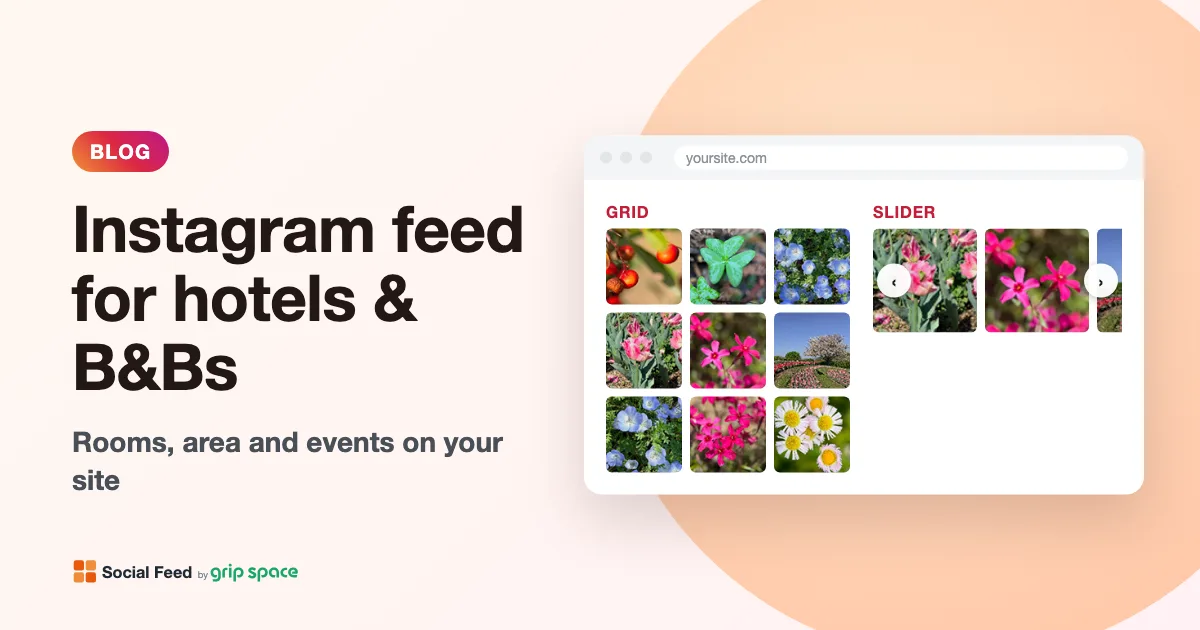
A slider solves both problems. It shows one row of square tiles, and guests can swipe through it on a phone or use the arrow buttons on a desktop. When they reach the last post, the arrow takes them back to the beginning. A slider of 10 to 15 recent posts, placed after the introduction or room highlights, gives a lively strip of real moments without pushing the rest of the page down.
There is one trade-off. In a grid, only the first row of images loads immediately and the rest load as the visitor scrolls near them. In a slider, all images load with the page, so that swiping never shows blank tiles. Keep the number of posts in a homepage slider moderate rather than setting it to the maximum, especially if your homepage already has a large hero image.
For a detailed comparison of the two layouts, see grid or slider for an Instagram feed.
Room pages: one feed per room type
Room pages are where guests compare. Your professional photos show the layout; recent posts tagged with that room type show the details people care about: the morning light, the bathtub, the view from the window, the little touches housekeeping adds.
- Create a widget for your first room type with the caption keyword (for example #gardensuite) in Only matching posts mode.
- Choose a grid of 3 columns and 6 to 9 posts, and place it below the room description, rates and booking button.
- Use Duplicate in the dashboard to copy the widget for each other room type, and change only the keyword and the widget name.
- Set the date range to Any time for rooms you rarely post about, so the page is never empty, and to Last year for rooms you post often.
If you have many similar rooms, you do not need a feed for each one. Group them by category, such as standard, superior and suite, and tag posts by category.
Room tours are often posted as carousels. Set “Carousel posts (multiple images)” to “All images in the lightbox”, so guests who open a post can browse every image with arrows. The tile itself shows the first image, so lead with your strongest shot when you post.
Several feeds on one page: rooms and events side by side
Sometimes one page needs two different feeds. A B&B homepage might show the rooms and, further down, what is happening at the inn this season. A wedding venue page might show the ceremony spaces and the reception rooms separately. Each widget has its own embed code, and the feed appears exactly where its code is placed, so you can simply paste two codes into two sections of the page:
<section>
  <h2>Our rooms</h2>
  <script type="text/javascript" src="https://n246.grip.space/api/v1/instagram/widget/xxxxxxxx"></script>
</section>

<section>
  <h2>Coming up at the inn</h2>
  <script type="text/javascript" src="https://n246.grip.space/api/v1/instagram/widget/yyyyyyyy"></script>
</section>
Each widget keeps its own layout and filters, so the rooms section can be a grid filtered by room tags while the events section is a slider filtered by event tags and the last 90 days. A few things are worth knowing before you do this:
- Your plan must allow enough widgets. The Free plan includes one widget, the Light plan three and the Standard plan an unlimited number. Pasting the same code twice shows the same feed twice; for two different selections of posts you need two widgets.
- Each feed counts as a view. Views are counted each time a widget is displayed, so a page with two feeds counts two views per visit. The monthly view limit applies to all widgets on your account together.
- Each feed adds images. Two grids of 12 posts are 24 images. Keep secondary feeds short, or make one of them a slider with a modest number of posts.
- A post can appear in both. If a caption contains a room tag and an event tag, it matches both feeds. Usually that is fine; if not, use different tags.
The area page: sell the location
Many guests choose a place to stay for where it is: the beach, the ski slopes, the wine region, the old town. An “Explore the area” page with your tips, distances and directions is valuable on its own. A feed filtered to your area tag, showing the trails, cafés, markets and views you have posted, makes it vivid and shows guests what you can recommend.
Area posts are also where seasons matter most. A guest planning a summer stay is not helped by a feed full of snow. Set the area feed’s date range to the last 90 days, so it always reflects the current season. If you post less often, “Last year” keeps the feed full but shows a mix of seasons, so make sure your page text says what the area offers year-round.
Seasonal properties and opening periods
Some hotels and B&Bs close for part of the year, or run very different seasons, such as a summer lake season and a winter ski season. A few patterns work well:
| Situation | Setup |
|---|---|
| Two distinct seasons | One widget per season with its own tag, for example #summeratthelodge and #winteratthelodge. Switch the off-season widget to Unpublished in the dashboard; it then shows nothing, even with its code still on the page. |
| Closed for winter, posting little | Date range “Last year”, so the feed still shows last season instead of a nearly empty grid |
| Packages and offers | Offers widget filtered by #offer with the date range set to the last 30 days, so expired offers fall off by themselves |
| Holiday decorations and events | Exclude a tag like #holidaydecor on the homepage outside the holiday period by editing the widget’s keywords |
Keep opening dates, closure periods and package terms as text on the page as well. A post can drop out of the feed when newer posts arrive, and only some visitors open a post to read the caption.
Breakfast and dining at a B&B or hotel restaurant
For many B&Bs, breakfast is part of the reason people book, and it photographs well. A short grid of breakfast posts on the breakfast or “Your stay” page shows what to expect better than a description of “a full homemade breakfast”. Write dietary options and serving times in the page text, and let the feed show the plates.
If your hotel runs a restaurant or bar that also serves outside guests, its page has the same needs as a standalone restaurant website. See Instagram feeds for restaurant and café websites for menu and specials setups.
Settings for interiors and landscapes
- Square crop: tiles are always square and cropped from the center. Wide room shots and landscape views lose their sides, and tall shots lose their top and bottom. When posting, keep the bed, the window or the view in the middle of the frame. The lightbox shows the full image.
- Columns: 3 columns give interiors enough size to read. On narrow screens and narrow page columns, the widget reduces the number of columns automatically so tiles stay a usable size.
- Click action: choose the lightbox so guests see a larger image and the caption without leaving your site. On room pages, show the caption in the lightbox; it often names the room and its features.
- Account header: on the homepage, show the header with your Instagram name and a follow button. You can change the button text, for example to “Follow our seasons”, and its color. On room pages, you can turn the header off to keep the focus on the room.
- Widget width: on wide homepage layouts, a maximum width keeps the slider in line with the rest of your content.
- Reels: room tours and drone views can be striking. In the grid and slider, videos show their cover image with a play mark and play in the lightbox, muted at first, with controls. For a calm room page, choose “Exclude Reels”, or switch off “Include video posts” to leave out all videos.
More on videos: how to show Instagram Reels on your website.
Booking engine pages and channel listings
Most hotels and many B&Bs take reservations through a booking engine, which often runs on its own pages or in a frame on your site. The feed can be added wherever you can paste HTML on your own website, such as the room pages and the page that hosts your booking button or booking bar. Pages hosted by the booking engine itself, and your listings on travel booking sites, are usually outside your control. If you want the feed on a booking engine page, ask your provider whether it accepts custom scripts.
A good compromise is to place a short slider on your own page directly above the booking widget or button. It reassures guests at the moment of decision without sending them to Instagram.
Guests who speak other languages
Hotels often have English and other language versions of their website. The feed shows your captions exactly as you wrote them. The few labels the widget adds itself, such as “Follow” and “View on Instagram”, appear in English or Japanese depending on the language set in the page’s HTML (or the visitor’s browser language if the page does not declare one); other languages show the English labels. If you set your own follow button text, that text is shown as you wrote it on every page, so for a second-language site, create a duplicate widget with the button text in that language.
Which plan fits a hotel or B&B
| Plan | Widgets | Posts per widget | Monthly views | Updates | Typical fit |
|---|---|---|---|---|---|
| Free | 1 | Up to 16 | 3,000 | Once a day | A small B&B with one homepage feed |
| Light ($8/month or $80/year) | 3 | Up to 30 | 30,000 | Without the daily wait | Homepage slider plus rooms and area feeds |
| Standard ($24/month or $240/year) | Unlimited | Up to 50 | Unlimited | Without the daily wait | Feeds on every room page, events and several languages |
To estimate views, count how often pages with a feed are viewed per month, and multiply by the number of feeds on those pages. A B&B whose homepage is seen 2,000 times a month fits the Free plan with one feed; add a second feed to the same page and it would need 4,000 views. If your total goes over the monthly limit, the feeds keep showing for the rest of that month. If it happens two months in a row, the feeds stop showing from the following month until you upgrade or your views fall back under the limit.
On the Free plan, the “Powered by Social Feed” credit is always shown below the feed; on paid plans it is optional. See the pricing section for current details.
Accessibility and the text around the feed
The images in the feed currently have no text descriptions (alt text). Screen readers therefore skip them, so guests who rely on one get no sense of what they show, and captions are only visible when someone opens a post. For a hotel this matters especially for accessibility information itself: step-free access, accessible rooms, parking and lifts must be described in text on your pages, never only in a photo or a caption.
Setting it up, step by step
- Make sure your Instagram account is a professional account (Business or Creator). See the guide to Instagram professional accounts.
- Decide on tags for room types, the area and events, and add them to the captions of your best existing posts.
- Create a Social Feed account, connect Instagram and create your first widget, usually the homepage slider.
- In “Settings & preview”, set the layout, number of posts and filters, and check that the preview shows the posts you expect.
- Copy the embed code and paste it where the feed should appear. Platform guides: WordPress, Wix, Squarespace, Webflow, Shopify and HTML.
- Add room, area and events widgets as your plan allows, duplicating the first one so they share a design.
- Check the live pages on a phone: the booking button and key facts should come before any feed.
Common mistakes on hotel websites
- Relying on location tags. They are not searched by the filter. Put the room or place name in the caption.
- Out-of-season photos on the homepage. A date range keeps the feed in step with the season guests are booking.
- A maintenance or closure post in the feed. “Pool closed for repairs” from last spring can cost a booking. Exclude such posts with a tag like #notforweb.
- A huge slider above the fold. Fifty eagerly loaded images slow the first view. Keep homepage sliders short.
Frequently asked questions
Can the feed show photos that guests post and tag us in? No. Social Feed shows posts from your own connected professional account only, not tagged photos, hashtag searches or other accounts. With a guest’s permission, you can share their photo on your own account.
We have two properties with separate Instagram accounts. Can one feed show both? No, one feed shows one account. If both properties post on one shared account, use a tag per property and give each property’s pages its own widget.
Do Stories and highlights appear, for example our “Rooms” highlight? No. Stories and highlights are not shown. Post the room photos to your feed with a room tag instead.
We posted a new photo but it is not on the website yet. On the Free plan the feed updates once a day. If it does not appear after that, see Instagram feed not updating, and check that the post matches the widget’s filters.
Choosing where each feed goes on your site? See where to put an Instagram feed on your website.
Sources
- Instagram Help Center, “Add, edit or delete the caption of an existing Instagram post”: https://help.instagram.com/1490745927855762
- Instagram Help Center, “How do I add or edit the location of an existing post?”: https://help.instagram.com/841545179210359
Get your embed code in a few minutes. The Free plan needs no credit card.
Sign up freeMore articles
Instagram feed for real estate agent websites: keep sold listings off your page
How real estate agents can add an Instagram feed that stays current: hide sold listings, show open houses and tour Reels, and give each area page its own feed.
Read the article →
Instagram feed for gym and fitness studio websites: classes, coaches and Reels
How gyms and fitness studios can use an Instagram feed: class Reels under the schedule, a feed per coach, recent posts only, and no expired promos.
Read the article →
Should photographers add an Instagram feed to their portfolio website?
An honest guide for photographers: what an Instagram feed adds to a portfolio site, how tiles crop your images, what the lightbox shows, and where it fits.
Read the article →
Instagram feeds for wedding vendors: planners, florists, venues and more
How wedding planners, florists, venues and other vendors can use an Instagram feed as proof of real weddings, with filters by season, venue and service.
Read the article →
Using an Instagram feed on your online store (without shoppable tags)
An Instagram feed on an online store works as an inspiration gallery, not a catalog. Where to place it, filters for collections, and what it cannot do.
Read the article →
Instagram feed for nonprofit and charity websites
How nonprofits and charities can use an Instagram feed: campaign and event updates, the donate page, keyword filters per campaign, and photo consent.
Read the article →