
Instagram feed for nonprofit and charity websites
Many nonprofits post their most current work on Instagram: volunteers at a food drive, a finished well, a rescued dog going home, a gala that just ended. Their websites, meanwhile, often change only when someone has time. An Instagram feed connects the two, so the website shows the work as it happens. This guide covers what a feed is good for on a nonprofit or charity site, where it helps and where it gets in the way of donations, how to give each campaign its own filtered feed, and what to think about when your photos show real people.
Updated October 12, 2026
Why a feed suits a nonprofit website
People who visit a nonprofit’s website are often weighing trust. A potential donor wants to know whether the organization is real, active and doing what it says. A potential volunteer wants to know what a typical day looks like. A journalist or partner wants a quick sense of recent work. Written reports answer these questions in depth, but they are usually published once or twice a year.
Your Instagram account fills the gap between reports. Recent posts show that work is happening this month, and they show it in the most convincing form: photos and short videos from the field. With an embedded feed, those posts appear on your website automatically, and nobody on a small team has to update a gallery by hand.
There are also things a feed should not carry. How to donate, what a gift pays for, your registration details, your program descriptions and annual results all need to be written on your pages. A feed changes constantly and shows captions only when someone opens a post, so it cannot be the place where a visitor finds the facts that build trust.
Sorting your posts: what helps on the website
Look at the last few months of your account and ask, for each kind of post, whether it helps a visitor who has never heard of you. A typical mix looks like this:
| Post type | Useful on the website? | Best page |
|---|---|---|
| Program work in the field | Yes | Homepage, program pages |
| Volunteers in action | Yes | Volunteer page |
| Event photos and announcements | Yes, while recent or upcoming | Events page |
| Campaign updates and milestones | Yes, during the campaign | Campaign page |
| Thank-you posts to donors and partners | Often | Donate page, below the form |
| Stories of people you serve | Yes, with consent | Program and About pages |
| Urgent appeals with a deadline | Briefly | Campaign page, then remove |
| Awareness days and reposted graphics | Sometimes | News or footer |
| Job and board openings | Rarely | Careers page as text instead |
You do not need to change how you post. Social Feed by grip space lets each widget show a different selection of your posts with filters, so the homepage, the events page and each campaign page can each get the posts that fit.
Where the feed helps, and where it gets in the way
The embed code is one script tag; the feed appears exactly where you paste it. With several widgets you can place different feeds on different pages.
| Page | Feed content | Placement | Layout idea |
|---|---|---|---|
| Homepage | Recent program and volunteer posts | After the mission statement and the donate button | Grid, 3 columns, 6 or 9 posts |
| Campaign or appeal page | Posts about that campaign only | After the goal, the story and the give button | Grid or slider, 6 posts |
| Events page | Event announcements and photos | Below the list of upcoming events | Grid, 3 columns |
| Volunteer page | Volunteers at work | Next to the sign-up form, not above it | Slider |
| About or impact page | Team, partners, results | After the written report summary | Grid, 3 or 4 columns |
| Donate page | Thank-you and impact posts, if any | Well below the form | Small slider, or no feed |
| Footer | Latest posts | Above the footer links | One row |
For placement advice that applies to any site, see where to put an Instagram feed on your website.
The donate page: protect the form
The donate page is the one place where a feed can cost you something. A visitor who reached it has already decided to give, or nearly so. Anything that draws attention away from the form, or invites them to leave, works against you.
- Consider no feed at all. Many donate pages work best with nothing but a short reason to give, the form, and reassurance about how gifts are used.
- If you add one, put it well below the form. Visitors who scroll past the form are often still deciding; a few recent impact or thank-you posts can help them.
- Keep visitors on the page. Set the click action to open the lightbox or to do nothing. “Open Instagram” opens the post in a new tab, which is one more way to drift away from the form.
- Hide the follow button here. Turn off the account header on this widget. A follow is welcome, but not instead of a gift.
- Filter to impact. Use “Only matching posts” with keywords you use for thank-you and results posts, such as “#thankyou” or “#impact”.
- Check it on a phone. The form should come first, and the feed should not appear between the amount buttons and the submit button.
One widget per campaign
Campaigns are where the filters earn their keep. A spring appeal, a holiday toy drive and a capital campaign each have their own page, and each page is more convincing with posts about that campaign only. The approach:
- Choose a campaign hashtag before the campaign starts, such as “#wintercoatdrive”, and ask everyone who posts for the organization to include it in captions.
- In the dashboard, create a widget for the campaign. You can copy the settings of an existing widget, so you only need to change the filters.
- Set the caption keyword to the campaign hashtag in “Only matching posts” mode. Add a date range if the hashtag was also used in earlier years.
- Paste the embed code on the campaign page, below the goal and the give button.
- When the campaign ends, either leave the feed as a record of what happened, or switch the widget to Unpublished. An unpublished widget shows nothing, so the code can stay on the page for next year.
Several campaign widgets need a plan with several widgets. Free includes one, Light three, and Standard an unlimited number; see the pricing section.
Filter recipes for nonprofits
Every widget can filter by caption keywords (show only matching posts, or hide them), by date (any time, or the last 30, 90 or 365 days), by Reels (all, none, or only Reels), and by switching carousel posts or video posts off. A post appears only if it passes every filter. Replace the example keywords with your own:
| Goal | Keywords | Mode | Date | Reels |
|---|---|---|---|---|
| Homepage without urgent appeals that have ended | urgent, last chance, deadline | Hide matching | Last 90 days | All |
| Campaign page | #wintercoatdrive | Show only matching | Last year | All |
| Events page | #gala, #5k, event | Show only matching | Last 90 days | All |
| Volunteer page | #volunteer, volunteers | Show only matching | Last year | All |
| Donate page | #thankyou, #impact | Show only matching | Last year | Exclude Reels |
| Program page for one program | #mealsprogram | Show only matching | Any time | All |
| Video stories strip | (blank) | – | Last year | Reels only |
If a filter matches very few posts, the widget shows fewer posts than you set. Check the preview in “Settings & preview” and widen the date range or add a keyword if the result looks thin.
Captions that sort themselves
The filter reads only the caption text of each post. It ignores upper and lower case and finds a keyword anywhere in the caption, even inside a longer word. That is why short everyday words make poor filters for a nonprofit: “aid” also matches “said” and “paid”, and “run” matches “brunch”. Distinctive hashtags work far better.
- Campaign hashtags: one per campaign, with a year if campaigns repeat, for example “#coatdrive2026”.
- Program hashtags: one per program, so each program page can have its own feed.
- Chapter or location names: if one account covers several chapters or cities, a chapter hashtag lets each local page show its own posts.
- A tag for posts you never want on the site, such as “#internal”, which you can hide with a “Hide matching” filter.
Only captions are searched. Hashtags in comments, tagged accounts, location tags and text inside images do not count, and posts without a caption never match a “Show only matching” filter.
Instagram’s own fundraising tools and your website feed
Meta offers fundraising tools for nonprofits on Instagram. According to Meta’s nonprofit resources, these include fundraisers that run for 30 days and can be extended, a donation sticker for Stories, and a Support button on a nonprofit’s profile, and the donation tools are available in the United States, the United Kingdom, Canada and Australia. Eligibility and setup are handled by Meta, so check Meta’s current pages for your organization.
These tools work inside Instagram. They do not carry over to a website feed:
- Stories are not shown, so a donation sticker in a Story will not appear on your site.
- Posts appear as photos and videos, without any donate button or fundraiser progress, even if the post is about a fundraiser.
- The feed shows your own account only, not fundraisers or posts that supporters create for you.
So on your website, the path to giving is your own donate page. Put a clear button next to every feed, and treat the feed as the evidence that makes people press it.
Photos of people: consent and dignity
Nonprofit photos often show people at vulnerable moments: patients, children, people experiencing homelessness, refugees. A website feed repeats whatever is on your Instagram account on another page, and possibly in front of a different audience than your followers. Before you embed, it is worth checking that your photo practices hold up on the website too.
- Consent covers both places. If your consent forms mention social media, consider whether they also cover your website. Your own policies and local law decide this; when in doubt, ask whoever handles your consent forms.
- Children need extra care. Many organizations avoid names, schools and locations next to children’s photos. Apply the same rules to captions, since captions appear in the lightbox.
- Removing a post removes it from the feed. If someone asks you to take a photo down, deleting or archiving it on Instagram also removes it from your website feed when the feed next updates. On the Free plan, updates happen once a day.
- Show people as partners, not props. A grid of only sad faces can work against the dignity you work for. A feed filtered to program activity often gives a more balanced picture.
Accessibility: write the story as text too
The images in the feed currently have no text descriptions (alt text), so screen reader users cannot tell what the photos show. Captions are only visible after a visitor opens a post. Nonprofits often serve people with disabilities, and some have accessibility commitments of their own, so this matters. Describe your programs, results and events in the page text, with the feed as an addition. If a post is the only place something important appears, such as the date of an event or a change to a service, copy it into the page.
The W3C’s accessibility tutorials also recommend using real text rather than text inside images wherever possible. Graphics with statistics or event details are popular on nonprofit accounts, so make sure that the same information also exists as text on your website.
Events: before, during and after
Galas, walks, runs, open days and volunteer days follow a cycle, and the feed on an events page can follow it too. Before the event, posts announce it and show preparations; on the day, photos come in quickly; afterward, a recap carousel and thank-you posts close it out.
- Before: keep the date, place, tickets and registration link as text at the top of the event page. Below them, a feed filtered to the event hashtag shows preparations and last year’s edition, which helps people imagine attending.
- During: if you post during the event, remember that the Free plan updates once a day. Paid plans show new posts without that daily wait.
- After: update the page text to say the event has happened and how much it raised or achieved, and leave the feed as a recap. Next year, set a date range so the new announcements come first.
Knowing whether the feed is used
The dashboard shows how many times each widget was displayed, with a chart over time. That tells you which pages the feed appears on most and helps you stay within your plan. It does not tell you how many people opened a post or followed you from the site; the feed does not offer click or conversion analytics. If you want to know whether the feed affects donations, compare donate-page results in your own analytics or donation platform before and after adding it, and keep in mind that campaigns and seasons change giving far more than a gallery does.
Settings that suit nonprofit content
- Grid for most pages. Three columns keep photos of people large enough to read faces and activities. In narrow areas the feed reduces the number of columns automatically.
- Slider for the volunteer and donate pages, where height matters and the feed should stay in the background.
- Lightbox with captions. Captions on nonprofit posts often explain what a photo shows and why it matters. Showing them in the lightbox keeps that context.
- Carousels: event recaps are often carousels. Set the lightbox to show all images so visitors can browse the whole event.
- Follow button label: on the homepage and footer, a label such as “Follow our work” can replace the default “Follow”.
- Square tiles: tiles crop from the center. Keep people’s faces away from the edges of portrait photos.
Budget and plan choice
Small organizations can often start on the Free plan: one widget, up to 16 posts, 3,000 views a month, updates once a day, and a small “Powered by Social Feed” credit. A view is counted each time a widget is displayed, and all widgets are added together, so a homepage-only feed uses roughly your homepage’s monthly page views, while a site-wide footer feed uses close to your whole site’s page views.
| Plan | Price | Widgets | Posts | Views per month |
|---|---|---|---|---|
| Free | $0 | 1 | Up to 16 | 3,000 |
| Light | $8/month or $80/year | 3 | Up to 30 | 30,000 |
| Standard | $24/month or $240/year | Unlimited | Up to 50 | Unlimited |
Campaign seasons can bring spikes. Going over the limit in a single month does not stop the feed; it keeps showing until the month ends. Only if you are over the limit two months in a row does the feed stop displaying from the following month, and it returns after a month in which views stay under the limit. The dashboard shows the views of each widget in a chart, which helps if you need to explain the cost to a board or finance team.
More detail: what the free plan includes.
Setting it up
- Make sure your Instagram account is a professional account (Business or Creator). See the professional account guide.
- Sign up for Social Feed and connect your Instagram account.
- Create a widget and choose layout, number of posts, click action and filters in “Settings & preview”.
- Copy the embed code and paste it into your site. See the guides for WordPress, Squarespace, Wix, Webflow and HTML. If your site uses a page builder, see Elementor or Divi.
- Check the live page on a phone: the mission, the donate button and any forms should come before the feed.
If the feed does not appear, see Instagram feed not showing on your website.
Common mistakes
- An old emergency appeal on the homepage. “We need your help by Friday” from last year confuses visitors. Hide appeal posts with keywords or a date range.
- A feed between the donation amounts and the submit button. Check the order on a phone.
- Impact numbers only in graphics. Statistics in a post image cannot be read by screen readers or found by search. Put them in text.
- Expecting supporters’ posts. The feed shows your account’s posts only. To feature a supporter’s photo, repost it on your account with permission.
- One volunteer posting under a private account. The feed needs your organization’s professional account, so post official updates there.
Frequently asked questions
Can visitors donate from the feed? No. The feed shows photos and videos; it has no donate buttons. Add a link to your donate page beside it.
Can the feed show posts that supporters publish with our campaign hashtag? No. Hashtag feeds and posts from other accounts are not supported. Hashtags in your own captions are used only to filter your own posts.
We have a national account and several chapter accounts. Can one feed combine them? No, one feed shows one account. If each chapter connects its account, each can have its own widgets, and every widget counts toward the plan’s widget limit. If chapters post to the national account, chapter hashtags with one widget per chapter page work well.
Does the widget set cookies on our site? No. It does not set cookies or use browser storage. It loads images and videos from Instagram and counts displays so you can see view numbers and plan limits can apply. How you describe embedded content in your privacy policy is up to you.
Can we pause the feed during a sensitive period? Yes. Switch the widget to Unpublished in the dashboard, and the feed disappears from every page where it is embedded until you publish it again.
To compare tools, see our Instagram feed widget comparison.
Sources
- Meta for Government & Nonprofits, “Fundraising tools and solutions for nonprofits”: https://www.facebook.com/government-nonprofits/best-practices/nonprofits/tools-solutions
- W3C Web Accessibility Initiative, “Images of Text”: https://www.w3.org/WAI/tutorials/images/textual/
Get your embed code in a few minutes. The Free plan needs no credit card.
Sign up freeMore articles
Adding an Instagram feed to a school or university website
How schools, colleges and universities can add an Instagram feed: which pages, one widget per audience, filters, student-photo care and accessibility.
Read the article →
How to filter an Instagram feed by keyword on your website
Show only certain Instagram posts on your website, or hide some, with a caption keyword filter. How matching works, hashtag tag ideas and fixes.
Read the article →
How to add an Instagram feed to Weebly or Square Online
Add an Instagram feed to a Weebly site with the Embed Code element, or to Square Online with an Embed code section. Plan requirements, steps and fixes.
Read the article →
How to add an Instagram feed to a Duda site
Add an Instagram feed to a Duda site with the HTML widget, compare it with Duda’s Photo Gallery Instagram option, and set it up for client sites.
Read the article →
How to add an Instagram feed to a Framer site
Add an auto-updating Instagram feed to Framer with the Embed component’s HTML option: steps, sizing across breakpoints, testing on the live site and fixes.
Read the article →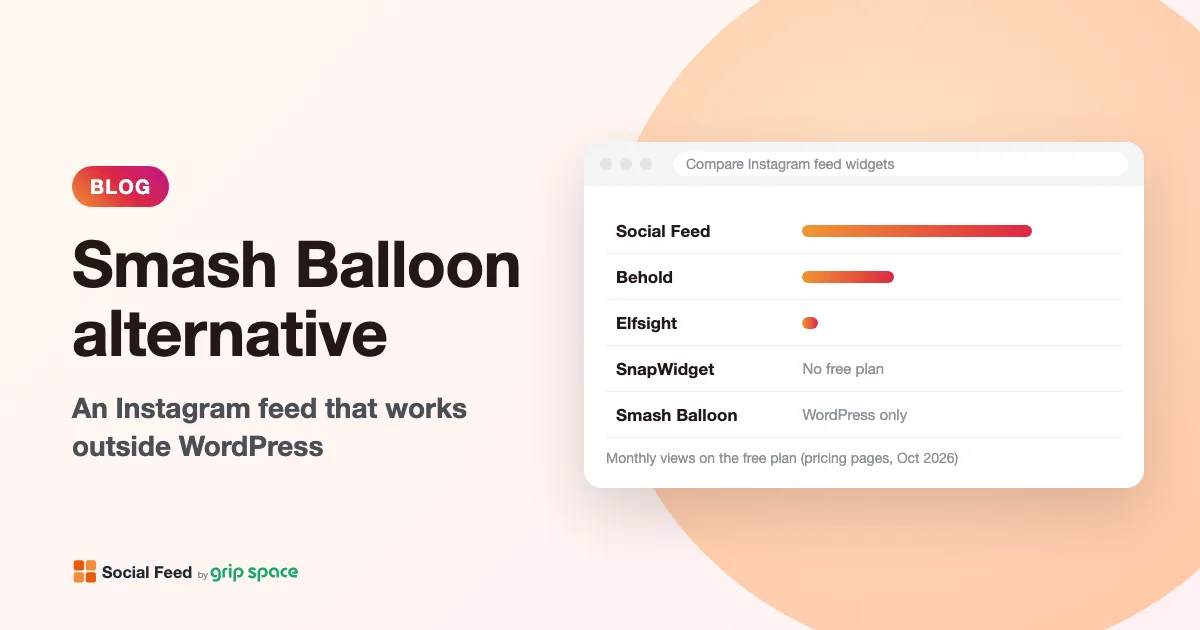
Smash Balloon alternative: an Instagram feed that works outside WordPress
Smash Balloon only runs on WordPress. An honest look at what it does well, where a hosted Instagram widget fits better, prices over two years and how to switch.
Read the article →