
Adding an Instagram feed to a school or university website
A school’s Instagram account is often the liveliest part of its online presence: first days, science fairs, games, concerts, graduation, a new building opening. The website, meanwhile, can feel static. An Instagram feed brings that day-to-day life onto the pages prospective families and students actually read. This guide covers where a feed helps on a school, college or university website, how to give admissions, news and athletics their own feeds, what to think about with student photos, and how to keep it accessible.
Updated October 12, 2026
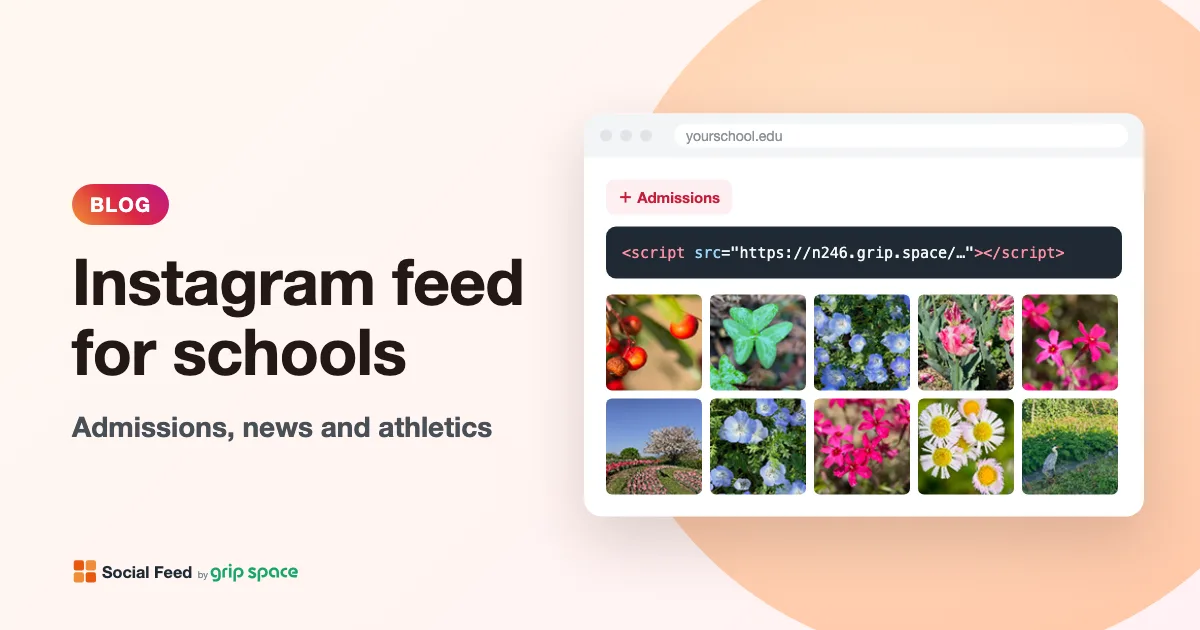
What a feed does for a school website
People visit a school website for two kinds of reasons. Some come for facts: dates, deadlines, tuition, programs, contacts, policies. Others are trying to get a feel for the place: Is it friendly? Active? Would my child, or would I, fit in here? Prospective students and families especially look for signs of real life behind the brochure language.
An Instagram feed is good at the second job. Recent photos and short videos from your own account show that things are happening this month, not just in the photos taken for the prospectus three years ago. Because the feed updates itself from Instagram, the communications team does not have to copy each post onto the website by hand.
A feed is not good at the first job. Deadlines, closures, schedule changes and emergency notices must be written on your pages, where they can be found, read by assistive technology and kept current. Posts scroll out of a feed as new ones are published, and captions are only visible when a visitor opens a post.
Which pages benefit, and which feed belongs there
Most schools have several audiences on one website. A single feed of everything is fine for the homepage, but other pages work better with a focused selection. With Social Feed by grip space, each widget has its own embed code and its own post filters, so you can place a different feed on each section.
| Page or section | Audience | What the feed should show | Suggested layout |
|---|---|---|---|
| Homepage | Everyone | Recent posts, without announcements that age quickly | Grid, 3–4 columns, 6–12 posts, below key links |
| Admissions / Visit us | Prospective students and families | Campus, classes, clubs, events, student life | Grid or slider, 6–9 posts |
| News or “Life at school” | Current families, community | Everything recent | Grid, 9–12 posts |
| Athletics | Students, families, fans | Games, teams, results photos | Slider, 8–12 posts |
| Arts and performances | Families, community | Concerts, theater, exhibitions | Grid, 6 posts |
| Alumni / Giving | Alumni, donors | Reunions, campus projects, alumni visits | Grid, 6 posts |
| Department or program page (higher ed) | Prospective and current students | That program’s posts | Grid, 3 columns, 6 posts |
For general placement advice, including page speed, see where to put an Instagram feed on your website.
One school account, several feeds
Many schools run one main Instagram account. If that is your situation, you can still give each section its own feed by using the caption keyword filter. It checks the text of each post’s caption and either shows only posts that contain one of your keywords, or hides them.
The simplest approach is to agree on a few hashtags and add them to captions as you post. For example:
| Feed | Caption keywords | Mode | Date range |
|---|---|---|---|
| Homepage | closed, closure, snow day, reminder, deadline | Exclude matching posts | Last 90 days |
| Admissions | #lifeatnorthfield, #campustour, #openhouse | Only matching posts | Last year |
| Athletics | #northfieldathletics, #gonorthfield | Only matching posts | Last 90 days |
| Arts | #northfieldarts | Only matching posts | Last year |
| Alumni | #northfieldalumni, reunion | Only matching posts | Any time |
Replace “northfield” with something specific to your school. Matching is not case-sensitive and finds the keyword anywhere in the caption, including inside longer words, so a specific tag works better than a short common word: “#arts” would also match “#artsweek” and “#artsandcrafts”, which may or may not be what you want. Only the caption is checked, not comments or text in the image, and posts without a caption never match an “Only matching posts” filter.
For the full matching rules, see how to filter an Instagram feed by keyword.
Set up the first widget completely, including the layout, then use Duplicate to copy its settings into the next one. In the copy, change only the keywords and the name, for example “Athletics page”.
Several accounts: athletics, admissions, departments
Larger schools and universities often have many Instagram accounts: the main institution, admissions, athletics, the library, individual colleges and departments, student organizations. A few practical points:
- Each feed shows one account. A widget cannot merge posts from several accounts into one feed. If the athletics department has its own account, the athletics page can show that account’s feed, and the homepage can show the main account.
- The account must be a professional account. Instagram Business or Creator accounts can be connected; personal accounts cannot. See the guide to Instagram professional accounts.
- Someone with access to the account has to connect it. Connecting means logging in to Instagram and approving access. Plan this with whoever manages each account, especially student-run or department-run accounts.
- Only the institution’s own accounts. The widget shows posts from accounts you connect. It does not show hashtag feeds, posts students tagged the school in, or other people’s accounts.
- Widgets count toward your plan. Every feed is a widget, whichever account it shows. See the plan section below.
Before connecting a student organization’s account, consider who will control it next year. Student officers graduate, passwords change and accounts go quiet. A feed from an inactive account shows old posts indefinitely, which can make a program look abandoned. For pages that must stay current, the institution’s own staff-managed accounts are the safer choice.
Student photos: think about the website as a second publication
This section is general information, not legal advice. Rules on student photos depend on your country, state, type of institution and your own policies, so check with your school’s or district’s privacy officer, legal counsel or communications policy.
The practical point is simple: an Instagram feed republishes what is on your Instagram account in a new place. A photo that was posted for followers of the school account will also appear on your website, in front of a different and often larger audience, and possibly on pages that search engines and visitors browse for years. If your school has rules about which student photos may be published and where, those rules should cover the website feed too.
In the United States, FERPA (the Family Educational Rights and Privacy Act) is the federal law that gives parents, and students once they turn 18 or attend a postsecondary institution, rights over education records. The U.S. Department of Education’s Student Privacy Policy Office publishes guidance on when a photo or video of a student counts as an education record. That guidance notes that schools often designate photos or videos of students taking part in public events, such as sporting events or concerts, as directory information, or get consent before sharing them publicly. Read the official guidance at studentprivacy.ed.gov (linked in Sources) rather than relying on summaries, including this one.
Some practical habits that many schools find helpful:
- Check your photo consent or opt-out list before posting, and make sure everyone who posts for any connected account knows where it is.
- Prefer group, wide and activity shots over close-up portraits of individual students on accounts that feed your website.
- Think twice about full names in captions next to photos of minors. If you show captions in the lightbox, they appear on your website as well.
- Agree on how to handle a removal request: who deletes the post, and how quickly.
If a post needs to come down, delete it on Instagram. The feed follows your account, so the post disappears from the website as well. On the paid plans this happens the next time the feed loads. On the Free plan the website is updated once a day, so a deleted post may still appear for up to about a day. If speed matters, you can also switch the widget to Unpublished in the dashboard, which makes the embed code show nothing immediately, until you switch it back.
What the widget does on visitors’ devices
Schools are often asked what third-party code on their website does, so here are the facts for Social Feed by grip space:
- The embed is a single script tag. It draws the feed directly in your page, next to where the tag is placed, without an iframe.
- The widget itself does not set cookies and does not write to the browser’s local storage.
- Photos and videos are loaded from Instagram’s servers, so visitors’ browsers connect to Instagram to fetch them. Mention this in your privacy notice if your policy lists third-party content.
- Views of each widget are counted so you can see a view count in the dashboard and stay within your plan’s monthly views.
Whether a privacy notice update or a review is needed depends on your institution’s policies. Share these points with whoever handles that.
Accessibility: keep essential content in text
Many schools and universities have accessibility requirements for their websites, and visitors include students and families who use screen readers, magnification or keyboard navigation. Be aware of the current state of the widget: images in the feed do not currently carry text descriptions (the alt attribute is empty), so a screen reader user does not hear what each photo shows. Captions are available, but only in the lightbox after a post is opened.
That makes it important to treat the feed as a visual extra, not as content in its own right:
- Never let the feed be the only place for information. If an open house date or a closure is posted on Instagram, it must also be written on the relevant page.
- Put a heading above the feed that says what it is, such as “Recent photos from our Instagram”, so everyone understands the section.
- Place the feed after the main content of the page, so the important information comes first for keyboard and screen reader users.
- Ask your accessibility coordinator to review the page, as you would for any embedded content.
Admissions pages: show student life, keep the path clear
Admissions pages have one goal: help a prospective student take the next step, whether that is booking a visit, requesting information or starting an application. The feed should support that, not compete with it.
- Put the key information and the main buttons first: programs, deadlines, “Visit” and “Apply”.
- Place the feed below, with a heading such as “See what’s happening on campus”.
- Use a keyword filter for student-life posts, and set the date range to the last year so last decade’s campus does not appear.
- Turn on the account header and Follow button so interested students can follow the account. You can change the button text, for example to “Follow our campus”.
- Set the click action to the lightbox, so visitors can view photos larger and read captions without leaving the page.
Athletics and events: recent and moving
Athletics posts are frequent and time-sensitive. A slider keeps a long stream of game photos to one row, and the last 30 or 90 days keeps the feed on the current season. If your athletics account posts many Reels, you can choose Reels only for a highlights strip, or Exclude Reels for a calmer photo grid.
Videos and Reels appear in the grid or slider as their cover image with a play mark; nothing plays until a visitor opens one. In the lightbox, videos start muted with the usual controls. The slider does not advance on its own; visitors scroll or use the arrows.
More on video: how to show Instagram Reels on your website.
Posting with the website in mind
Once a feed is on your website, your Instagram posts do double duty. A few small habits make them work better in both places:
- Keep the subject in the center. Tiles in the feed are square and cropped to the center of the image. A portrait-format photo of a stage or a team lineup may lose its edges in the tile. The lightbox shows the full image.
- Write captions that make sense out of context. “What a night!” means little on an admissions page a month later. “Spring concert by the Grade 8 choir” still informs.
- Add the section tag every time. If the athletics feed depends on #northfieldathletics, a game post without it will not appear there.
- Post announcements as text on the website first. Use Instagram to point to them, not to replace them.
- Choose clear video covers. Videos show their cover image in the feed, so the cover is what most visitors see.
Settings that suit school feeds
- Layout: grid for homepage and admissions, slider for athletics or a footer strip. Comparison: grid or slider.
- Columns and posts: 3 or 4 columns with 6, 9 or 12 posts fill complete rows. On phones the number of columns is reduced automatically.
- Max width: set a maximum width if your page layout is wide, so photos do not become huge on large screens.
- Carousel posts: events often produce multi-photo posts. Set the lightbox to show all images so visitors can browse the whole set, or hide carousel posts in a widget if you prefer single images.
- Date range: “Last year” on admissions pages, “Last 90 days” on the homepage and news, “Any time” only for evergreen pages.
- Publish status: prepare a feed for commencement or a campaign in advance, keep it Unpublished, and switch it on when the time comes.
Plans for schools with several feeds
The Free plan includes one widget with up to 16 posts and 3,000 views a month, and always shows a small “Powered by Social Feed” credit; new posts appear once a day. The Light plan includes 3 widgets, up to 30 posts each and 30,000 views a month. The Standard plan includes unlimited widgets, up to 50 posts each and unlimited views. The credit is optional on paid plans. A school using one main feed on the homepage can start on Free; a university with feeds on many department pages will usually need Standard. Current prices are on the pricing section.
Each widget shows its own view count in the dashboard, which helps you see whether, for example, the admissions feed is actually seen.
Setting it up, step by step
- Agree internally on which accounts may feed the website, which pages get a feed, and how student-photo rules apply.
- Make sure each account is an Instagram professional account.
- Create a Social Feed account and connect the first Instagram account.
- Create a widget, choose the layout and filters in “Settings & preview”, and check the preview.
- Copy the embed code and paste it into your page. Platform guides: WordPress, Squarespace, Wix, Webflow and HTML.
- Duplicate the widget for each further page and adjust its keywords.
- Open each page on a phone and confirm that key information and buttons come before the feed.
If your school’s site runs on a managed CMS used across a district or university, you may need permission to add a script tag. If the CMS removes script tags from page content, the feed cannot run on those pages; ask your web team whether there is an approved way to embed third-party scripts. The troubleshooting guide covers the usual reasons a feed does not appear.
Common mistakes
- Closure notices in the homepage feed. “School closed today” from last winter, still visible in August, confuses visitors. Exclude such words and use a date range.
- A feed from an abandoned account. A club account that stopped posting two years ago makes the program look inactive.
- The feed above the Apply button on phones. On a narrow screen a grid can push the important links far down.
- Expecting tagged or hashtag posts. Photos that students or parents post and tag the school in do not appear. Only posts from connected accounts do.
- Forgetting the website when reviewing photo consent. Whatever goes on a connected account also goes on the website.
Frequently asked questions
Can we show posts that students tag with our school hashtag? No. The widget shows posts from your own connected professional accounts only. If you want to feature student content, repost it on the school account with permission, in line with your policies.
Can the homepage show the main account and athletics together in one feed? No, each feed shows one account. You can place two feeds on the same page, one for each account.
Do we need a developer? Not usually. If you can add a code or HTML block to a page, you can add the feed. The difficulty is more often permission to add scripts on a centrally managed site.
How quickly do new posts appear? On paid plans, new posts appear without a daily wait. On the Free plan the feed on your site is updated once a day. Changes to widget settings take effect right away on all plans.
Can we hide one specific post? There is no option to pick individual posts. You can delete or edit the post on Instagram, or, if it has a distinctive word in its caption, exclude that word.
Comparing tools first? See our Instagram feed widget comparison.
Sources
- U.S. Department of Education, Student Privacy Policy Office, “What is FERPA?”: https://studentprivacy.ed.gov/faq/what-ferpa
- U.S. Department of Education, Student Privacy Policy Office, “FAQs on Photos and Videos under FERPA”: https://studentprivacy.ed.gov/faq/faqs-photos-and-videos-under-ferpa
Get your embed code in a few minutes. The Free plan needs no credit card.
Sign up freeMore articles
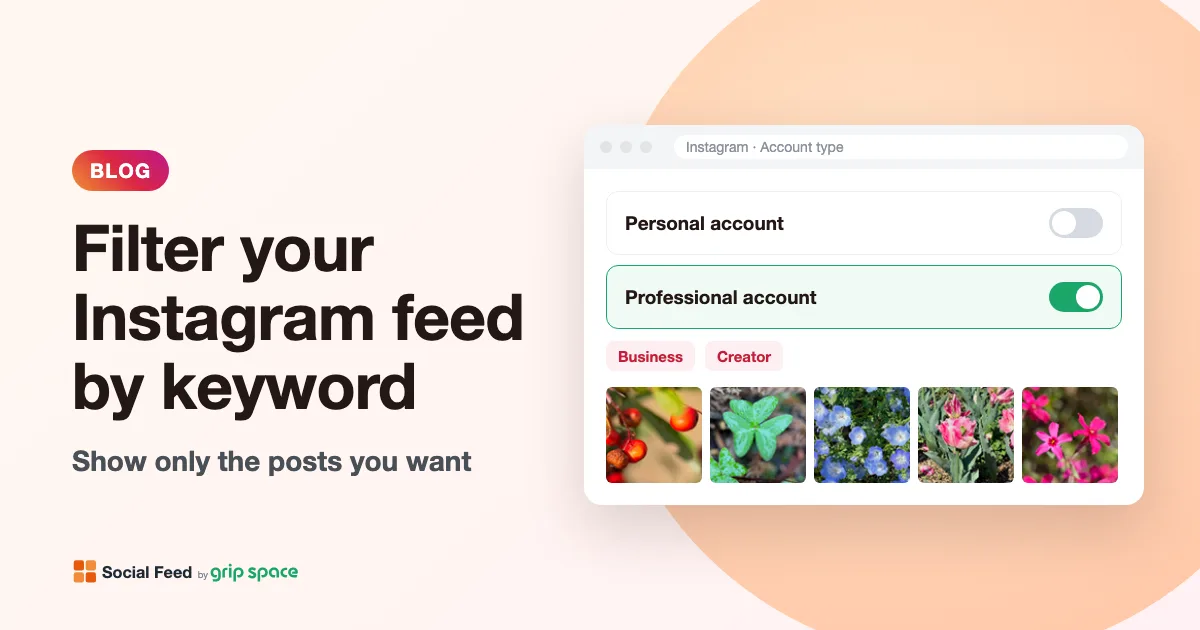
How to filter an Instagram feed by keyword on your website
Show only certain Instagram posts on your website, or hide some, with a caption keyword filter. How matching works, hashtag tag ideas and fixes.
Read the article →
How to add an Instagram feed to Weebly or Square Online
Add an Instagram feed to a Weebly site with the Embed Code element, or to Square Online with an Embed code section. Plan requirements, steps and fixes.
Read the article →
How to add an Instagram feed to a Duda site
Add an Instagram feed to a Duda site with the HTML widget, compare it with Duda’s Photo Gallery Instagram option, and set it up for client sites.
Read the article →
How to add an Instagram feed to a Framer site
Add an auto-updating Instagram feed to Framer with the Embed component’s HTML option: steps, sizing across breakpoints, testing on the live site and fixes.
Read the article →
Smash Balloon alternative: an Instagram feed that works outside WordPress
Smash Balloon only runs on WordPress. An honest look at what it does well, where a hosted Instagram widget fits better, prices over two years and how to switch.
Read the article →
Instagram access token expired: what it means for your website feed
Why Instagram access tokens expire, how long they last, how Social Feed renews them automatically, and what to do when your connection stops working.
Read the article →