
Instagram feed not showing in your page builder editor? Why, and how to check
You pasted the embed code, and the editor shows an empty box, a gray placeholder or nothing at all. Or the feed looks fine in the editor, but visitors never see it. Both happen because website editors do not treat scripts the way a normal page does. This guide explains what is going on behind the scenes, what each popular builder shows while you edit, and a short routine to find out in a minute whether your feed actually works for visitors.
Updated October 12, 2026
The short answer
An empty space in the editor usually does not mean anything is broken. The Social Feed widget is a small script. It only draws your posts when a browser runs that script on a real page. Many editors do not run custom scripts at all, run them only once, or run them inside a separate box. So the reliable test is always the same: publish or update the page, then open the live address in a new private window.
If the feed is there, you are done. Visitors see the feed, even if the editor never shows it.
If the feed is missing on the live page too, the editor is not the problem. Work through Instagram feed not showing on your website? Causes and fixes instead. This article focuses on the gap between the editor and the live page, in both directions.
How the widget gets onto your page
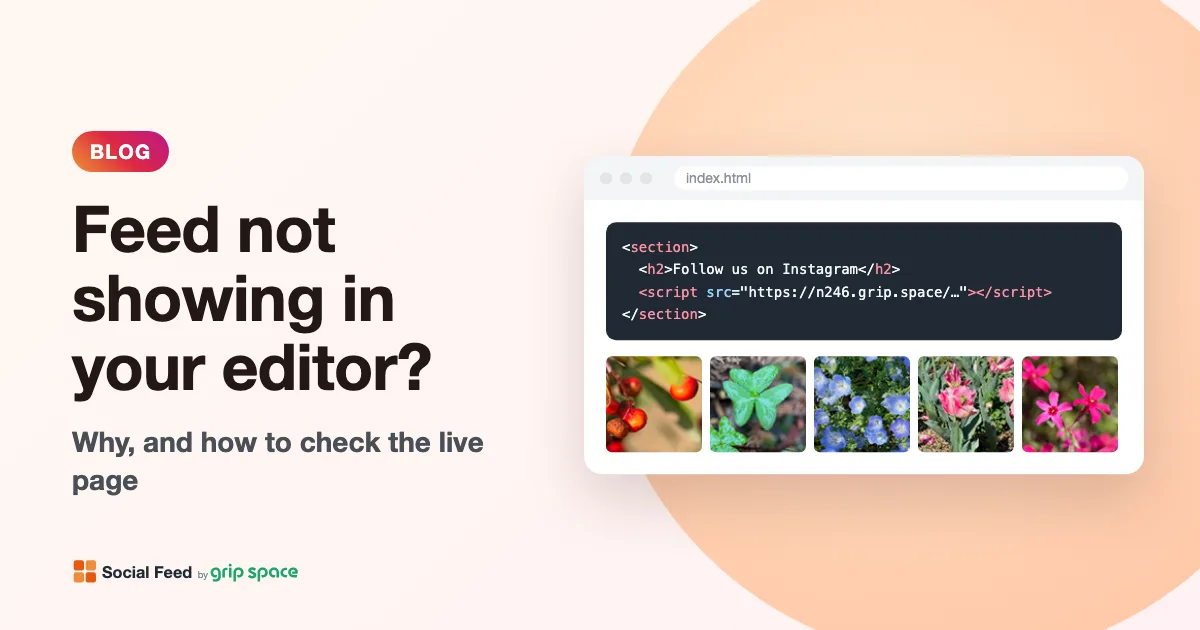
Knowing how the embed works makes the editor behavior much easier to understand. Your embed code is a single script tag that looks like this:
<script type="text/javascript" src="https://n246.grip.space/api/v1/instagram/widget/xxxxxxxx"></script>When a browser reaches that tag while building the page, it downloads the script and runs it. The script then does three things:
- It finds its own script tag on the page, using a standard browser feature called
document.currentScript. - It builds the feed (the account header, the tiles, the arrows for a slider) as normal page elements. There is no iframe.
- It places the feed directly after its own script tag, so the feed appears exactly where you pasted the code.
That design is what makes the widget easy to place on almost any site. It is also why editors matter: the feed only exists after the script has run, at the moment the browser first processes the tag. If the editor never runs the tag, or runs it somewhere else, there is no feed to see. Our article on where to place a widget script covers the placement side in more detail.
Why editors behave differently from live pages
Website editors are complicated applications. They need to let you drag, resize and rearrange content without reloading the page every time. To do that, they handle the content you paste in ways that a normal page does not. These are the four most common patterns.
1. The editor inserts your code without running it
Many editors add the content of a code block to the editing canvas with JavaScript, after the page has already loaded. A common way to do that is the browser’s innerHTML property. MDN, the standard web reference, notes that innerHTML prevents <script> elements from executing when they are injected. The script tag ends up in the canvas, but the browser never runs it. You see an empty box or the raw code.
Nothing is wrong with your code in this case. When the real page is built by the browser from the published HTML, the tag is processed normally and the feed appears.
2. The editor turns custom code off on purpose
Some platforms deliberately disable custom code while you are logged in, so that a broken script cannot lock you out of your own editor. Squarespace’s help page for code blocks says that code sometimes does not appear while you are logged in, and offers “Preview in Safe Mode” to view it. It also offers “Disable Scripts in Preview” for the case where a code block stops you from editing.
Here, a blank feed while editing is expected behavior, and the platform itself tells you to check another way.
3. The editor re-renders a section without reloading the page
Some editors load the page normally the first time, so scripts run, but then redraw individual sections as you change them. Shopify’s developer documentation describes exactly this for the theme editor: when merchants customize sections and blocks, their HTML is added, removed or re-rendered directly on the existing page without reloading, and any JavaScript that runs when the page loads won’t run again.
The typical symptom: the feed is visible when you open the editor, but disappears as soon as you edit or move the section that contains it, and comes back after you reload the editor. That is a quirk of the editor, not of your store.
4. The editor shows the code inside a separate preview box
Some builders do run your code, but inside an iframe: a separate small page embedded in the editor. The WordPress block editor’s Custom HTML block, for example, shows a preview of your output next to the code editor. Wix displays HTML elements inside an iframe on the page. In these cases you may see the feed, but at the width of that box, and sometimes with a cut-off bottom if the box is shorter than the feed.
What each builder shows while you edit
Editors change often, and the details depend on your theme, plan and version, so treat this as a guide to what is normal rather than a promise. The last column is the step that tells you whether visitors see the feed.
| Platform | Where you paste the code | What you may see while editing | How to check for real |
|---|---|---|---|
| WordPress (block editor) | Custom HTML block | The code, or a preview next to the code editor | Update the page, then open it in a private window |
| Elementor | HTML widget | The feed may or may not appear in the editing canvas | Update, then view the page on the front end |
| Shopify | Custom Liquid section in the theme editor | The feed may disappear after you edit that section | Reload the editor, or open the store in a new tab |
| Wix | Embed HTML element | The feed inside a fixed-size box | Publish, then check on a computer and a phone |
| Squarespace | Code block (HTML mode) | Often nothing while logged in | Preview in Safe Mode, or a private window |
| Webflow | Code Embed element | A placeholder box in the Designer | Publish, then open the published page |
Step-by-step setup for each of these platforms is in our guides: WordPress, Shopify, Wix, Squarespace, Webflow and plain HTML. For Elementor, see how to add an Instagram feed to Elementor.
The one-minute check: does the live page work?
Whatever the editor shows, this routine tells you what visitors see. It takes about a minute.
- Save and publish. In most builders, “Save” and “Publish” or “Update” are different things. A draft is not visible to visitors.
- Copy the page’s public address. Use the address visitors use, not the editor’s address, which often contains words like “editor”, “preview” or “customize”.
- Open it in a private window. A private (incognito) window means you are not logged in, so you see what a visitor sees. Some platforms change the page for logged-in owners.
- Reload once with a hard refresh (Ctrl+Shift+R on Windows, Cmd+Shift+R on a Mac) to rule out a cached old version of the page.
- Look at the spot where you pasted the code. The feed should appear there within a moment of the page loading.
- Check on a phone, too. The feed adjusts its number of columns to the space it has, so it will look different on a phone. That is expected. See why your Instagram feed looks the wrong size on mobile if it looks too small or squashed.
If the feed appears in the private window, the editor was the only issue, and there is nothing to fix. If it does not, continue with the next section.
Is the code on the live page at all?
When the live page shows nothing, first find out whether your platform kept the code. Open the live page in a computer browser, open the developer tools (F12 on Windows, Cmd+Option+I on a Mac), go to the Console tab and paste this line:
document.querySelectorAll('script[src*="instagram/widget"]').length + ' script(s), ' + document.querySelectorAll('.grip-ig-widget').length + ' feed(s)'The answer tells you where to look next:
| Result | What it means | What to do |
|---|---|---|
| 0 script(s), 0 feed(s) | The embed code is not on the published page | The platform removed it, it was saved in a draft, or it is on a different page or template |
| 1 script(s), 0 feed(s) | The code is there but did not draw a feed | Open the script address on its own (see below) |
| 1 script(s), 1 feed(s) | The feed is on the page | It may be hidden or squeezed by your layout; look for it in the Elements tab |
To open the script address on its own, copy the address from the src part of your embed code and paste it into a new browser tab. You will see a page of code. If the feed is working, it is a long block of JavaScript. If not, the very first line often tells you why:
| First line you see | Meaning |
|---|---|
/* instagram widget: unpublished */ | The widget is switched to Unpublished in the dashboard. Switch it back on. |
/* instagram widget: not found */ | This embed code belongs to a widget that no longer exists. Copy a fresh code from the dashboard. |
/* instagram widget: monthly view limit exceeded */ | The account went over its monthly view limit two months in a row, so the feed is paused. |
Each of these is explained in detail, with fixes, in the main troubleshooting article. To pause a feed on purpose, see how to hide your Instagram feed temporarily.
The reverse problem: visible in the editor, missing on the live site
This one is more confusing, because the editor seems to prove that the code works. But the editor and the live page are produced differently, and several things can affect only the live page.
- The change was never published. The editor shows your latest draft. Visitors see the last published version. Publish or update again, then check in a private window.
- WordPress removed the script on save. The WordPress documentation for the Custom HTML block explains that if a user lacks the
unfiltered_htmlcapability (a Contributor, for example), WordPress sanitizes the block’s content and strips disallowed tags such as<script>and<iframe>when the post is saved or updated. The code may look fine while you type, and be gone after saving. Ask an administrator to add the code. - A speed or caching tool changed the script. Optimization plugins and services can delay, combine or move scripts on the live page only. A delayed script can lose track of where it was placed. See where to place the widget script for how to exclude the feed from these tools.
- The live page serves an old cached copy. Page caches on your host or CDN can keep showing the version from before you added the code. Clear the cache in your platform or plugin settings.
- A Content Security Policy blocks it. Security headers usually apply to the live site, not the editor. If the Console shows a “Content Security Policy” error, read Content Security Policy and the Instagram widget.
- Squarespace index pages and Ajax loading. Squarespace’s help page notes that custom code might not render on a page inside an index page, or when Ajax loading is on. It suggests removing the page from the index or turning off Ajax loading to test.
- The widget is unpublished or paused. This affects the live page only. Social Feed’s own dashboard preview still shows your posts, so the dashboard looking fine does not prove the live page works.
The editor shows the feed, but it looks different
When the editor does run the script, the feed can still look different from the live page. Usually this is about space, not settings.
| What you notice | Why | What to do |
|---|---|---|
| Fewer columns than you set | The widget measures the actual space it is placed in and drops columns when tiles would get narrower than about 100 pixels. Editor canvases are often narrower than the real page. | Judge columns on the live page at full width. |
| The bottom of the feed is cut off | The editor shows the code in a fixed-height box. | Make the box taller, or use a slider, which stays one tile high. |
| The lightbox opens inside a small box | Inside an iframe, the lightbox can only cover that iframe. | On Wix, consider setting the click action to open the post on Instagram. |
| The feed is centered, or not as wide as the area | The widget never grows past its maximum width setting, and centers itself when the space is wider. | Set the maximum width to 0 to fill the space, or to a number to cap it. |
| Different text in the header | The widget’s own labels follow the language of the page (Japanese pages show Japanese, all others English). An editor page may have a different language setting from your site. | Check the live page. |
Device preview buttons in editors (the phone and tablet icons) are a useful exception. When the editor runs the script, switching to a phone-sized preview should show fewer columns, because the widget reacts to its container changing size. If the editor does not run scripts, those previews will be empty too.
Changed a setting, but the editor still shows the old look
Your layout, columns, colors and filters live in the Social Feed dashboard, not in the embed code. When you change them, the embed code stays the same, and the page picks up the new settings the next time the script loads. An editor that keeps the old version of the page in memory will keep showing the old look until you reload it.
On the Free plan, new Instagram posts appear on your site once a day. Changing a setting, such as the number of posts or the layout, takes effect right away, even on the Free plan. If new posts are what is missing, read why your Instagram feed isn’t updating.
Do editor previews count toward your monthly views?
Every time the embed script runs and draws the feed, it counts one view toward your account’s monthly total. That includes an editor preview that runs scripts, not just visits from the public. Known bots and crawlers are filtered out; you, in your own editor, are not.
For most sites this is a small number. But if you spend an afternoon editing a page that reloads the feed each time, it adds up, which matters more on the Free plan with its 3,000 views per month. Two simple habits help:
- Add the embed code as one of the last steps, after the rest of the page is laid out.
- Avoid repeatedly reloading the editor just to look at the feed. Check it once on the live page instead.
You can see your current month’s views at the top of the widget list in the dashboard. Plan limits are on the pricing section.
Making an invisible block easy to find
If your editor shows the feed as an empty or tiny box, it is easy to lose track of it, or to delete it by accident while rearranging the page. A few small habits help:
- Rename the block. Many editors let you name blocks or layers. The WordPress block editor, for example, offers a rename option in the block’s More options menu. A name like “Instagram feed” makes it obvious in the outline or layers list.
- Add a heading above it. A heading such as “Follow us on Instagram” is visible in every editor and tells visitors what the section is.
- Keep a copy of the embed code. You can always copy it again from the dashboard, but keeping it in a note saves a step if a block gets deleted.
- Use a separate section. Putting the feed in its own section makes it harder to delete while editing the text around it.
Frequently asked questions
Is there a way to make the feed show in every editor? Not reliably. Whether an editor runs custom scripts is up to the platform, and many deliberately do not. Because the widget is a script and not an iframe, it cannot draw itself without being run. What matters is the published page.
Should I use an iframe embed instead, so it shows in the editor? Social Feed’s embed is a script tag. Running it inside an iframe of your own would limit the lightbox to that frame and give you a fixed height to manage, as on Wix. For most sites, the script tag on the page itself works best.
The feed appears in the editor but the live page shows the raw code as text. The code was pasted into a block that shows text, not one that runs HTML. In Squarespace, set the code block’s mode to HTML. In other builders, use the custom HTML or code element rather than a text or paragraph block. Our article on WordPress removing embed code covers the WordPress side.
Do I need to paste the code again after changing settings? No. The code stays the same. Only paste a new code if you create a new widget, or if the old widget was deleted.
The feed is in the footer template, and the template editor shows nothing. Template and theme editors follow the same rules. Check a published page that uses the template. For more on site-wide placement, see adding an Instagram feed to your website footer.
I checked the live page in a private window and it is still empty. Then the editor is not the cause. Follow the full troubleshooting checklist, or email us at info@grip-space.co.jp with the page address and we will take a look.
Set it up
Social Feed by grip space shows your own Instagram posts on your website with one embed code, and works with any platform that lets you add custom HTML. The Free plan includes one widget. Sign up for free and paste the code into your page, then check the result on the live site.
Sources
- MDN Web Docs, “Element: innerHTML property”: https://developer.mozilla.org/en-US/docs/Web/API/Element/innerHTML
- MDN Web Docs, “Document: currentScript property”: https://developer.mozilla.org/en-US/docs/Web/API/Document/currentScript
- WordPress Documentation, “Custom HTML”: https://wordpress.org/documentation/article/custom-html/
- Elementor Help Center, “HTML widget”: https://elementor.com/help/html-widget/
- Shopify Developers, “Integrate sections and blocks with the theme editor”: https://shopify.dev/docs/storefronts/themes/best-practices/editor/integrate-sections-and-blocks
- Wix Help Center, “Wix Editor: Embedding a Site or a Widget”: https://support.wix.com/en/article/wix-editor-embedding-a-site-or-a-widget
- Squarespace Help Center, “Code blocks”: https://support.squarespace.com/hc/en-us/articles/206543167-Code-blocks
Get your embed code in a few minutes. The Free plan needs no credit card.
Sign up freeMore articles
Instagram feed too small or squashed on mobile? How to fix the size
Why an Instagram feed can look tiny, squashed, too wide or cut off on phones, and how to fix it with the right width, columns and container CSS.
Read the article →
Instagram videos not playing in your website feed? Causes and fixes
Instagram videos or Reels won’t play in your website feed? Find the cause from what you see: missing files, autoplay rules, the video setting or a CSP.
Read the article →
Old posts showing in your Instagram feed? Order, pinned posts and filters
Why old Instagram posts appear in your website feed: post order, pinned posts, filters that reach back, Free plan timing, and how to keep the feed current.
Read the article →
Broken images in your Instagram feed: causes and fixes
Gray squares or broken-image icons in your Instagram feed? How to find the cause in a minute, from deleted posts and CSP rules to blockers and theme CSS.
Read the article →
What happens when your Instagram widget reaches its monthly view limit
How Social Feed counts widget views, the exact two-months-in-a-row pause rule, how to read the usage meter, and what upgrading or downgrading changes.
Read the article →
Instagram feed showing twice on your website? How to find and remove the duplicate embed code
Instagram feed appearing twice? The embed code is usually on the page twice: theme plus page, footer plus content. Find every copy and see why it doubles views.
Read the article →