
Instagram feed for florists and bakeries: showing fresh work every day
Florists and bakers make something new every day, and most of it is gone by evening. Instagram is where that work gets photographed; your website is where people decide to order. An Instagram feed connects the two, so the site shows this week’s bouquets and bakes instead of the stock photos you uploaded when the site was built. This guide covers daily posting and how quickly posts reach your site, separate galleries for custom orders, peak days like Valentine’s Day and Mother’s Day, and the settings that suit flowers and food.
Updated October 12, 2026
Why daily work changes how you use a feed
Most businesses post a few times a week. Florists and bakeries often post every day, sometimes several times: the morning bouquets, the day’s bread, a wedding order going out, a birthday cake picked up at noon. That volume is an advantage. Your website always has something new to show, and visitors can see that the shop is busy and the work is current.
It also brings two questions other businesses do not worry about as much. How quickly does a post reach the website? And how do you stop a feed of “today’s bouquets” from suggesting that a sold-out arrangement is available? The rest of this article answers both, and then looks at custom orders, seasonal peaks and design.
How quickly a new post reaches your website
This is the most important difference between the plans for a daily-posting business.
| Free plan | Light and Standard plans | |
|---|---|---|
| When a new post appears on the site | At the next daily refresh, so up to about a day after you post | On the next page load, as soon as Instagram makes the post available |
| When a deleted post disappears | At the next daily refresh | On the next page load |
| When you change settings or filters | Right away | Right away |
| Right after installing the widget | Your latest posts appear right away | Your latest posts appear right away |
On the Free plan, the website feed effectively runs about a day behind your Instagram. For many shops that is fine: yesterday’s bouquets show your style just as well as today’s. Where it matters is when the feed is presented as “today”. A section titled “In the case today” that shows yesterday’s pastries is a small broken promise.
So, on the Free plan, label the feed honestly: “Recent work”, “This week at the shop” or “From our Instagram”. On a paid plan, a post you publish at 8 a.m. shows up for the next visitor who loads the page, so a “Today’s bakes” section can genuinely mean today. If a new post is still missing after you expect it, see why an Instagram feed isn’t updating.
The sold-out problem
A feed is a record of what you made, not a live stock list. A photo of the last cinnamon rolls at 9 a.m. still looks tempting at 4 p.m., when they are long gone. Nothing in a feed knows what is left on the shelf.
- Write the caption as a record, not an offer. “This morning’s cinnamon rolls” ages better than “Cinnamon rolls available now!”.
- Keep availability on the page. If you sell out regularly, say so in text next to the feed: “Most items sell out by noon; pre-order for pickup.”
- Use the lightbox, not a link, on order pages. With “Open lightbox”, a visitor who opens a post can read the caption and close it to find the order button right there.
- Make the order route obvious. Place the order or pre-order button before the feed on phones, not below a long grid.
A caption habit that organizes your feed
Florists and bakeries usually make several kinds of work: everyday items, custom orders, events, seasonal specials. If your captions carry a consistent tag for each kind, the widget’s caption keyword filter can show each kind on the right page.
| Kind of post | Example tag | Where it goes on the site |
|---|---|---|
| Daily bouquets, the day’s bread and pastries | #daily | Homepage, “Shop” or “Visit us” page |
| Custom cakes, special arrangements | #custom | Custom orders page, next to the inquiry form |
| Wedding and event work | #weddings, #events | Weddings or events page |
| Sympathy and funeral flowers | #sympathy | Its own page only, kept off the homepage |
| Seasonal specials | #mothersday2026 | A seasonal landing page |
| Classes and workshops | #workshop | Workshops page |
Put the tag in the caption itself; hashtags in comments are not checked. Matching ignores case and finds the keyword anywhere in the caption, including inside longer words, so choose tags that will not appear by accident. “#cake” would match “#cupcake” and “#cakedecorating”; “#customcake” is more precise. You can enter several keywords separated by commas, and a post matches if it contains any of them.
The full rules, including how to tag older posts, are in how to filter an Instagram feed by keyword.
Florists: what to show where
- Homepage. A slider of recent everyday work, limited to the last 30 days so it always looks seasonal. Flowers change with the seasons, and a December homepage full of summer sunflowers looks off.
- Same-day delivery page. A short strip of the kinds of arrangements you can deliver today. State clearly in text that the photos show examples and that stems vary with what is in season.
- Sympathy page. A quiet grid filtered to “#sympathy”. Keep these posts off the homepage with “Exclude matching posts”, since a celebratory homepage is the wrong place for them.
- Subscriptions. If you sell weekly or monthly flower subscriptions, a feed of past subscription bouquets shows customers the range they can expect.
Wedding work is a large topic of its own, with venues, seasons and couples’ consent. Our article on Instagram feeds for wedding vendors covers it in detail, including florists.
Bakeries and cake makers: what to show where
- Homepage or “Visit us” page. The day’s bread and pastries, labeled to match your plan’s refresh timing, as described above.
- Custom cake page. A grid filtered to “#customcake”, placed right before the inquiry form. Custom cakes are one-offs, and a grid of past work is the portfolio customers want to see.
- Menu or product pages. A small slider filtered to a product tag, such as “#sourdough”, under the written description, price and allergen information.
- Wholesale page. If you supply cafés and restaurants, a feed of wholesale deliveries or partner posts, filtered to “#wholesale”, shows scale and reliability.
If you also run a café with seating, our article on restaurant and café websites covers menus, specials and opening-hours posts in more detail.
Custom orders: a portfolio that builds itself
For custom cakes and special arrangements, the website feed works as a portfolio that updates every time you post a finished piece. A few habits make it work well:
- Post finished work as carousels. Several angles of a cake or bouquet in one post. Set carousel posts to “All images in the lightbox” so visitors can swipe through every angle when they open the post, while the grid stays one tile per post.
- Write the brief in the caption. “Three-tier lemon and elderflower, 80 guests, pressed-flower decoration.” With “Caption” enabled in the lightbox settings, visitors can read it, and it helps them describe what they want.
- Pick a number of posts that fills the grid. 12 posts make full rows at 2, 3, 4 and 6 columns, which suits both computers and phones.
- Do not limit the date range. Custom work is a portfolio, so “Any time” is usually right here, unlike the homepage.
Before showing customers’ celebrations (names on cakes, children at parties, couples), consider whether the customer would expect to see it on your website. If a customer shared a photo and you reposted it, get their permission for website use too. See Instagram photos on your website: copyright and permission basics.
Peak days: Valentine’s, Mother’s Day and the holidays
Florists and bakeries have a handful of days that make the year: Valentine’s Day, Mother’s Day, Thanksgiving, the winter holidays, graduation season. Each benefits from a landing page with pre-orders and a feed that shows what you made for that occasion.
- Create a widget for the occasion with a tag that includes the year, for example “#valentines2026”, in “Only matching posts” mode. Including the year keeps last year’s designs out, since a contains match on “#valentines” would also find them.
- Before this year’s designs are ready, show last year’s with the previous year’s tag and say so in the heading: “What we made last Valentine’s Day.”
- Paste the embed code on the landing page.
- After the day, switch the widget to Unpublished. The embed code then shows nothing, so you can leave it in place. Next year, change the keyword and switch it back on.
Copy a finished seasonal widget with the Duplicate button to create the next occasion’s widget in seconds. More on switching widgets off in how to hide your feed temporarily.
Peak days also bring peak traffic. On the Free and Light plans, there is a monthly view limit (3,000 and 30,000 views). One busy month does not switch your feed off: a widget is paused only after two calendar months in a row over the limit, and we email you at 80% and 100% of the limit. If February and March are both busy, though, keep an eye on it.
Reels of the work in progress
Process videos (arranging a bouquet, piping a cake, scoring a loaf) are some of the most watched content for florists and bakers. In the feed, a Reel appears as a still tile and plays in the lightbox, starting muted with controls. Some tips:
- Choose a strong cover. The tile shows the Reel’s cover, cropped square. A finished product makes a better tile than a half-built one.
- Separate process and product. On an order page, visitors want finished items. Use “Exclude Reels” there, and put a “Reels only” widget on an About or Workshops page, where process tells your story.
- Keep important text near the middle. Reels are tall and tiles are square, so text at the top or bottom of the cover may be cut off.
More in how to show only Instagram Reels on your website.
Workshops and classes
Many florists run wreath-making or arranging workshops, and many bakeries teach bread or cake decorating classes. A workshops page is a natural home for a feed, because people booking a class want to see what they will make and what the room feels like.
- Tag finished class work. A “#workshop” tag on posts of participants’ wreaths or loaves lets the workshops page show only those.
- Combine with a date range. If your classes change with the seasons, “Last 90 days” keeps the page on the current program, as long as you post from classes regularly.
- Ask before featuring participants. People in a class did not necessarily agree to appear on your website. A short note at booking, and a quick check before posting faces, avoids problems.
- Keep dates and booking in text. Class dates, prices and the booking link go above the feed.
A weekly posting routine that keeps the site fresh
Because the website feed follows your Instagram, the easiest way to keep your site current is a posting routine you can sustain in a busy shop. You do not need to post more; you need to post with the website in mind.
| When | What to post | Why it helps the website |
|---|---|---|
| Each morning | One photo of the day’s main work, with your daily tag | Keeps the homepage feed current |
| After each custom order | A carousel of the finished piece, with the brief in the caption | Grows the portfolio page by itself |
| Once a week | A process Reel or a behind-the-scenes post | Feeds the About or Workshops page |
| A few weeks before a peak day | The designs you will offer, with the occasion tag | Fills the seasonal landing page before pre-orders open |
Spend a minute on the caption each time: the right tag, a short description and, ideally, alt text. Those three things decide where the post appears on your site and how well it is understood there.
Settings that suit flowers and food
| Setting | Suggestion | Why |
|---|---|---|
| Layout | Slider on the homepage and product pages; grid on portfolio pages | A slider stays one tile high; a grid shows a whole portfolio at a glance |
| Image spacing | 4–8 px | A little white space separates busy, colorful photos |
| On click | Open lightbox | Visitors stay on your site, close to the order button |
| Show in lightbox | Caption on, like count optional | Captions describe the piece; likes add little for a buyer |
| Icon on hover | Show | Tells visitors on computers that tiles are clickable |
| Text color | Dark, or Light on a dark background | Keeps the username, post count and credit readable |
| Follow button | Your brand color, with a label like “See today’s flowers” | A specific label gives a reason to follow |
Photos appear as square tiles, so frame bouquets and cakes with the subject in the center. Tall arrangements and tiered cakes look best when shot with some space around them. For how different aspect ratios are cropped, see Instagram image sizes on your website.
Alt text and the words on your page
Each image in the feed gets a text alternative for people using screen readers: your Instagram alt text if you wrote one, otherwise the start of the caption, otherwise “Instagram post by” and your username. For flowers and food, a good alt text names what is in the photo: “Hand-tied bouquet of peach roses, white ranunculus and eucalyptus.” On Instagram, you can add alt text under Accessibility when you post, and edit it later from the post’s Edit option.
Still, anything a customer needs to rely on should be text on your page: prices, sizes, delivery areas and cutoff times, and for bakeries, ingredients and allergens. A photo of a chalkboard is not a menu, and a caption mentioning nuts is not allergy information.
And do not expect the feed to do your SEO. It is drawn by JavaScript and its images are served by Instagram, so the text on your pages does most of the work in search. See does an Instagram feed help SEO?
Which plan fits a florist or bakery
| Plan | Widgets | Posts per widget | Views per month | New posts appear | Fits |
|---|---|---|---|---|---|
| Free ($0) | 1 | 16 | 3,000 | Once a day | One “Recent work” feed on the homepage |
| Light ($8/mo or $80/yr) | 3 | 30 | 30,000 | Next page load | Homepage “today” feed, custom-order portfolio and one seasonal page |
| Standard ($24/mo or $240/yr) | Unlimited | 50 | Unlimited | Next page load | Several product, occasion and portfolio pages, or more than one location |
The Free plan always shows a small “Powered by Social Feed” credit below the feed; on paid plans it is optional. See current prices and what the free plan includes.
Setting it up, step by step
- Make sure your Instagram account is a professional account (Business or Creator). See Instagram professional accounts.
- Decide on your tags and use them in captions from today. Add them to a handful of strong older posts if a page looks thin.
- Create a Social Feed account and connect your Instagram account.
- Create a homepage widget and give it a heading that matches your plan’s refresh timing.
- Duplicate it for the custom-order or seasonal page and change the keyword and layout.
- Paste the embed codes. Platform guides: Shopify, WordPress, Wix, Squarespace, Webflow and HTML.
- Check the pages on a phone: the order button should come before the feed.
Common mistakes
- “Today” on a feed that updates once a day. Label it “Recent” on the Free plan, or upgrade if “today” matters.
- Sympathy work next to birthday cakes. Give sensitive work its own tag and page, and exclude it elsewhere.
- A generic tag. “#cake” or “#rose” matches too much. Use specific tags.
- Last year’s Valentine’s designs presented as this year’s. Include the year in seasonal tags.
- Expecting customer photos. The feed shows your own account’s posts, not posts that tag you or use your hashtag. Repost favorites with permission.
Frequently asked questions
Can the feed show which items are still available? No. It shows posts, not stock. Keep availability and ordering on the page or in your online store.
Can I tag products in the feed so people can buy them? No, the widget does not support shoppable or product tags. Link to products in the page text next to the feed. See using an Instagram feed on your online store.
We have two shops with one Instagram account. Can each shop page show its own posts? Yes, if captions name the shop. Create one widget per shop with that shop’s tag. If each shop has its own account, note that one feed shows one account.
Can the feed show photos customers post of our cakes or flowers? Not directly. It shows posts from your connected account only, not tagged posts or hashtag searches. With the customer’s permission, you can repost a photo on your account, and it then appears like any other post.
I post several times a day. Will the feed get cluttered? You set the number of posts each widget shows, so a homepage slider can show 10 while the portfolio shows more. Filters keep each feed focused.
Related reading
- Other industry guides: restaurants and cafés, wedding vendors, hair and beauty salons, hotels and B&Bs and events and festivals.
- How to show only recent Instagram posts, for seasonal homepages.
Sources
- Instagram Help Center, “Edit the alternative text for a post on Instagram”: https://help.instagram.com/503708446705527
Get your embed code in a few minutes. The Free plan needs no credit card.
Sign up freeMore articles
Adding Instagram feeds to client websites: a workflow for web designers and agencies
A step-by-step workflow for adding Instagram feeds to client sites: scoping, the client’s sign-in, staging, launch, handover and ongoing care.
Read the article →
Instagram feed for tattoo studios and artists: portfolios that update themselves
Show each tattoo artist’s Instagram portfolio on your studio website: per-artist feeds, healed work, flash, guest spots and settings for dark sites.
Read the article →
Instagram feed on your website: a 15-point launch checklist
A 15-point checklist for launching an Instagram feed on your website: account, plan, filters, layout, placement, mobile, speed, accessibility and privacy.
Read the article →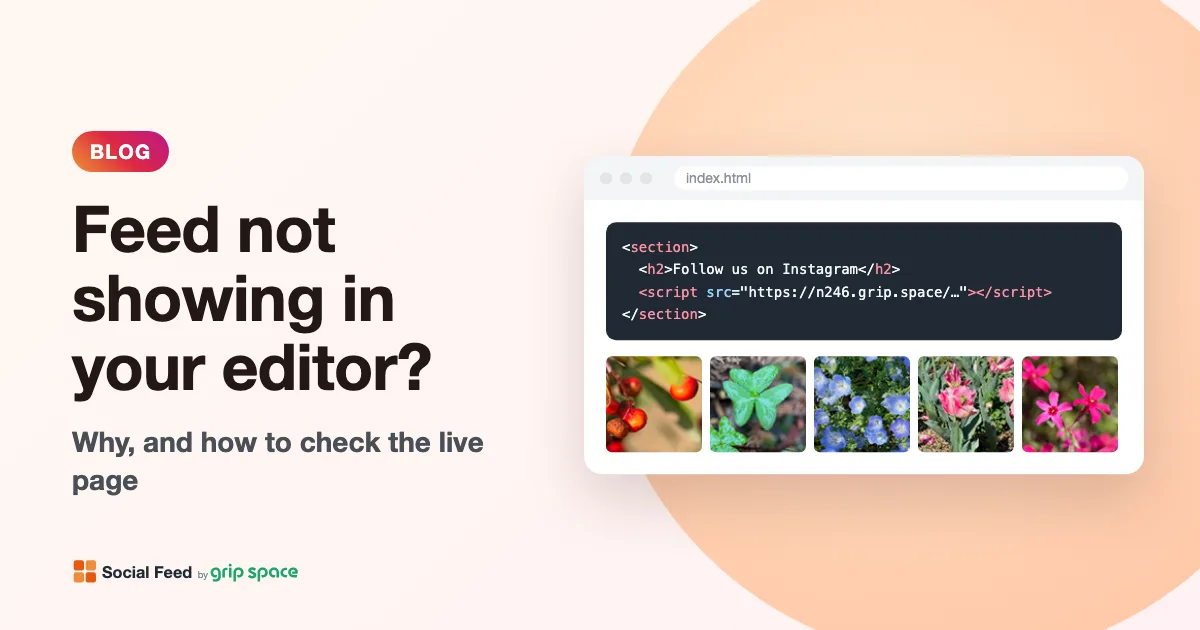
Instagram feed not showing in your page builder editor? Why, and how to check
Your Instagram feed works on the live site but not in the editor, or the other way around. Why page builders treat scripts differently, and how to check.
Read the article →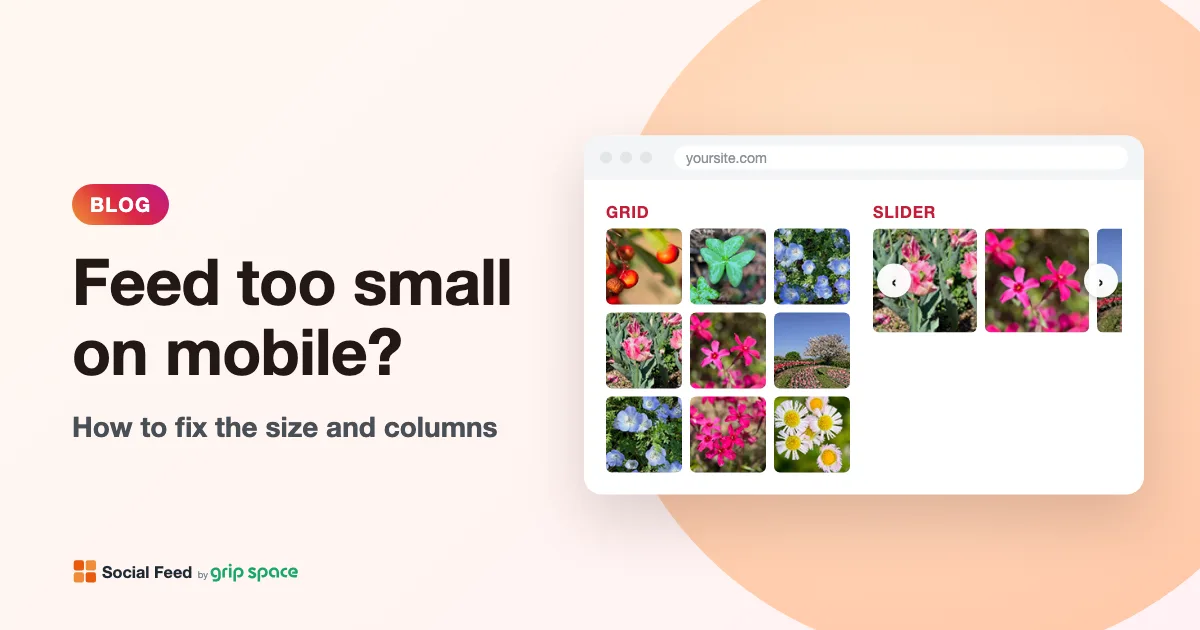
Instagram feed too small or squashed on mobile? How to fix the size
Why an Instagram feed can look tiny, squashed, too wide or cut off on phones, and how to fix it with the right width, columns and container CSS.
Read the article →
Instagram videos not playing in your website feed? Causes and fixes
Instagram videos or Reels won’t play in your website feed? Find the cause from what you see: missing files, autoplay rules, the video setting or a CSP.
Read the article →