
Instagram feed for event, festival and conference websites
An event website has a strange life. It is quiet for months, then busy for a few weeks, then everyone wants photos of what just happened. An Instagram feed can carry that rhythm well: build-up before the event, energy on the day, proof for next year’s ticket buyers afterwards. The catch is that an account full of last year’s headliners can confuse people who are buying for this year. This guide shows how to keep each edition separate, what to put on which page, and what to expect on the busiest days.
Updated October 12, 2026
What a feed does for an event
People deciding whether to buy a ticket, register for a conference or travel to a festival ask the same few questions: what is it like, who goes, is it worth it, and is it actually happening this year? Photos and short videos answer the first three better than any description. Your Instagram account already holds those photos, so a feed puts them in front of visitors without extra work.
The fourth question is where events differ from shops or restaurants. An event has editions. A crowd shot from three years ago with a different stage, different sponsors and a different date on the banner can make visitors wonder which year the website is about. A good event feed is filtered so that each page shows the right edition.
The year of an event, as a feed sees it
| Phase | What you post | What the website feed should do |
|---|---|---|
| Announcement | Dates, early-bird tickets, first speakers or acts | Show the new edition’s posts, plus a few highlights from last year as proof |
| Build-up | Line-up reveals, venue setup, countdowns | Keep the homepage on this edition; show the full line-up in text |
| Event days | Many posts and Reels per day | Show what is happening now; know how fast new posts appear on your plan |
| Afterglow | Recap Reels, thank-yous, photo albums | Feature recaps; start a “past editions” page |
| Quiet months | Occasional posts, behind the scenes, save-the-dates | Avoid making the site look abandoned; consider switching some feeds off |
One hashtag per edition: the most reliable setup
The simplest way to keep editions apart is a hashtag that includes the year, used in the caption of every post about that edition: for example “#RiverFest2026” or “#DevSummit26”. Social Feed by grip space can then show only those posts with a caption keyword filter.
- Pick an edition tag and add it to the caption of every post about this year’s event. Put it in the caption itself; hashtags added in a comment are not checked.
- In the widget’s “Settings & preview”, enter the tag in Caption keywords and choose “Only matching posts”.
- Check the preview. Only posts whose captions contain the tag appear.
- Next year, change the keyword to the new tag. The embed code on your page stays the same.
A few rules of the keyword filter matter for event tags:
- Case does not matter. “#riverfest2026” and “#RiverFest2026” match each other.
- It is a “contains” match. A keyword matches anywhere in the caption, including inside a longer word. “#RiverFest” would match both “#RiverFest2025” and “#RiverFest2026”, which is useful for an all-time page and wrong for a this-year page. Always include the year when you want one edition.
- Short tags can collide. A two-digit year makes a tag shorter, but a keyword like “#rf26” also matches “#rf260”. Longer, distinctive tags are safer.
- Several keywords mean “any of these”. Separate keywords with commas, and a post matches if it contains at least one. There is no “must contain all” option.
The full matching rules are in how to filter an Instagram feed by keyword.
Recent-days filters: a simpler option with limits
If you do not want to tag every post, the Date range filter is the other tool. It has four options: Any time, Last 30 days, Last 90 days and Last year. It is a rolling window measured from the moment the posts are loaded, based on when each post was originally published.
| Date range | Works well for | Watch out for |
|---|---|---|
| Last 30 days | Event week and the weeks around it; monthly meetups | The feed may be nearly empty in quiet months |
| Last 90 days | The build-up season of an annual event | Can still include the tail end of the previous edition |
| Last year | A general “recent activity” feed | It is 365 days back from today, not this calendar year or this edition. Right after this year’s event, it still shows last year’s. |
| Any time | Archive and “past editions” pages, combined with a keyword | Without a keyword, it shows your newest posts from any edition |
The date range removes posts; it never adds older ones to fill the gap. If you set 12 posts and only 4 are inside the window, visitors see 4. For annual events, the edition hashtag is more precise; the date range is a good extra layer, for example “#RiverFest2026” plus “Last year”. More details in how to show only recent Instagram posts.
Which page gets which feed
| Page | Suggested feed | Settings |
|---|---|---|
| Homepage | This edition, plus atmosphere | Slider, edition tag or Last 90 days, 10–20 posts |
| Tickets or registration | A short strip of crowd and venue photos | Slider, 6–8 posts, placed below the ticket options |
| Line-up, speakers or program | Announcement posts and Reels for this edition | Grid, edition tag, lightbox with captions |
| Venue and travel | The site, the stages, the neighborhood | Keyword such as “#venue”, Any time |
| Sponsors and exhibitors | Booths, activations, partner thank-you posts | Keyword such as “#partners” |
| Past editions | One feed per year, or all years together | Year tag per widget, Any time |
Each row is a separate widget. You can create several widgets from the same Instagram account, each with its own filters and layout, and copy a finished widget with the Duplicate button before changing its keyword. How many you can have depends on your plan (see below). For placement ideas beyond events, see where to put an Instagram feed on your website.
The ticket page: keep the button first
A feed on a ticket or registration page should support the decision, not compete with it. Put prices, dates and the buy button first, then a short slider of photos that show the crowd, the stage or the room. A slider stays one tile high, so it does not push the next section far down the page, and it only moves when a visitor swipes, scrolls sideways or clicks an arrow. There is no autoplay.
Choose what happens on click with the goal of the page in mind. On a ticket page, “Open lightbox” keeps people on your site, where the buy button is. On a general “Community” page, “Open Instagram” may be the better choice if you want followers. Our guide on lightbox or link compares the two.
Conferences: speakers, sessions and sponsors
Conferences and trade shows tend to post more structured content than festivals: speaker announcements, session teasers, sponsor thank-yous, slides from the stage. Caption tags let you reuse those posts across the site.
- Speaker announcements. Tag them “#speaker” plus the edition tag. On the speakers page, use a grid with the lightbox set to show the caption, so visitors can read the bio you wrote on Instagram.
- Session tracks. If you run tracks, a tag per track (“#designtrack”) lets each track page show its own speakers and sessions.
- Sponsors. A sponsor page with a feed of booth and partner posts shows prospective sponsors what visibility looks like. Get the sponsor’s OK before featuring their staff or products prominently.
- Exclude what does not belong. Job postings, internal team photos or hiring calls can be hidden from public pages with “Exclude matching posts” and a tag such as “#hiring”.
Tours, multi-city and multi-day events
Some events are not one place on one weekend: a touring show, a conference with regional editions, a week-long festival with a different theme each day. The same caption habit scales to these. Add a second tag for the city or day alongside the edition tag, for example “#Tour2026” plus “#Tour2026Chicago”, or “#RiverFest2026” plus “#Day2”.
- City or venue pages each get a widget with the city tag in “Only matching posts” mode. Because the city tag already contains the year, it shows only this tour’s posts from that city.
- The main tour page uses the shorter tour tag, which also matches every city tag that starts with it, so all cities appear together.
- Day-by-day pages work the same way, but check that a tag like “#Day1” cannot also match “#Day10” on a long festival. “#Day01” or “#DayOne” avoids the problem.
Remember that each page with its own filter needs its own widget, which is where the plan’s widget count comes in.
Event days: how fast new posts appear
On event days you may post every hour, and it is tempting to call the website feed a live wall. Whether that works depends on your plan.
| Free plan | Light and Standard plans | |
|---|---|---|
| When new posts appear on the site | At the next daily refresh, so up to about a day later | On the next page load after Instagram makes the post available |
| When you change filters or settings | Right away | Right away |
| First install | Shows your latest posts right away | Shows your latest posts right away |
On the Free plan, plan around the daily refresh: the feed will show yesterday’s highlights, which is still useful. If you want photos from this morning on the site this afternoon, a paid plan is the right choice for the event period. Either way, the feed is not a news ticker. Schedule changes, weather updates and safety information should be written on the page and announced through the channels people rely on. Details in why an Instagram feed isn’t updating.
Traffic spikes and the monthly view limit
Event websites have extreme traffic patterns: a few busy weeks and long quiet stretches. This matters because the Free and Light plans include a monthly view limit: 3,000 views on Free and 30,000 on Light. Standard has no view limit.
- A view is one page load with a widget. Reloads and repeat visits count. Two widgets on one page count as two views per load.
- One busy month does not switch the feed off. A widget is only paused for a month after the two previous calendar months were both over the limit. A single event month over the limit, followed by a normal month, causes no pause.
- A long build-up can be two months. If ticket sales open in May and the event is in June, and both months go over the limit, the feed would pause in July, which is when your recap posts are going up.
- Email warnings arrive at 80% and 100% of the limit, so you are not surprised.
If your event site gets heavy traffic for more than a month, pick a plan with room, or keep the busiest pages to one widget each. The exact rules and an example timeline are in what happens when your widget reaches its monthly view limit.
Between editions: archive pages and switching feeds off
Recurring events build up a valuable archive. A “Past editions” or “Gallery” page with one feed per year shows sponsors and returning visitors how the event has grown. Use the year tag with Any time, a grid, and the lightbox set to show all images of carousel posts, since recap albums are often carousels.
Two practical limits apply to archives. The widget looks through roughly your 500 most recent posts to find matches, so a very active account may not reach posts from many years ago. And the number of posts per widget depends on your plan: up to 16 on Free, 30 on Light and 50 on Standard.
In the quiet months, you may also want some feeds off: a “live from the festival” section on the homepage looks odd in February. Switch that widget to Unpublished in the dashboard. The embed code then shows nothing, so you can leave it on the page and switch it back on for the next edition. Unpublished widgets do not count views. See how to hide your feed temporarily.
Reels: recaps and teasers
Recap Reels and line-up teasers are often an event’s best content. In a grid or slider, a Reel appears as a still tile, and it plays in the lightbox, starting muted with controls, when a visitor opens it. If a page should show only video, set the Reels filter to “Reels only”; if a page is about photos, use “Exclude Reels”. Reels are tall while the tiles are square, so keep important text near the middle of the cover. More in how to show only Instagram Reels on your website.
Design: dark sites, big type and follow buttons
Festival and conference sites are often bold: dark backgrounds, large type, strong brand colors. A few settings help the feed fit in:
- Text color. Choose “Light (for dark backgrounds)” so the username, post count and credit are readable on a dark page. The default, “Dark”, is for light backgrounds.
- Follow button. Change the label to something specific, such as “Follow for line-up news”, and set the button color to match your brand. Check that the label stays readable against the color you choose.
- Width and spacing. Set a maximum width if the feed looks too wide on large screens; a feed narrower than its container centers itself. Increase image spacing if your design is airy.
- Columns. The widget reduces columns automatically when the space is narrow, so a 6-column grid on a computer becomes about 3 columns on a phone.
For more, see making the widget match your website and adding an Instagram follow button.
Photos of attendees and photographers’ rights
Event accounts are full of other people: attendees in crowd shots, speakers on stage, performers, and photos by hired or volunteer photographers. Before you feature them on the website, check that your photographer agreements cover website use, and get permission before reposting photos taken by attendees. Credit in the caption is good practice but is not the same as permission. Our article on Instagram photos, copyright and permission explains the basics, and Instagram’s own help center recommends getting written permission before posting someone else’s work.
Accessibility: the schedule is text
Each image in the feed gets a text alternative for screen readers: the alt text you wrote on Instagram if there is one, otherwise the beginning of the caption, otherwise “Instagram post by” and your username. Writing alt text on Instagram (in the post’s Accessibility settings, which you can also edit after posting) gives the best result. Visitors can move through the tiles with the Tab key and open a post with Enter or Space; the lightbox closes with Escape.
Even so, never put essential information only in images. A line-up poster, a schedule graphic or a map on Instagram should also exist as text on your website, so it can be searched, enlarged, read aloud and updated.
Which plan fits an event
| Plan | Widgets | Posts per widget | Views per month | Updates | Fits |
|---|---|---|---|---|---|
| Free ($0) | 1 | 16 | 3,000 | Once a day | A small community event with one feed on the homepage |
| Light ($8/mo or $80/yr) | 3 | 30 | 30,000 | Every page load | A local festival or meetup with homepage, ticket and gallery feeds |
| Standard ($24/mo or $240/yr) | Unlimited | 50 | Unlimited | Every page load | Conferences and festivals with many pages, past editions and heavy traffic |
The Free plan always shows a small “Powered by Social Feed” credit; on paid plans it is optional. Current prices are on the pricing section.
Setting it up, step by step
- Make sure the event’s Instagram account is a professional account (Business or Creator). See Instagram professional accounts.
- Choose your edition tag and start using it in every caption.
- Create a Social Feed account and connect the event’s Instagram account. If an agency builds the site, the account owner signs in to connect.
- Create a homepage widget: slider, edition tag, Only matching posts.
- Duplicate it for other pages and change the keyword, layout or number of posts.
- Paste each embed code where it belongs. Platform guides: WordPress, Wix, Squarespace, Shopify, Webflow and HTML.
- Check the live pages on a phone, especially that the ticket button comes before the feed.
Common mistakes on event websites
- Last year’s posters at the top of the homepage. Use an edition tag so only this year’s posts appear.
- A tag without the year. “#RiverFest” matches every edition. Add the year for this-year pages.
- Expecting attendee posts. The feed shows posts from your own account only, not posts where you are tagged or that use your hashtag. Repost the best ones with permission.
- Relying on the feed for schedule changes. Write them on the page.
- Forgetting the feed after the event. Switch “live” sections to Unpublished, or change their keyword to the recap tag.
Frequently asked questions
Can we show a hashtag wall with attendees’ posts? No. Social Feed shows posts from one connected account. It does not collect hashtag posts from other accounts or tagged posts.
We have separate Instagram accounts for two events. Can one feed mix them? No, one feed shows one account. You can connect each account and place one widget per event.
Can we show Stories from the event day? No. Stories are not shown. Save the best moments as posts or Reels so they can appear in the feed.
Our site is in English, but some pages are in Japanese. The widget’s own interface text follows the page’s language setting, in English or Japanese. See widget text in the wrong language.
Running a nonprofit event or a school festival? See also Instagram feeds for nonprofits and for schools and universities.
Related reading
- Other industry guides: hotels and B&Bs (useful if you recommend places to stay), restaurants and cafés, wedding vendors, salons and florists and bakeries.
- How to show different Instagram feeds on different pages.
Sources
- Instagram Help Center, “Edit the alternative text for a post on Instagram”: https://help.instagram.com/503708446705527
- Instagram Help Center, “How to make sure content you post to Instagram or Threads doesn’t violate copyright law”: https://help.instagram.com/354736791367645/
Get your embed code in a few minutes. The Free plan needs no credit card.
Sign up freeMore articles
Instagram feed for florists and bakeries: showing fresh work every day
How florists and bakeries can show daily work on their website with an Instagram feed: daily posting, Free vs paid refresh, custom-order galleries, peak days.
Read the article →
Adding Instagram feeds to client websites: a workflow for web designers and agencies
A step-by-step workflow for adding Instagram feeds to client sites: scoping, the client’s sign-in, staging, launch, handover and ongoing care.
Read the article →
Instagram feed for tattoo studios and artists: portfolios that update themselves
Show each tattoo artist’s Instagram portfolio on your studio website: per-artist feeds, healed work, flash, guest spots and settings for dark sites.
Read the article →
Instagram feed on your website: a 15-point launch checklist
A 15-point checklist for launching an Instagram feed on your website: account, plan, filters, layout, placement, mobile, speed, accessibility and privacy.
Read the article →
Instagram feed not showing in your page builder editor? Why, and how to check
Your Instagram feed works on the live site but not in the editor, or the other way around. Why page builders treat scripts differently, and how to check.
Read the article →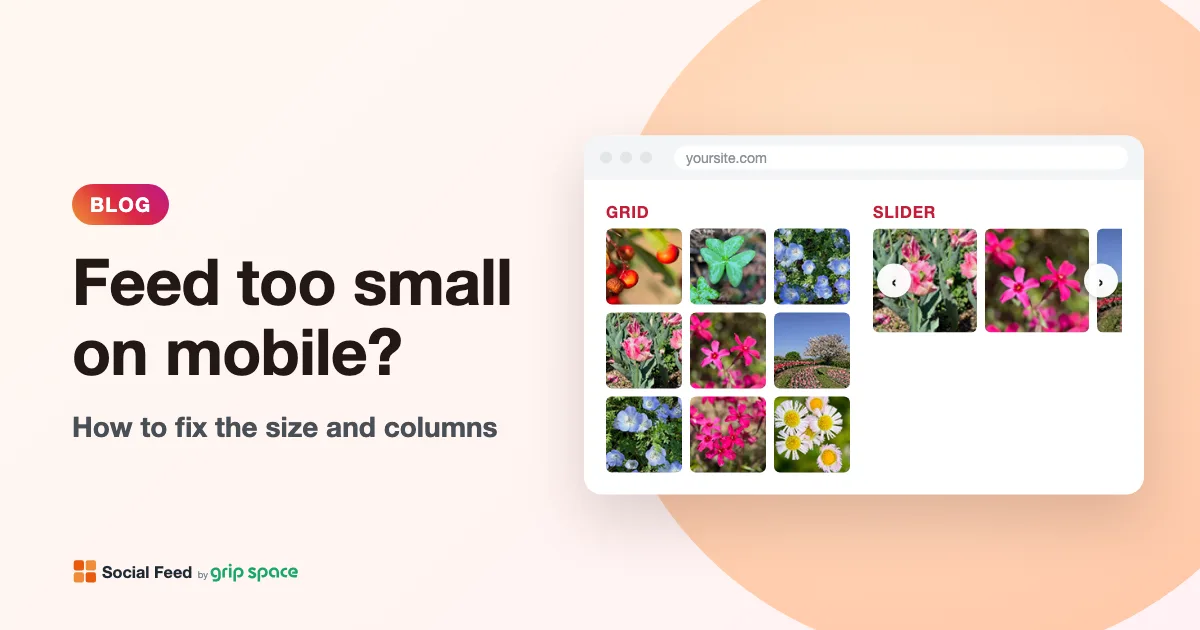
Instagram feed too small or squashed on mobile? How to fix the size
Why an Instagram feed can look tiny, squashed, too wide or cut off on phones, and how to fix it with the right width, columns and container CSS.
Read the article →