
WordPress Instagram plugin or embed widget: which should you use?
On WordPress you have two good ways to show your Instagram feed: install a plugin that runs inside WordPress, or paste an embed code from a hosted service into a Custom HTML block. Both work, and the right choice depends less on features than on how your site is run: who maintains it, how it is cached, who edits it and whether it will stay on WordPress. This guide explains how each approach works inside WordPress and gives you a checklist for choosing.
Updated October 12, 2026
The short answer
- Choose a plugin if your site will stay on WordPress, someone already keeps plugins updated, and you want to manage the feed inside the WordPress dashboard, or you need features such as hashtag feeds, shoppable posts or post moderation that some plugins offer on paid licenses.
- Choose an embed widget if you want one less plugin to update, run several sites (some not on WordPress), may move off WordPress, or want the feed managed in one place for many sites.
- Either is fine for a simple feed of your own account. Many sites could use both approaches equally well.
For the general pros and cons of script-tag embeds on any platform, see how to add an Instagram feed without a plugin. This article stays focused on what is specific to WordPress.
How an Instagram plugin works inside WordPress
WordPress.org describes plugins as “PHP scripts that extend the functionality of WordPress.” An Instagram feed plugin runs on your own server, as part of WordPress:
- You connect Instagram in the dashboard. The plugin stores the connection in your WordPress database.
- The plugin fetches posts on the server and saves a copy. Smash Balloon’s WordPress.org changelog mentions background caching through WordPress cron, and says the feed updates on page load if cron is behind schedule.
- It may store images on your site. Smash Balloon’s page lists local WebP images as a free feature; Spotlight’s says it “includes its own clever caching and image optimization” and prioritizes locally downloaded thumbnails.
- You place the feed with WordPress tools: a block, a widget or a shortcode. Smash Balloon uses shortcodes such as [instagram-feed feed=2]; Spotlight uses [instagram feed="456"], and both offer a block and a widget.
- WordPress builds the feed’s HTML into the page that is sent to the visitor.
Because the plugin keeps a saved copy, it can keep showing posts when Instagram is unreachable. Smash Balloon’s page says that when Instagram’s rate limit is hit, “Your feed keeps showing its saved posts and retries on its own once the limit clears.”
Plugins also have requirements. On the day we checked, Smash Balloon’s free plugin listed WordPress 4.1 or higher and PHP 7.4 or higher; Spotlight listed WordPress 6.3 or higher and PHP 7.1 or higher. Both said they were tested up to WordPress 7.1.3.
How an embed widget works inside WordPress
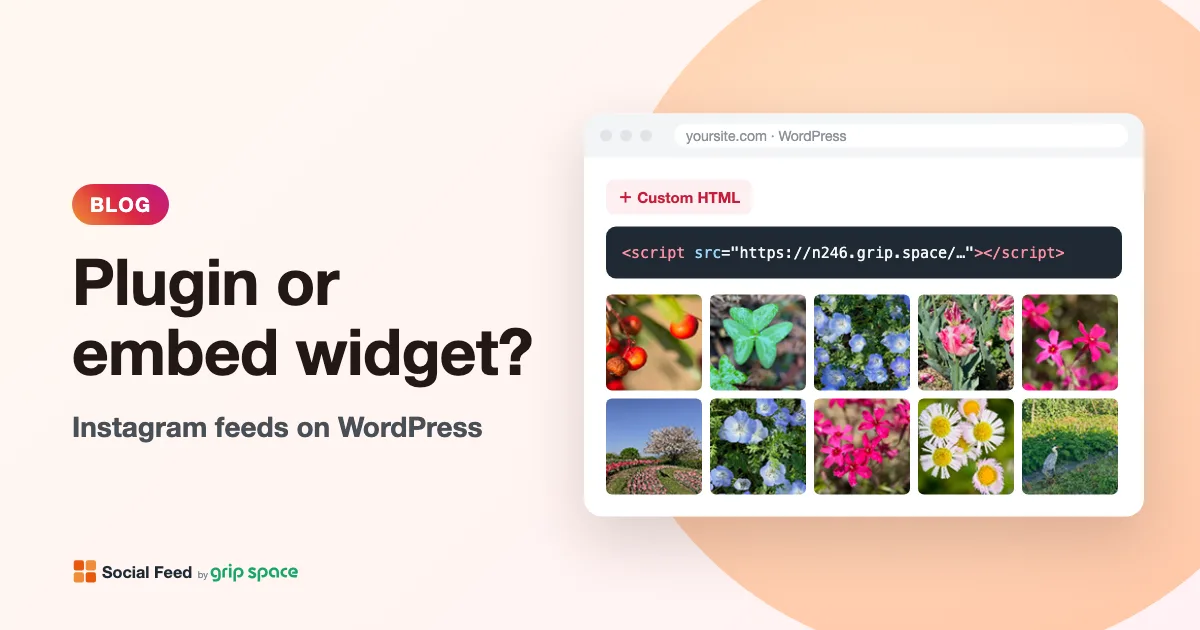
A hosted widget does its work outside WordPress. With Social Feed by grip space, you connect Instagram and design the feed in our dashboard, then paste one line into a Custom HTML block:
<script type="text/javascript" src="https://n246.grip.space/api/v1/instagram/widget/xxxxxxxx"></script>WordPress stores that line like any other content. When a visitor opens the page, their browser loads the script, which fetches your posts and builds the feed right next to the tag. Images and videos load directly from Instagram’s servers. Nothing is installed, nothing runs on your server, and the script sets no cookies and uses no local storage.
The one WordPress-specific catch is permissions. WordPress’s Custom HTML documentation says that users without the unfiltered_html capability have their content sanitized, “stripping disallowed tags such as <script> and <iframe>.” On a single site, administrators and editors normally have that capability; on a multisite network, only Super Admins do. If your code disappears after saving, our article WordPress removed your embed code? walks through every cause and fix.
Side by side, on WordPress
| Instagram plugin | Embed widget (hosted script) | |
|---|---|---|
| Runs on | Your WordPress server (PHP) | The service’s servers and the visitor’s browser |
| Feed settings live in | Your WordPress database | The service’s dashboard |
| Placed with | Block, widget or shortcode | Custom HTML block, widget area or theme template |
| Who can place it | Anyone who can add the block or shortcode | Only users who can save scripts (unfiltered_html) |
| Updates to maintain | Plugin updates, compatibility with WordPress and PHP | None on your site |
| Images | Often stored and optimized on your site | Loaded from Instagram’s servers |
| When Instagram is unreachable | Can show the saved copy | Depends on the service’s caching |
| Page caching | Feed HTML is cached with the page | Page cache stores only the script tag; posts load when the page is viewed |
| Other platforms | WordPress only | Any site that accepts HTML scripts |
| Multisite | Installed by the network admin; license terms vary | Super Admin must place the code, or use a shortcode wrapper |
Maintenance: updates are the real difference
WordPress.org’s plugin documentation recommends keeping plugins current: developers update them “by adding new features, improving code quality, and keeping them secure,” and updating “helps to improve your site’s WordPress security and performance.” It also warns: “Always make sure you have a current backup of your site before updating your plugins. Sometimes problems can happen during the update process.”
In practice, a plugin adds a little to your routine:
- Watch for updates under Dashboard → Updates, or turn on automatic updates for the plugin in Plugins → Installed Plugins with the “Enable auto-updates” link (available since WordPress 5.5).
- Check compatibility after major WordPress releases. WordPress shows “Compatible with your version of WordPress” or “Untested with your version of WordPress” on the Add Plugins screen.
- Troubleshoot conflicts by deactivating plugins one at a time, which is the method WordPress.org suggests when you do not know which plugin causes a problem.
None of this is hard, and well-maintained Instagram plugins update regularly; both plugins we looked at had been updated within the last few weeks. But if your site already has many plugins, or the person who maintains it is not always around, one less plugin is a real benefit. With an embed widget, the script is updated on the service’s side and nothing on your site changes.
The flip side: with a hosted widget, you depend on the service staying available and maintained. With a plugin, the code sits on your server, though it still depends on Instagram’s API and on the developer to keep up with Instagram’s changes.
Page caching and fresh posts
Most WordPress sites use page caching, through a caching plugin or the host. This affects the two approaches differently.
With a plugin, the feed’s HTML is part of the cached page. A new Instagram post appears only after the plugin has fetched it and the page cache has been refreshed. Spotlight’s changelog mentions integration with WP Rocket and LiteSpeed Cache, which suggests plugin developers take this seriously; check your plugin’s documentation for how it clears caches.
With our widget, the cached page contains only the script tag. The script is served with no-cache headers and fetches posts when the page is viewed, so your page cache does not hold back new posts. They appear on the schedule of your plan: once a day on Free, and right away on paid plans. If the feed still looks old, see Instagram feed not updating.
Performance: where the work happens
Both approaches can be fast or slow depending on setup, so treat claims either way with care, including ours.
- A plugin does its work on your server, adds its own CSS and JavaScript to pages, and can serve optimized images from your own domain. On a slow or busy host, that extra server work matters; on a fast host with good caching, it may not.
- A hosted widget adds one script request and then image requests to Instagram’s servers from the visitor’s browser. With our widget, only the first row of a grid loads straight away; the rest load as the visitor scrolls.
To compare on your own site, put each option on a test page and run PageSpeed Insights or your browser’s Network panel. Our articles on a feed slowing down your site and Core Web Vitals and third-party embeds explain what to look for.
Who edits your site matters
This point is easy to overlook. A plugin’s block or shortcode is ordinary content, so authors and editors can add the feed to new pages without special permissions. An embed code contains a script, so only users with unfiltered_html can save it.
If your content team is made up of authors, or you run a multisite network where only the Super Admin has unfiltered_html, a plugin may be easier day to day. With our widget, two simple workarounds are to put the feed in a place an administrator sets up once, such as a footer template part or a widget area, or to wrap the code in a small shortcode that authors can then type, as shown in our guide to removed embed codes.
When the Instagram connection breaks
Every Instagram feed, plugin or widget, depends on an access token from Instagram. Tokens are renewed automatically, but some events, such as changing your Instagram password, can cancel them. What happens next differs.
A plugin with a saved copy can keep showing older posts while the connection is broken. That is good for visitors, but it can hide the problem: Smash Balloon’s changelog for version 6.13.0 mentions adding a notice when a feed has “quietly been showing an older saved copy of its posts.” Check your plugin’s admin screens from time to time.
With our widget, the dashboard shows the problem and a “Reconnect Instagram account” button, which works on every plan and keeps your widgets, settings and embed code. On the Free plan the saved posts can keep showing for up to 24 hours; on paid plans the feed empties on the next load, so you notice quickly. See Instagram access token expired for the full steps.
Privacy and cookie consent
If you use a cookie consent plugin, check how your feed fits in. Smash Balloon’s WordPress.org page says the plugin “automatically integrates with many of the popular GDPR cookie consent plugins” and has a one-click GDPR setting, and serves images from your own site. That is a real advantage of plugins designed for WordPress.
Our widget sets no cookies and uses no local storage, and view counts do not identify visitors. Images and videos load from Instagram’s servers, so visitors’ browsers connect to Instagram when the feed is shown. If your consent setup blocks third-party content until visitors agree, treat the widget like other embedded content, and mention it in your privacy policy. When in doubt, ask a privacy professional.
Agencies and client handover
If you build WordPress sites for clients, think about the months after launch. A plugin becomes part of the client’s update routine, and a paid license must be renewed by someone. If the client lets updates slide, the feed plugin is one more thing that can fall behind.
With a hosted widget, the client’s site holds only the embed code. Design changes happen in the dashboard without touching the site. Make sure the client knows who owns the widget account and that a password change can require reconnecting Instagram.
WordPress.com
On WordPress.com, both approaches depend on your plan. Its support page says installing plugins “is available on all WordPress.com paid plans: Personal, Premium, Business, and Commerce plans,” and lists adding custom code such as JavaScript from the Personal plan. On the free plan, you cannot install a plugin, and script tags are removed. Check your plan before choosing.
Moving off WordPress, or running several sites
A plugin’s feed exists only inside that WordPress site. If you rebuild on Shopify, Squarespace, Webflow or another platform, you need a new tool and a new setup. If you run several sites, each needs its own installation, and paid plugin licenses are usually sold per number of sites.
An embed widget moves with you: paste the same code on the new site and the feed looks the same. One dashboard can manage feeds for several sites, and our plans count widgets and monthly views rather than sites. If you are planning a move, our Smash Balloon alternative article walks through switching step by step.
Features: compare the specific tools
Feature lists vary much more between individual tools than between the two approaches. Some examples from the pages we checked:
- Smash Balloon’s free plugin includes multiple feeds and accounts, a visual customizer and a Load More button; its WordPress.org page lists the lightbox, captions, hashtag feeds and moderation among Pro features.
- Spotlight’s free plugin includes unlimited accounts and feeds and a popup lightbox; hashtag feeds, tagged posts, filtering and moderation are on its PRO license.
- Social Feed by grip space includes the lightbox, account header, Follow button and filters (Reels, carousels, videos, last 30/90/365 days, caption keywords) on every plan, including Free. It shows one Instagram account per widget, with no hashtag feeds, shoppable posts or post-by-post moderation.
Our comparison of 10 Instagram feed tools lays out prices and limits of plugins and hosted widgets side by side.
A checklist for choosing
| Question | Points to a plugin | Points to an embed widget |
|---|---|---|
| Will the site stay on WordPress? | Yes, for the foreseeable future | Not sure, or a move is planned |
| Who maintains the site? | Someone updates plugins regularly | Nobody in particular, or a client after handover |
| How many plugins already? | Few | Many, and you want fewer |
| Who adds the feed to pages? | Authors and editors without unfiltered_html | An administrator, once |
| How many sites? | One WordPress site | Several, possibly on different platforms |
| Hosting | Fast host, good caching | Shared or limited hosting |
| Features | Hashtags, shoppable posts, moderation | Your own account, with filters and a lightbox |
Three typical situations
These are illustrations of how the checklist plays out, not real customers.
- A small café site on shared hosting, run by the owner. The owner logs in a few times a year and is the only administrator. Fewer plugins means fewer update notices to deal with, so an embed widget on the home page and in the footer is a good fit. A free plan is often enough for this kind of traffic.
- A blog with several authors. Authors write posts and sometimes want a feed of the brand’s Instagram inside an article. They do not have unfiltered_html, so they cannot paste a script. A plugin with a block or shortcode, or an administrator-made shortcode that wraps the embed code, keeps them independent.
- A store moving from WooCommerce to Shopify next year. A plugin feed would have to be rebuilt after the move. An embed widget set up now can be pasted into the new Shopify theme unchanged (Shopify guide).
Using our widget on WordPress
- Create the widget. Sign up, click “+ Connect Instagram account” and sign in with an Instagram Business or Creator account (how to switch). Design it in “Settings & preview”.
- Copy the code from “Add the embed code to your website”.
- Add a Custom HTML block where the feed should appear (type /html in the editor), paste the code and save. For a footer or sidebar, use a widget area or the Site Editor.
- Check the published page. The editor may not run the script, so view the live page.
Our WordPress guide covers pages, widget areas and block theme templates in detail.
Frequently asked questions
Is a plugin more secure than a script?
Neither is automatically safer. A plugin is code running on your server, so keeping it updated matters, as WordPress.org advises. A script runs in visitors’ browsers, so only use embed codes from services you trust. Either way, give script and plugin permissions only to people who need them.
Can I switch later?
Yes. Both read your posts from Instagram, so there is no data to migrate. Replace the block or shortcode with the other option, check the live pages, then deactivate and delete the plugin if you no longer need it.
Will deleting a plugin remove the feed from my pages?
Yes, the feed stops showing wherever its block or shortcode was used, and a shortcode may show as plain text. Replace those first.
Can I run a plugin and the widget on the same site?
Yes, they do not interfere with each other. Just make sure a page does not show both by accident, for example a plugin feed in the sidebar and the widget in the content. See Instagram feed showing twice.
Do I need a professional Instagram account?
For our widget, yes, and the same applies to plugins using Instagram’s current API, since Meta retired the Basic Display API in December 2024 (what changed).
Sources
- WordPress.org, “Manage Plugins” (what plugins are, updates, backups, auto-updates, compatibility, troubleshooting): https://wordpress.org/documentation/article/manage-plugins/
- WordPress.org, “Custom HTML” block (unfiltered_html and script stripping): https://wordpress.org/documentation/article/custom-html/
- WordPress.org plugin page, Smash Balloon Social Photo Feed: https://wordpress.org/plugins/instagram-feed/
- WordPress.org plugin page, Spotlight Social Feeds: https://wordpress.org/plugins/spotlight-social-photo-feeds/
- WordPress.com, “Install a plugin” (plans that allow plugins and custom code): https://wordpress.com/support/plugins/install-a-plugin/
- Social Feed by grip space: pricing and about the service
Get your embed code in a few minutes. The Free plan needs no credit card.
Sign up freeMore articles
Instagram feeds and GDPR: what data flows when you embed one
What a visitor’s browser sends, and to whom, when your site shows an Instagram feed: our server, Instagram’s image servers, cookies and GDPR questions.
Read the article →
Do you need cookie consent for an Instagram feed on your website?
What the cookie rules cover, how Instagram’s native embed and a feed widget differ, what regulators say about embeds, and how to load a feed after consent.
Read the article →
What to write in your privacy policy about Instagram embeds
A plain-language checklist for describing an Instagram feed or embedded post in your privacy policy, with sample wording to adapt and official guidance.
Read the article →
Using Instagram photos on your website: copyright and permission basics
Who owns the photos in your Instagram feed, what Instagram’s Terms of Use say, and when to get permission before showing posts on your site. Not legal advice.
Read the article →
Instagram feed for event, festival and conference websites
How festivals, conferences and recurring events can use an Instagram feed: one hashtag per edition, recent-days filters, past editions and event-day timing.
Read the article →
Instagram feed for florists and bakeries: showing fresh work every day
How florists and bakeries can show daily work on their website with an Instagram feed: daily posting, Free vs paid refresh, custom-order galleries, peak days.
Read the article →