
How to add an Instagram feed to Google Sites
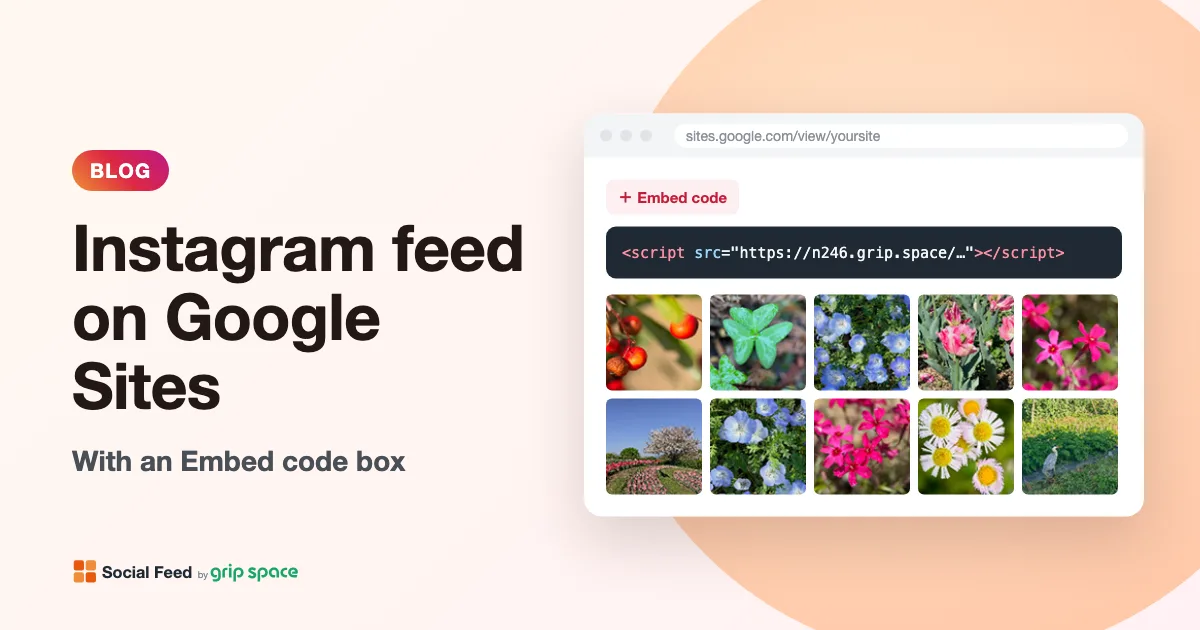
Google Sites is a quick, free way to build a site for a club, a class, a team, a small business or an event, and recent Instagram posts are a natural fit for it. Google Sites has no Instagram feed of its own, but it lets you paste HTML and JavaScript through Insert → Embed → Embed code. This guide shows how to add a feed from Social Feed by grip space step by step, explains what changes because Google Sites keeps embedded code in a box of its own, and lists the settings that work best there. The short version: it works, but plan for a fixed height, consider opening posts on Instagram instead of in a lightbox, and always check the published site.
Updated October 12, 2026
What works and what to expect
| Question | Answer |
|---|---|
| Can Google Sites run the embed code? | Yes. Google’s help describes adding HTML, CSS and JavaScript with Insert → Embed → Embed code. JavaScript must be inside <script> tags, and the Social Feed code already is one. |
| Do I need a paid Google plan? | Google’s help does not list a plan requirement for embed code. If you use Google Sites through a work or school account, your organization’s settings may differ; ask your administrator if something is blocked. |
| Does the feed update by itself? | Yes. You paste the code once. New posts appear automatically: once a day on the Free plan, right away on paid plans. |
| Does the embed box grow with the feed? | Plan for it not to. The feed sits in a box with the size you give it, so set the height to fit. |
| Does the lightbox work? | It opens inside the embed box, not over the whole page. In a small box, opening posts on Instagram is usually better. |
| Where do I check the result? | On the published site, on a computer and on a phone. |
What you need
- An Instagram professional account (Business or Creator) for the posts you want to show. Personal accounts cannot be connected. If you are not sure which you have, read our guide to professional accounts.
- A Social Feed by grip space account. The Free plan is enough to start and needs no credit card.
- Edit access to the Google Site, and a computer. Google’s help describes these steps in Google Sites on a computer.
Step 1: Get your embed code
- Sign up for Social Feed by grip space with your email address.
- In the dashboard, click “+ Connect Instagram account” and log in with the Instagram professional account whose posts you want to show.
- Open “Settings & preview”. Choose a grid or a slider, the number of posts and columns, and the click action. Suggestions for Google Sites are in the next sections, so you may want to read those first.
- Under “Add the embed code to your website”, click “Copy”. The code looks like this:
<script type="text/javascript" src="https://n246.grip.space/api/v1/instagram/widget/xxxxxxxx"></script>You paste this code into Google Sites once. The layout, columns, filters and colors are stored with the widget, so when you change them in the Social Feed dashboard later, your site shows the new design without editing the embed again.
Step 2: Add the code with Insert → Embed
These are the steps from Google’s Sites Help Center for adding HTML, CSS or JavaScript:
- Open your site in Google Sites on a computer, and go to the page where you want the feed.
- Click Insert, then Embed.
- Click Embed code.
- Paste the embed code from Step 1, then click Next.
- Click Insert.
- Move the new embed box to where you want the feed and adjust its size (see Step 3).
- To publish your changes, click Publish at the top right.
Paste the code exactly as copied, from <script to </script>, and use the Embed code option rather than pasting the address inside the tag as a URL. That address delivers a script, not a web page, so it only works inside the script tag.
How Google Sites shows embedded code
Normally, Social Feed by grip space does not use a frame. Its script draws the feed directly into the page, right after the script tag, so the feed flows with your content and the page grows to fit it.
Google Sites works differently. Google’s help does not spell out the details, but Google Sites is widely reported to place embedded code in a sandboxed iframe: a separate, restricted document shown in a box on your page. Google’s own 2017 announcement of the feature describes embedding web pages as iframes alongside embedding HTML and JavaScript. We could not find an official Google page that documents the exact restrictions, so treat the points below as what to expect and to test, not as guarantees.
If the feed is inside such a box, the script still runs and still draws the feed next to its own tag, but everything happens inside the box. That has a few consequences:
- A fixed height. The box does not grow when the feed is taller than the box. Posts at the bottom are cut off, or visitors have to scroll inside the box.
- A lightbox limited to the box. The larger view that opens when a visitor clicks a post covers the box, not the whole page. In a small box it can be cramped.
- Links that open new tabs may be restricted. The Follow button and the “Open Instagram” click action open Instagram in a new tab. A sandboxed frame can prevent this, depending on how it is set up. MDN explains that inside a sandboxed iframe, new windows opened by Window.open() or target="_blank" “silently fail” unless the frame allows popups. Test both on the published site.
- The page language may not reach the widget. The widget picks English or Japanese for its few words from the language of the document it runs in. Inside a box, that is the box’s document, not your page. See the language section below.
Step 3: Size the embed box
Because the box keeps the size you give it, the height is the setting that matters most. The width matters too: the widget fills the width of the box and chooses how many columns fit, using fewer columns when each image would be narrower than about 100 pixels. The number of columns you set is the maximum.
You can estimate the height you need. Tiles are always square, so:
- Tile size ≈ (width of the box − the gaps between columns) ÷ number of columns.
- Grid height ≈ number of rows × tile size + the gaps between rows. The number of rows is the number of posts divided by the number of columns, rounded up.
- Slider height ≈ one tile plus about 8 pixels for the scroll area.
- Add about 56 pixels if the account header (profile picture, name, Follow button) is shown, and about 20 more for the “Powered by Social Feed” credit on the Free plan.
- Add some extra room on top of the estimate, since the box itself may add a little space.
Some examples with the default spacing of 4 pixels between images:
| Box width | Layout | Posts × columns | Tile size | Height of the posts | With header and credit |
|---|---|---|---|---|---|
| 800 px | Grid | 12 × 4 (3 rows) | about 197 px | about 600 px | about 680 px |
| 800 px | Grid | 6 × 6 (1 row) | about 130 px | about 130 px | about 210 px |
| 800 px | Slider | 12 posts, 4 visible | about 197 px | about 205 px | about 280 px |
| 1,000 px | Grid | 8 × 4 (2 rows) | about 247 px | about 500 px | about 580 px |
Then check the published page and adjust. If posts are cut off at the bottom, make the box taller and publish again. If there is a lot of empty space below the feed, make it shorter. The figures above are estimates to get you close, not exact values.
Recommended settings for Google Sites
These settings in “Settings & preview” suit a fixed-height box best:
| Setting | Suggestion | Why |
|---|---|---|
| Layout | Slider, or a grid with one or two rows | The height stays small and predictable |
| Number of posts | 6 to 12 for a grid; 10 to 20 for a slider | A tall grid needs a tall box, and gets cut off on phones more easily |
| Columns | 3 to 4 | Tiles stay large enough to see in a box that may be narrower than the page |
| On click | “Open Instagram” (if it opens on your published site) | Visitors see the post full size on Instagram instead of in a cramped lightbox |
| Max width | 0 (no limit) or the width of the box | A max width smaller than the box leaves empty space on both sides |
| Account header | On, if the Follow button opens on your site | Gives visitors a way to follow you |
If your box is large, for example on a page given over to the feed, the lightbox can work well too: it shows the full image, the caption and the like count without leaving your site. For the trade-offs between the two, see lightbox or link to Instagram?, and for layout choices in general, grid or slider?
Testing clicks on the published site
Because Google does not document what the embed box allows, test the interactive parts once after publishing:
- Click a post. With “Open lightbox,” a larger view should open inside the box; close it with the × button. With “Open Instagram,” the post should open on Instagram in a new tab.
- Click the Follow button. Your Instagram profile should open in a new tab.
- Swipe or use the arrows if you chose a slider.
- Play a video if your feed includes videos and you use the lightbox. Videos start muted, with controls to turn the sound on.
If posts and the Follow button do not open Instagram, the box is blocking new tabs. In that case, use “Open lightbox” or “Do nothing” for clicks, turn off the account header if the Follow button does nothing, and add an ordinary text link to your Instagram profile elsewhere on the page with Google Sites’ own tools.
Using a full page for the feed
Google’s help also describes adding an embed as an entire page: under Pages, hover over Add and click Full page embed. A page devoted to your Instagram posts gives the feed more room than a small box in the middle of a page, which suits a grid with more posts and makes the lightbox less cramped. The same advice applies: check the published page on a computer and a phone, and make sure nothing is cut off.
If you want the feed somewhere small instead, such as near the bottom of every page, read where to put an Instagram feed on your website and adding an Instagram feed to a footer.
The widget’s language on Google Sites
The widget shows a few words, such as “Posts” and “Follow,” in English or Japanese. It decides from the language of the document it runs in, and falls back to the visitor’s browser language when that document does not say. Inside an embed box, the widget sees the box’s document, not your page, so the result may depend on each visitor’s browser.
The reliable fix is to type your own text into “Follow button text” in “Settings & preview.” Custom text is shown exactly as typed, in any language. The full explanation, including which other words change and how to reduce them, is in Instagram widget in the wrong language?
Plans and views on a Google Site
Every time the feed is loaded, it counts as a view, whether it is in a box on Google Sites or anywhere else. The plans differ in how many widgets, posts and views they include:
| Free | Light | Standard | |
|---|---|---|---|
| Price | $0 | $8/month or $80/year | $24/month or $240/year |
| Widgets | 1 | 3 | Unlimited |
| Posts per widget | Up to 16 | Up to 30 | Up to 50 |
| Views per month | 3,000 | 30,000 | Unlimited |
| New posts appear | Once a day | Right away | Right away |
| “Powered by Social Feed” credit | Always shown | Optional | Optional |
A site for a club, a class or an event often fits the Free plan. If you want a grid on one page and a slider on another, you need two widgets, which means the Light plan or higher. See pricing for details, and what a free Instagram feed widget includes if you are comparing free options.
Checklist before you share the site
- The widget is set to Published in the Social Feed dashboard.
- You pasted the whole script tag with Insert → Embed → Embed code, then clicked Next and Insert.
- You clicked Publish in Google Sites after adding or changing the embed.
- On the published site, the whole feed is visible on a computer, without cut-off posts.
- On the published site, the whole feed is visible on a phone.
- Clicking a post does what you chose, and the Follow button opens your profile (or you turned it off).
- The Follow button text reads the way you want.
Troubleshooting
| What you see | Likely cause | What to do |
|---|---|---|
| Nothing in the editor | The editor may not run the code | Publish, then check the published site |
| An empty box on the published site | The widget is unpublished, the code is incomplete, or the site was not published again | Check Published in the dashboard, paste the whole tag again, then publish |
| Posts cut off at the bottom | The box is shorter than the feed | Make the box taller, or show fewer posts or a slider |
| Posts cut off on a phone only | Fewer columns on a narrow screen make the grid taller | Use a slider or fewer posts, and add height |
| A lot of empty space under the feed | The box is taller than the feed | Make the box shorter |
| The lightbox is tiny or cramped | It can only use the space of the box | Make the box bigger, use a full page embed, or choose “Open Instagram” |
| Clicking a post or Follow does nothing | The box may block new tabs | Use “Open lightbox” or “Do nothing” and add a normal link to your profile |
| The Follow button is in Japanese (or English) | The box’s language is unknown, so the visitor’s browser decides | Type your own Follow button text |
| New posts are missing | The feed updates on a schedule; filters may hide posts | Instagram feed not updating |
| The feed disappeared after working | The Instagram connection expired, or the plan’s view limit was reached | Instagram feed not showing |
Frequently asked questions
Is there an Instagram option in Google Sites’ Insert menu?
We did not find an Instagram feed option in Google’s help, which covers adding Google files, videos and other website content. An auto-updating feed needs embed code from a feed tool, added through Insert → Embed → Embed code.
Can I embed a single Instagram post instead?
That is a different task. See how to embed a single Instagram post, and test it on your published site in the same way, since the same embed box applies.
Can the embed box grow automatically?
Plan on setting the height yourself. Google’s help does not describe an automatic height for embedded code, so check the published page and adjust.
Can I use the same feed on several pages of my Google Site?
Yes. Paste the same embed code into an embed box on each page. Every copy shows the same widget with the same settings, and each time any of them loads, it counts as a view. If you want different settings on different pages, such as a slider on the homepage and a larger grid on an Instagram page, create a second widget with its own embed code. Each box has its own size, so set the height of each one to fit the layout it shows.
Does the widget set cookies on my Google Site?
No. The widget does not set cookies or use local storage. Images and videos load directly from Instagram’s servers. Google Sites itself may have its own behavior, which is covered by Google’s policies.
Can I show someone else’s Instagram account?
No. You connect an account you can log in to, and the feed shows that account’s own posts. See why you can’t show someone else’s feed.
My site is on another platform too. Is it easier there?
On most platforms the feed sits directly in the page and grows with its content. We have guides for WordPress, Shopify, Wix (which also uses a box), Squarespace, Webflow and plain HTML, and a post on Blogger, Google’s other free publishing tool.
Sources
- Google Sites Help, “Add Google files, videos, website content, & more”: https://support.google.com/sites/answer/90569?hl=en
- Google Workspace Updates, “Embed HTML and JavaScript in new Google Sites” (December 2017): https://workspaceupdates.googleblog.com/2017/12/embed-html-and-javascript-in-new-google-sites.html
- Google Sites Help, “Create, name, delete, or copy a site”: https://support.google.com/sites/answer/98081?hl=en
- MDN Web Docs, “<iframe>: The Inline Frame element”: https://developer.mozilla.org/en-US/docs/Web/HTML/Reference/Elements/iframe
Get your embed code in a few minutes. The Free plan needs no credit card.
Sign up freeMore articles
Instagram API rate limits: why feed tools cache your posts
What Meta’s Instagram API rate limits say, what happens when an app hits them, and exactly when Social Feed by grip space reads your posts from Instagram.
Read the article →
What an Instagram feed can (and can’t) show via the API
Which Instagram data a website feed can get through Meta’s API, field by field: posts, captions, like and comment counts, and why Stories and tags are out.
Read the article →
Can you embed Instagram Stories or Highlights on your website?
An honest answer from Meta’s docs: Instagram’s embed tool doesn’t support Stories, the API limits them to 24 hours, and Highlights have no endpoint.
Read the article →
Can you show someone else’s Instagram feed on your website?
Why an auto-updating feed needs the account owner to connect, what Instagram’s terms say, and how agencies set up a client’s feed with the owner signing in.
Read the article →
Instagram’s embeds setting explained: what “allow people to embed your posts” controls
What Instagram’s Embeds setting turns off, what happens to existing embeds, and what Meta does and doesn’t say about API-based website feeds.
Read the article →
How to see and remove apps connected to your Instagram account
Find the apps and websites connected to your Instagram account, remove the ones you no longer use, and learn what removal means for a website feed.
Read the article →