
How to embed an Instagram feed on your website (3 ways)
There are three ways to show Instagram on your website. You can copy Instagram’s own embed code to show one post, use a feed widget that lists your latest posts and updates by itself, or build your own feed with the Instagram API. This guide compares the three, walks through each one, and shows where to paste the code on the most common website builders. Facts about Instagram’s features are limited to what we could confirm in Instagram’s Help Center and Meta’s developer documentation.
Updated October 14, 2026
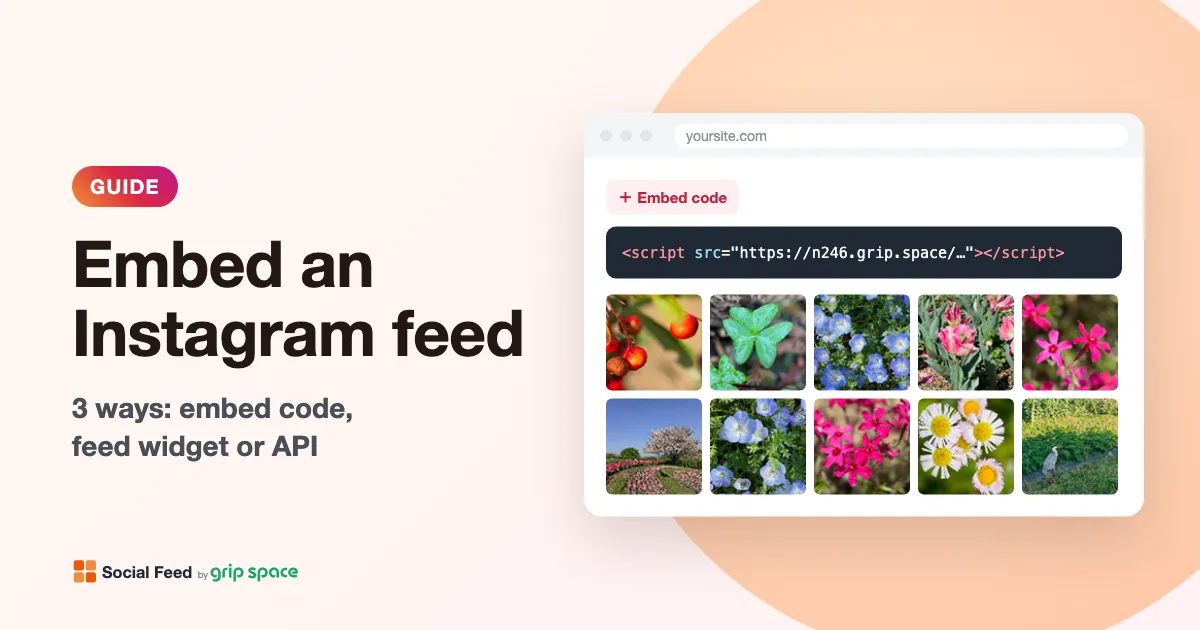
What “embedding Instagram” means
Embedding Instagram means showing Instagram content inside a page of your own website, so visitors can see it without leaving your site. In practice it comes in two shapes:
- One post on a page. You pick a specific post, reel or profile and place it in a blog post or announcement. Instagram’s built-in Embed option does this.
- A feed of your latest posts. A grid or slider of your recent posts, for example on your homepage, that changes when you post something new. This needs a feed widget or your own code.
People usually embed Instagram to make a site feel current, to show their products, food or work in real photos, and to turn website visitors into followers.
The 3 ways at a glance
| Instagram’s embed code | Feed widget | Build it with the API | |
|---|---|---|---|
| What appears | One post, reel or profile | Your latest posts as a grid or slider | Whatever you build |
| New posts | Not added (paste a new code each time) | Added automatically | Up to your code |
| Account needed | Public account with Embeds turned on | Usually a professional account (Business or Creator) | Professional account |
| Cost | Free | Depends on the tool (many have a free plan) | Your development and upkeep time |
| Best for | Featuring one specific post | Keeping a page fresh with no extra work | Developers who need full control |
A quick rule: if you want one specific post, use the embed code. If you want your latest posts, always up to date, use a feed widget.
Way 1: Instagram’s embed code (one post)
According to Instagram’s Help Center, posts, reels and guides from public accounts can be embedded, and so can a public profile. The embedded post shows the account name and a link back to Instagram.
- Open Instagram in a browser on your computer or phone. Instagram’s Help Center says you can’t copy embed codes from the Instagram app.
- Go to the post, reel or profile and open its Options menu (the three dots).
- Choose Embed, then Copy Embed Code.
- Paste the code into a part of your site that accepts HTML, such as a WordPress Custom HTML block, and publish.
If the Embed option is missing, the post or account is private, or the account has turned Embeds off. See Instagram’s Allow embeds setting for how to check it.
Keep in mind that an embed code always shows that one post. When you publish something new on Instagram, your website does not change until you paste another code. If the owner later makes the account private or turns Embeds off, the embedded post stops showing.
The full walkthrough, including the phone steps, is in How to embed a single Instagram post on your website.
Way 2: a feed widget that updates automatically
A feed widget connects to your Instagram account and shows your recent posts as a grid or slider. You paste its code once, and from then on every new Instagram post appears on your site without any extra work.
When you compare widgets, look at:
- Free plan limits: monthly views, how many posts are shown, how often new posts appear, and whether a credit link is added.
- Design options: grid or slider, columns, spacing and whether it fits your site’s look.
- Where it works: whether your website builder lets you paste the code.
- Which posts it shows: for example leaving out Reels or showing only posts with a certain word in the caption.
We compared 10 tools, their free plans and prices in Instagram feed widgets compared.
Example: Social Feed by grip space. With Social Feed you sign up with an email address, connect an Instagram professional account (Business or Creator), choose a grid or slider in a live preview, and paste one line of code. You can set the columns, number of posts and spacing, choose what happens when someone clicks a post (open it larger, open Instagram, or nothing), and filter posts by Reels or by a caption keyword. It shows posts from your own connected account only. It cannot collect posts by hashtag, show other people’s accounts or show Stories.
| Plan | Widgets | Views | New posts appear |
|---|---|---|---|
| Free ($0) | 1 | Up to 3,000 / month | Once a day |
| Light | Up to 3 | Up to 30,000 / month | Instantly |
| Standard | Unlimited | Unlimited | Instantly |
The Free plan shows a “Powered by Social Feed” link below the feed. Prices are on the pricing section, and what the Free plan includes is explained in Free Instagram feed widget.
Way 3: build your own feed with the Instagram API
If you are a developer, you can fetch your posts through Meta’s APIs and render the feed yourself.
- oEmbed returns the official embed HTML for a single post. Meta’s documentation says it is meant for embedding on websites and apps, and it does not work for private accounts, accounts that turned off embedding, or Stories.
- The Instagram API can list the posts of your own professional account. You need a Meta app, access tokens that you refresh, caching, and upkeep when the API changes. The older Instagram Basic Display API was shut down on December 4, 2024.
What this involves in detail is in Building your own Instagram feed with the Instagram API. If you only need to show a feed, a widget saves you the token and maintenance work.
Where to paste the code on your website builder
Both Instagram’s embed code and a feed widget’s code contain a script, so they need a place that keeps HTML as it is. A normal text block usually shows the code as text or removes the script.
| Platform | Where to paste | Step-by-step guide |
|---|---|---|
| WordPress | A Custom HTML block | WordPress guide |
| Wix | Embed Code → Embed HTML | Wix guide |
| Squarespace | A Code block (JavaScript needs a Core, Plus or Advanced plan) | Squarespace guide |
| Shopify | A Custom Liquid section or block | Shopify guide |
| Webflow | A Code Embed element (paid plan) | Webflow guide |
| Any HTML site | Inside the <body> where the feed should appear | HTML guide |
| Google Sites | Insert → Embed → Embed code | Google Sites |
| Framer | An Embed component | Framer |
| GoDaddy | An HTML section | GoDaddy |
Not sure where on the page to put it? See Where to put an Instagram feed on your website.
If the embed doesn’t show or doesn’t update
- The account is private or Embeds are off. Instagram’s embed code can’t show these posts.
- The script was removed when you saved. Some platforms, plans or user roles strip scripts.
- The Instagram connection has expired. A feed widget stops updating when its connection breaks. Reconnect it in the dashboard.
- Update timing or filters. Some plans add new posts on a schedule, and filters can hide posts.
Step-by-step fixes: Instagram feed not showing on your website? and Why your Instagram feed isn’t updating.
Frequently asked questions
Can I embed Instagram on my website for free?
Yes. Instagram’s embed code is free. Many feed widgets also have a free plan; Social Feed’s Free plan gives you one widget, with new posts appearing once a day.
Where do I find the Instagram embed code?
Open the post in a web browser, open the Options menu and choose Embed. The Instagram app does not offer embed codes.
Does an embedded Instagram feed update automatically?
An embed code does not; it always shows the same post. A feed widget does: new posts are added to your site by themselves.
Can I embed a personal Instagram account?
Instagram’s embed code works for public accounts with Embeds turned on. Feed widgets generally need a professional account (Business or Creator), which you can switch to for free in the app. See why you need a professional account.
Does embedding Instagram help SEO?
Not much directly. Feeds are usually drawn by a script, so search engines don’t treat them as your page text. See Does an Instagram feed on your website help SEO?
Get your embed code in a few minutes. The Free plan needs no credit card.
Sign up freeMore articles
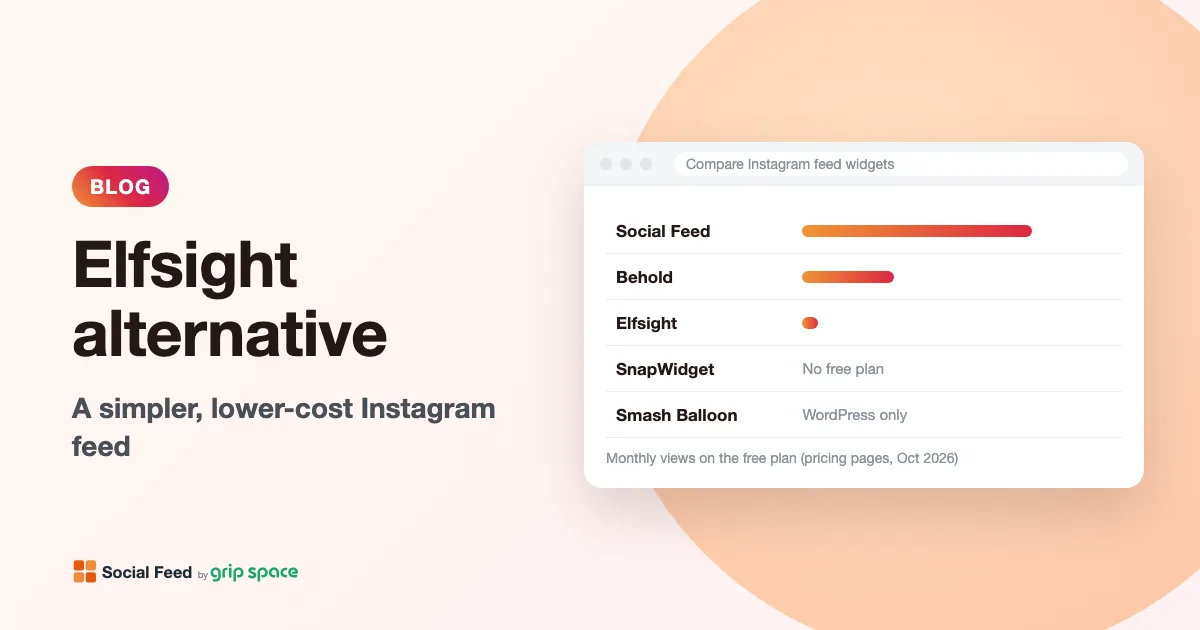
Elfsight Instagram Feed alternative: a simpler, lower-cost option
Elfsight Instagram Feed vs Social Feed by grip space: free plan views, prices, update speed, what Elfsight does better, and how to switch with the same look.
Read the article →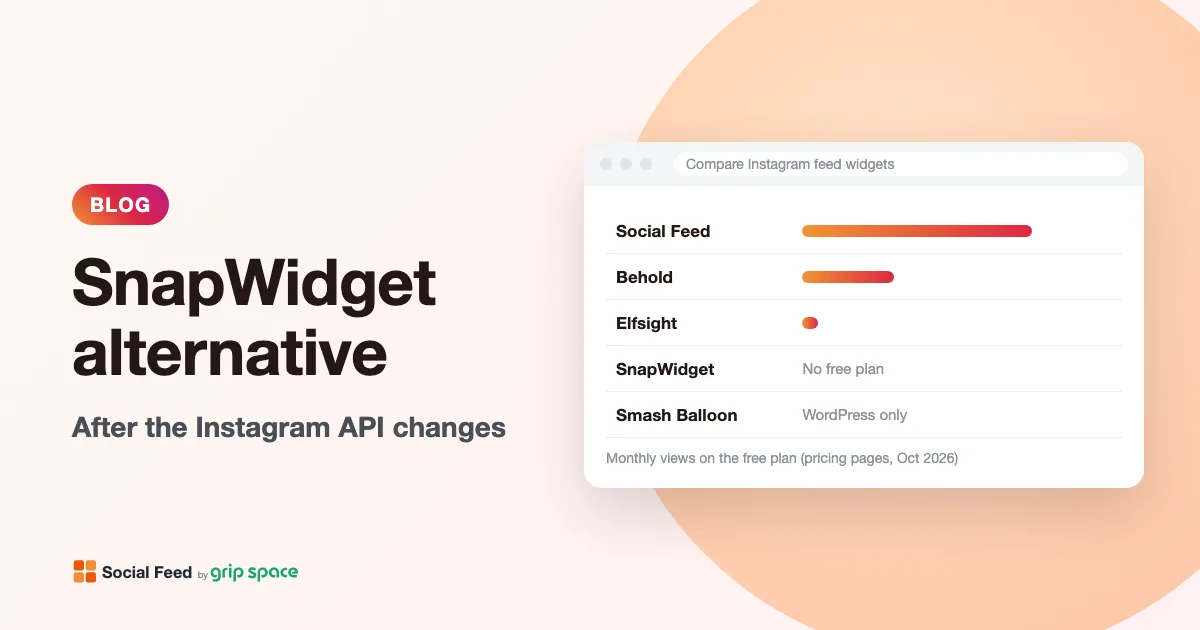
SnapWidget alternative after the Instagram API changes
SnapWidget feeds needed re-auth after Instagram’s API change. How to fix that, how SnapWidget compares with Social Feed by grip space, and how to switch.
Read the article →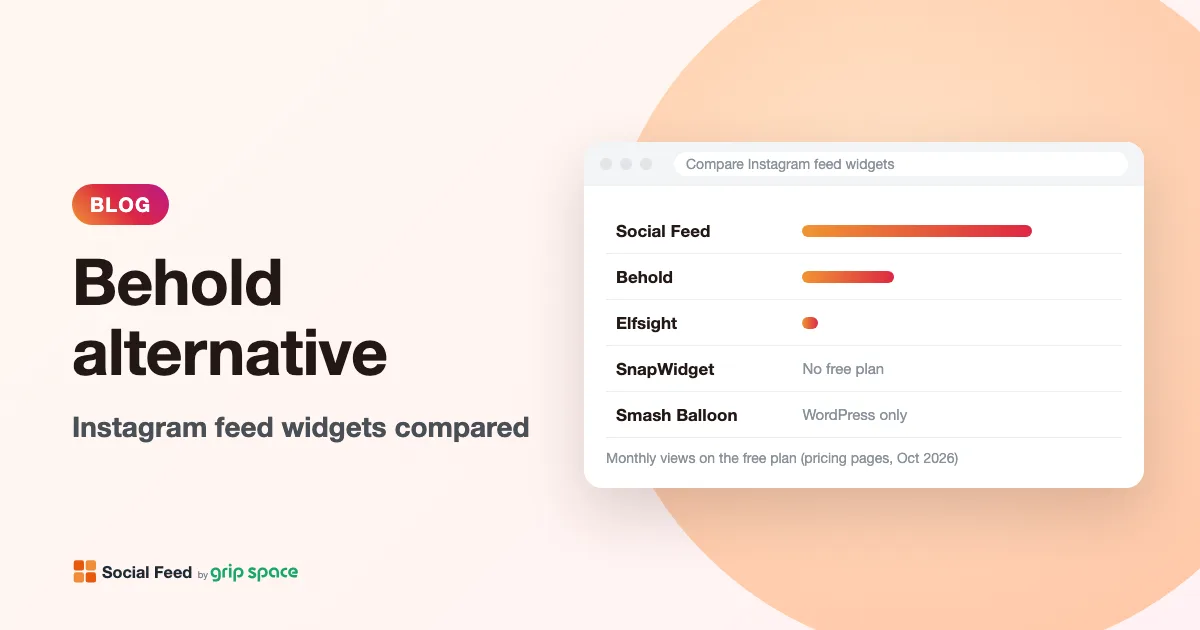
Behold alternative: Instagram feed widget compared
Behold vs Social Feed by grip space: free plans, views and posts per plan, update speed, what Behold does better (JSON, Klaviyo, curation) and how to switch.
Read the article →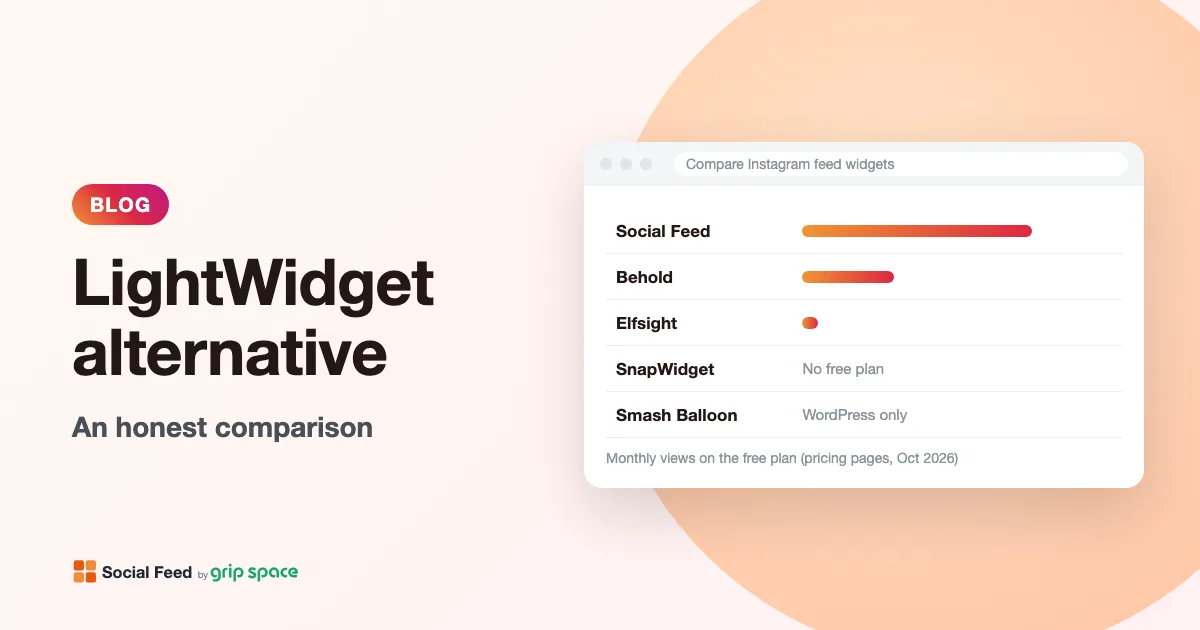
LightWidget alternative for Instagram feeds: an honest comparison
LightWidget vs Social Feed by grip space: per-widget add-ons vs monthly plans, update speed, iframe vs script embed, settings and how to switch.
Read the article →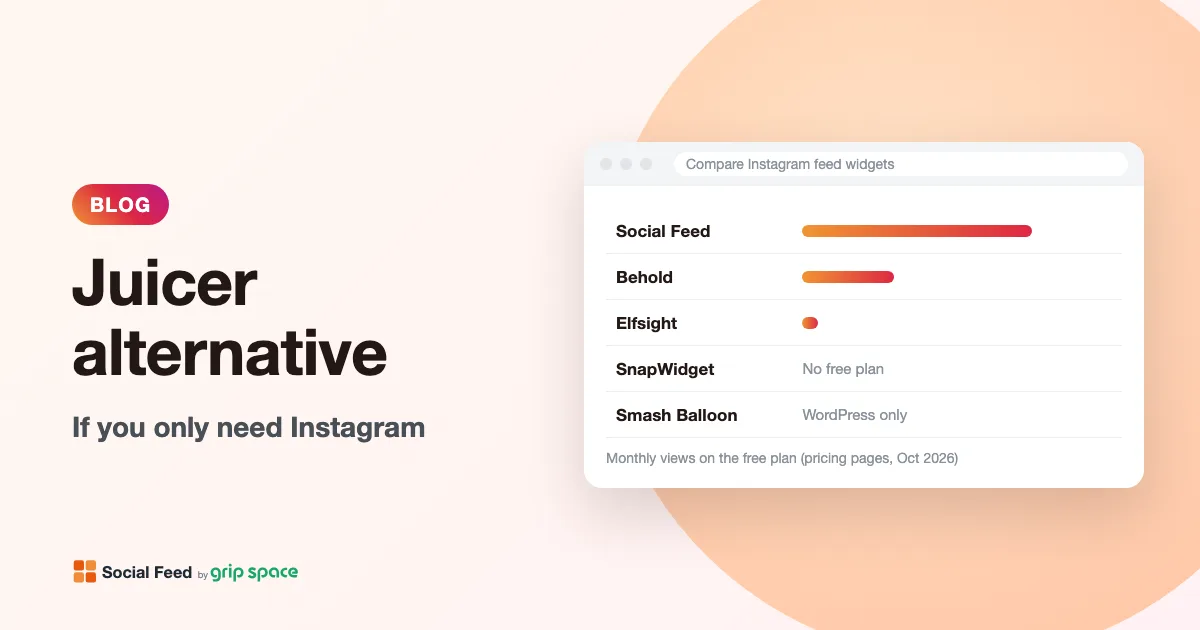
Juicer alternative if you only need Instagram
Juicer is a social wall for many networks. If you only show your own Instagram, compare views, update speed and price with a single-network feed widget.
Read the article →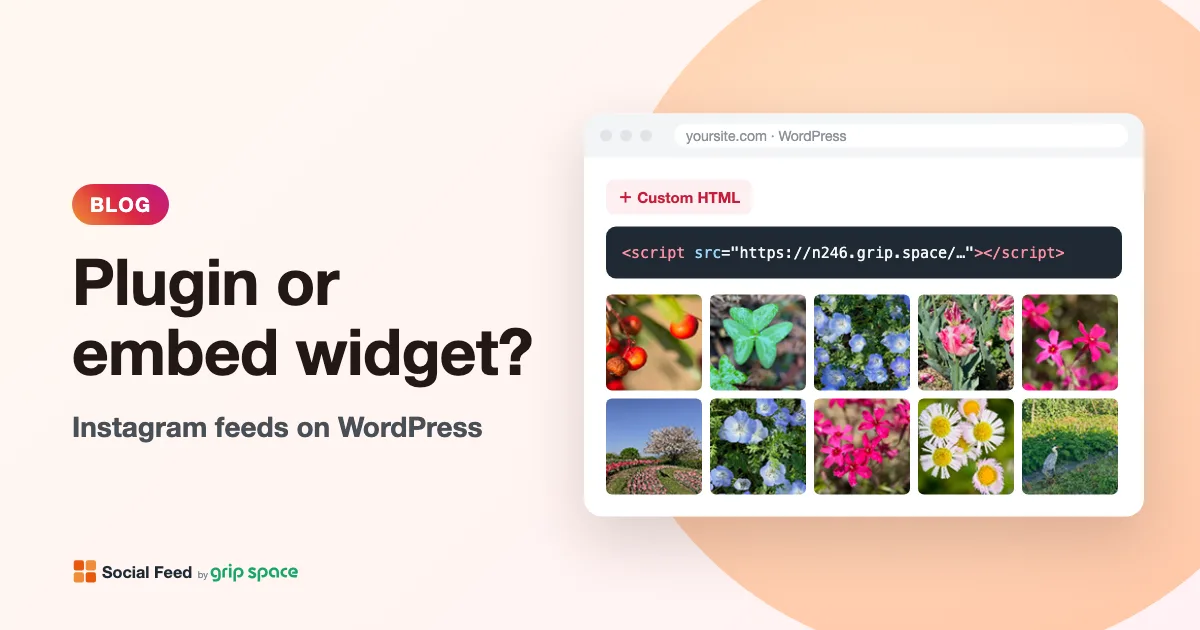
WordPress Instagram plugin or embed widget: which should you use?
A WordPress Instagram plugin runs on your server; an embed widget is a hosted script. How each handles updates, caching, user roles and moving platforms.
Read the article →