
SnapWidget alternative after the Instagram API changes
SnapWidget has been around for years, and many websites still carry a SnapWidget code that someone pasted in long ago. When Meta retired the Instagram Basic Display API in December 2024, widgets connected to personal accounts stopped updating until they were reconnected. If you are looking at a “Requires Re-Auth” message, or simply reviewing what you pay for, this article explains how to fix SnapWidget first, then compares it fairly with Social Feed by grip space and shows how to switch if that suits you better.
Updated October 12, 2026
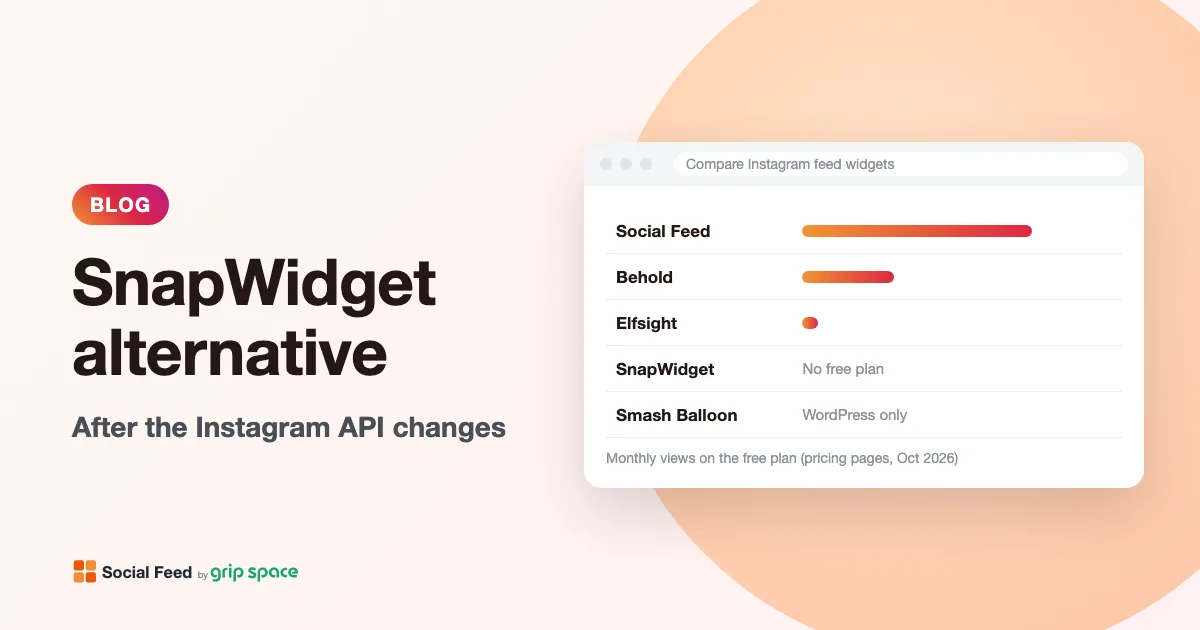
What changed with the Instagram API
Meta shut down the Instagram Basic Display API on December 4, 2024. That API let tools read posts from personal Instagram accounts. SnapWidget’s help article on the change says that after that date personal accounts must switch to a professional Creator account to keep using third-party services, and that widgets using the old personal connection need to be reconnected. We cover the background in The Instagram Basic Display API is gone.
The good news, in SnapWidget’s own words: “You do not need to replace the code snippet on your website.” If your feed froze, reconnecting the account inside SnapWidget is usually enough. You do not have to switch tools just because of the API change.
Fixing a SnapWidget widget that says “Requires Re-Auth”
If you want to keep SnapWidget, these are the steps its help center gives, summarized:
- Switch your Instagram account to a professional account if it is still personal. SnapWidget’s current guide says both Creator and Business work. Switching is free and does not remove posts or followers. Our own Business vs Creator guide explains the difference.
- Sign in to SnapWidget and open the widget marked “Requires Re-Auth” in your dashboard.
- Click the Username field or the Reconnect button.
- Choose how to connect. “Sign in with Instagram” for a Creator account, or “Sign in with Facebook” for a Business account linked to a Facebook Page.
- Grant access to SnapWidget’s app when Instagram asks.
- Click “Update & Get Widget” to save. The code on your site stays the same.
SnapWidget also notes that switching back to a personal account will stop your widgets from updating. The same is true for any tool that uses the official API, ours included.
Is your feed frozen? A quick check
A widget that stopped updating does not look broken. It keeps showing the last posts it fetched, so nobody notices until someone asks why the website still shows last year’s photos. Three quick checks:
- Compare with Instagram. Open your Instagram profile and your website side by side. If your three newest posts are missing from the site, the feed is not updating.
- Look at your tool’s dashboard. SnapWidget marks affected widgets with “Requires Re-Auth.” In our dashboard, an expired connection shows “Your Instagram connection has expired” with a reconnect button.
- Rule out caching. Open the page in a private window. If the feed looks fresh there, your browser or site cache was serving an old copy. See why a feed isn’t updating for more causes.
When an alternative makes sense
Reconnecting fixes the API problem. These are the situations where people usually look further:
- You were relying on a free widget. SnapWidget’s pricing page today shows only paid plans with a 14-day free trial. Its help center (articles from 2017 and 2022) describes free “Basic” widgets whose photos link to a SnapWidget page rather than Instagram. Check what your account offers today before assuming either way.
- You need more than one full-featured widget on a small budget. SnapWidget’s $8 Lite plan includes one Pro widget. Our $8 Light plan includes three widgets.
- You want a lightbox without paying. On SnapWidget, the lightbox is a paid feature. On our Free plan it is included.
- You want to simplify. SnapWidget offers Instagram, Facebook, TikTok and YouTube widgets, announcement banners and shoppable images. If you only show your own Instagram posts, a single-purpose tool may be easier to manage.
SnapWidget plans at a glance
| Lite | Pro | Developer | |
|---|---|---|---|
| Price | $8 a month | $14 a month | $99 a month |
| Pro widgets | 1 | 20 | 250 |
| Views | Unlimited | Unlimited | Unlimited |
| Refresh | Every 5 minutes | Every 5 minutes | Every 5 minutes |
| Hashtag widgets | No | Yes | Yes |
| Included on all paid plans | Lightbox, analytics, custom CSS, Shoppable Images, YouTube widgets, announcement banners, carousel posts, priority support, creating widgets for other users | Same | Same |
SnapWidget’s visible pricing page shows monthly prices only and says: “All paid plans come with a 14-day free trial and you can cancel at anytime.” The page’s embedded structured data lists different figures ($6, $10 and $50, plus a $0 tier), which do not match the visible prices; we use the visible prices here. Custom plans are also mentioned.
Social Feed by grip space plans
| Free | Light | Standard | |
|---|---|---|---|
| Price | $0 | $8 a month, or $80 a year | $24 a month, or $240 a year |
| Widgets | 1 | 3 | Unlimited |
| Views a month | 3,000 | 30,000 | Unlimited |
| Posts per widget | Up to 16 | Up to 30 | Up to 50 |
| New posts appear | Once a day | Right away | Right away |
| Credit link | Always shown | Optional (hidden by default) | Optional (hidden by default) |
Every plan includes the same feature set: grid and slider, lightbox, account header with Follow button, all filters and view counts. Plans differ only in widgets, posts per widget, views and update timing.
What it costs for 1, 3 or 20 widgets
The two tools count differently. SnapWidget counts Pro widgets and never limits views. We count widgets and monthly views. Here is the cheapest plan on each side for common setups, using monthly prices.
| You need | SnapWidget | Social Feed by grip space |
|---|---|---|
| 1 widget, under 3,000 views a month | Lite, $8 a month | Free, $0 |
| 1 widget, very high traffic | Lite, $8 a month (unlimited views) | Light up to 30,000 views ($8); Standard above that ($24) |
| 3 widgets, under 30,000 views a month | Pro, $14 a month | Light, $8 a month |
| 3 widgets, over 30,000 views a month | Pro, $14 a month | Standard, $24 a month |
| Up to 20 widgets | Pro, $14 a month | Standard, $24 a month |
| Hashtag feed | Pro, $14 a month | Not available |
The honest summary: SnapWidget is better value for one widget on a very busy site, and for many widgets with heavy traffic, because its views are never capped. We are better value for small and medium sites, especially if one widget is enough (free) or three widgets cover your needs ($8 with 30,000 views). Our yearly prices lower the cost further: $80 for Light and $240 for Standard. SnapWidget’s pricing page does not show a yearly price.
Estimating your monthly views
Because SnapWidget’s paid plans have no view limit, you may never have needed this number. With our plans you do, so here is how to get it in a few minutes.
- List the pages that show the feed. A feed on the homepage counts only when the homepage loads. A feed in a footer, header or sidebar counts on every page that uses that template.
- Look up last month’s page views for those pages in your analytics tool. Use page views, not visitors: one visitor reading five pages with a footer feed is five views.
- Add the widgets together. On our plans, all widgets in your account share one monthly limit.
- Leave room for busy months. Sales, holidays or a mention in the press can double traffic. One busy month will not stop the feed, but two in a row will pause it from the following month.
Under 3,000 fits Free, under 30,000 fits Light, and more than that needs Standard. If your number is far above 30,000 and you only need one widget, SnapWidget Lite at $8 a month will likely be the better deal, and we would rather tell you that now.
What SnapWidget does that we don’t
- Unlimited views on every paid plan. You never have to estimate traffic. Our Free and Light plans have monthly view limits.
- Hashtag widgets on Pro and Developer. We only show the connected account’s own posts.
- Other networks. The home page lists Facebook, TikTok and YouTube widgets alongside Instagram.
- Shoppable Images. Link images to products. We have no product tagging.
- Custom CSS. Style the widget beyond its built-in settings.
- Announcement banners and welcome banners inside the widget.
- Widgets for other users. SnapWidget’s “Send For Auth” lets you create a widget for an account you do not log in to, by sending the owner an authorization link; its help article says this works with a Pro widget on any paid plan. Useful for agencies. With our widget, the account owner logs in to Instagram during setup.
- A refresh every 5 minutes on every paid plan, and every 15 minutes on free widgets according to its comparison page.
- Previous and next buttons to load older content, listed for Pro widgets.
What Social Feed by grip space does differently
- A free plan with a lightbox. One widget, up to 16 posts and 3,000 views a month at $0, with the lightbox, account header and filters included. See what the free plan includes.
- Three widgets for $8. Light covers, for example, a homepage grid, a slider in the footer and a gallery on the About page.
- Post filters on every plan. Show only Reels or leave them out, hide carousel posts, include or skip videos, limit to the last 30, 90 or 365 days, or show only posts whose captions contain chosen words. See showing only Reels and showing recent posts only.
- A richer lightbox. Captions and like counts, video playback, and arrows through every image of a carousel post.
- Accessibility. Images carry alt text (your Instagram alt text, else the start of the caption, else “Instagram post by @username”). Visitors can tab to each tile and open it with Enter or Space; the lightbox closes with Escape and returns focus to the tile, and slider arrows are labeled for screen readers.
- Easy reconnection. If the Instagram connection expires, for example after a password change, the dashboard shows a “Reconnect Instagram account” button on every plan. Your widgets and embed codes keep working; there is no need to disconnect. See access token expired.
- A Published switch. Hide a widget temporarily without touching your site’s code. See hiding your feed temporarily.
- No cookies, no local storage. The widget is drawn directly in your page, not in an iframe, and only the first grid row loads right away.
Side by side
| SnapWidget (paid plans) | Social Feed by grip space | |
|---|---|---|
| Entry price | $8 a month, 1 Pro widget | $0 Free plan; $8 a month for 3 widgets |
| Free option | Pricing page: 14-day trial. Older help articles: free Basic widgets | Free plan with no time limit |
| View limits | Unlimited | Free 3,000, Light 30,000, Standard unlimited |
| Update speed | Every 5 minutes | Free once a day; paid right away |
| Lightbox | Paid plans | Every plan |
| Hashtags | Pro and Developer | Not available |
| Other networks | Facebook, TikTok, YouTube | Instagram only |
| Shoppable images | Yes | No |
| Custom CSS | Yes | No |
| Post filters | Username and hashtag filtering (comparison page) | Reels, carousels, videos, date range, caption keywords |
| Analytics | Widget analytics | View count and chart per widget |
| Accounts supported | Creator or Business (current help article) | Business or Creator |
How to switch from SnapWidget
- Note what each SnapWidget widget does. Layout, number of photos, what happens on click. If a widget shows a hashtag, a Facebook page, TikTok or YouTube, or uses shoppable images, keep it on SnapWidget; we cannot replace it.
- Make sure your Instagram account is Business or Creator. If you already reconnected SnapWidget after the API change, it is.
- Sign up and connect. Create a free account, click “+ Connect Instagram account” and log in to Instagram.
- Rebuild the look in “Settings & preview” using the table below.
- Copy the code from “Add the embed code to your website.”
- Find the old code on your site. Search your page or theme for “snapwidget.” Old embeds can sit in a page builder block, a sidebar widget or a theme file.
- Replace it with our code in the same place, and publish.
- Check the live page on a phone and a computer, then cancel SnapWidget when you are done (if you are on a paid plan).
Step-by-step instructions for each platform: WordPress, Shopify, Wix, Squarespace, Webflow, HTML, plus Blogger and Elementor.
Matching your old SnapWidget look
| SnapWidget | Social Feed by grip space | Notes |
|---|---|---|
| Instagram grid | Layout: Grid | Set columns and number of posts; spacing in pixels |
| Scrollable feed | Layout: Slider | One row that visitors swipe, scroll or move with arrows |
| Photos link to Instagram | On click: Open Instagram | Same behavior |
| Lightbox | On click: Open lightbox | Choose caption, like count, and first image or all images of carousels |
| Previous / Next buttons | Slider arrows | Or raise the number of posts in a grid |
| Hover effect | Hover: Instagram icon, or none | |
| Custom CSS | No equivalent | Use max width, spacing, font size and text color |
Tidying up old embeds
Sites that have used several Instagram tools over the years often carry leftovers. While you switch, it is worth checking for these:
- Duplicate feeds. If you see two feeds, the old code is still there. See feed showing twice.
- A blank space where the old widget was. Fixed-height containers from older embeds can leave a gap. Remove the wrapper along with the old code.
- Stale posts after switching. Page caches and CDNs can serve the old page for a while. Clear your site cache after publishing. If posts still look old, see old posts showing.
- Old app access. If you stop using a tool, you can remove its access from your Instagram settings. See removing connected apps.
Before you cancel SnapWidget
Run through this short list so nothing breaks after the trial or subscription ends:
- Every page uses the new code. Search your site, including templates, landing pages and blog sidebars, for “snapwidget.”
- The new feed shows on the live site, not just in the editor, on both a phone and a computer.
- Your plan fits your traffic. Compare your estimate with the view count our dashboard shows for each widget after a few days.
- Other SnapWidget widgets are accounted for. Facebook, TikTok, YouTube or hashtag widgets need to stay on SnapWidget or move to another tool.
- Old access is removed from Instagram if you no longer use SnapWidget at all.
Who should stay with SnapWidget
- Your site gets very heavy traffic and one or a few widgets are enough: unlimited views at $8 or $14 is hard to beat.
- You use hashtag widgets, shoppable images, announcement banners or custom CSS.
- You also show Facebook, TikTok or YouTube content and like managing it in one place.
- You are an agency that relies on “Send For Auth” to set up widgets for clients without their passwords.
Otherwise, if you want a free or low-cost feed of your own posts with a lightbox and filters, give Social Feed by grip space a try. To see more options side by side, read our comparison of 10 Instagram feed tools, or the Smash Balloon alternative article if you are on WordPress.
Frequently asked questions
Why did my SnapWidget feed stop updating?
Most likely because of the Basic Display API shutdown in December 2024. Widgets connected through a personal account show “Requires Re-Auth” and need to be reconnected with a Creator or Business account. Your embed code can stay the same.
Is SnapWidget still free?
The pricing page shows paid plans with a 14-day free trial. Help articles from 2017 and 2022 say Basic widgets are free and that free widgets refresh every 15 minutes and link to a SnapWidget page. Check your SnapWidget dashboard for what is offered today.
Is your free plan time-limited?
No. Free stays free: one widget, up to 16 posts and 3,000 views a month, with new posts once a day and a small “Powered by Social Feed” link.
What happens if I go over your view limit?
Nothing in the first month. If you go over two months in a row, the widget pauses from the following month. We email you at 80% and 100% of the limit. See the monthly view limit.
Do I need a Facebook Page to use your widget?
No. We connect with Instagram login, so you sign in with your Instagram username and password. SnapWidget’s Business-account option uses “Sign in with Facebook,” which needs a Facebook Page linked to the Instagram account. More in Instagram API with Instagram Login.
Will switching change how my posts look?
The images are the same, because both tools load them from Instagram. Spacing, header and click behavior will differ a little; the table above helps you get close.
Can I show someone else’s Instagram account?
Not with our widget; it shows accounts you can log in to. See showing someone else’s feed.
Where are your prices?
In our pricing section.
Sources
- SnapWidget pricing (plans, features, trial): https://snapwidget.com/pricing
- SnapWidget home page (widget types): https://snapwidget.com/
- SnapWidget, free vs Pro widget comparison: https://snapwidget.com/compare
- SnapWidget Help, “Deprecation of the Instagram Basic Display API”: https://help.snapwidget.com/en/articles/9952836-deprecation-of-the-instagram-basic-display-api
- SnapWidget Help, “How to Switch to a Creator Account on Instagram (2026 Guide)”: https://help.snapwidget.com/en/articles/9955847-how-to-switch-to-a-creator-account-on-instagram-2026-guide
- SnapWidget Help, “What is the difference between free and pro widgets?” (2017): https://help.snapwidget.com/en/articles/102542-what-is-the-difference-between-free-and-pro-widgets
- SnapWidget Help, “Will the Basic Widget continue to be free?” (2022): https://help.snapwidget.com/en/articles/90745-will-the-basic-widget-continue-to-be-free
- SnapWidget Help, “How can I use Send For Auth to create a widget for another user?”: https://help.snapwidget.com/en/articles/90735-how-can-i-use-send-for-auth-to-create-a-widget-for-another-user
- Social Feed by grip space: pricing
Get your embed code in a few minutes. The Free plan needs no credit card.
Sign up freeMore articles
Behold alternative: Instagram feed widget compared
Behold vs Social Feed by grip space: free plans, views and posts per plan, update speed, what Behold does better (JSON, Klaviyo, curation) and how to switch.
Read the article →
LightWidget alternative for Instagram feeds: an honest comparison
LightWidget vs Social Feed by grip space: per-widget add-ons vs monthly plans, update speed, iframe vs script embed, settings and how to switch.
Read the article →
Juicer alternative if you only need Instagram
Juicer is a social wall for many networks. If you only show your own Instagram, compare views, update speed and price with a single-network feed widget.
Read the article →
WordPress Instagram plugin or embed widget: which should you use?
A WordPress Instagram plugin runs on your server; an embed widget is a hosted script. How each handles updates, caching, user roles and moving platforms.
Read the article →
Instagram feeds and GDPR: what data flows when you embed one
What a visitor’s browser sends, and to whom, when your site shows an Instagram feed: our server, Instagram’s image servers, cookies and GDPR questions.
Read the article →
Do you need cookie consent for an Instagram feed on your website?
What the cookie rules cover, how Instagram’s native embed and a feed widget differ, what regulators say about embeds, and how to load a feed after consent.
Read the article →